



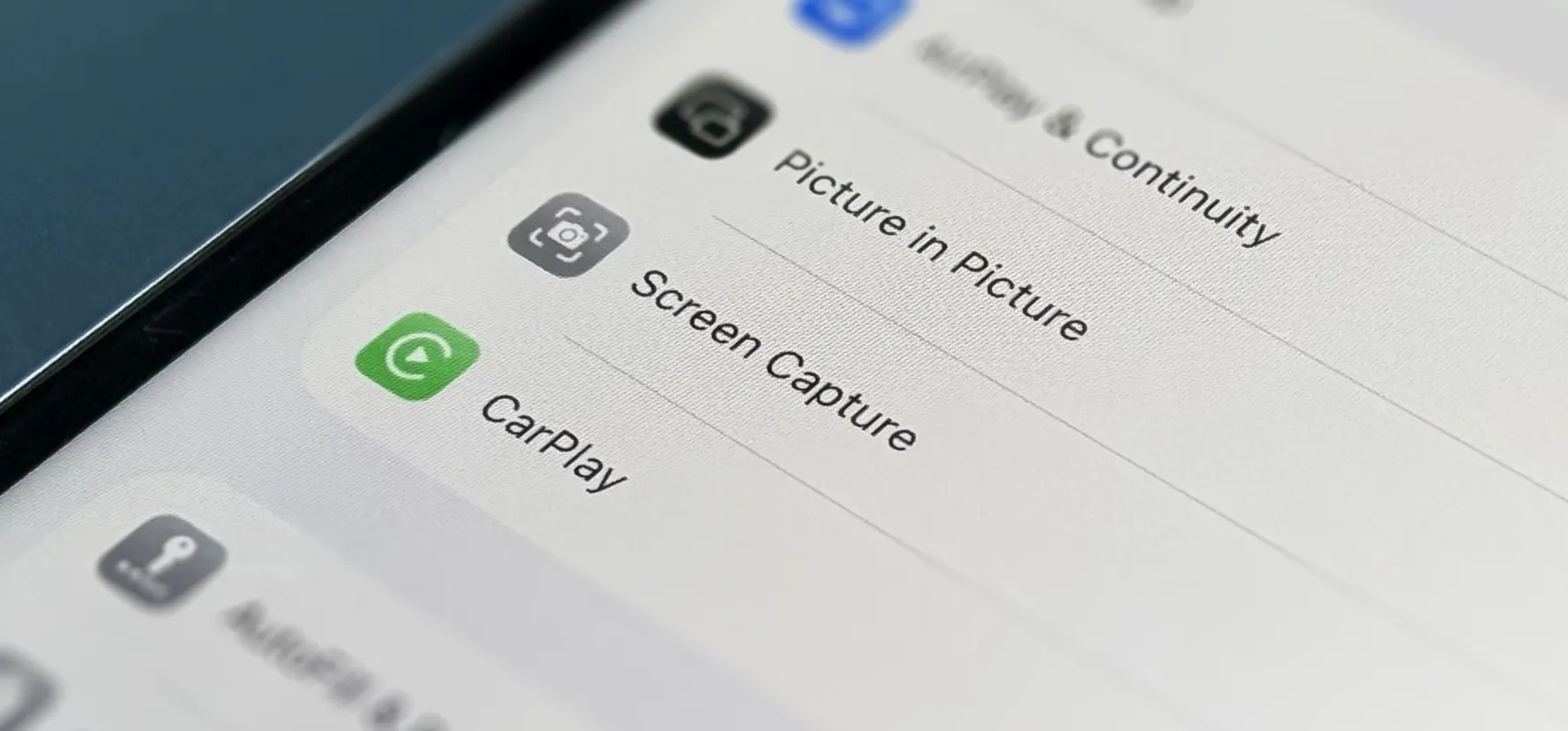
iOS 27 doesn't reinvent CarPlay. What it does is remove friction, the kind you encounter every single drive. Reaching playback controls from the wrong screen, repeating yourself to Siri, asking for directions without being able to specify "avoid toll roads."
These aren't dramatic problems, but fixing them adds up to a meaningfully better daily experience. If you're running the iOS 27 public beta, several of the best CarPlay upgrades in iOS 27 public beta are testable today with no additional hardware or manufacturer support. Others, the ones getting the most press, are still waiting on automakers and developers to catch up.
This guide ranks the new CarPlay features by what you can actually try right now, starting with the most widely usable. Every item is flagged for compatibility so you can decide what's worth your time before you start.
Before you begin, what you need:
An iPhone running the iOS 27 public beta, connected to a CarPlay-compatible vehicle
All features marked "any CarPlay setup" below work regardless of iPhone model or vehicle make
Siri AI requires an Apple Intelligence-capable iPhone (iPhone 15 Pro or later) with Apple Intelligence enabled in Settings, then Apple Intelligence & Siri
EV route sharing requires automaker support, covered in detail below
Quick compatibility reference:
Mini-player and audio scrubbing
Works on: Any CarPlay setup
Status: Try now
Siri AI and context memory
Works on: iPhone 15 Pro or later
Status: Try now
Natural-language Maps navigation
Works on: Any CarPlay setup
Status: Try now
Expanded third-party voice control
Works on: Any CarPlay setup
Status: Try now, but app adoption is still pending
EV route sharing
Works on: Vehicles with automaker support
Status: Check your vehicle
Visual refresh and new wallpapers
Works on: Any CarPlay setup
Status: Try now
Native video apps, including Apple TV
Works on: Vehicles with automaker support
Status: Not yet usable
Reports called this one of CarPlay's biggest updates in years. That's accurate in terms of platform additions. A hands-on review this month found the visible changes are more of a refinement than an overhaul. Both readings hold: the upgrade is real, it just lives in the details.
How this guide is ranked
The order below reflects three criteria: whether the feature works right now in the public beta without waiting on automakers or developers, how broadly it applies across different iPhones and vehicles, and how much it changes day-to-day driving. Features you can use on any setup come first. Hardware-gated and automaker-dependent features come last.
Best CarPlay upgrades in iOS 27 public beta for every driver: the mini-player and audio scrubbing
Works on: Any CarPlay setup. No configuration required.
Start here. The mini-player and audio scrubbing are the two changes that will affect every single drive, regardless of which iPhone you have or what car you drive.
What changed: A compact media player now anchors to the top-right corner of the CarPlay display whenever audio is running. It shows album art and basic controls and remains available while you browse within a CarPlay app that uses the Now Playing template. Previously, getting back to playback controls from anywhere outside the Now Playing screen took at least two taps, according to AppleInsider.
The more significant addition is a progress bar in the Now Playing interface. Drag it to jump to any position in a track, podcast, or audiobook. Audio scrubbing simply wasn't available in iOS 26, as confirmed by a hands-on review this month. For podcast and audiobook listeners, this closes a gap that has existed in CarPlay for years.
How to use it:
Connect your iPhone to CarPlay and start playing audio in any supported app.
Browse another screen within a supported media app. The mini-player appears automatically when that app uses CarPlay's Now Playing template.
Tap the mini-player to expand full playback controls; drag the progress bar to scrub to a specific point.
What to expect: The mini-player is a system-level template Apple has opened to any CarPlay media app developer, per AppleInsider, so third-party streaming apps can adopt it, though timing is unannounced. In the public beta, it works in Apple Music and Apple Podcasts. Spotify and others are on their own schedules.
Natural-language navigation in Apple Maps
Works on: Any CarPlay setup. No Apple Intelligence required.
This one gets buried in the Siri AI story, but it operates independently of Apple Intelligence and works on every iOS 27 iPhone. It deserves its own entry.
What changed: Apple extended natural-language search to navigation in Apple Maps, and that carries over to CarPlay. Instead of navigating through menus to configure route options, you state your destination and constraints in a single request. Ask Siri to avoid toll roads or highways, and Maps handles the routing without additional input.
How to use it:
Activate Siri while connected to CarPlay using the voice trigger or steering wheel button.
State your destination with routing conditions in the same request: "Navigate to O'Hare Airport, avoid toll roads."
Maps starts the route with your constraints applied. No follow-up taps needed.
Worth knowing: No new command syntax to learn. Just talk normally. The routing logic handles the rest.
Siri AI in the car
Works on: iPhone 15 Pro or later with Apple Intelligence enabled.
If your iPhone qualifies, this is worth testing. The gap between this version of Siri and what CarPlay offered before is wide enough that it functions like a different product.
What changed: Siri AI brings the same conversational model available on the phone into the car. Multi-turn exchanges, contextual follow-ups, and conversation history that syncs to the Siri app via iCloud after you park. The practical upshot: Siri remembers what it just did. Ask it to send a message, follow up with a correction, and it applies the change without you restating the whole request. Tom's Guide tested this in the CarPlay beta last month and flagged context retention as the standout improvement, the thing that makes chained requests feel natural rather than fragmented.
Visually, invoking Siri now shows a dark glassy orb at the bottom of the car display rather than a full-screen overlay. Less intrusive while driving.
How to use it:
Confirm Apple Intelligence is enabled: Settings, then Apple Intelligence & Siri, toggle on.
Activate Siri while connected to CarPlay.
Try a chained request: "Send a message to Jamie saying I'll be there at 6." Then immediately: "Change that to 6:30."
After parking, open the Siri app on your iPhone to review or continue the conversation.
Also in this upgrade: Any CarPlay app category can now offer a voice conversation mode, using a standard overlay template Apple has provided. Previously, that kind of voice-first UI was limited to dedicated AI apps like ChatGPT and Perplexity. The practical impact in the public beta depends on apps adopting the template, and none have yet announced plans to do so. Still, it's the infrastructure for hands-free interaction expanding well beyond Siri.
EV route sharing with the vehicle
Works on: Requires automaker support. Check your vehicle before expecting anything.
For electric vehicle drivers, Route Sharing is potentially one of CarPlay's most useful recent capabilities, although Apple says the underlying feature requires iOS 26.4 or later.
What changed: Navigation apps including Apple Maps and Google Maps can now share active route data with the vehicle's onboard system. The car checks that route against its current range estimate and suggests a charging stop if the numbers don't work out. The handoff is permission-gated on both ends: you approve before any data is shared, and you approve any route changes before they apply. CNET noted Apple buried this among the most significant additions in the iOS 27 developer notes.
This is a platform capability, not confirmation that your specific car supports it. The API has to be implemented on the automaker's end before any of this works.
How to try it:
Start navigation in Apple Maps or Google Maps while connected to CarPlay.
When pairing with a supported vehicle, approve Route Sharing if prompted. The navigation app must also support and enable the feature.
The vehicle will flag any range concerns and propose a charging stop integrated into the navigation interface.
Gotcha: If Route Sharing does not activate, the vehicle or navigation app may not support it, the app may not have enabled it, or permission may need to be reviewed.
The visual changes are real, but mostly cosmetic
Works on: Any CarPlay setup.
App icons, including Maps and Weather, have been updated to Liquid Glass styling, and content thumbnails are larger and more tappable throughout the interface. On wallpapers, the two sources diverge slightly: MacRumors counts 14 wave-pattern options in its most recent guide, while AppleInsider counted 12 in an earlier look, suggesting the beta added options between builds.
To change the wallpaper: Settings, then General, then CarPlay, then select your vehicle, then Wallpaper. The new options load on next connection.
None of this is the reason to install the public beta. It's a nice bonus.
What to hold off on: native video and wireless reliability
Two iOS 27 CarPlay features are worth understanding before you go looking for them.
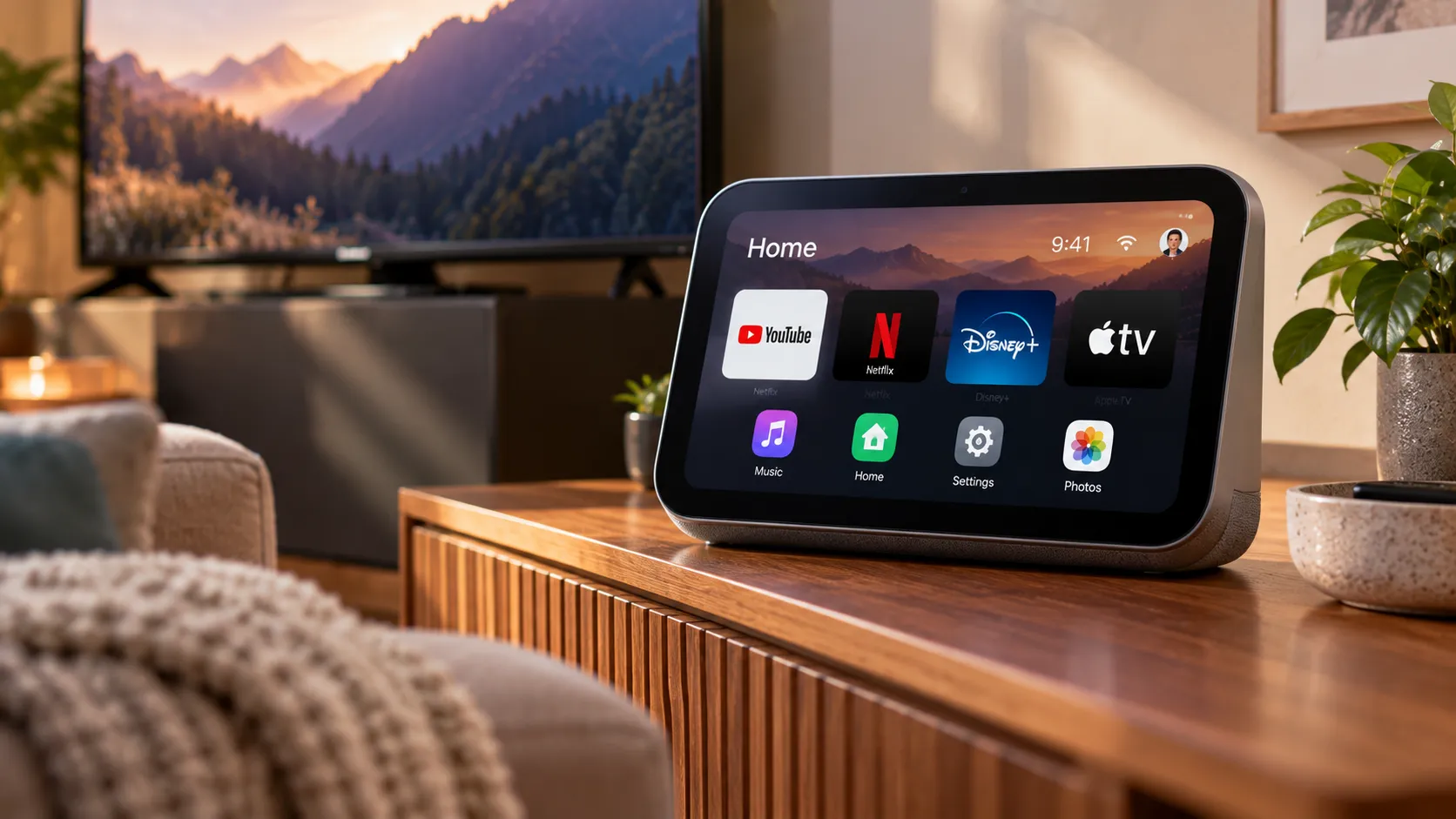
Native video apps: iOS 27 introduces native video as a new CarPlay app category, with Apple TV as the initial supported app. This differs from AirPlay-to-display, which has allowed iPhone apps to mirror content to the car screen since iOS 26. Native video goes further by letting you browse and select content directly from the car's interface. Both methods restrict playback to park mode, switching to audio-only if the car shifts to drive. The problem: native video requires automakers to enable support, and no manufacturers have announced plans to do so. No implementations are shipping in the beta. Keep an eye on this for the fall release; there's nothing to test yet.
Wireless CarPlay reliability: Apple says wireless CarPlay is more stable in iOS 27, with improved GPS accuracy and better connection handling. The first developer beta told a different story. Testers reported a disconnect-reboot loop during Apple Music playback and a Google Maps bug where entering the settings menu removed the back button entirely, requiring a force-quit to escape. Those bugs reflect that first build from about a month ago; stability has improved across subsequent builds. Apple's reliability claims may well hold by the fall release, but if your wireless CarPlay setup currently works, the public beta isn't a good stress test.
Which features are worth your time, by driver type
Right now, iOS 27 improves CarPlay most where people actually feel it: media controls, voice input, and routing. The features requiring automaker or developer catch-up are real additions to the platform, just not ones you can evaluate yet.
For any CarPlay user: Start with the mini-player and audio scrubbing. These apply to every setup, require nothing beyond iOS 27, and fix a genuine daily annoyance. Natural-language navigation in Apple Maps is the next thing to try. No Apple Intelligence required, and the improvement is immediate.
For iPhone 15 Pro and later: Test Siri AI. The context retention Tom's Guide highlighted is what separates a smarter-seeming assistant from one that actually changes how you use the car.
For EV drivers: Check your vehicle's software update page before assuming route sharing is live. If your automaker has added support, this is one of the most substantial recent CarPlay additions for supported EVs.
Skip native video for now, and don't use wireless reliability as a reason to jump on the beta. The four features above are enough to make the update worth it.











Comments
Be the first, drop a comment!