





Apple CarPlay not working? Fixes for wired and wireless issues
Apple CarPlay not working is rarely about a bad cable or spotty Wi-Fi, not at first anyway. The real diagnostic starting point is simpler: figure out whether the connection is wired or wireless, because the checks that follow are different for each (MacObserver, last year).
Apple's own connection guide, published earlier this year, opens with two questions most people skip entirely: does the country or region support CarPlay, and does the specific car? (Apple Support, earlier this year). That second question matters more than it used to. Tesla and Rivian have never offered CarPlay, and GM is phasing it out, so what looks like a broken connection is sometimes just an incompatible vehicle (Pocket-lint, last year).
This guide walks through the checks worth running, in order: confirm compatibility, identify whether the connection is wired or wireless, then work outward toward specific symptoms like dead audio, repeated disconnects, or a single app that refuses to play. Each step assumes the one before it didn't fix things. That's the fastest way to fix CarPlay connection issues without resetting every setting on the phone before it's actually necessary.
Confirm compatibility, then identify wired or wireless
Start with the two boxes Apple wants checked before anything else: CarPlay availability in the country or region, and CarPlay support in the specific car, since not every market or trim level offers it (Apple Support, earlier this year). Apple's setup instructions also list a smaller, easy-to-miss requirement: Siri needs to be turned on before CarPlay will connect at all (Apple Support, last year).
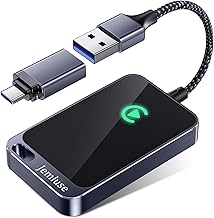
Wireless CarPlay is really two systems working in sequence. Bluetooth handles the initial handshake between phone and car, and Wi-Fi carries nearly everything after that, including the display and audio (Pocket-lint, last year; MacObserver, last year). Wired CarPlay depends primarily on the cable and the car's data-capable USB port, which is why a new cable won't fix a wireless-only failure, and toggling Wi-Fi won't fix a bad port.
With that distinction in mind, run through this sequence:
- Restart the iPhone.
- Turn the car off using its normal shutdown procedure, then wait a few seconds before starting it again. Some vehicles need more than a quick key-off to reset their infotainment system (Apple Support, earlier this year).
- Go to Settings > General > CarPlay, select the car, and tap Forget This Car.
- Reconnect the car as though setting up CarPlay for the first time.
That fourth step isn't always one-sided. On some vehicles, the car keeps its own saved profile of the paired phone, separate from what's stored on the iPhone. One driver only got a stalled connection working again after deleting the pairing from both the iPhone's CarPlay settings and the car's Bluetooth menu (Apple Discussions, last year). If forgetting the car on the phone alone doesn't do it, check the infotainment system's paired-device list too.
If CarPlay doesn't show up on the car's screen at all, a few smaller checks are worth running before assuming the whole connection is broken. Toggle Bluetooth off, wait about five seconds, then turn it back on. If more than one phone has ever connected to that car, rename the iPhone under Settings > General > About > Name, since stereos sometimes confuse two similarly named devices (Apple Support, earlier this year). Confirm both iOS and the car's firmware are current too; an outdated stereo can simply fail to recognize a newer phone.
This is where wired and wireless CarPlay troubleshooting genuinely part ways. Work through whichever section below matches the setup.
How to fix wired Apple CarPlay not working
Start by checking the port and the cable, then move to software.
- Try a different USB port in the car. Many vehicles have only one port that supports data transfer, and the rest are charging-only (Apple Support, earlier this year; Pocket-lint, last year).
- Swap in an MFi-certified Lightning or USB-C cable. Uncertified cables and dirty or corroded ports can both cause wired connection problems (MacObserver, last year).
- Inspect the port itself for dust or corrosion and clean it if needed.
One caveat before buying a second or third replacement cable: some post-update glitches affect wired and wireless connections at the same time, so a software issue can look exactly like a bad cable. If a fresh cable and a different port don't help, a software or pairing issue is the more likely suspect (MacObserver, last year).
That's roughly what happened to one driver on an Apple Discussions thread, who reported that a new cable did nothing for a wired connection that broke after an iOS update. A hard restart of the iPhone combined with forgetting and re-adding the car finally brought it back, not a hardware fix (Apple Discussions, last year). Another user on the same thread described the opposite split: wired CarPlay stopped working after an update on a Nissan Altima, while wireless kept working fine on the same car and phone (Apple Discussions, last year). When one mode fails and the other doesn't, that's a strong hint the fault sits with the connection method itself rather than the phone or the car as a whole.
Why is Apple CarPlay not connecting wirelessly to my iPhone?
Wireless setups have their own short checklist, and it's easy to assume one setting is enough when the connection actually needs two. Bluetooth and Wi-Fi both need to be switched on, on the phone and on the car's dash interface (Pocket-lint, last year).
- Check that both Bluetooth and Wi-Fi are turned on, on the iPhone and on the car's system.
- If the car supports both wired and wireless CarPlay, connect over USB once first. Apple notes the iPhone may then offer a wireless connection for future drives without plugging in again (Apple Support, earlier this year).
- On wireless-only vehicles, go to Settings > Wi-Fi on the iPhone, find the car's CarPlay network, and confirm Auto-Join is turned on (Apple Support, last year).
If the connection is flaky rather than absent, disconnecting when possible and toggling Bluetooth and Wi-Fi off and on, on both phone and car, can clear a stuck handshake without a full reset (Pocket-lint, last year).
There's also a cause that's easy to overlook: if wireless CarPlay drops at the same spot on every drive, note the pattern before blaming software. Pocket-lint describes this happening reliably along a stretch of highway near Leduc, Alberta, and around one intersection in Austin, Texas, though the cause isn't established beyond some unseen signal in the area (Pocket-lint, last year). Test the connection elsewhere before assuming a permanent fault.
CarPlay connects, but something's still wrong
Not every complaint is a connection failure. Some of the most common reports involve CarPlay launching fine and then misbehaving once it's up.
If a specific app freezes or won't produce sound while others work normally, that points to the app rather than CarPlay itself; the app's developer is the right place to raise it (Apple Support, earlier this year). Some drivers have also reported audio periodically shifting to the rear speakers only, then returning to normal after anywhere from a few seconds to a few minutes. That's a documented glitch, but an unusual one, not a common failure mode (Pocket-lint, last year). Separately, if the volume seems too low despite the dial being turned up, check whether the car splits volume between navigation alerts and regular media. Some vehicles hold those at different levels, which can make CarPlay's audio look broken when it's actually a car-side setting (Pocket-lint, last year).
For repeated disconnects or freezing, restart both devices first. It sounds basic, but drivers reboot their car constantly just by turning the key, while phones can go weeks or months without a restart, which occasionally causes exactly this kind of instability (Pocket-lint, last year). Beyond the restart, keep not just iOS and the car's software current, but any apps on the CarPlay home screen too. An outdated app can be the thing dropping the connection, not CarPlay itself (Pocket-lint, last year).
Visual glitches, like lines or distortion on the car's display, point toward the dash interface rather than the phone. Restart the dash unit, and double-check cable and ports on a wired setup, before assuming it's a phone problem (Pocket-lint, last year).
How to fix Apple CarPlay not working after an iOS update
iOS 26 brought a refreshed CarPlay interface, widget support, and deeper app integration, and plenty of users reported that CarPlay stopped working after installing it (MacObserver, last year). MacObserver's iOS 26 troubleshooting coverage cites widespread instability reports involving Ford, Honda, Mercedes, Pioneer, and Atoto head units (MacObserver, last year).
If the connection broke right after an update, start with a connection reset and a check of Restrictions under Settings. Those settings can silently block CarPlay even on a car that worked fine the day before (MacObserver, earlier this year).
- Turn the iPhone off, wait about ten seconds, then turn it back on (MacObserver, earlier this year).
- Turn the car off fully, open the driver door, wait about 30 seconds, then start it again (MacObserver, earlier this year).
- Check Settings for any Restrictions that might be blocking CarPlay.
- Reconnect the car and confirm Allow CarPlay While Locked is switched on.
- Watch for a one-time "Complete Setting Up CarPlay" notification. It's easy to miss if the phone is locked or notifications are silenced (MacObserver, last year).
Updates cut both ways. Apple recommends keeping iOS and the car's infotainment firmware current, since some head units need their own update to stay compatible with a new iOS release (Apple Support, earlier this year; MacObserver, earlier this year).
If none of that helps and the failure is wireless, a network settings reset can clear up persistent problems, though it also erases saved Wi-Fi networks, VPN configurations, and other connectivity preferences. Treat it as a later step, not a first move (MacObserver, earlier this year).
One more diagnostic is worth running before calling anyone: if CarPlay works fine in one car but not another, that points toward the second vehicle's settings or firmware rather than the phone itself. At that point, Apple Support and the automaker's own infotainment support team are better positioned to help than another reset (MacObserver, earlier this year).
Where to go from here
The right next step depends on what's actually failing, not on running every fix in sequence. If neither wired nor wireless CarPlay works at all, go back to the basics: compatibility, Restrictions, and whether iOS and the car's firmware are current, before contacting support.
If one mode works and the other doesn't, the fault almost always sits with that mode specifically. Wired failures point to the cable, the port, or a software glitch masquerading as either; wireless failures point to Bluetooth, Wi-Fi, or Auto-Join. If one car connects fine and a second one doesn't, that's a vehicle-side problem, and the dealer or automaker's support line is the more useful call than another phone reset.
There's no universal fix yet for every CarPlay bug tied to an iOS update, but Apple often addresses these regressions in later dot releases, and a newer version may resolve a problem the current one hasn't (MacObserver, earlier this year). Worth checking for an update before assuming the hardware itself is the problem.






Comments
Be the first, drop a comment!