






Tucked inside CarPlay's Accessibility menu are three tools: Voice Control, Sound Recognition, and a set of display adjustments covering text size, boldness, and color. These count among the hidden Apple CarPlay features that go unused simply because accessibility submenus rarely get opened without a specific reason to check them. None of them is a universal upgrade. Each solves a specific kind of friction for a specific kind of driver, and figuring out which one applies to you is the actual point of this guide.
iOS 18 introduced Voice Control, Sound Recognition, Color Filters, and Bold Text to CarPlay as accessibility additions rather than general redesign features. That framing matters for expectations: these are targeted fixes for specific interaction problems, not a reworked interface.
Where these tools actually get configured depends on which account is used as the reference. Apple's own support documentation walks through Voice Control, Text Size, Bold Text, and Color Filters as settings configured directly inside CarPlay's on-screen Settings app.
Separate reporting on these same CarPlay accessibility features describes them as largely controlled from the iPhone itself, syncing automatically the moment CarPlay connects, with no separate infotainment setup required. The two accounts aren't necessarily in conflict: iOS accessibility settings and CarPlay's on-screen settings often mirror each other, so if a toggle isn't where one source says to look, check the other before assuming it's missing.
CarPlay itself isn't available in every country or region, so feature access can vary before reaching any of these menus.
What follows covers how to turn on each of these tools, who actually benefits from each one, and one layout change that cuts down on screen interaction without touching a single accessibility toggle.
Before starting:
An iPhone running iOS 18 or later. These features arrived in that release cycle.
A CarPlay-compatible vehicle or head unit, wired or wireless.
A willingness to verify: menu paths and behavior described in early coverage were based on Apple's pre-release plans for iOS 18. Confirm the wording and function on your installed iOS version before relying on any of it while actually driving.
Quick guide to which setting solves which problem:
Menu-tapping is the main annoyance: start with Voice Control.
Missing horns or sirens under music or navigation audio is the concern: Sound Recognition.
The screen is hard to read at a glance: Text Size or Bold Text.
Colors are hard to distinguish on the display: Color Filters.
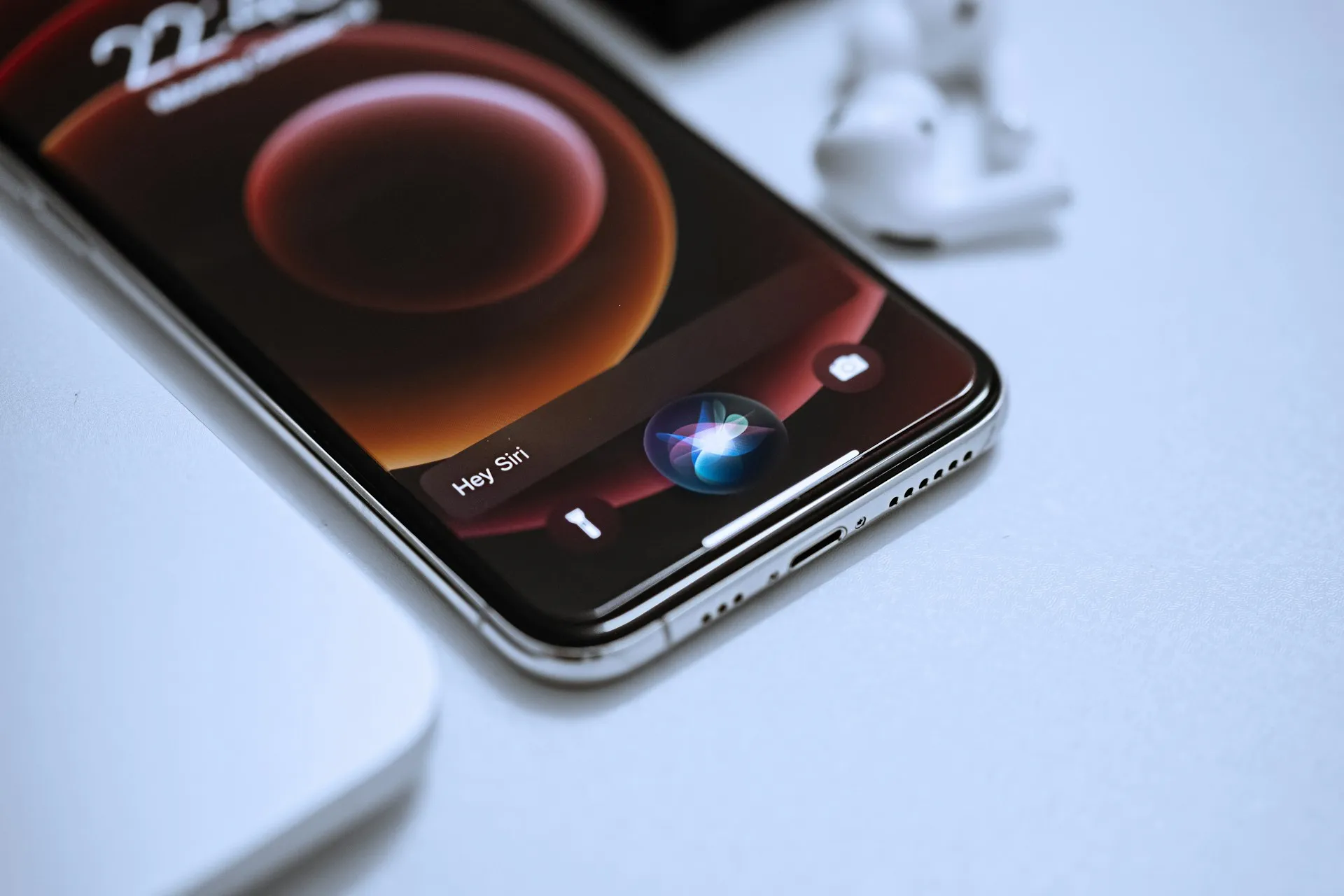
Voice Control and Siri: operating CarPlay without touching the screen
Voice Control and Siri sound similar but do different jobs. Siri completes requests, sending messages, placing calls, starting navigation, playing music, using the iPhone's microphone. Voice Control lets you operate the interface itself by speaking. One acts on your behalf; the other lets you drive the menus by voice instead of by finger.
Siri's own setup is worth checking first, since most CarPlay voice commands run through it: Settings > Siri & Search > Listen for "Siri," turned on, with the option to press and hold the CarPlay button instead of speaking a wake phrase. Once connected, commands can be as simple as "Navigate to home," "Call Sarah mobile," "Play my driving playlist," or "Read my last message."
Voice Control is a different toggle entirely. In CarPlay's own Settings app, go to Accessibility, then turn on Voice Control.
Voice Control cuts down on how much tapping, scrolling, or typing a drive requires, since spoken commands stand in for touch input. It's a newer addition than Siri, though, so it's worth getting a feel for it parked in a familiar app before trusting it on the road.
Treat it as a supplement to touch and Siri, not a replacement for either. If a command doesn't register the first time, falling back to a tap costs less time than repeating yourself at a red light.
Best for: drivers who want to reduce menu-tapping and are willing to test commands first. Skip if: the situation calls for guaranteed, split-second control, since Siri remains the more predictable option for anything urgent.
Sound Recognition: on-screen alerts for horns and sirens
Once enabled, Sound Recognition listens for car horns and sirens and posts an on-screen alert when it detects either. Setup lives in the same Accessibility menu as the other tools: go to Settings > Accessibility > Sound Recognition and turn it on.
This feature extends the same Sound Recognition engine already used for HomePod alerts, such as smoke detectors, into the driving environment. There's no published accuracy rate, latency figure, or false-positive rate for this feature in the available reporting. Treat it strictly as a supplementary awareness tool, not a substitute for checking mirrors or paying attention to traffic sounds directly.
Best for: deaf or hard-of-hearing drivers, who are the stated design target for this feature. Other drivers may find it a reasonable extra layer of awareness, but shouldn't expect it to replace ordinary attentiveness.
Making the display easier to read: text size, bold text, and color filters
Three separate, stackable tools handle readability on the CarPlay screen: larger text, thicker text, and color adjustment, each toggled independently. Because they're independent, combine all three or use just one, depending on what actually helps.
Text Size: In CarPlay Settings, go to Accessibility > Text Size. A preview appears under each size option as it's adjusted, so there's no guessing what the final result looks like.
Bold Text: Same Accessibility menu, toggle Bold Text on to thicken on-screen characters system-wide.
Color Filters: Go to Accessibility > Color Filters, turn it on, and choose a filter, including grayscale or filters designed for conditions like deuteranopia or protanopia, then set intensity to Low, Medium, or High.
These are documented as vision-accessibility tools, not proven glare- or night-driving fixes. Color Filters specifically are described as aids for color blindness and related visual conditions, so it's worth testing on your own dashboard rather than assuming a blanket benefit.
Best for: drivers with low vision, color-vision differences, or general readability needs on a small screen. Skip Color Filters specifically if none of that applies. The tool is built for color-vision conditions, not general screen enhancement.
Hidden Apple CarPlay features that reduce screen interaction
Not every useful CarPlay setting lives in the Accessibility menu. On the iPhone, go to Settings > General > CarPlay, select the vehicle, tap Customize, and move Maps, Phone, and Music to the first CarPlay screen.
This works with CarPlay's existing design rather than against it. The interface already favors large icons and widely spaced buttons, with critical actions reachable in one or two taps. Keeping frequently used apps on that first screen cuts down on scrolling and menu depth, a direct, low-effort way to reduce interaction while driving. If Voice Control or Sound Recognition already reduce how often the screen needs attention, this reduces how far there is to dig once it does.
Driving Focus solves a related problem. It can trigger automatically either when CarPlay connects or when the phone detects driving motion, filtering or silencing notifications and optionally sending automatic replies to chosen contacts while active. It's configured at the phone level, under Settings > Focus > Driving > Turn On Automatically, rather than inside CarPlay itself, addressing the same core problem, attention pulled off the road, from a different angle.
Conclusion
Voice Control, Sound Recognition, Text Size, Bold Text, and Color Filters don't change what CarPlay does. They change how much friction it creates for a specific driver, whether that shows up as extra tapping, missed outside sounds, or hard-to-read text.
The app-layout change and Driving Focus work from the other direction: instead of making the screen easier to read or operate, they cut down on how often it demands attention in the first place.
Much of the operational detail on Voice Control and Sound Recognition here traces back to reporting from before iOS 18's official release, so treat the specifics as a starting point rather than a permanent spec sheet. Check these menus again after a major iOS update, particularly Voice Control, since accessibility features tend to get refined well past their initial rollout.






Comments
Be the first, drop a comment!