





This guide walks through how to fix Apple CarPlay problems by matching your specific symptom to its most likely cause. By the end, you'll know which of six failure modes you're dealing with and have a clear fix to try, rather than cycling through generic tips that don't apply to your situation.
Start here: two checks and a decision tree
Run these two checks before anything else. They take thirty seconds each and explain a surprising number of "won't connect" cases.
Start with the phone unlocked and on the Home screen. Apple Support lists this as a required condition before troubleshooting anything else, not a suggestion.
Confirm your vehicle actually supports CarPlay for your country and region. Apple Support recommends verifying this with the vehicle manufacturer if you're unsure; some head units require a firmware update before CarPlay is available at all.
The diagnostic split this entire guide is built on: wired failures often involve the cable or USB port, while wireless failures can involve Bluetooth, Wi-Fi, pairing, or vehicle software. Applying the wrong fix wastes time.
When to stop DIY troubleshooting: if CarPlay still fails consistently after you've confirmed a known-good data cable, a fresh pairing, and an up-to-date phone, the vehicle, stereo, or USB connection becomes the more likely source of the problem. DriverMODS recommends this isolation test: try a second phone with a different cable. If it fails too, stop troubleshooting the iPhone.
Pick your symptom and skip to the relevant section:
CarPlay won't connect at all → Problem 1 (wired) or Problem 2 (wireless)
CarPlay connects but drops mid-drive → Problem 3 (wired disconnects) or Problem 4 (wireless dropouts)
CarPlay broke after an iOS update → Problem 5
CarPlay connects but maps, audio, or features misbehave → Problem 6
Head unit reboots or crashes → see escalation note in Problem 3
Problem 1: Wired CarPlay won't connect at all
The first thing to rule out is the cable. Not a formality, it's the most common culprit.
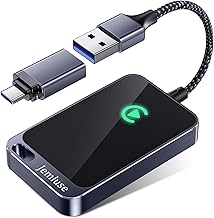
Step 1: Swap the cable. Use a short cable (under one meter) that explicitly supports data transfer, not just charging. DriverMODS explains that CarPlay requires a stable data signal, a level of reliability that many charge-only and cheap braided cables can't meet. Several users in the Apple Community reported that swapping a charge-only cable for a data-capable one immediately restored CarPlay. If the new cable works, your old cable was the problem. Stop here.
Step 2: Clean the iPhone port. Lint compacted inside the Lightning or USB-C port prevents the connector from fully seating, causing what looks like random dropouts. Apple Support advises checking the charging port for debris and damage. Power the phone off and inspect the port for visible debris or damage. Avoid inserting metal objects or using force; contact Apple Support if debris cannot be removed safely.
Step 3: Try a different USB port on the head unit. If your car has more than one, some are charge-only. Apple Support includes trying another cable or USB port in its official troubleshooting sequence.
Step 4: Restart both the iPhone and the car. Apple Support recommends this before deeper fixes. A full restart clears stuck USB handshakes.
Gotcha: don't assume a cable that worked before an iOS update still works. Several Apple Community users reported that iOS 18 made CarPlay noticeably more sensitive to cable quality; cables that had run CarPlay fine beforehand stopped working after the update. If problems started the day you updated, the cable is still the first thing to test.
Problem 2: Wireless CarPlay won't connect at all
First, verify the basics. Both Wi-Fi and Bluetooth must be on simultaneously. Wireless CarPlay uses Bluetooth for the initial handshake and Wi-Fi for the actual data stream, so killing either radio kills the connection. DriverMODS identifies interference, automatic network switching, and Bluetooth priority conflicts as the main culprits when wireless fails. Confirm both radios are active in Settings before anything else.
Step 1: Cycle Bluetooth. Go to Settings → Bluetooth, turn it off, wait five seconds, and turn it back on. Apple Support includes this as a standard reset for connection failures.
Step 2: Check for device naming conflicts. Check the vehicle's paired-device list. If several phones are saved, make sure the correct iPhone is selected or remove obsolete pairings using the vehicle's controls.
Step 3: Check for a pending iOS update. Before re-pairing, check whether a software update is available. iOS 18.4 caused wireless CarPlay failures across multiple vehicle brands Honda, Mazda, Nissan, and VW among them, according to Tom's Guide. Apple's own iOS 18.4.1 release notes confirmed a fix for "a rare issue that prevents wireless CarPlay connection in certain vehicles." If an update is available, install it first. If it fixes things, the issue was software-side. Stop here.
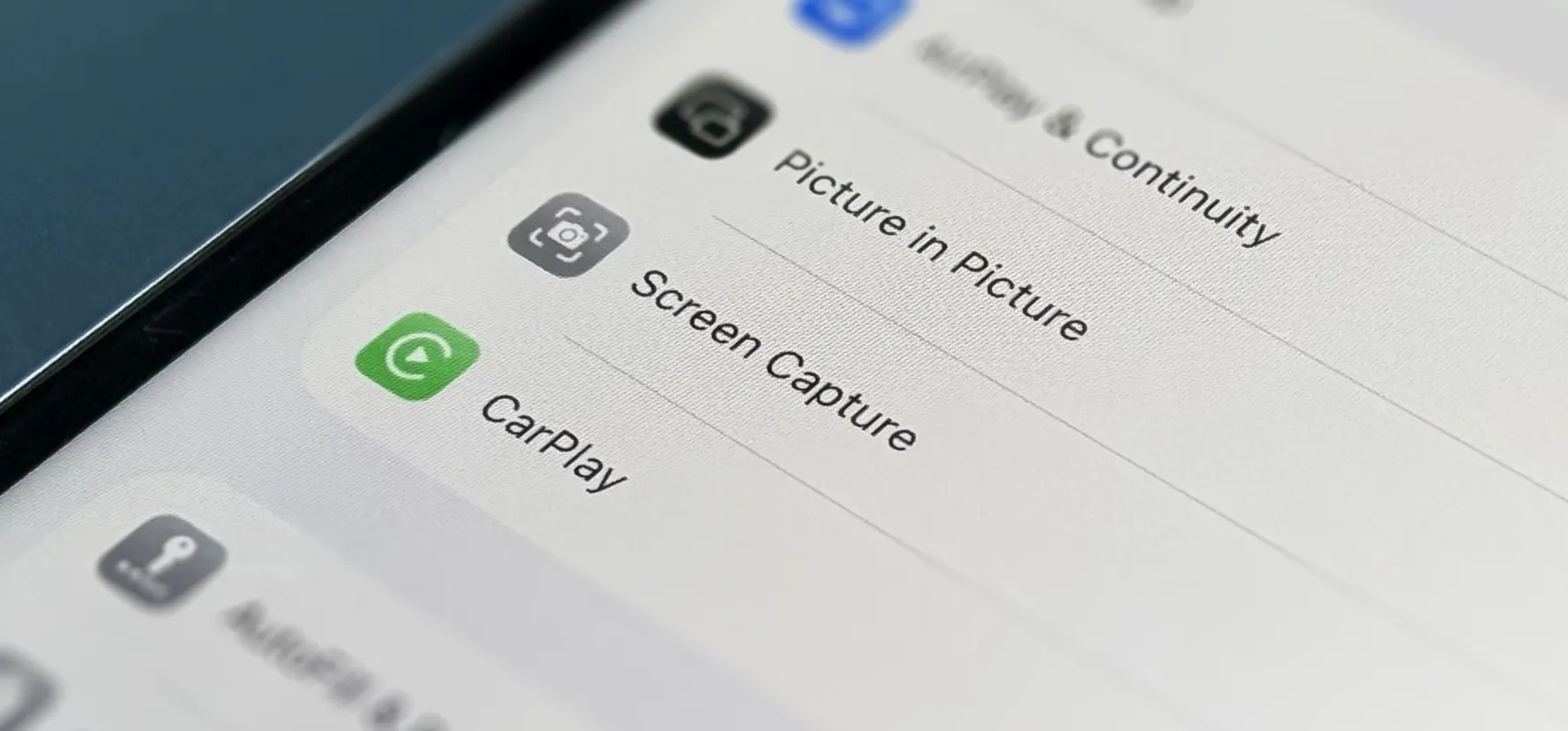
Step 4: Re-pair from scratch. On the iPhone: Settings → General → CarPlay → [your car] → Forget This Car. On the head unit: delete the stored iPhone pairing from the Bluetooth or CarPlay menu (consult your vehicle manual for the exact path). Restart both devices, then reconnect wired first, even if wireless is your goal. DriverMODS recommends establishing the initial pairing over USB, then enabling wireless from there. Tom's Guide found this the "easiest and most consistent" workaround during the iOS 18.4 regression period.
Gotcha: re-pairing occasionally makes things worse. At least one user reported that removing the pairing sent the system into a persistent connect/disconnect loop. This is a strong fix for most people, not a guaranteed one.
Problem 3: How to troubleshoot CarPlay when it keeps disconnecting (wired)
Run the wiggle test first. With CarPlay active, gently move the cable near the iPhone port. DriverMODS is direct: if disconnection follows cable movement, the cause is "almost always cable/port related." Go back to Problem 1, steps 1 and 2. That's a hardware-path problem, not a software one.
If the cable passes the wiggle test, check these iOS settings. Each one can interrupt CarPlay silently, with no error message:
Low Power Mode (Settings → Battery): throttles background processes. Disable it when driving. DriverMODS flags this as a common disruptor.
USB Accessories (Settings → Face ID & Passcode): USB accessory security settings can restrict some wired accessories while the iPhone is locked. If the vehicle does not recognize the phone, unlock it and respond to any accessory prompt before changing security settings.
Allow While Locked (Settings → General → CarPlay → [your car]): must be enabled, or CarPlay stops when the screen locks.
Less common but user-reported fixes worth trying if the above don't resolve it:
Screen Time restrictions: some Apple Community users found CarPlay silently blocked by content restrictions. Check Settings → Screen Time → Content & Privacy Restrictions → Allowed Apps → CarPlay: On.
VPN interference: multiple Apple Community users resolved persistent CarPlay failures by disabling a VPN before connecting. This is anecdotal, not officially documented, but worth testing if nothing else has worked.
If disconnects happen over bumps, or the head unit briefly dims or reboots: that's a vehicle-side signal, not a phone problem. DriverMODS identifies accessories flickering, screen dimming, and disconnects on rough roads as signs of USB lead tension or power instability behind the dash. If a head unit was recently installed, check that the harness is fully seated and no USB lead is being pulled tight. Take it to an installer; this is outside DIY phone troubleshooting.
Problem 4: Wireless CarPlay drops mid-drive
Confirm the wired/wireless split before anything else. Drive exclusively on wired CarPlay for a week. If wired never drops, DriverMODS is specific: the problem is wireless interference or a Wi-Fi handshake issue, not your iPhone. Focus exclusively on the steps below.
Step 1: Disable Wi-Fi Assist. Check the CarPlay network under Settings → Wi-Fi and make sure Auto-Join is enabled. DriverMODS lists this as a wireless-specific disruptor.
Step 2: Disable Private Wi-Fi Address for your car's network. After updating to iOS 18, at least one Apple Community user reported that Apple had silently enabled Private Wi-Fi Address for their car's network by default, and that turning it off resolved wireless CarPlay failures. Find the setting at Settings → Wi-Fi → [your car's network name] → Private Wi-Fi Address: Off.
Step 3: Re-pair if dropouts persist. Follow the re-pair sequence from Problem 2, Step 4. DriverMODS notes that starting the pairing wired, even when the goal is wireless, gives the connection a cleaner foundation.
Problem 5: CarPlay broke after an iOS update
Check for a newer iOS update immediately. iOS updates cause CarPlay regressions, and subsequent updates fix them. This is documented, not speculative. Tom's Guide documented widespread failures after iOS 18.4, with users reporting reconnect loops, total connection failures, and intermittent drops across Honda, Mazda, Nissan, and VW vehicles.
Apple confirmed the regression in the iOS 18.4.1 release notes, explicitly citing a fix for wireless CarPlay failures in certain vehicles. If a newer version is available, install it, reconnect, and test before doing anything else.
Check your vehicle's firmware too. Apple Support explicitly recommends keeping both iOS and the vehicle's software current head units receive bug fixes independently, and an outdated unit can become incompatible with newer iOS behavior. Consult your vehicle manufacturer's website or dealership for pending updates.
If updating doesn't resolve it, re-pair from scratch using the sequence in Problem 2, Step 4. Tom's Guide found that during the iOS 18.4 period, re-pairing with the phone, reconnecting wired first, was the most reliable workaround when a patch wasn't yet available.
eProblem 6: CarPlay connects but maps, audio, or features misbehave
Blank maps or "location unavailable" on the car display: multiple Apple Community users reported Apple Maps going blank within minutes of connecting after updating to iOS 18. A VPN was the culprit for several of them; disabling it before connecting restored maps immediately. Test with your VPN off first. If that's not the issue, check that Location Services are enabled for Maps via Settings → Privacy & Security → Location Services → Maps: While Using the App.
"Now Playing" metadata is missing from the driver display: Tom's Guide documented this as a specific iOS 18.4 regression. A software update is the primary fix. As a workaround, Apple Support suggests switching to a different audio app if another app's metadata appears correctly; the problem is app-specific, not system-wide. The original app needs an update or reinstall, not your phone.
Siri not responding through CarPlay: confirm Siri is enabled at Settings → Siri & Search → Listen for "Hey Siri" or Press Side Button for Siri. Some Apple Community users found that a misconfigured Siri setting blocked CarPlay functionality more broadly than expected; it's not just a voice command issue.
When nothing works: escalation checklist
If you've worked through the relevant sections and CarPlay still fails consistently, the problem is most likely the vehicle, not the phone. Before calling a dealership or installer, run this isolation test: try a second phone with a different cable. If it fails too, stop troubleshooting the iPhone. DriverMODS recommends exactly this test to distinguish phone problems from head-unit or USB-port failures.
When you do contact a dealer or car audio installer, bring the following:
Your iPhone model and current iOS version
Whether wired CarPlay works, wireless CarPlay works, or neither works
Whether a second phone with a different cable also failed
Whether the head unit dims, reboots, or flickers over bumps
When the problem started (after an iOS update, after a head unit install, etc.)
That information lets a technician skip the guesswork and go straight to vehicle-side diagnostics. Everything that didn't respond to the steps above points to the head unit or its wiring.






Comments
Be the first, drop a comment!