



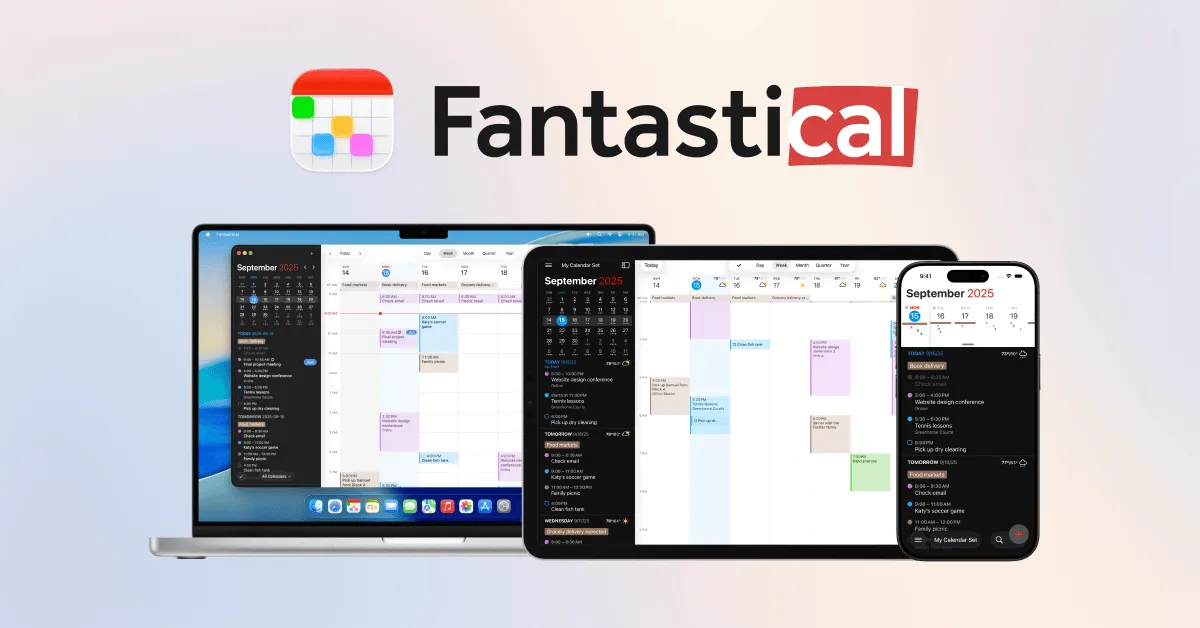
Your work Google Calendar and your personal iCloud Calendar don't talk to each other. Accept a dentist appointment on the personal side, and your work calendar still shows that hour as free. Accept a last-minute team meeting at work, and anything checking your personal availability has no idea.
The Fantastical calendar mirroring feature, which shipped in the recent update, targets that structural gap by automatically copying events from one calendar into another based on rules you define, 9to5Mac reported. Run the verification tests in this guide after setup, and you'll know whether it's actually working in your workflow, not just configured.
This guide covers what mirroring does, how to configure it, and how to confirm it's preventing conflicts. Where implementation details aren't yet confirmed in current documentation, that's noted explicitly.
Prerequisite: You'll need a supported Fantastical app on Mac, iPhone, iPad, or Windows. The app is free with limited features; a Flexibits Premium subscription unlocks advanced capabilities. Flexibits' current pricing page lists Calendar Mirroring as limited to two weeks on Free and six months on Premium.
What calendar mirroring does and why earlier workarounds weren't enough
The core mechanic is straightforward: when you configure a mirroring rule, Fantastical copies events from a source calendar into a destination calendar automatically. A typical setup has your work Google Calendar as the source and personal iCloud Calendar as the destination, so any event accepted at work also appears as a block on the personal side. Any tool or person checking your personal calendar sees that time as occupied.
Mirroring is asymmetric and user-defined. You choose which calendar feeds which, blocking work commitments from being invisible to personal scheduling tools, without creating a full bidirectional sync loop. That asymmetry is the feature's main advantage over simply merging accounts: full sync creates one unified view; mirroring creates a targeted, one-way conflict layer.
Fantastical's Openings feature, which lets you share a booking link showing available slots, had a real failure mode that mirroring is now positioned to address. If the calendar an accepted booking lands in isn't included in the calendar set that Openings checks, that slot won't register as taken, and a double-booking can still occur, per Flexibits' documentation. Compounding the risk: by default, Openings automatically adds accepted meetings to your calendar without a confirmation step. Having a reliable conflict layer underneath that automation matters more, not less.
Fantastical calendar mirroring rules: how to set them up
Step 1. Open Fantastical Settings. On Mac: Fantastical menu → Settings. On iPhone or iPad: look for a profile or settings icon, then tap into Settings. Mirroring rules are configured within Fantastical's main settings rather than inside any individual calendar. Search settings for "mirroring" if the section isn't immediately visible.
If nothing turns up, your plan may not include the feature, or the update hasn't been installed yet. Check the App Store for a pending Fantastical update before troubleshooting further.
Step 2. Create your first mirroring rule. Add a new rule, then select your source calendar (the one whose events you want copied) and your destination calendar (where the copies will land). For most readers, the primary scenario is source = work account calendar, destination = personal iCloud calendar.
Three concrete setups worth considering:
Work Google → Personal iCloud: blocks work commitments from being invisible to personal scheduling tools
Personal iCloud → Work Google: blocks personal events from appearing free during work hours
Either account → a dedicated "conflicts" calendar: keeps mirrored events contained without mixing them into a primary view
Step 3. Confirm direction and avoid bidirectional rules unless necessary. One-way mirroring is cleaner for most use cases. If you create rules in both directions between the same two calendars, events mirrored one way can trigger a mirror back, creating duplicate clutter. Start with one rule and observe behavior before adding a reversal.
Gotcha: how Fantastical handles edits and cancellations on the source calendar propagating to the mirrored copy is unconfirmed. Test this explicitly in Test 3 of the verification sequence below before trusting the setup for live scheduling.
Step 4. Cross-check your Openings calendar set if you use scheduling links. Locate the Openings section in Settings and confirm your destination calendar (the mirroring target) is included in the calendar set Openings checks for conflicts. If it isn't, mirrored events won't register as busy when someone books through your link. That's the precise gap mirroring is meant to close, per Flexibits' documentation. The source documentation describes the setting path as Settings > Openings, but verify the label against what's on screen.
Verifying that mirroring is actually preventing double-booking
A correctly configured rule and a reliably working rule are not the same thing. Run through this sequence once after setup, before relying on mirroring in production.
Test 1. Basic event copy. Create a test event on your source calendar with an obvious title. Check your destination calendar after a few minutes and confirm the mirrored copy appears. Note whether the copy carries the full event title or shows as a generic busy block. That distinction tells you what others will see if the destination calendar is shared, and it's the first real answer to the metadata question.
Test 2. Conflict detection. With the mirrored event in place, try creating a second event on the destination calendar at the same time. Confirm Fantastical surfaces a conflict warning. This is the actual test of whether mirroring is doing its job: not just whether the copy appeared, but whether that copy blocks scheduling.
Test 3. Cancellation propagation. Delete or cancel the source event, then check whether the mirrored copy disappears from the destination calendar and how quickly. If cancellations don't propagate, phantom blocks accumulate and mark you as unavailable when you're not. Until Flexibits documents the intended behavior, plan to remove mirrored events manually whenever a source event is canceled, if this test fails.
Test 4. Openings conflict check (if applicable). If you use Openings, open your Openings view and locate a time slot overlapping with a mirrored event. Confirm it shows as "Blocked" rather than "Available." Still showing Available? Your Openings calendar set needs updating; return to Step 4 above.
Privacy and shared calendar considerations
Test 1 answers the metadata question for your specific setup, but the stakes are worth spelling out before you run it. If a personal event's full title or attendee list appears on a work calendar accessible to colleagues, that's an exposure worth catching with a dummy event first, not a live meeting.
In corporate or enterprise environments, your work calendar may be governed by IT policy. Copying events between a managed work account and a personal iCloud calendar, or the reverse, may conflict with your organization's data handling rules.
For context on what Openings transmits: the feature keeps event details (name, location, invitees) off Flexibits' servers but does upload calendar account names, plus the name and color of each calendar, per Flexibits' documentation. The data path for calendar mirroring isn't documented yet. If you're in a managed environment, confirm policy before configuring cross-account mirroring.
If your destination calendar is shared with a partner, family members, or colleagues, anyone with access will see whatever the mirrored events contain. Fantastical supports calendar sets that let you maintain separate views for work and personal contexts. Mirror into a private calendar by default, not a shared one, unless visibility is the point.
Is the setup ready for production?
With mirroring rules active and tested, events on your source calendar appear as blocks on your destination calendar automatically. The structural cause of most multi-calendar double-booking, two accounts with no visibility into each other, is directly addressed.
Whether the setup is actually ready depends on what Tests 1 through 3 showed. Clean results across all three means mirroring is production-ready for the standard work-personal scenario. Cancellations that don't propagate, or a conflict warning that doesn't fire, mean the feature isn't yet trustworthy for live scheduling without a manual backup process.
The metadata, cancellation, and paywall questions are worth revisiting as Flexibits publishes more detailed documentation. For Openings users, one step remains regardless of test results: confirming your mirrored destination calendar appears in the Openings conflict-check calendar set. That's what closes the last known gap, per Flexibits' documentation.








Comments
Be the first, drop a comment!