



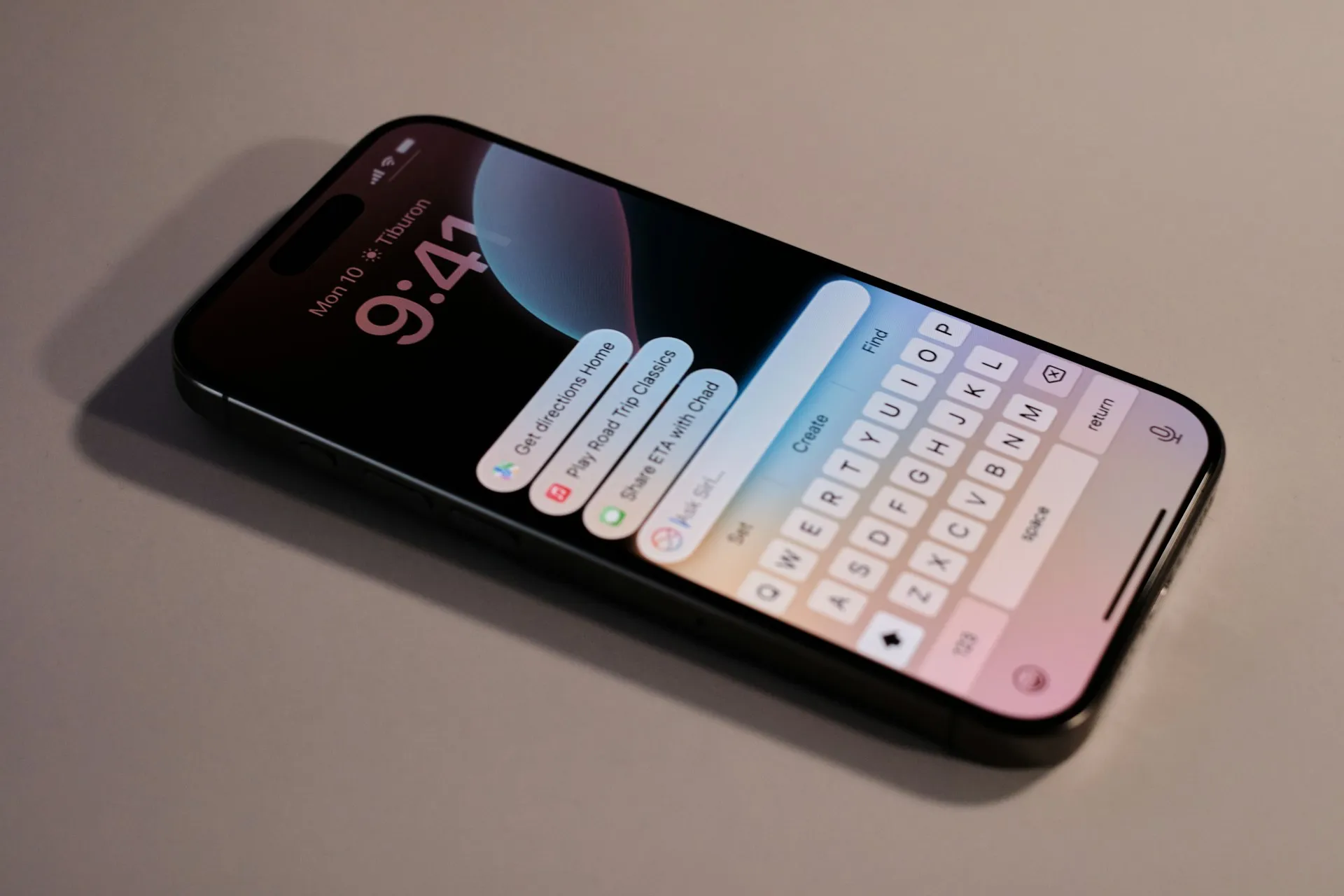
iOS 27 shipped Sept. 14 with a redesigned Siri, but one of its most useful AI features lives inside the Shortcuts app. Describe a Shortcut lets you type what you want in plain language and have Apple Intelligence assemble the actions for you instead of building a workflow one step at a time.
That makes it possible to create a daily briefing that pulls together the weather, calendar events, reminders, recent messages and email. Once the shortcut is working, you can run it manually or attach a Time of Day automation so it runs on a daily schedule.
A PCWorld hands-on test used a single prompt to build a Daily Digest in about a minute. The generated shortcut gathered the information through standard Shortcuts actions, then used an Apple Intelligence model to summarize the results.
What you need before you start
Describe a Shortcut requires Apple Intelligence. On iPhone, that means an iPhone 15 Pro or iPhone 15 Pro Max, or any iPhone 16 model or later, running iOS 27.
Describe a Shortcut should not be confused with the separate Siri AI beta. Siri AI launched in English first, but Apple lists Describe a Shortcut in a much broader set of languages, including English, French, German, Italian, Japanese, Korean, Portuguese and Spanish.
Apple says the feature is not available in mainland China. Availability can still vary by language and region, so check Apple's current feature-availability page if Describe a Shortcut does not appear.
Before starting, make sure iOS 27 is installed and Apple Intelligence is enabled on the iPhone.
How to create a daily iPhone briefing with Apple Intelligence
Building the shortcut requires only a description of what you want it to do.
Open Shortcuts and tap the "+" button. On a compatible iPhone, the editor lets you describe the shortcut in natural language.
Enter a daily briefing prompt. PCWorld tested: "Give me a daily digest of the weather, my calendar events and reminders, and triage my email and messages."
Wait for Shortcuts to build it. In PCWorld's test, the app created and named a Daily Digest shortcut in about a minute. It added actions for the weather, calendar, reminders, messages and email, then passed the collected information to an Apple Intelligence model for summarization.
Open Edit before relying on it. Apple's Shortcuts documentation says generated shortcuts can be changed either by describing another adjustment or editing the actions directly.
The word "triage" in PCWorld's sample prompt does not mean the shortcut automatically manages the inbox. In the tested shortcut, it gathered recent messages and email and summarized them. Check the generated actions before assuming it will flag, move, reply to or otherwise change anything.
How to customize your iPhone daily briefing shortcut
Open the generated shortcut and review each action before running it with personal data.
You can change how much information it gathers, remove Mail or Messages entirely, or adjust which calendars and reminders are included. PCWorld's generated shortcut also let the user change the number of recent emails and messages sent into the summary.
The AI model enters near the end of that workflow. The preceding Shortcuts actions collect the weather, calendar, reminder, Mail and Messages data first, then the model turns those results into the finished digest.
That structure gives you some control over what reaches the summarization step. If you do not want email included, for example, remove or adjust the Mail action rather than relying on the model to ignore it.
Which Apple Intelligence model works best for a daily digest
Apple's Use Model action offers On-Device, Cloud and Cloud Pro models, plus an Extension Model that can use ChatGPT.
The differences matter:
On-Device handles simpler requests locally and can work without a network connection.
Cloud uses Apple's Private Cloud Compute for more complex requests.
Cloud Pro also uses Private Cloud Compute but offers extended context for larger or more demanding tasks.
ChatGPT is available through Apple's intelligence extension when enabled.
In PCWorld's single-device test, Cloud Pro produced the most polished digest, while Cloud completed it with some rough edges. On-Device returned a maximum-length error, and ChatGPT returned an unfilled template instead of the requested digest.
Those results are one hands-on test, not a benchmark. For a briefing that summarizes several sources of information, Cloud is a reasonable starting point. Cloud Pro is worth trying if the shortcut handles more material or the standard Cloud response is incomplete.
Apple says server-side Apple Intelligence features, including AFM 3 Cloud models in Shortcuts, can be subject to daily usage limits. The company does not publish a fixed number of requests because limits can vary based on the feature, request complexity and system demand.
How to make the briefing run automatically every morning
The finished shortcut does not have to remain a one-tap tool. iOS 27 lets you attach automation triggers to shortcuts, including a specific time of day.
According to Apple's current Shortcuts guide:
Open the Daily Digest shortcut.
Tap Edit, then Automation.
Choose Time of Day.
Set the time and repeat schedule you want.
Time of Day automations can run automatically. Apple also provides an Allow Running When Locked option under the shortcut's privacy settings for automations that should run without user interaction.
Test the shortcut manually before enabling that behavior. Apple notes that individual actions can still require permission or interaction, which could prevent a fully unattended run.
If you prefer manual control, the shortcut can also be launched from the Shortcuts app, added to the Home Screen or placed in a widget.
What to know about privacy before you rely on it
A briefing that uses Mail and Messages can contain sensitive information, so it's worth checking the model choice.
Apple says the On-Device model handles requests locally. Cloud and Cloud Pro use Private Cloud Compute, where Apple says request data is not stored or made accessible to Apple.
ChatGPT works differently because information selected for the request is sent to OpenAI. Apple's ChatGPT privacy documentation says users can use the extension without signing in to a ChatGPT account. In that case, OpenAI does not receive information tied to the user's Apple Account and must not use requests to train its models or retain them except where legally required.
If you sign in to a ChatGPT account, that account's settings and OpenAI's privacy policies apply instead.
Whichever model you choose, inspect the generated shortcut first. Shortcuts may ask for access to Calendar, Reminders, Mail, Messages, location or other data when those actions run.
What to do next
Start by generating the shortcut and running it manually. Check that the weather, calendar, reminders, messages and email actions are pulling the information you actually want, then adjust the model if the summary is too long, incomplete or fails.
Once the digest works reliably, add a Time of Day automation if you want it to run each morning without a tap. That turns PCWorld's one-tap Daily Digest into an actual scheduled briefing rather than leaving it as a shortcut you have to remember to launch.













Comments
Be the first, drop a comment!