



iPhone liquid detected but nothing is wet? What to do
Plug in an iPhone and get "Liquid Detected" or "Charging Not Available" instead of a charge, and checking the port for moisture usually turns up nothing. iPhone liquid detected but nothing is wet is one of the more disorienting alerts on iOS, because the warning tracks liquid detected in the Lightning or USB-C connector itself, not whatever is visible from outside the case. iPhone Life reports the alert fires when the iPhone senses liquid inside the connector and blocks wired charging until that reading clears, in reporting from 17 months ago. BGR describes the same lockout and notes it can occasionally appear without obvious water exposure, in reporting from three months ago.
The fix is the same no matter how the liquid supposedly got there: disconnect, dry, wait, test another cable, then decide whether the phone needs service. The sequence below exists to stop a borderline situation from turning into a corroded port.
What liquid detected in the Lightning or USB-C connector actually means
The alert exists to stop wired charging before moisture inside the connector corrodes the charging pins or causes a short, according to BGR. Corroded pins can stop the port from working altogether or cause intermittent connection errors, and a short risks damaging components on the motherboard. The phone won't charge again until it's satisfied the port is fully dry, which is why the warning can linger well past the point where the exterior feels dry to the touch.
A dry-looking exterior doesn't settle anything. The iPhone is water resistant rather than waterproof, and iPhone Life notes a quick spill will most likely be fine as long as it's dried off right away. That resistance also fades with normal wear, aging seals, and prior drops, so an older or previously dropped iPhone shouldn't be assumed to handle moisture as well as a brand-new one (Cult of Mac, two months ago).
Apple published separate guidance earlier this week covering USB-C liquid detection on select Mac laptops, including the MacBook Neo and recent M-series MacBook Air and Pro models, where charging stays blocked until the connector, cable ends, and accessory are all confirmed dry (Apple Support). That's useful context for how Apple approaches the same problem on different hardware, but it doesn't establish how the iPhone detects liquid or how its own alert gets cleared.
How to fix an iPhone liquid detected warning when the port looks dry
- Disconnect the cable from both the iPhone and the wall adapter or accessory. Don't reconnect either end until the port and cable tips are dry (Cult of Mac; iPhone Life).
- Wipe the exterior, then hold the phone with the port facing down and tap it gently against a palm to drain trapped liquid (Cult of Mac).
- Leave the phone in a dry, ventilated spot instead of reaching for a kitchen fix. Skip rice, hair dryers, compressed air, and anything inserted into the port: rice particles can clog the connector pins and leave a gummy residue, while heat and compressed air risk damaging internal components rather than drying anything (Cult of Mac; iPhone Life; BGR).
- Wait at least 30 minutes before a cautious retry, the minimum Apple recommends even in an emergency, according to Cult of Mac. If the alert returns, keep drying rather than retrying again right away. Both Cult of Mac and iPhone Life describe drying windows stretching up to 24 hours before the warning fully clears.
If the alert is still showing after a full drying cycle and no visible moisture anywhere, the problem probably isn't water sitting in the port anymore. The next step is figuring out whether it's the cable, the iPhone, or something else entirely.
Is it the cable, a glitch, or the iPhone itself?
iPhone Life notes that a recurring alert with no visible moisture can point to the charging cable or the iPhone itself rather than lingering water.
As a practical troubleshooting step, try a different, known-dry cable and adapter that work fine with another device. If the warning appears only with one accessory, that accessory becomes the more likely suspect. Apple's cited guidance supports this kind of isolation test on certain Mac models, not as a documented iPhone procedure (Apple Support).
If the alert persists across a different cable and adapter after a full drying period, that points to either a still-wet port or a hardware issue, according to iPhone Life.
A software bug is an unconfirmed possibility. BGR acknowledges the warning can occasionally show up due to a glitch, without offering a fix for it or any confirmation from Apple that one exists. Treat a glitch as a last resort explanation, not a first assumption, once moisture and a bad cable have both been ruled out.
Charging options while you wait, and when to contact Apple
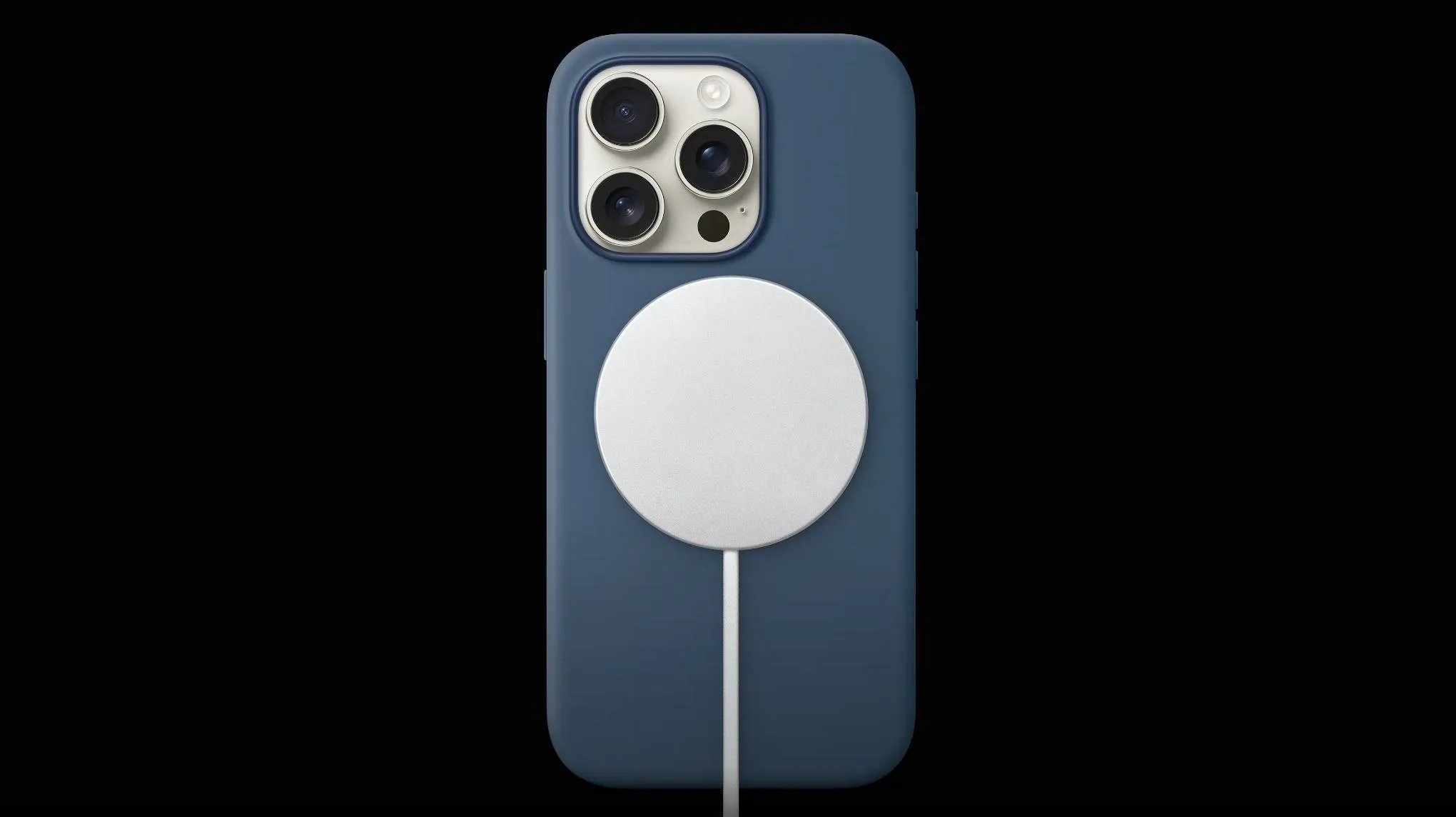
Wireless charging works as a fallback on iPhone 8 and later, but iPhone Life frames that as conditional on the exterior being confirmed dry, not a workaround for a port that's genuinely still wet.
Emergency Override can force a wired connection by disconnecting and reconnecting the cable. On iOS 18, iPhone Life reports the option appears unavailable by default, which the outlet attributes to Apple hiding it to discourage casual use rather than removing it outright. BGR is blunt about the trade-off: there's a chance this can damage the phone, so it's meant for genuine emergencies, not everyday convenience charging. Wireless charging may also generate a little more heat than a wired connection because it's less efficient (BGR), one more reason to rely on it only once the exterior is confirmed dry.
For now, leave wired charging disconnected and let the phone dry. After at least 30 minutes, retry once with a different, known-dry cable; if the warning returns, wait longer rather than reaching for Emergency Override. If the alert still won't clear after a full drying window and a second cable and adapter, that's the point to stop testing and contact Apple Support (iPhone Life).





Comments
Be the first, drop a comment!