



Webex for iPhone Duo: What's Confirmed Before Calls
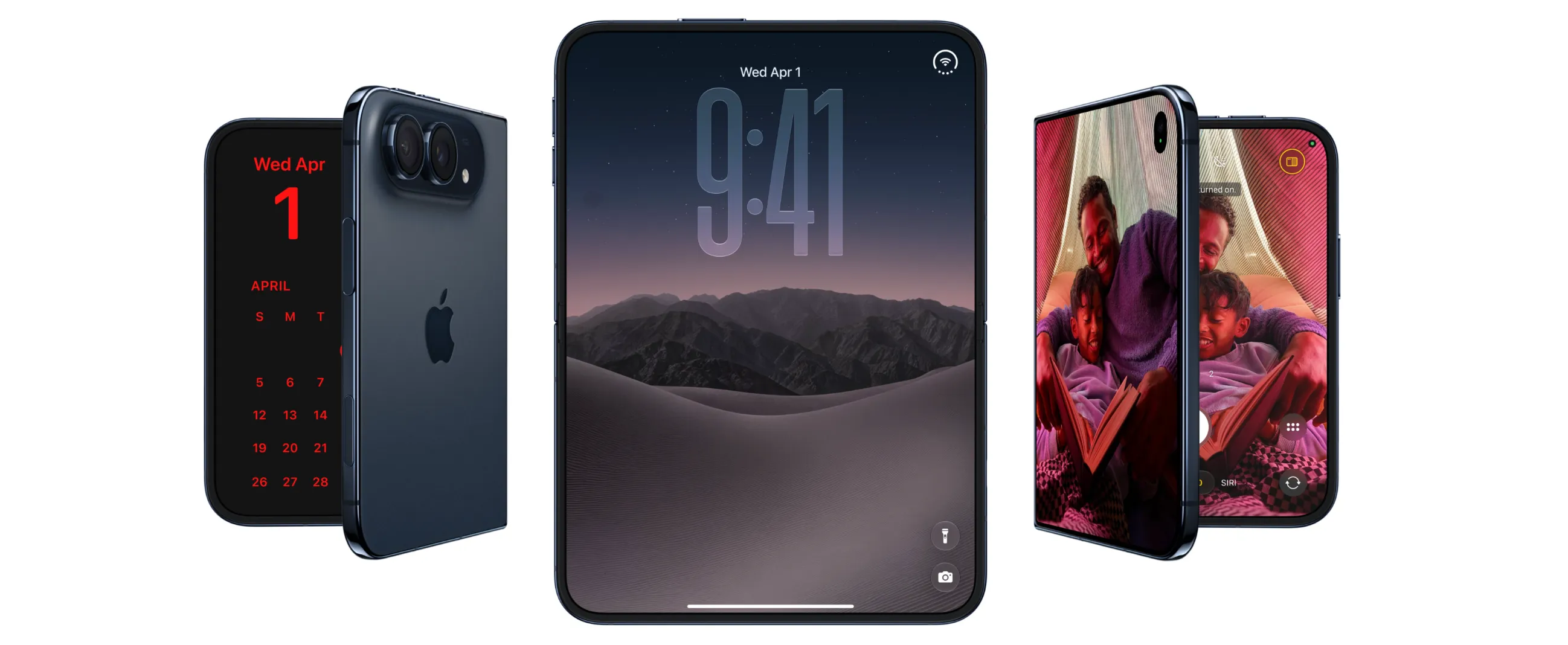
Cisco outlined today how Webex adapts to iPhone Duo's folding screen, more than two weeks after Apple's first foldable iPhone reached customers. The explanation, reported by 9to5Mac, gives a more detailed look at that support: layout changes tied to how far the phone is open, and the option to run Webex next to another app in Split View.
Webex has supported Duo since the phone became available on October 23 (MacRumors). Apple has promoted Webex as an iPhone Duo app, and the company says more than 100,000 apps have already been updated for the new hardware (9to5Mac, today).
For anyone already running Webex on a standard iPhone, or weighing whether Duo is worth it for work calls, what's unclear is how much of this is a documented, testable feature and how much is description Cisco hasn't pinned down yet.
What Webex meetings on iPhone Duo can actually do
Cisco said, in comments reported by 9to5Mac, that opening the device can reveal more meeting participants, keep shared content in view, or support working together on a whiteboard.
That builds on a layout system Webex already runs on other devices. Users can switch among Grid, Equal, Stack, and Focus views, and which ones are offered depends on the device, its orientation, how many people are in the call, and whether anyone is sharing content (Cisco Webex Help, updated two weeks ago). These views aren't interchangeable everywhere: Equal view only appears on an iPhone or Android phone held in portrait, and Stack view is reserved for iPads and Android tablets. Cisco hasn't said whether either rule changes when Duo is open versus closed.
Participant counts follow the same device-by-device pattern. Grid view currently tops out at nine visible participants on iPhone, six on Android phones, and 25 per page on tablets (Cisco Webex Help, updated two weeks ago). That reflects published device-specific limits, not a prediction for Duo. Cisco's description, as reported by 9to5Mac, names no participant count or layout for the folded phone.
Webex's help page also notes that when someone multitasks on an iPad, the video layout adjusts to whatever screen space the iOS split view leaves it (Cisco Webex Help, updated two weeks ago). That shows Webex can adapt a layout to reduced screen space on iPad. It doesn't show that Duo gets the same layout or the same participant capacity.
iPhone Duo Split View and Webex multitasking
Running Webex while multitasking splits into four distinct workflows, and the record is uneven across them.
Viewing another participant's shared content falls under Webex's existing view-switching system, which selects a layout based on device, orientation, participant count, and whether content is being shared (Cisco Webex Help, updated two weeks ago).
Running Webex beside another app in Split View is the piece unique to Duo. Duo is the first iPhone with native side-by-side multitasking, letting two full apps, or two windows of the same app, run at once, with an option to save app pairs for later (MacRumors, two months ago). Cisco confirms Webex supports this mode (9to5Mac, today).
Sharing your own screen while Webex runs in Split View isn't addressed in the cited Cisco or Apple materials. Neither company has said whether that combination works, is blocked, or behaves differently than viewing shared content.
Using background Picture-in-Picture while sharing your own screen is the one workflow with a confirmed limit, and it has nothing to do with Duo specifically. Webex's PiP mode lets a floating meeting window stay visible while a user checks email or takes notes in another app, but Cisco's own support page states that mode cannot be used at all while the user is sharing content (Cisco Webex Help, PiP guide). That restriction applies generally, on both standard iPhone and iPad.
The PiP restriction does not establish what happens in Split View, so users should test the two workflows separately. Anyone who needs to present a document while running Webex beside another app should treat that pairing as untested until Cisco documents it directly.
What to test with iPhone Duo Split View and Webex before a work call
These are the workflows worth verifying before relying on the setup for a work meeting, starting with whether the install on hand actually matches what Cisco described.
- Check the Webex listing on the App Store and read the version notes for your specific device. The 9to5Mac report does not identify a minimum app version or iOS build, so confirm this before assuming the current install already covers everything described.
- Join a low-stakes test meeting, have another participant share their screen, then open and close the Duo partway through to see how the layout actually responds, rather than assuming it matches Cisco's description.
- Put Webex in Split View next to the app that would realistically be open during a meeting, such as Notes, Slack, or a document, then try starting a screen share from Webex while that second app stays open. This is a direct way to check whether Split View blocks sharing the way background PiP does.
Apple described, in details reported by MacRumors, general interface adjustments built into iOS 27: content shifts away from the crease when the phone is partially folded because taps are harder to register there, and audio tuning algorithms account for the changing distance between the speakers as the device moves through different positions. That explains how the operating system handles the hardware in general. It says nothing about how a Webex call specifically performs near the hinge. The supplied sources do not include Webex-specific testing of battery drain, call audio, or touch accuracy, so treat those as open questions rather than settled ones.
Use Webex full-screen for any meeting that requires presenting content until screen sharing in Split View has actually been tested on a real Duo. For routine note-taking or viewing another participant's shared screen, run the layout test first, then use it for routine meetings only after it remains stable in a test call.








Comments
Be the first, drop a comment!