



How to turn off AutoMix on Apple Music: full guide
If tracks on Apple Music have started blending into each other, with no gap and no clean ending, check Song Transitions before assuming anything is broken. That's the setting responsible for how one track hands off to the next, and it offers three modes: Off, Crossfade, and AutoMix (Apple Support, two months ago). Which of those modes actually works depends on subscription status, the device in use, and the audio quality setting selected (Apple Support, two months ago).
Turning off AutoMix means going to Settings > Apps > Music > Song Transitions and selecting Off, which disables transitions in the Music app on that device (Marquee, last month). Anyone whose Apple Music songs keep blending together without being asked for that effect can shut it off there in a few taps. The same menu offers Crossfade as a middle ground, in case a hard cutoff between tracks feels abrupt.
This guide covers what each transition mode actually does, how to switch between them on iPhone and iPad, a faster mid-song toggle, and the specific subscription, device, and content conditions that explain why AutoMix sometimes doesn't appear, or doesn't blend a particular pair of songs even when it's turned on.
How to turn off AutoMix on Apple Music in Song Transitions settings
The Settings menu is the place to go for a broader change to transition behavior rather than a one-song fix.
- Open Settings on iPhone or iPad.
- Tap Apps, then Music.
- Tap Song Transitions.
- Choose Off to stop transitions, or select Crossfade for a fixed fade instead.
That navigation path comes from third-party reporting; Apple's own support documentation confirms the three-way choice exists without spelling out the exact menu steps (Marquee, last month; Apple Support, two months ago). If the menu looks different, it's worth confirming the installed iOS version before assuming the steps don't apply.
Selecting Crossfade instead of Off reveals a slider for setting the transition duration, giving manual control over how long the fade takes (Apple Support, two months ago).
A faster way to toggle AutoMix during playback
There's also a shortcut for turning AutoMix off mid-song without opening Settings at all. Tap the MiniPlayer at the bottom of the Music app, tap Up Next, then tap the AutoMix button to switch it off. Tapping it again turns AutoMix back on (Marquee, last month). On iPad and Mac, that same AutoMix button sits in the Up Next view of the playback controls (Marquee, last month).
This is documented as an in-playback control, separate from the Song Transitions menu in Settings. The available sources don't explain whether toggling it here overrides the Settings-level choice for future sessions or just for the song currently playing, so it's worth treating as a quick in-the-moment switch rather than a permanent replacement for the Settings path.
What each setting actually changes
The three modes aren't interchangeable, and knowing what each one is built to do makes troubleshooting faster.
- Off: tracks play back to back exactly as recorded, each one starting and ending without any fade or overlap applied (Apple Support, two months ago; Marquee, last month).
- Crossfade: fades the outgoing track out while bringing the next one in, over a fixed number of seconds the listener sets manually. It works whether or not someone subscribes to Apple Music, which makes it the only transition option available without an Apple Music subscription (Apple Support, two months ago).
- AutoMix: dynamically transitions between Apple Music subscription content, using AI audio analysis, time stretching, and beat matching to craft a transition timed to the music rather than a flat overlap (Apple Newsroom, last year). It's limited to Apple Music subscription content and needs an active subscription to appear as a selectable option at all (Apple Support, two months ago).
The distinction that matters most for anyone chasing untouched playback: Off is the only mode that guarantees a track's original ending and the next one's original opening play exactly as recorded. Crossfade is more predictable than AutoMix, but it still alters what the listener hears at the seam between songs (Apple Support, two months ago).
Why AutoMix might not appear or work
A few conditions can quietly keep AutoMix from showing up, or from blending a specific pair of tracks, and none of them point to a software glitch on their own.
Subscription status is the first thing to check. Without an active Apple Music subscription, AutoMix appears grayed out in Settings, leaving Crossfade as the only working transition (Apple Support, two months ago).
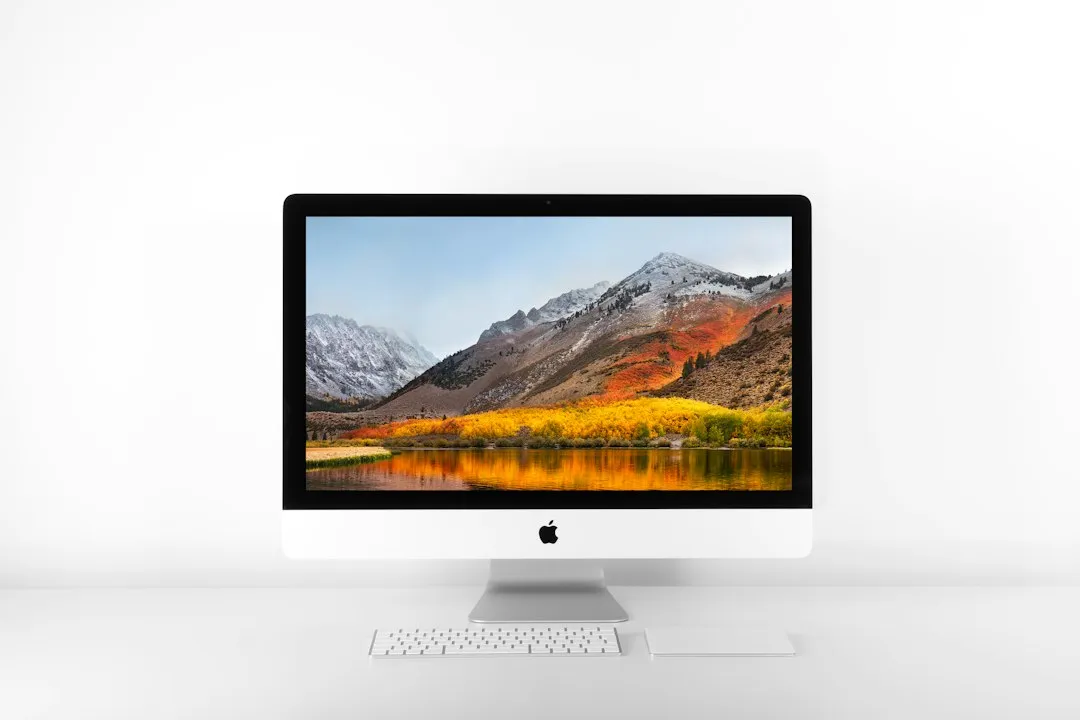
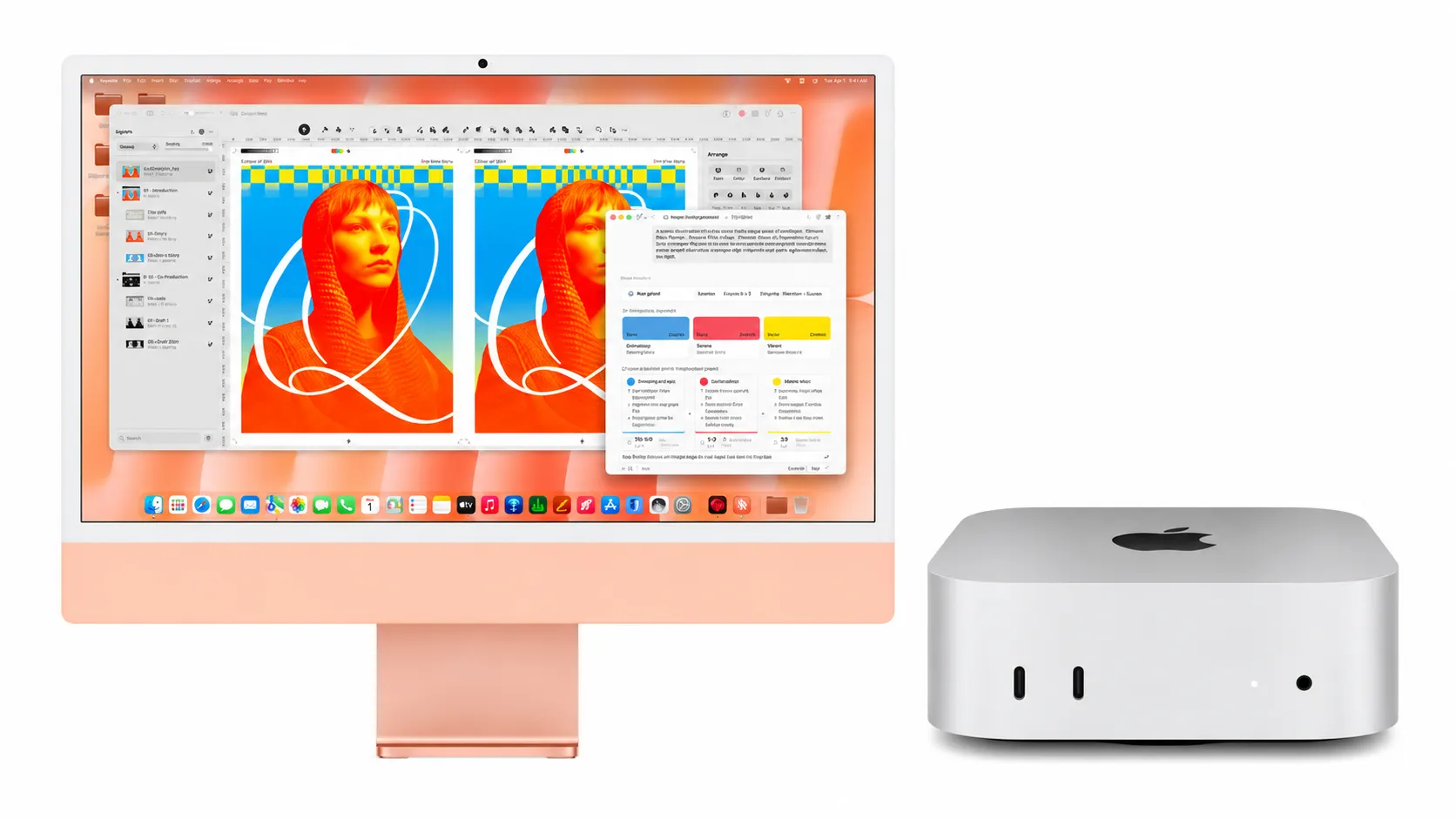
Device matters next. AutoMix isn't available on Apple Watch, Android, or the Apple Music app for Windows. On Mac, it requires Apple silicon; Intel-based Macs are limited to Crossfade regardless of subscription status (Apple Support, two months ago).
Audio quality can disable both transition modes at once. Neither AutoMix nor Crossfade works with Hi-Res Lossless turned on, so that setting has to be lowered before either one will apply (Apple Support, two months ago).
Even with every eligibility box checked, AutoMix doesn't blend every pair of songs. Apple says it might not transition when an album plays in sequential order, when two tracks' genres or tempos don't fit together, when content was uploaded from a personal music library, or when it was purchased and downloaded from the iTunes Store (Apple Support, two months ago). A missing blend in any of those scenarios may reflect a documented limitation rather than a malfunction.
Testing AutoMix on a shuffled Apple Music catalog playlist, rather than a sequential album or personal upload, gives a cleaner read on whether it's working as intended. Apple also notes that Apple Music availability can vary by country or region, which may affect which transition options show up in the first place (Apple Support, two months ago).
AutoMix vs. AutoPlay: don't confuse the two
One source of confusion is a different setting with a similar name. AutoPlay is a separate Apple Music feature that automatically queues up similar songs once a track finishes playing, rather than fading one song into the next (Apple Support, eight months ago).
AutoPlay has its own toggle, in the upper-right corner of the Now Playing screen, and it also requires an active Apple Music subscription to use (Apple Support, eight months ago). Turning it off on one device turns it off everywhere signed into the same Apple Account, which is worth knowing if AutoMix looks fine but the Music app still keeps adding unrequested songs after a playlist ends (Apple Support, eight months ago).
Anyone troubleshooting unwanted playback behavior should check both settings separately. AutoMix controls how songs blend together; AutoPlay controls whether new songs get added after a playlist runs out.
What to do next
To stop songs from blending together for good, use Settings > Apps > Music > Song Transitions > Off. For a quicker toggle mid-song, the AutoMix button inside MiniPlayer's Up Next view handles that without touching the broader setting.
If AutoMix seems to be missing or misbehaving rather than simply unwanted, work through the eligibility checks in order: active Apple Music subscription, compatible device (Apple silicon if on Mac), and Hi-Res Lossless turned off. Any of these can make AutoMix unavailable or stop transitions from working altogether.
After confirming eligibility, test with a shuffled Apple Music catalog playlist rather than a sequential album or personal upload. If songs keep getting added after a playlist finishes rather than blending during it, check the separate AutoPlay toggle before assuming Song Transitions is the culprit.




Comments
Be the first, drop a comment!