



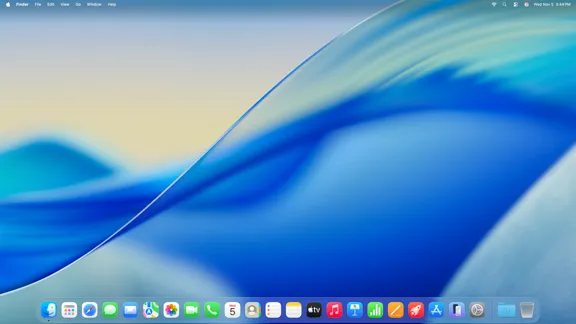
Apple released the first developer beta of macOS Tahoe 26.5 on March 30, less than a week after macOS 26.4 shipped to the public. Build 25F5042g arrived alongside iOS 26.5 and iPadOS 26.5 betas, making it a simultaneous push across Apple's core platforms. Developer beta access opened that day. Public beta availability through beta.apple.com has not been confirmed in sourced reporting at the time of writing, so this guide is written for the developer beta path. If you're on the free public beta program, check beta.apple.com directly before proceeding.
The short version: if you're a developer or on a secondary Mac and want in now, this guide walks you through it. Everyone else should wait.
What macOS 26.5 beta 1 is and whether to install it now
Here's the honest assessment: this is a point release with no confirmed feature set, and you're taking on real risk in exchange for unknown upside. Apple hasn't published release notes, which is standard practice for a first beta. What's changed or fixed simply isn't known yet. One site reported this week on claimed under-the-hood changes, including WindowServer performance work and a rewritten SMB networking client, but those details haven't been corroborated by broader reporting. Treat them as provisional.
Install now if you're a developer testing app compatibility, or if you're on a secondary Mac and want early access. Alternatively, wait if this is your primary work machine, your workflow depends on apps that tend to break early in a beta cycle, or you want to know what 26.5 actually delivers before committing. That picture sharpens with beta 2.
For anyone not in a beta program, macOS 26.4 is still the current stable release and the only thing Software Update will offer.
Before you install macOS Tahoe 26.5 beta: prerequisites and backup
Do everything in this section before opening Software Update.
What you need:
A compatible Mac running macOS Tahoe 26.4
An Apple ID enrolled in the Apple Developer Program ($99/year)
A stable internet connection
Sufficient free storage (beta installers typically run several gigabytes)
Step 1: Back up your Mac before anything else.
Use Time Machine to an external drive, or create a bootable clone with your backup tool of choice. 9to5Mac puts this first in its install guide, and not as a formality. Beta software can cause boot failures, app breakage, and data corruption. More to the point, macOS has no built-in downgrade path. Rolling back from a beta means a full erase of the drive followed by a restore from backup. Skip the backup, and you may have no path back.
Gotcha: Let the backup finish completely before moving on. A Time Machine job still running when the download completes won't capture a clean pre-install state, which defeats the purpose.
How to enroll in the Apple Developer Program
The macOS 26.5 beta won't appear in Software Update until your Mac is enrolled. For developer beta access, that means the Apple Developer Program.
The Developer Program costs $99 per year and is designed for developers building software for Apple platforms. It granted access to this beta on March 30, the day Apple released it.
Already enrolled? Your Mac is eligible right now. Skip to the installation steps below.
Not enrolled? Sign up at developer.apple.com and complete enrollment before continuing. Once your Apple ID has an active Developer Program membership, the beta channel becomes selectable inside Software Update on any Mac signed into that account.
On public beta access: if you're in the free Apple Beta Software Program, check beta.apple.com to see whether Apple has opened the macOS 26.5 channel. Public betas typically follow developer betas by a few days to a week. If it's live, sign in, enroll your device following Apple's on-screen instructions, and use the public beta channel option in Step 4 below instead of the developer channel.
One thing worth noting before you start: enrollment doesn't trigger a download. It makes the beta channel selectable inside Software Update. You control when the actual installation begins.
How to install macOS 26.5 beta 1: step-by-step
With your backup done and enrollment confirmed, the active part of this process takes under ten minutes.
Step 1: Open System Settings. Click the Apple menu () in the top-left corner of your screen, then select System Settings.
Step 2: Go to General, then Software Update. Select General in the sidebar, then click Software Update. Give it a moment to check for available updates.
Step 3: Open the Beta Updates options. Find the "Beta Updates" row in the Software Update panel. Click the ⓘ info icon immediately to its right. This opens a channel-selection menu.
Step 4: Select your beta channel. From the dropdown at the top of that panel, choose "macOS Developer Tahoe Beta" if you're enrolled in the Developer Program. If you came through beta.apple.com and the public beta channel is live, choose that option instead.
Step 5: Hit Done. Software Update refreshes. macOS 26.5 beta 1 should now appear as an available update.
Step 6: Download and install. Click to begin the download. The installer is several gigabytes; the download time depends on your connection. Your Mac will restart during installation; don't interrupt it. A macOS install cut short mid-process can leave the system unbootable.
What you should see when it's done: Your Mac boots into macOS Tahoe 26.5 beta 1. Confirm by going to the Apple menu, then About This Mac, then More Info. Version should read 26.5, and build number should read 25F5042g. Both matching means the installation completed cleanly.
If something goes wrong
The beta doesn't appear in Software Update after selecting the channel. Wait two to three minutes, then click "Check Now." Channel switches can take a moment to register on Apple's servers. If it still doesn't show, sign back into the Developer portal and confirm your device is listed as enrolled. A device not registered before you changed the channel setting won't receive the update.
The beta channel option is missing entirely from Software Update. Your Mac isn't enrolled, or the enrollment didn't propagate. Return to the enrollment section, verify your Apple ID has an active membership in the correct program, and, if you're on the free path, confirm the public beta channel is actually open for 26.5 before troubleshooting further.
You want to go back to macOS 26.4. There is no in-software downgrade path. The only route is a full erase of the drive, then a restore from the backup made before installing. Slow, but straightforward when the backup is current.
You're hitting instability after installing. Beta 1 carries the most risk of any build in a release cycle. Subsequent betas tend to resolve the worst issues quickly. If the instability is tolerable, staying on the beta and updating as new builds arrive is reasonable. If it's breaking something critical, restore from backup and wait for beta 2.
Where things stand
macOS 26.5 beta 1 arrived four days after macOS 26.4 went public, a pace that points to active development through the 26.x cycle. What's actually in this release remains unconfirmed; Apple hasn't published notes, and that's expected at this stage.
Installed it? Watch for beta 2, which typically lands within two weeks and gives a clearer read on what the release is actually for. Held off? macOS 26.4 is stable and the right call for most users at this point. Nothing confirmed in 26.5 yet makes the risk worth taking unless you have a specific reason to be there early.














Comments
Be the first, drop a comment!