





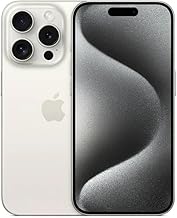

Safari looks almost the same after installing iOS 27. Open it, and the address bar, tab bar, and reading view sit right where they always have. But WIRED found that Apple tucked several new tools into Safari's menus, changes easy to miss if you're just scrolling through a webpage.
Those tools are the real substance behind this update, and hunting for iOS 27 Safari hidden tricks is worth the five minutes it takes to find them. Apple confirms iOS 27 adds three Apple Intelligence-powered Safari features:
Notify Me, which watches a page for changes and alerts you
Describe an Extension, which builds a custom extension from a plain-English request
Organize by Topic, which automatically groups your open tabs.
All three require Apple Intelligence, and Apple currently limits Apple Intelligence to iPhone 16 models or later, iPhone Air, iPhone Duo, iPhone 15 Pro, and iPhone 15 Pro Max.
If your iPhone is eligible, everything below covers exactly where to find these tools, how to set each one up, and where the independent testing gets thin. If deciding which one to try first, start with Organize by Topic. It's the only one of the three with published large-scale testing behind it, and it works on tabs you already have open, so there's little to lose by trying it once.
This guide covers the iPhone interface specifically. The same three tools also live on iPadOS 27, according to Apple's own support documentation, and on macOS 27, according to WIRED's testing, though the menus differ enough on those platforms that they're worth a separate walkthrough.
Before you start: eligibility, language, and region checks
Hardware comes first. Apple Intelligence, and everything built on top of it in Safari, requires an iPhone 16 model or later, iPhone Air, iPhone Duo, iPhone 15 Pro, or iPhone 15 Pro Max. No earlier model qualifies, regardless of iOS version.
Language matters too. Apple Intelligence currently supports 16 languages: English, Danish, Dutch, French, German, Italian, Norwegian, Portuguese, Spanish, Swedish, Turkish, Vietnamese, Chinese (simplified), Chinese (traditional), Japanese, and Korean (Apple Newsroom). Apple says a device needs to be set to one of these languages to get access, but the company's documentation doesn't spell out what happens on an unsupported setting, whether the Safari menu items disappear entirely or just show up with reduced functionality. If Notify Me or Organize Tabs aren't where this guide says they should be, checking your device language is a reasonable first move.
Region is the clearer restriction. Apple states plainly that Siri AI and the rest of its new Apple Intelligence features, which by Apple's own description includes these Safari tools, are not available in China while the company works through regulatory requirements there. Apple says Siri AI and features that rely on Siri AI are initially unavailable on iPhone in the EU, but its current documentation does not list Notify Me, Describe an Extension, or Safari tab topics among those EU restrictions.
The EU situation is murkier. Apple has confirmed that Siri AI specifically won't be available in the EU at launch, but nothing in Apple's documentation says that restriction extends to Notify Me, Describe an Extension, or Organize by Topic.
If your iPhone qualifies, your language is supported, and you're not in China, but the menus still aren't showing up, confirm you're actually running iOS 27 and that Apple Intelligence is toggled on in Settings. Apple's guidance ties access to enabling Apple Intelligence on a supported device set to a supported language, but beyond that basic checklist, the documentation reviewed here doesn't lay out a further troubleshooting path. Don't assume there's a hidden toggle fixing this if the basics already check out.
How to use Safari page monitoring: setting up Notify Me
Notify Me is Apple's answer to the tab you keep reopening to see if a product restocked or a price dropped. Safari checks the page in the background on a schedule you set and sends a notification only when the specific change you described actually happens. Apple's own description of the feature stays fairly general: "Safari can let you know when a website updates the content you're interested in."
Setting it up takes four steps:
Open the page you want Safari to watch.
Tap the three-line menu icon.
Select Notify Me.
Type the exact change you're watching for, then choose how often Safari should check.
A working example looks like this: set Notify Me on a sold-out pair of sneakers and describe the change as "back in stock." Safari scans on your chosen interval and only pings you once that condition is met, rather than flagging every minor page refresh.
Where this gets uncertain: the Apple and publisher documentation reviewed here does not address how Notify Me handles login-gated pages or pages that show personalized pricing based on your account or location. If you're setting this up for something time-sensitive, like event tickets or a restock you can't afford to miss, keep checking the page yourself alongside the alert until you've confirmed it actually catches a change relevant to you. Don't drop your manual routine the first day.
How to build a custom Safari extension with Describe an Extension
Describe an Extension is the more experimental of the three tools. It generates a working Safari extension from a plain-English description, adjusting how a site's content or formatting displays without requiring any code.
It lives in the same menu as Notify Me:
Tap the three-line menu icon on any page.
Select Describe an Extension.
Type what you want changed, or tap one of the suggested one-tap prompts Safari offers in the same menu.
Safari checks the App Store for matching extensions. If none fits, tap Create.
Tap the generated extension to edit it, or tap Try to test it, then save it when you're finished.
Tom's Guide describes prompts such as adding an estimated reading-time badge to articles, turning a page grayscale to cut eye strain, or hiding specific distracting elements as the kind of requests the tool is built to handle. Those are formatting and readability tweaks, not privacy protections. The documentation reviewed here doesn't promise tracker blocking or ad stripping, so don't treat this as a substitute for a dedicated content blocker.
A few practical questions remain open. Apple's support page doesn't spell out every persistence detail, but WIRED reports that custom extensions created on one Apple platform carry over to a user's other Apple devices. The sources reviewed here don't explain how reliably an extension will continue working after a website changes its layout.
Safari iOS 27 tab organization: setting up Organize by Topic
If your tab bar has become an unmanageable scroll of forgotten shopping carts and half-read articles, Organize by Topic is the tool built for exactly that. Apple describes it as using Apple Intelligence to analyze your open pages and automatically group similar tabs together.
To turn it on:
Tap the overlapping-squares tab icon at the bottom of the screen.
Tap the three-line menu button in the corner.
Select Organize Tabs.
Choose Automatically create topics.
This is the tool with the strongest evidence behind it. WIRED tested it against more than 500 open tabs and reported the grouping finished in a few seconds and did "a great job" surfacing useful patterns across that mess. That's a real stress test, not a cherry-picked demo with a dozen tabs.
Tom's Guide describes the sorting as running on local machine intelligence on the device itself. Apple's own feature description doesn't specify where the processing happens, so treat that as one outlet's characterization rather than an Apple-confirmed privacy claim.
Once Automatically Create Topics is enabled, Apple says Safari continues organizing new tabs as you browse, adding them to existing topics or creating new ones. Apple's iPhone guide also lets you move a topic's tabs into a regular Tab Group, but it does not document a way to rename an automatically suggested topic itself.
What to do now
Notify Me, Describe an Extension, and Organize by Topic are shipped features in iOS 27, currently available on eligible hardware set to a supported language in supported regions. "Shipped" here means available on qualifying devices; it doesn't mean identical behavior across every language, account, or region, and the gaps in Apple's own documentation are real.
Start with Organize by Topic. It has the strongest independent testing behind it, and it works on the tabs you already have open, so there's little downside to trying it once. Test Notify Me next on a page you'd normally check manually anyway, something low-stakes rather than a purchase you can't afford to miss, and keep your manual habit going until the alert proves itself. Treat Describe an Extension as a readability experiment for now rather than something to depend on, especially for anything touching privacy or ad blocking.
If none of the three menus show up, work through the checklist in order:
Confirm your iPhone is an iPhone 16 model or later, iPhone Air, iPhone Duo, iPhone 15 Pro, or iPhone 15 Pro Max
Confirm your device language is on Apple's supported list
Confirm Apple Intelligence is actually turned on in Settings.
China is the one region Apple has explicitly named as excluded from the broader set of new Apple Intelligence features. Beyond that checklist, the documentation reviewed here doesn't outline further troubleshooting steps, so don't assume there's a hidden fix you're missing.













Comments
Be the first, drop a comment!