






Apple TV remote shortcuts explained: scrub, switch, fix
Most Apple TV owners use three remote gestures on repeat: swipe, click, and "Hey Siri, open Netflix." Plenty of other built-in interactions sit untouched on the same remote, and Engadget rounded up several of them yesterday as shortcuts most people never try. Learning even a few of these Apple TV remote shortcuts can save you from restarting the whole box when an app freezes, or from digging through settings just to switch where sound plays.
The TV/Control Center button alone switches jobs depending on how many times you press it: once opens the Apple TV app or returns to the Home Screen, twice opens the App Switcher, and holding it brings up Control Center, according to Apple Support, updated earlier this year. A handful of these Apple TV remote hidden features are more useful than others, but the two built around that single button do the most work.
This guide covers which shortcuts work right now, which remote generation each one needs, and where region limits apply, so you're not left wondering why a trick from a forum post doesn't work on your setup.
Which remote do you have?
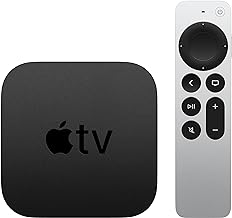
Apple TV owners will generally have one of two remote designs, and the difference matters for a couple of shortcuts below. The 2nd-generation Siri Remote (Lightning) and 3rd-generation Siri Remote (USB-C) both use a circular clickpad with directional edges and a touch-sensitive center, according to SimplyMac, last year. Older remotes that shipped with Apple TV HD and the 1st-generation Apple TV 4K use a flat touch surface instead of the clickpad, per Apple Support.
App switching, scrubbing, and basic navigation work on both designs. The one gesture that doesn't carry over is the circular scrubbing motion covered below, which needs the clickpad ring and has no equivalent on the flat touch surface.
How to force quit apps on Apple TV
Double-press the TV/Control Center button to open the App Switcher, which looks and works like the one on an iPhone or iPad, according to Apple Support. Swipe through your open apps using the clickpad, then swipe up on the one giving you trouble to close it.
Engadget frames this as a way to free up computational power, but Apple's own documentation only walks through the gesture itself and doesn't make a performance claim one way or the other (Engadget, yesterday; Apple Support, earlier this year). Engadget does note force-quitting can help when an app glitches or freezes and may free up some resources, which is worth treating as a possible side effect rather than a reason to force quit apps as routine maintenance. Save it for when something actually stalls.
On older touch-surface remotes, the same double-press-then-swipe pattern works on the flat surface at the top instead of the clickpad ring, so the gesture itself doesn't change, just the hardware you're pressing.
The Apple TV Control Center shortcut
Press and hold the TV/Control Center button to bring up Control Center. Press it again to dismiss it, according to Apple Support. That single hold-and-release opens network settings, Bluetooth pairing, and audio routing, all covered below.
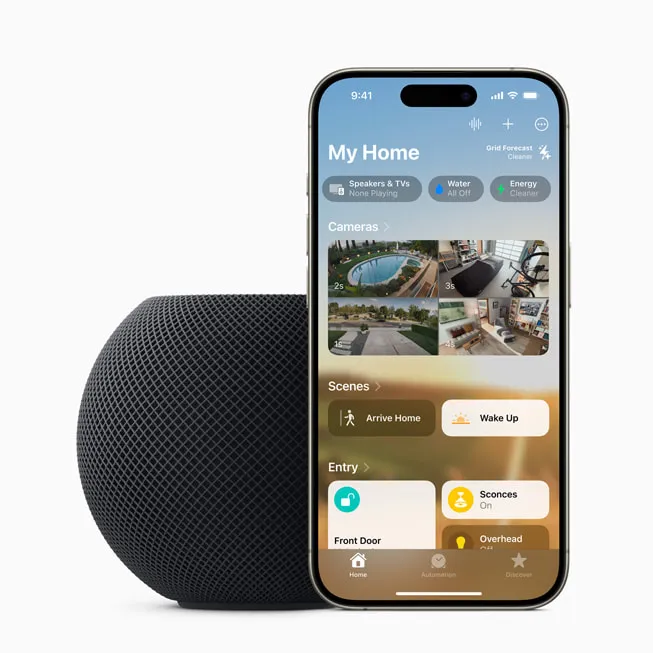
Apple confirms Control Center gives quick access to system settings, and Engadget adds specifics: it's where you change the wireless network, pair Bluetooth controllers, and open a smart home dashboard (Engadget, yesterday).
SimplyMac also describes a sleep timer and HomeKit scene shortcuts living inside Control Center, but Apple's current support page doesn't list every panel item, so treat those as features worth checking for rather than guarantees on every tvOS version (SimplyMac, last year).
One more detail that trips people up: a single press of the TV/Control Center button opens the Apple TV app, but only in regions where Apple supports that app. Everywhere else, a single press just returns you to the Home Screen. If the Apple TV app shortcut seems to be missing, that's a region limitation, not a bug (Apple Support, earlier this year).
Switch audio output without leaving what you're watching
From Control Center, tap the Audio Controls icon and it lists the speakers currently available, according to Engadget, yesterday. Pick whichever one you want, and sound routes there without pausing or backing out of whatever you're watching.
If a device you expect to see is missing, make sure it's compatible, paired, and currently available to the Apple TV, then reopen the audio settings and check again.
Before relying on the remote's Mute and Volume buttons daily, know that not every audio setup supports them. Apple's documentation confirms this directly, and SimplyMac explains why: those buttons may depend on HDMI-CEC or infrared signaling, depending on your TV or receiver. Without that support, the remote that came with your TV is the one that actually controls volume (Apple Support, earlier this year; SimplyMac, last year).
Scrub, skip, and change playback speed with the clickpad
During playback, press the center of the clickpad or the Play/Pause button, then swipe left or right to scrub through the timeline, according to Apple Support.
Circling a finger clockwise or counterclockwise around the outer ring of the clickpad scrubs with more precision than a simple swipe. Apple confirms this gesture as an alternative scrubbing method, and SimplyMac notes it's been available since tvOS 15, giving a more visually precise way to land on a specific moment (Apple Support, earlier this year; SimplyMac, last year). This circular motion needs the clickpad ring; the flat touch surface on older remotes has no ring to trace, so those owners stick to the swipe-and-skip version instead.
Pressing left or right on the clickpad skips in either direction. Hold either side and it continuously rewinds or fast-forwards, and pressing repeatedly cycles through 2x, 3x, and 4x speed (Apple Support, earlier this year). Apple's documentation doesn't specify how many seconds a single skip covers, so don't assume a fixed number if you're timing something precisely.
Owners of older Siri Remotes without a clickpad ring get the same skip and continuous-rewind behavior on the flat touch surface, so most of this isn't locked to newer hardware (Apple Support, earlier this year; Engadget, yesterday).
Dictate instead of typing on Apple TV
Typing passwords or search terms letter by letter on the clickpad gets old fast. Hold the Siri button while a text field is active, say what you want to enter, then release the button to dictate instead (Apple Support, earlier this year).
The catch is availability. Dictation may not work in every country or region, and Siri's broader features, commands, and language support also vary by location, so check Settings, then General, then Siri Language before assuming a command should work (Apple Support, earlier this year; Apple Support, earlier this year). If dictation isn't responding, that setting is the first place to look, not a sign something's broken.
Toggle text case and turn on spoken menus
Press Play/Pause while typing and it instantly switches between uppercase and lowercase text, according to Engadget, published yesterday. It beats hunting for a shift key on the on-screen keyboard.
A separate but related option lives in Accessibility settings: VoiceOver reads menus and descriptive text aloud while you move through them. Engadget notes it was built for people with vision impairments, but it's useful to anyone who likes spoken feedback while browsing (Engadget, yesterday). Turn it on, or back off if it starts narrating everything, under Settings, then Accessibility, then VoiceOver (Apple Support, earlier this year).
Jump home without backing out screen by screen
A single press of the Back button goes to the previous screen, which is expected behavior. Press and hold the same button instead, and it jumps directly to the Home Screen from wherever you are, skipping every menu in between (Apple Support, earlier this year). On older touch-surface remotes, the equivalent button is labeled Menu rather than Back, but it works the same way: one press backs out, holding it jumps home. That holds whether you're three menus deep in a streaming app or stuck in a settings submenu.
Find a lost remote with your iPhone
If the remote slides between couch cushions, owners with a 2nd-generation-or-newer Siri Remote can use the Apple TV Remote control built into iPhone's Control Center to track it down, according to SimplyMac, last year.
Swipe into Control Center on the iPhone, tap the Apple TV Remote icon, select the Apple TV from the device list, then tap Find next to the missing remote. The feature uses Bluetooth to pinpoint the remote's location and shows an approximate distance and direction on the iPhone screen (SimplyMac, last year). Apple Watch owners get a version of this too: the watch vibrates more intensely as the search gets closer to the remote (SimplyMac, last year).
Older, 1st-generation remotes don't support this feature, according to SimplyMac, last year, so searching under cushions the old-fashioned way is still the backup plan.
Apple TV remote shortcuts worth trying tonight
The double-press for the App Switcher and the press-and-hold for Control Center, both on the same TV/Control Center button, cover two common frustrations: an app that's stuck, and a show you want to keep watching while changing a setting. Both are documented for current Apple TV remote types, and neither requires extra setup beyond knowing where to press.
Not everything in this guide applies to every owner. Dictation and Siri commands depend on your country or region, the circular scrubbing gesture needs a clickpad remote rather than the older flat touch surface, and the Find My Remote trick only works on a 2nd-generation Siri Remote or later. Check Apple's support page for your exact remote and region before assuming a shortcut is broken rather than simply unavailable where you live.
If an app locks up tonight, try closing it from the App Switcher before restarting Apple TV. Then open Control Center once to see which audio devices and controls your own setup actually exposes, since that list will look different depending on what's paired to your Apple TV.













Comments
Be the first, drop a comment!