



![Microsoft Office Home & Business 2024 | Classic Desktop Apps: Word, Excel, PowerPoint, Outlook and OneNote | One-Time Purchase for 1 PC/MAC | Instant Download [PC/Mac Online Code]](https://m.media-amazon.com/images/I/5142rSuCQ-L._AC_UY218_.jpg)


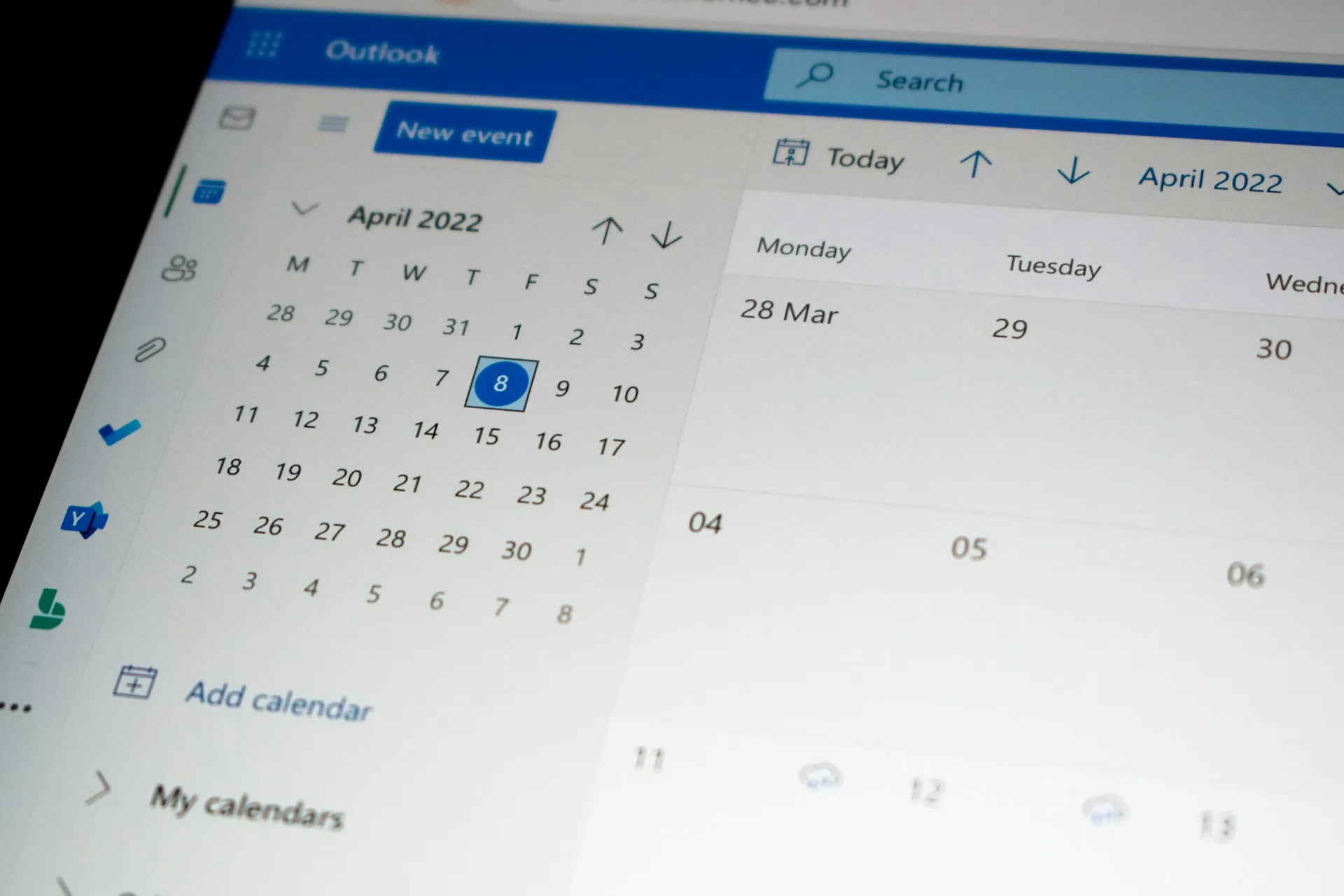
iPhone users experiencing Outlook calendar sync issues often find themselves missing important meetings or double-booking appointments. These problems typically stem from authentication conflicts, background app refresh settings, or account configuration errors that can create frustrating gaps in your productivity workflow. Whether you're dealing with events that won't sync, duplicate entries, or calendars that simply refuse to update, most Outlook calendar problems on iPhone can be resolved through systematic troubleshooting steps that address the root causes rather than just the symptoms.
Here's the thing about calendar sync issues - they always seem to happen at the worst possible times. You're rushing to check your schedule before an important client meeting, only to find your calendar is stuck showing last week's appointments. Or maybe you've been meticulously planning your week, only to discover that half your entries never made it from your desktop Outlook to your phone.
The good news? Most of these problems aren't as complicated as they appear, though they can seem overwhelming because sync failures often create cascading issues that mask the original problem. While the symptoms can be maddening, the underlying causes are usually pretty straightforward once you know where to look and understand how iPhone's background processes actually work with Microsoft's servers.
Quick fixes that solve most sync problems
Let's start with the basics. The majority of Outlook calendar sync issues stem from simple configuration problems that can be resolved quickly once you understand what's actually happening behind the scenes.
Start by checking your internet connection and ensuring both the Outlook app and iOS are running the latest versions, as outdated software frequently causes compatibility conflicts. This might sound like the classic "have you tried turning it off and on again" advice, but there's a reason tech support always starts here - it works more often than you'd think.
Force-close the Outlook app by swiping up and flicking it away, then restart both the app and your iPhone to clear any temporary glitches. Sometimes the app gets stuck in a weird state where it thinks it's syncing but isn't actually communicating with Microsoft's servers. A fresh start often clears these digital cobwebs.
Pro tip: If your calendar events appear but notifications don't work, that's actually a diagnostic clue - it means the sync is partially working, but the notification pipeline is broken, which points to specific permission issues rather than authentication problems.
Now here's something many people overlook: Background App Refresh plays a crucial role in calendar synchronization because it's how your iPhone maintains that constant conversation with Outlook's servers even when you're not actively using the app. Navigate to Settings > General > Background App Refresh and verify that it's enabled for Microsoft Outlook. Without this setting, your calendar can only update when you actively open the app, which defeats the whole purpose of having a synced calendar in the first place.
This background process is also tied to iOS memory management - when your phone gets low on storage or battery, iOS starts limiting these background activities. That's why calendar sync problems often coincide with performance issues or low storage warnings.
Additionally, check your notification settings under Settings > Notifications > Outlook to ensure calendar alerts are properly configured. While this might seem unrelated to sync issues, disabled notifications often indicate that the deeper sync handshake between your phone and Microsoft's servers has failed, since both functions rely on the same authentication and data exchange processes.
When account re-authentication becomes necessary
Building on those background sync concepts, authentication problems represent the most common cause of persistent calendar sync failures on iPhone. Think of authentication as your phone's way of proving to Microsoft's servers that it has permission to access your calendar data - but this digital handshake depends on the same network and permission systems we just checked.
Your Outlook account credentials may have expired, been changed on another device, or encountered security policy updates that require fresh verification. This is particularly common in corporate environments where IT departments regularly update security policies, but it can happen with personal accounts too, especially when Microsoft updates its security protocols.
The nuclear option (and often the most effective) is to completely remove and re-add your account. Remove your Outlook account entirely by going to Settings > Mail > Accounts, selecting your Outlook account, and tapping "Delete Account." I know this sounds drastic, but bear with me - your calendar data is stored on Microsoft's servers, so you're not losing anything permanently.
After removal, restart your iPhone completely before adding the account back through Settings > Mail > Accounts > Add Account > Outlook.com. This process clears cached authentication tokens and establishes a fresh connection to Microsoft's servers. It's like getting a brand new key to your digital calendar instead of trying to make a worn-out copy work.
During re-setup, ensure you're entering the correct password and that two-factor authentication codes are being processed properly if your account requires them. Pay attention to any error messages during this process - they often provide specific clues about what went wrong initially. Your calendar events should begin syncing within a few minutes, though complex calendars with many shared events might take up to 15-20 minutes to fully populate.
Advanced troubleshooting for stubborn issues
When the simple fixes don't work, it's time to dig deeper into the technical infrastructure that supports calendar sync. Complex calendar problems may require intervention through Exchange settings and network diagnostics, building on our understanding of how authentication and background processes interact.
If you're using an Exchange account (common in business environments), verify that your server settings match your organization's requirements, including correct server addresses and security protocols. Some corporate environments require specific SSL settings or port configurations that differ from standard consumer accounts. Your IT department should be able to provide these details if you're unsure, and these settings often explain why your calendar works fine at home but fails at the office.
Here's something that catches people off guard: Check your iPhone's date and time settings under Settings > General > Date & Time, ensuring "Set Automatically" is enabled. Incorrect time zones can sometimes prevent proper calendar synchronization because the authentication tokens we discussed earlier have time-based expiration dates. When your phone's clock doesn't match the server's expectations, those digital handshakes fail in confusing ways - the servers essentially reject your phone's requests because they appear to be coming from the wrong time zone.
Clear the Outlook app's cache by offloading and reinstalling it through Settings > General > iPhone Storage > Microsoft Outlook > Offload App. This preserves your account data while clearing corrupted temporary files that might be interfering with the sync process. Think of it as giving the app a fresh workspace without losing your important account information - this often resolves issues where the background refresh settings are correct, but the app still can't communicate properly with Microsoft's servers.
Network-related issues can also cause sync problems, particularly when switching between WiFi and cellular connections. This ties back to our authentication discussion - if your network blocks certain ports or requires special authentication, the sync process can fail even when basic internet access works fine. Test calendar sync on different networks to identify connectivity-specific problems.
If network problems persist across multiple connections, consider resetting network settings under Settings > General > Transfer or Reset iPhone > Reset > Reset Network Settings. Fair warning: this will erase all your saved WiFi passwords, so make sure you know how to reconnect to your important networks before taking this step.
Preventing future calendar sync problems
The best troubleshooting is the kind you never have to do. Maintaining consistent Outlook calendar performance requires proactive management that builds on everything we've learned about how sync, authentication, and background processes work together.
Enable automatic app updates through Settings > App Store > App Updates to ensure you're always running the latest version of Outlook with current bug fixes and compatibility improvements. Microsoft regularly pushes out updates that address sync issues, but they can't help if you're still running last year's version of the app.
Monitor your available storage space regularly, understanding that insufficient memory creates a cascade effect - it limits the background app refresh we discussed earlier, which breaks the authentication refresh cycle, which eventually leads to the sync failures we've been troubleshooting. When your phone starts running low on storage, iOS begins limiting background processes in ways that aren't immediately obvious but directly impact calendar functionality.
Establish a routine of periodically checking your account settings and re-authenticating your Outlook connection every few months, especially after major iOS updates or password changes. This might seem like overkill, but it's much easier to refresh your authentication during a planned maintenance window than to troubleshoot sync failures when you're trying to check your schedule for tomorrow's meetings.
Keep your iPhone's operating system current through Settings > General > Software Update. Apple frequently releases fixes for third-party app compatibility issues, and staying current helps ensure that iOS and Outlook continue to play nicely together.
PRO TIP: Consider using the native iOS Calendar app alongside Outlook for critical events, providing a backup sync method that can help you diagnose whether problems are specific to the Outlook app or broader account issues. You can configure the iOS Calendar to display your Outlook calendars through Settings > Calendar > Accounts, giving you a secondary way to access your schedule. If events show up in iOS Calendar but not in the Outlook app, you'll know the account sync is working, but the Outlook app needs attention. If events don't appear in either place, you're looking at account-level authentication issues.
Bottom line: calendar sync issues are frustrating, but they're rarely permanent. With systematic troubleshooting and a bit of preventive maintenance, you can keep your Outlook calendar running smoothly and avoid those panic moments when your schedule seems to disappear into the digital ether.






Comments
Be the first, drop a comment!