



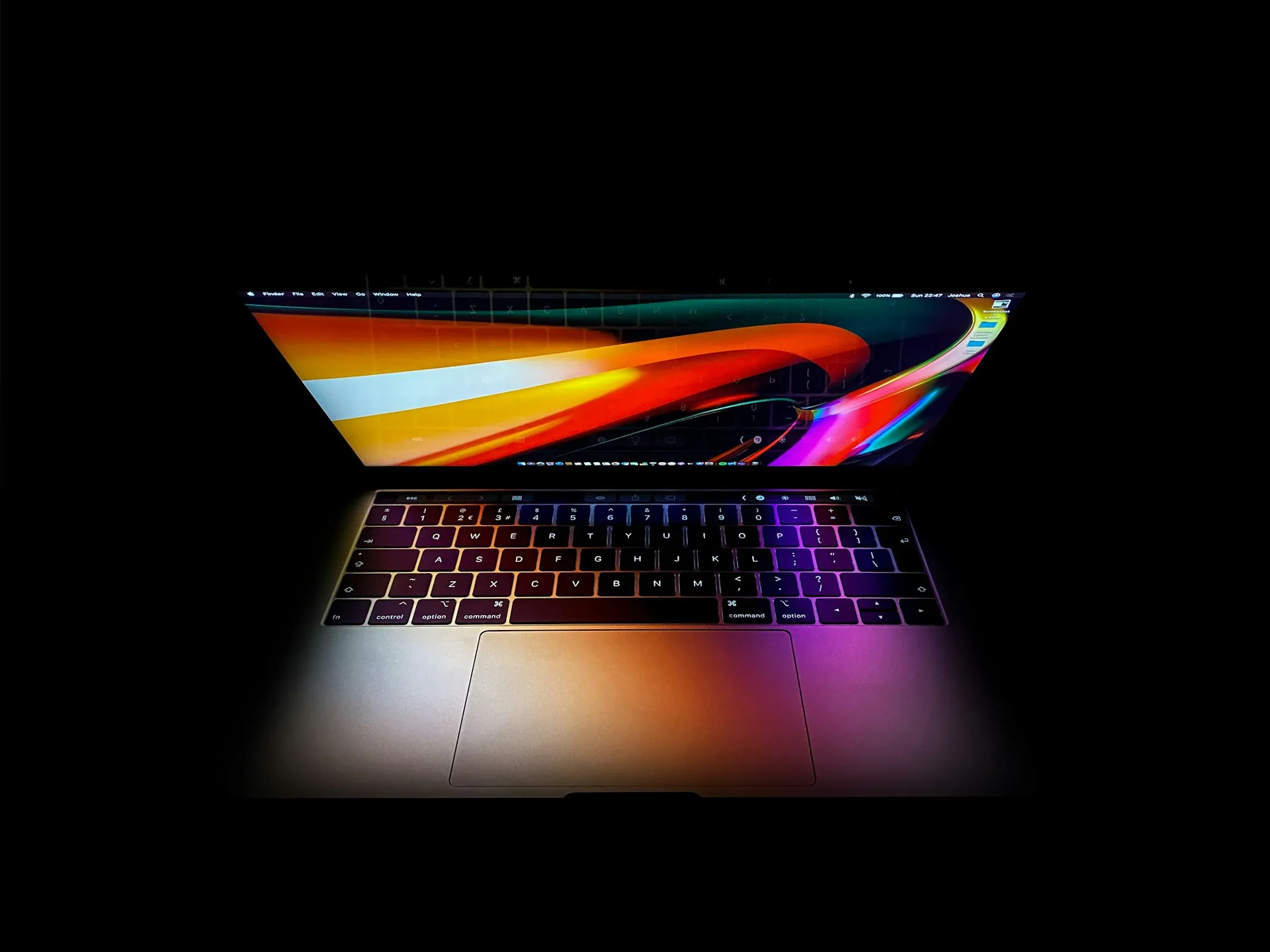
If menu bar icons are vanishing on your notch-equipped Mac, two Terminal commands can recover the hidden space by reducing the gap between icons from the default 16 points to 8. No third-party software required. This guide walks through that fix, the revert path, why the problem exists, and what to try if tighter spacing still isn't enough.
This applies to notch-equipped MacBooks, including 14-inch and 16-inch MacBook Pro models introduced in late 2021 and later, and MacBook Air models with a notch, including M2 and later.
Before starting: Terminal access is all you need, no admin privileges. The spacing keys used below are undocumented Apple preferences, so save the revert commands from the next section somewhere accessible before a future macOS update changes anything.
Reduce menu bar spacing on Mac: the Terminal fix
9to5Mac covered this fix today. Two commands, one log-out cycle.
Step 1: Open Terminal
Launch Terminal from Applications → Utilities, or press ⌘ Space and type "Terminal."
Step 2: Run the spacing command
Paste the following and press Return:
defaults -currentHost write -globalDomain NSStatusItemSpacing -int 8
This cuts the gap between each menu bar item from 16 points to 8. Halving that spacing frees enough horizontal room on the right side of the notch that icons previously pushed behind it may now fit.
Step 3: Run the selection padding command
Paste the following and press Return:
defaults -currentHost write -globalDomain NSStatusItemSelectionPadding -int 8
This reduces the padding drawn around each icon when clicked or highlighted. Without it, click targets stay wide while icons sit closer together, producing a visually inconsistent result.
Step 4: Log out and log back in
Go to Apple menu → Log Out, then sign back in. The changes don't take effect in a live session. After logging back in, icons that were disappearing behind the notch may reappear to its left, if spacing was the limiting factor.
A few things worth knowing before you proceed:
NSStatusItemSpacing and NSStatusItemSelectionPadding are undocumented preferences. They work on current macOS releases but could stop working after an OS update. Save the revert commands in the next section now.
The denser bar is noticeable. If 8 feels too cramped, substitute -int 12 in both commands for a middle ground, then log out and back in to check the result.
If icons are still missing after logging back in, spacing reduction alone didn't clear the notch zone. The fallback options further down cover what to try next.
Tailscale notes that icon visibility can shift temporarily when attaching or detaching an external display or opening and closing the lid. A momentary disappearance during those transitions isn't a sign the fix failed.
How to revert to default menu bar spacing
Run both commands in Terminal, then log out and back in:
defaults -currentHost delete -globalDomain NSStatusItemSpacing
defaults -currentHost delete -globalDomain NSStatusItemSelectionPadding
One syntax note: 9to5Mac appends -int 8 to these delete commands, but the standard defaults delete syntax is just the domain and key. The cleaner form above is the safer version to copy.
Why the notch causes this problem
The MacBook Pro models introduced in late 2021 placed a camera housing in the center of the display, which split the menu bar into two zones in a way that exposed a long-standing asymmetry in how macOS manages each side.
The left side holds the Apple menu and active app menus. It expands and contracts as you switch between apps, always sized to fit whatever it currently needs to show. The right side is different. It holds status icons from background apps and system processes, and its available width is fixed. It can only get smaller, never larger. When the notch arrived and consumed space in the center, the right-side zone lost horizontal real estate with no compensating mechanism.
The result, as Tailscale documented earlier this year: when there are more menu bar icons than space to the right of the notch, the overflow items simply vanish. No notification, no collapsed overflow section, no indication to the user that anything is missing. As Apple Stack Exchange notes, right-side status icons carry low priority; the system drops whichever ones don't fit, following undocumented rules about which icons take precedence.
Developers can't route around this at the system level. Once an app declares a menu bar presence, placement is out of its hands. As one Tailscale engineer put it: "You just say, 'I want to be a menu bar app.' They shove it up there, and that's it, you end up where you end up."
Apple does provide safe-area APIs. NSScreen.safeAreaInsets reflects the unobscured portion of the screen and, per Apple Developer Documentation, is designed for apps offering custom full-screen experiences that need to keep content clear of the camera housing. Whether that protection extends to menu bar status items in any practical way isn't addressed in the documentation, and the persistence of the overflow problem suggests it doesn't.
Tailscale built its own workaround: it uses the occlusionState API to detect when its icon has been obscured and triggers an in-app warning. That's an app-level patch on a system-level gap, and it requires deliberate effort from the developer. Apps that haven't built something similar give no signal when their icon disappears.
What to try if the spacing tweak isn't enough
These options are ordered from least to most disruptive.
Reduce the number of active menu bar icons. Fewer icons means less competition for the fixed space to the right of the notch. Check your login items and app preferences, and disable menu bar presence for anything you don't actively monitor. This is the primary free solution to the overflow problem. It's also the most permanent fix available, because it addresses the root cause rather than working around it.
Check whether the app has a non-menu-bar access path. Some developers have built windowed alternatives specifically because menu bar occlusion made their apps unreliable on notch-equipped Macs. Tailscale shipped a windowed interface, enabled by default starting with version 1.96.2, for exactly this reason. If a specific app keeps disappearing behind the notch, check whether a dock icon or standalone window option exists in its settings before assuming the only fix is more menu bar space.
Enable 'Scale to fit below built-in camera' for a specific app. Right-click an app in Finder → Get Info → check "Open in Low Resolution." When scaling is active for one app, all apps in that screen space scale accordingly, giving the menu bar more effective room. All apps in that space remain scaled until you quit the scaled app or reverse the setting. Visually awkward, and only active while that app is running, but it's native, free, and installs nothing.
Use a menu bar management utility. Apps like Bartender let you decide which icons appear in the primary bar and which get tucked into a disclosure menu, giving you explicit control that macOS itself doesn't provide. It's a paid app and adds a dependency. Apple Stack Exchange identifies it as the appropriate solution when reducing icon count alone isn't enough.
Which fix to start with
Start with the Terminal commands. Two commands, one log-out cycle, no cost. If -int 8 feels too dense, try -int 12 before abandoning the approach.
If tighter spacing still can't clear the notch zone, icon pruning is the more durable answer. Go through your login items and app preferences and cut anything that doesn't need to be visible at a glance. That combination handles the majority of crowded menu bar setups without adding any software or spending anything.
Bartender makes sense when you genuinely need a large number of menu bar apps running and neither option above is sufficient. It's the only solution here that costs money, and the only one that gives you ongoing, explicit control over what appears in the bar at any given moment.
One thing worth keeping in mind regardless of which path you take: NSStatusItemSpacing and NSStatusItemSelectionPadding are undocumented preferences, and the underlying problem, that macOS silently drops status icons with no overflow or notification, remains unresolved at the system level. 9to5Mac describes the Terminal fix as a simple solution, not a guaranteed permanent one. Keep the revert commands saved somewhere accessible.





Comments
Be the first, drop a comment!