



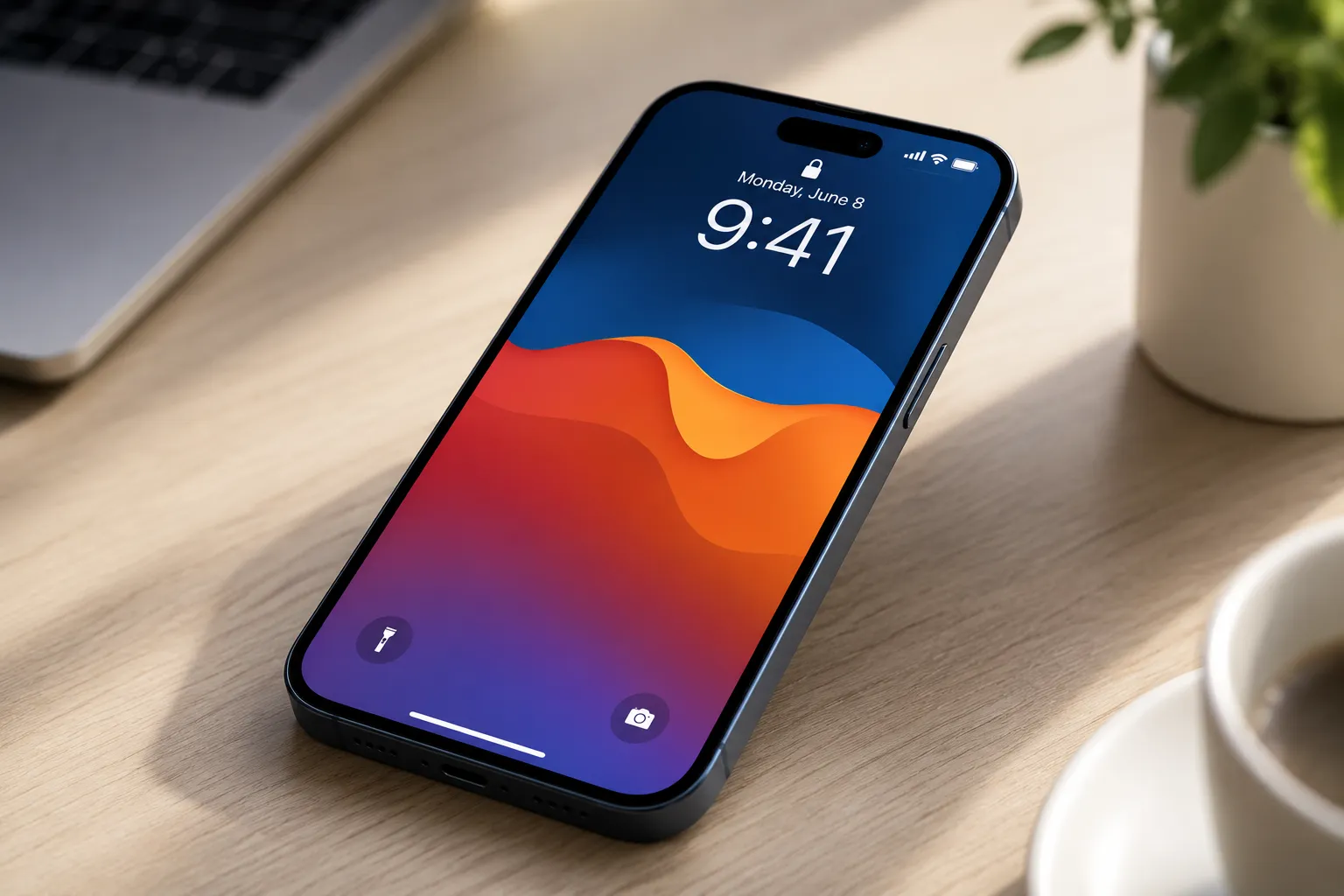
Many apps trigger the same pop-up the moment you open them: "Allow [App] to track your activity across other companies' apps and websites?" You tap "Ask App Not to Track." Next app, same prompt. It's friction without end, and most iPhone users don't know there's a single toggle that makes it stop.
This guide walks through exactly how to turn off app tracking requests on iPhone, what iOS does the moment you flip that toggle, and where the setting's limits are, because disabling app tracking pop-ups on iPhone is not the same thing as stopping all data collection.
The one distinction worth holding onto throughout: this setting blocks cross-app tracking requests and prevents ad networks from linking your activity across different apps and websites. It does not stop apps from collecting data about what you do inside their own properties.
Before you start
The App Tracking Transparency iPhone setting requires iOS 14.5 or later. No third-party apps needed.
A few situations where things may look different or the menu may be unavailable:
Child accounts: Tracking is blocked at the device level for accounts configured with age restrictions. The standard Tracking menu may not appear, or toggles may be grayed out.
MDM-managed devices: If your iPhone is managed by an employer or institution through Mobile Device Management, tracking may already be restricted systemwide. The controls may behave differently or be absent entirely.
If you fall into either category and can't find the Tracking menu, your device is likely already restricted.
Step 1: Turn off all tracking requests at once
This is the main action. One toggle, and no app can ask for tracking permission going forward. This is the fastest way to disable app tracking pop-ups on iPhone across every app simultaneously.
Open Settings
Tap Privacy & Security
Tap Tracking
Toggle off Allow Apps to Request to Track
Once the toggle is off, iOS intercepts any tracking request before it surfaces. The app is informed you've declined; it never sees a prompt, and it cannot re-ask. The system shows each tracking prompt only once per app install, and subsequent attempts return the same cached decision without interrupting you again, as Adapty explains.
What you should see: The toggle turns gray.
Critical: Turning off the global toggle does not always clean up every prior permission by itself. When prompted, choose to ask previously allowed apps to stop tracking, then review the app list manually.
If you previously tapped "Allow" for specific apps, those remain active until you disable them manually. Scroll down the same Tracking screen to see a list of apps that have requested to track you. Scan it and turn off any you'd rather block. This is the step people skip, and skipping it means some apps continue tracking even after you flip the global switch.
When the global toggle is off, iOS returns a "denied" status to any app that calls the tracking API. Instead of your real device identifier, the app receives a string of zeros. To change a prior decision in either direction, you must return to Settings → Privacy & Security → Tracking manually. Apps have no mechanism to prompt you again.
How to stop apps from tracking you on iPhone: what this setting changes
This is where the setting earns its keep, and where inflated expectations can lead you astray.
What it blocks: The IDFA, or Identifier for Advertisers, is the unique device ID that ad networks use to connect your behavior across different apps and websites. Apps denied permission receive a blank ID instead of your real one, which severs the link powering targeted cross-app advertising. An FTC-cited analysis of billions of ad impressions across 19 countries found that ATT's rollout dropped the share of trackable Apple users in the U.S. by 55 percentage points, from 73% down to 18%, translating to a 21% fall in ad revenue from Apple users for publishers. The toggle does real work.
What it doesn't block: Ads won't disappear. They'll become less targeted. Instead of ads reflecting your recent browsing or purchase history, you'll see more generic ones. The more consequential gap: apps can still track what you do inside their own properties using a separate identifier called the IDFV, which doesn't require ATT consent and isn't touched by this setting. Apple's definition of "tracking" specifically covers linking data across different companies' properties. What an individual app collects about your behavior within its own ecosystem falls entirely outside ATT's scope.
Denying access to the IDFA also doesn't necessarily prevent all other tracking methods. It's worth being mindful of the apps you use and how you interact with them, even after flipping this toggle.
Questions that come up regularly:
Why am I still seeing ads? The App Tracking Transparency iPhone setting doesn't remove ads. It removes the cross-app behavioral targeting behind them.
Why does an app still seem to know my preferences? It likely does, from your activity within its own app. The IDFV permits this and isn't governed by ATT.
Why don't I see any apps listed under Tracking? Either no apps on your device currently engage in ATT-defined tracking, or your device is restricted at the account or management level. Child accounts and MDM-managed devices may already have tracking blocked systemwide.
Apps that violate these rules face real consequences. If Apple learns a developer is tracking users who declined, that developer may need to update their practices or potentially face rejection from the App Store. Apps that slip through and are discovered tracking without consent can be removed. That gives the framework enforcement teeth, though Apple acts after violations are discovered rather than preventing them in advance.
Some context on why this matters
Before the App Tracking Transparency iPhone setting arrived with iOS 14.5 in April 2021, iPhones shipped with tracking available to apps by default. Users had to actively dig into a buried setting called "Limit Ad Tracking" to stop it, and roughly 70% never did, which gave ad networks, attribution providers, and developers near-unrestricted ability to build cross-app behavioral profiles.
ATT reversed that default. Instead of opting out, users now opt in. The economic consequences were substantial. A 2021 investigation cited by the Financial Times estimated that ATT's effects cost Snapchat, Facebook, Twitter, and YouTube a collective $9.85 billion in lost ad sales. The mechanism behind that figure is straightforward: trackable ad impressions command significantly higher prices than untrackable ones, so when most users opted out, publisher revenue followed.
Only apps that actually engage in cross-company data linking are required to show the permission prompt at all. Apps that don't do this kind of tracking never need to ask, per Adapty. That's why some apps you use regularly may never have triggered the pop-up.
If you don't want to block everything: per-app control
The global toggle is the fastest path. If you'd rather make selective choices, blocking most apps while allowing a few you trust, the same Tracking menu lets you manage permissions individually.
Go to Settings → Privacy & Security → Tracking
Leave Allow Apps to Request to Track toggled on
Review the list of apps that have requested to track you
Toggle off the ones you want to block
With this approach, new apps will still prompt you on first launch. You evaluate them case by case. It takes more maintenance but gives you granular control: a navigation app you trust can keep access while social platforms cannot.
One thing to know about that per-app list: it shows apps that have requested permission, whether you granted it or denied it. Think of it as a full audit of which apps have sought cross-app data access on your device.
The same correction mechanic applies here as with the global toggle. If you previously denied an app and want to grant access, or granted it and want to revoke, you must return to this menu manually. There's no other path. Also, all app developers are required to ask for permission before tracking, including apps made by Apple.
Conclusion
The path: Settings → Privacy & Security → Tracking → toggle off Allow Apps to Request to Track. Then scroll down the same screen and manually revoke any permissions you've previously granted. That second step is the one people skip.
Blocking the IDFA cuts off the primary mechanism behind targeted cross-app advertising, a mechanism whose disruption was significant enough to reshape mobile advertising economics across the industry, as the FTC/Skiera analysis documented. The limits are real: ads stay, in-app profiling continues, and tracking methods outside Apple's specific definition of cross-app data sharing aren't covered. Those caveats don't undercut the setting's practical value. They just define its edges.
If broader privacy control is the goal, the rest of Settings → Privacy & Security, covering location, contacts, camera, and microphone, is the logical next place to look.









Comments
Be the first, drop a comment!