



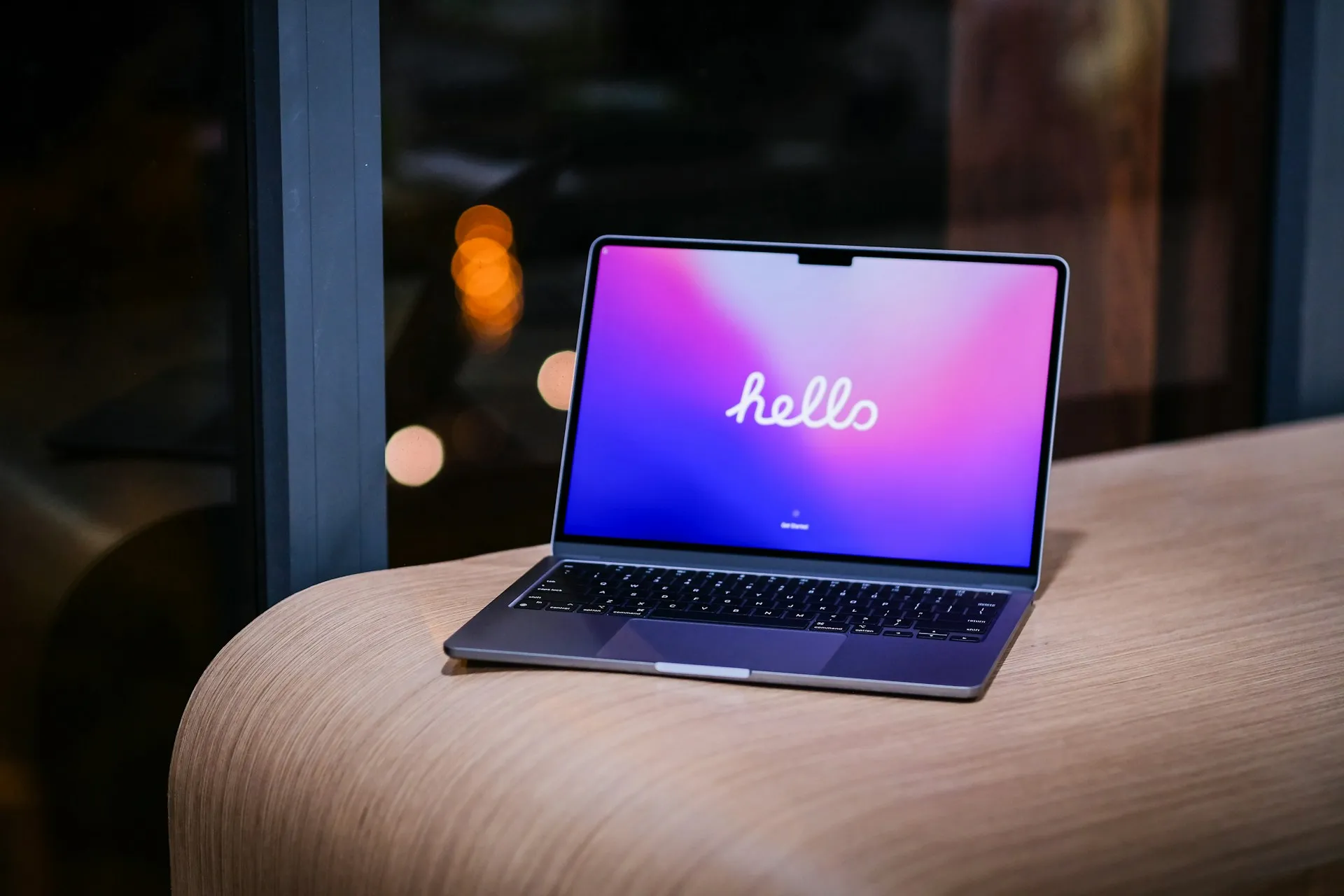
Wallpaper Engine isn't available on macOS. Its developers currently support Windows and Android and say they have no immediate plans for a Mac version.
A third-party app called Vivid Walls offers a workaround for using existing Wallpaper Engine wallpapers on a Mac: it can import compatible Wallpaper Engine files and render supported scenes natively using Apple's Metal graphics technology, without Wine, a Windows virtual machine, or Wallpaper Engine itself running on the Mac.
That distinction matters because the independent testing so far is narrower than Vivid Walls' full compatibility claims. AppleInsider imported a Wallpaper Engine folder called "Fishing Frogs by Abi Toads," containing a project.json file, preview GIF, and one-minute 3840-by-2160 MP4. Vivid Walls accepted the folder and played the video on the Mac desktop.
That confirms the importer works with the video-based wallpaper AppleInsider tested. It does not independently confirm Vivid Walls' reproduction of interactive Wallpaper Engine scenes.
Developer James Goodnight says Vivid Walls supports features including custom visual effects, particles, character animation, pointer interaction, and sound-reactive scenes, with incomplete SceneScript support. Scenes built around 3D models and wallpapers packaged as Windows executables aren't supported, while Wallpaper Engine web wallpapers have partial support.
Vivid Walls provides two ways to bring an existing Wallpaper Engine collection to a Mac: importing copied wallpaper folders directly or transferring a Steam library from a Windows PC with the free Windows Companion app.
What you need before starting
The two import paths have different requirements.
An Apple Silicon Mac running macOS 14 Sonoma or later. The current Mac App Store listing requires an M1 chip or newer; Intel Macs aren't supported.
Vivid Walls from the Mac App Store. The app is now free to download with a three-day trial of the complete feature set. A one-time $9.99 in-app purchase unlocks the full library afterward.
An existing Wallpaper Engine license and wallpaper files if you want to import Workshop content.
For the Companion transfer: A Windows PC with Wallpaper Engine installed and its Steam library available, with the Mac and PC connected to the same local network.
The free-trial change is already live. Vivid Walls version 1.3.0 switched the Mac App Store listing from an upfront $9.99 purchase to a free download with a three-day full-feature trial while keeping the permanent unlock at $9.99.
You don't need a Windows PC for a manual folder import if you already have copies of the Wallpaper Engine wallpaper folders. Vivid Walls' terms require users to own Wallpaper Engine on Steam for Wallpaper Engine content they import.
How to use Wallpaper Engine wallpapers on Mac through Vivid Walls
Import a single wallpaper folder first
Testing one wallpaper first is the easiest way to see whether Vivid Walls handles a particular file correctly.
Locate the complete Wallpaper Engine wallpaper folder. Workshop wallpapers normally live under
steamapps\workshop\content\431960on Windows, with one numbered folder per wallpaper. The folder should include itsproject.jsonfile and the wallpaper's assets.In Vivid Walls, choose File > Import Wallpaper Engine Library. You can select a single wallpaper folder containing
project.jsonor a parent folder containing multiple wallpapers.Review the compatibility result and import it. Vivid Walls identifies incompatible imports and can report why a wallpaper isn't supported.
Apply the wallpaper to the desktop. Check animation, visual effects, pointer interaction, and audio reactivity if the wallpaper is supposed to include them.
AppleInsider's successful test involved a video wallpaper inside a normal Wallpaper Engine folder. It did not test an interactive scene, so a successful video import shouldn't be treated as proof that every scene in a library will render correctly.
If a scene stutters, loses effects, or behaves differently from Wallpaper Engine on Windows, try a simpler wallpaper as a comparison. SceneScript, shaders, and combinations of more complex effects remain areas where compatibility can vary.
Transfer a full library with Windows Companion
The Windows Companion app is the easier route for moving a larger existing collection.
Install and launch the free Vivid Walls Companion on the Windows PC. It scans known Steam library locations and displays the number of Wallpaper Engine wallpapers it finds.
If it finds nothing, point it to the correct library manually. Steam libraries stored on another drive may need manual selection. Wallpaper Engine itself and Steam don't need to remain open during the transfer.
Open Vivid Walls on the Mac and press Cmd+Shift+P. You can also choose File > Import from PC.
Wait for the Windows PC to appear. Vivid Walls uses Bonjour to discover the Companion over the local network.
Enter the four-character pairing code shown on the PC. The code can contain letters as well as numbers, and a fresh one is generated for each Companion session.
Choose individual wallpapers or Import All. Wallpapers begin appearing in the Mac library as their files arrive.
Apply a wallpaper to the desktop. Fill mode, volume, playback speed, and opacity settings can be stored separately for each wallpaper.
Transfers stay on the local network and don't require a Vivid Walls account or cloud upload.
If the PC doesn't appear
Wait about 30 seconds first. Bonjour discovery works over the local network and doesn't normally cross subnet boundaries.
Make sure both devices are on the same network and that Windows Firewall allowed local-network access for Companion. A manual IP address and port option is available if automatic discovery still fails.
If Companion reports zero wallpapers, use its Browse option to locate the Wallpaper Engine installation or Steam library manually.
Test every imported scene before trusting it
A successful import doesn't guarantee every effect inside a wallpaper will render exactly as it does in Wallpaper Engine.
Goodnight says Vivid Walls supports custom visual effects, particles, character animation, pointer interaction, sound-reactive behavior, and some SceneScript functionality. Application wallpapers packaged as Windows executables and presets that depend on Wallpaper Engine's own built-in effects aren't compatible.
3D-model-based scenes aren't supported, and some complex scene and scripting features remain incomplete.
Vivid Walls says most Wallpaper Engine scenes render correctly and that unsupported shader or SceneScript features affect a smaller portion of the library. That's the developer's compatibility claim rather than the result of a large independent test.
AppleInsider tested Vivid Walls' bundled video wallpapers and one imported 4K video wallpaper. It explicitly did not test interactive Wallpaper Engine scene files.
The new three-day trial makes this easier to judge before paying. Import the wallpapers that matter most during the trial and check their actual animation, interactions, audio response, and visual effects before buying the $9.99 unlock.
Battery, performance, and privacy permissions to check
AppleInsider's performance measurements came from Vivid Walls 1.2.4 running one of its bundled 1080p videos on an M3 MacBook Air, not from the imported 4K wallpaper or an interactive Wallpaper Engine scene.
Activity Monitor showed roughly 5.5% to 7.4% CPU usage across repeated samples and memory use of about 91MB to 124MB. On battery power, it recorded an Energy Impact of about 6.8, which is Apple's relative measure of current energy use rather than a percentage of battery drain.
Those measurements are a snapshot of one wallpaper on an older Vivid Walls build. The current App Store version is 1.3.0, and performance can vary substantially by wallpaper.
Vivid Walls includes battery and performance controls that can reduce the frame-rate target to 15 fps or pause wallpapers on battery. The developer also says wallpapers pause when covered by full-screen apps or after inactivity and that the app responds to Low Power Mode and thermal pressure.
On multiple monitors, the covered-window pause behavior applies only after all wallpaper windows are covered, so another visible display can keep rendering.
Sound-reactive wallpapers require permission to capture audio from the Mac. AppleInsider reports that macOS 14.0 and 14.1 can present this through Screen Recording permissions, while newer macOS versions provide an audio-capture permission.
Goodnight says it processes audio used for reactive wallpapers locally and doesn't store or transmit it. Vivid Walls' privacy policy also says the app doesn't collect personal information, analytics, telemetry, or crash reports. The Mac App Store currently carries Apple's Data Not Collected label based on the developer's disclosure.
Declining the relevant audio permission disables sound-reactive behavior without preventing ordinary wallpapers from playing.
Optional: export a wallpaper to the Mac lock screen
Vivid Walls also offers a separate lock-screen export system.
Goodnight says the app records the selected wallpaper as a 4K HEVC video and adds it to the catalog macOS uses for its aerial wallpapers. Once exported, macOS handles playback itself, so Vivid Walls doesn't need to remain open for the exported lock-screen video to play.
The implementation edits that wallpaper catalog directly because Apple doesn't provide a documented API for this type of integration. That means a future macOS update could change how the feature behaves.
A Remove option deletes the exported video and its catalog entry.
AppleInsider couldn't independently test the export or removal process because the export control didn't appear for the bundled video it examined. The feature's operation therefore remains based primarily on the developer's documentation.
What to do next
Vivid Walls gives Apple Silicon Mac owners a practical way to use compatible Wallpaper Engine files without running Windows on the Mac, but support varies by wallpaper type and complexity.
The app is now free to download, so start with the three-day trial rather than paying before you know whether your library works.
Import one or two wallpapers that represent what you actually use. A simple video is useful as a baseline, but if your favorites rely on particles, pointer interaction, audio reactivity, shaders, or SceneScript, test those specifically because they're the features most likely to expose compatibility differences.
Check CPU and energy use in Activity Monitor, try the battery controls, and review any audio or Automation permission request before granting it.
If those wallpapers work correctly, use Windows Companion or a copied 431960 library folder to move the rest of the collection. If the important scenes don't render properly during the trial, the $9.99 unlock won't fix the compatibility gap on its own.















Comments
Be the first, drop a comment!