



How to Share ETA in Apple Maps CarPlay Using Siri
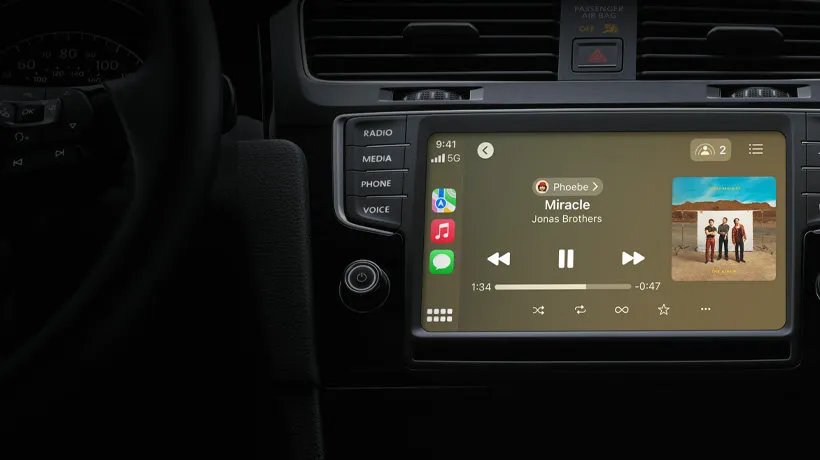
Typing "almost there" while merging onto a highway is a bad idea. Apple Maps can send a contact your ETA while you navigate, and Siri lets you start that share through CarPlay without touching the screen. Learning how to share ETA in Apple Maps CarPlay comes down to one voice command, paired with two settings toggles you flip once and forget about. Say the command, keep your hands on the wheel, and the person waiting on you gets a notification instead of a text they have to answer.
Share ETA isn't exclusive to CarPlay. The feature runs through Apple Maps on the iPhone, and Engadget notes that Siri can be triggered while following Maps directions, including by holding the steering-wheel voice button or saying "Hey Siri" in a supported car (Engadget, today). Apple ties ETA and location sharing in Maps or Messages to iOS 17 or iPadOS 17 or later (Apple Support, two months ago), and Apple notes that some features may not be available in every country or region, via Sekin (six weeks ago). Once it's switched on, Apple says the shared ETA updates automatically if a major delay crops up, and the feature covers driving, cycling, and walking directions, via Sekin (six weeks ago).
Check your settings before you drive
Share ETA sits inside a specific settings menu, and if it's missing, that's the first thing to check rather than assuming something's broken. Go to Settings > Apps > Maps, scroll to Share ETA, and turn it on (Engadget, today).
Siri needs its own separate switch. Head to Settings > Siri, and make sure Turn on Siri is enabled, since the voice command won't fire without it (Engadget, today).
The available research also lists Messages, Contacts, and Find My as separate places where Apple location sharing can be enabled (Engadget, today). This guide doesn't require touching any of those settings; Share ETA works on its own.
Before pulling out of the driveway, run through a short check:
- Share ETA toggle on in Settings > Apps > Maps
- Siri toggle on in Settings > Siri, if going hands-free
- Navigation already started to your destination
- A sense of what the recipient's phone will actually show them, since that depends on their software
How to share ETA in Apple Maps CarPlay with Siri
Use Siri once navigation is underway so you don't have to operate the touchscreen.
- Start navigation. Set a destination in Apple Maps on CarPlay and begin driving directions.
- Activate Siri. Hold the voice-command button on your steering wheel, or say "Hey Siri" if your vehicle supports it (Engadget, today).
- Say the command. "Share my ETA with [contact name]" is all it takes. No screen tap required (Engadget, today).
What happens on the other end depends on the recipient's software. Apple says the shared location, route, and ETA stay viewable until arrival, via Sekin (six weeks ago), and the estimate adjusts automatically for major delays, via Sekin (six weeks ago). Recipients on supported iOS or iPadOS versions get a Maps notification and can track progress live in the app. Recipients on earlier Apple software may instead get an iMessage notification, while people on non-Apple devices get an SMS, and standard carrier rates may apply (Sekin, six weeks ago). The experience on the other end depends on their device's software, not just on the command you give in CarPlay.
A single voice command replaces typing out a text while driving. The feature itself lives on the iPhone; Siri is just what makes it usable without looking away from the road.
Share ETA from the route card before you drive
Siri isn't the only path to Share ETA, but the alternative runs through the touchscreen, and that changes when it's actually appropriate to use. Engadget's instructions describe tapping the route card after navigation starts (Engadget, today), but treat that as a cue to set things up before pulling away, or once you've safely pulled over. Not while the car is moving.
- Open the route card. Tap the route card at the bottom of the Maps screen (Engadget, today).
- Tap Share ETA, then pick a recipient. If the person isn't already listed, tap Open Contacts to find them (Engadget, today).
- Add more people if needed. Tap Sharing with, then Open Contacts, and select additional contacts (Engadget, today).
Those controls live in Apple Maps on the iPhone. If you're parked and want to double-check that sharing actually started, open the Maps app on the iPhone directly rather than assuming CarPlay's display puts every button in the same spot.
To stop sharing early, reopen the route card, tap Sharing with, select Stop Sharing ETA, and choose the contact (Engadget, today; Sekin, six weeks ago). Short of that manual stop, Apple says the shared location, route, and ETA stay viewable until arrival, via Sekin (six weeks ago), so use the route card if someone needs to be cut off sooner than that.
Tapping through multiple menus while driving isn't good practice regardless of which screen is in front of you. That's exactly why Siri is the better choice once the car is already moving.
Automate ETA sharing for regular destinations
If there's one trip made constantly, like the drive home or over to a partner's place, setting up Share ETA every single time is unnecessary busywork. Apple Maps can automate it through pinned locations.
- Open Maps on your iPhone, outside of CarPlay, and go to Places > Pinned (Engadget, today).
- Tap the blue information button on the saved place, then Add Person (Engadget, today).
- Select a contact and confirm.
From that point forward, tapping Go to that pinned destination automatically shares the ETA with the person attached to it (Engadget, today). It's a one-time setup that avoids repeating the sharing steps for a destination driven to regularly.
Troubleshooting Share ETA in CarPlay
A few things cause this feature to behave unexpectedly:
- Share ETA option is missing: Check Settings > Apps > Maps > Share ETA, confirm the iPhone is running iOS 17 or later, and keep regional availability in mind (Sekin, six weeks ago; Apple Support, two months ago).
- Siri command doesn't start the share: Confirm Siri is enabled under Settings > Siri and that Maps is actively navigating. If the command still fails, fall back to the route-card method while parked.
- Recipient says they can't follow the trip: Ask whether they got a Maps notification, an iMessage, or an SMS. Supported iOS and iPadOS users can track progress live in Maps; earlier Apple software and non-Apple devices get different delivery behavior and may not receive the same notification and live-progress experience (Sekin, six weeks ago).
- Need to end sharing immediately: Use the route card, tap Sharing with, then Stop Sharing ETA (Engadget, today).
Choosing the right sharing tool for the trip
Share ETA isn't the only way to send someone a location from Apple Maps, and picking the wrong tool either under-delivers or over-shares. Share ETA itself is built for a single trip in progress, not an ongoing arrangement, and Apple says it updates automatically if a major delay changes the arrival time, via Sekin (six weeks ago).
A dropped pin is a different thing entirely. Sharing a place or a pin sends a static location the recipient can view once; it doesn't follow your movement at all (Sekin, six weeks ago). That's the right call for sending someone an address, not for letting them track a drive.
Find My or Messages' Live Location is built for longer, open-ended tracking rather than a single trip. Apple's overview describes sharing for an hour, until the end of the day, or indefinitely, though the exact choices available can vary, via Sekin (six weeks ago). That shares more ongoing location information than a single-trip ETA, so it's worth reserving for situations where continuous visibility is actually the point, like a family member tracking a long road trip.
Check In is narrower still. Apple describes it as a way to let a friend or family member know when you've arrived (Apple Support, two months ago), which makes it useful for a simple arrival confirmation without any live tracking in between.
Apple says stopping location sharing with someone in one app also stops sharing with that person across other apps, via Sekin (six weeks ago). That's a broad control, so it's worth double-checking the route card directly if a single Share ETA session needs to end sooner than that.
The practical rule: match the tool to how long the other person actually needs visibility into a location, not to whichever option happens to be fastest to tap. A one-trip drive calls for Share ETA. An afternoon of unpredictable errands calls for Live Location. A quick "did you get there safe" calls for Check In.
What to do next
Enable Share ETA and Siri, then test "Share my ETA with [contact name]" while parked. If it works, attach that contact to a pinned destination for recurring trips so the setup isn't repeated every drive. If the option is missing, check the software requirement and regional availability before treating it as a CarPlay problem.



Comments
Be the first, drop a comment!