



If you've been frustrated by the hassle of manually entering credit card details on your iPhone, iOS 26 just made your life easier. Apple's latest update brings a powerful new AutoFill capability to the Wallet app—one that works across any app or website, not just Safari. Let's break down what this means for your daily routine and how to get started.
Apple Wallet received several noteworthy enhancements in iOS 26, but the systemwide AutoFill support for credit cards stands out as particularly useful. Previously, this functionality was limited to Safari, meaning users of Chrome, Firefox, or other browsers were left out. Now, the feature extends across the entire operating system, as reported by 9to5Mac.
Whether you're shopping in an app or checking out on a website, your card details are just a few taps away. This expansion represents a significant step forward in Apple's effort to make Wallet a true replacement for your physical wallet, competing directly with Google Wallet's autofill capabilities and Samsung Pay's approach to payment management.
How to use AutoFill for credit cards
The process couldn't be simpler. When you need to enter payment information, tap anywhere in a text field to bring up the standard copy/paste menu. From there, select the 'AutoFill' option, then choose 'Credit Card.' Finally, tap the card you want to use. The system automatically fills in your card number and other relevant details, regardless of which app or website you're using.
This feature works seamlessly whether you're ordering food, booking travel, or making any other online purchase. No more fumbling for your physical card or risking typos when entering those 16 digits manually.
In tests across Chrome, Firefox, and various shopping apps, users found the feature worked flawlessly in most scenarios. The AutoFill menu appeared consistently in standard checkout forms, though apps with highly customized payment interfaces occasionally required a second tap to trigger the menu. One particularly useful discovery: the feature even works in mobile browser tabs, not just native apps.
Setting up AutoFill in the Wallet app
Here's what you need to know: this feature builds on Safari's longstanding AutoFill capability, but Apple has now expanded it systemwide, making it accessible across your entire iPhone experience. Managing these AutoFill cards has also gotten a new home: the Wallet app itself.
To access your AutoFill settings, open the Wallet app and tap the three-dot icon in the upper right corner. Select 'AutoFill,' then authenticate using Face ID or Touch ID. You'll see all your currently saved AutoFill cards—many of which may have been imported from Safari or Apple Pay automatically.
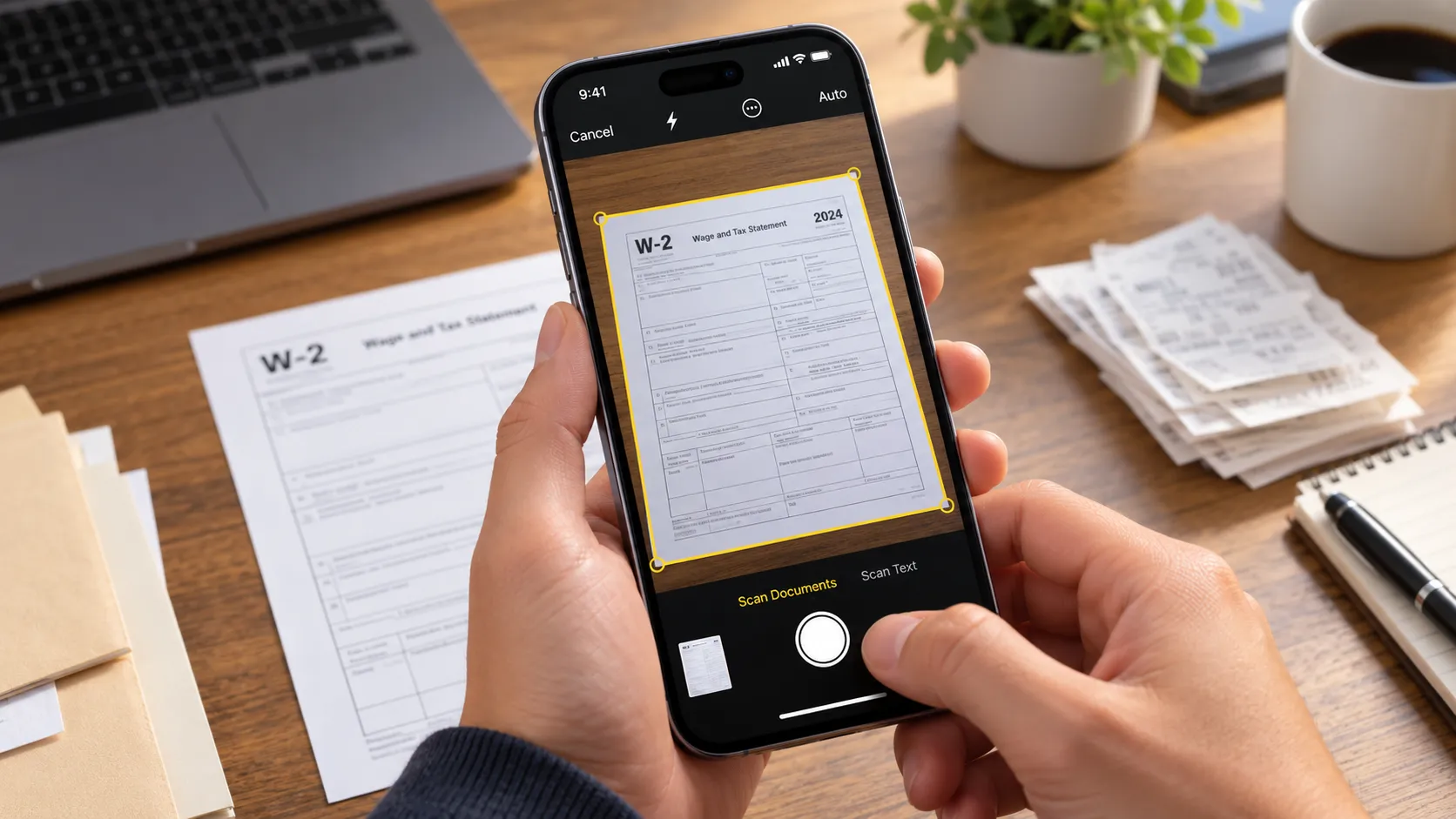
Adding new cards is straightforward. Tap the 'Add Card' button, and your iPhone can scan the card using the camera or let you enter details manually, as explained by 9to5Mac. Once you've added all your cards, they'll be available systemwide across iOS 26, eliminating the need to manually type card details again.
During setup, some users reported that cards from major issuers like Chase and Bank of America imported automatically if they were already in Apple Pay, while some smaller regional banks required manual entry. The camera scanning also worked reliably in good lighting, capturing card details in seconds.
Storing full card details for quick reference
Beyond AutoFill, iOS 26 also introduces the ability to store complete physical card information in Wallet—not just the last four digits you see with Apple Pay. This feature lets you save the full card number, expiration date, security code, cardholder name, and even an optional description.
To add this information, tap on a saved card in Wallet, then hit the three-dot icon in the top-right corner. Select 'Card Details,' then 'Card Information.' You'll find a new option: 'Add Physical Card Information.'
This is particularly handy when you need to check an expiration date for a subscription renewal or provide card details over the phone—no more digging through your physical wallet. Apple encrypts and stores this data in your iCloud Keychain, keeping it secure and visible only to you. Importantly, these details aren't used for Apple Pay transactions, according to 9to5Mac.
Think of it like this: instead of keeping a photo of your card in your Photos app (not secure) or writing details in Notes (also risky), you now have a dedicated, encrypted space designed specifically for this purpose. I found this especially useful when renewing streaming subscriptions that don't support Apple Pay—having instant access to my CVV saved precious minutes of searching.
Privacy and security considerations
For anyone concerned about storing sensitive payment information on their device, it's worth noting that adding full card details is entirely optional. Apple uses encryption to protect your card number, expiration date, and security code within iCloud Keychain. Accessing this information requires Face ID or Touch ID authentication, adding an extra security layer.
But what about security? iCloud Keychain keychain items are encrypted using AES-256-GCM keys, and iCloud Keychain syncs are end-to-end encrypted (so synced keychain items are visible only to the user. This means your card details are encrypted on your device before being synced, and Apple cannot access them. The biometric authentication requirement adds a crucial second layer: even if someone physically holds your unlocked iPhone, they can't view your card details without your face or fingerprint.
Bottom line: Apple has designed these features with privacy in mind. Your data stays encrypted, requires biometric authentication to access, and remains completely separate from your Apple Pay transactions. If your device is lost or stolen, remote wipe through Find My ensures your card details don't fall into the wrong hands.
Why this matters for the Apple ecosystem
This isn't just about convenience—it's about Apple's broader vision for Wallet as a comprehensive digital wallet replacement. Third-party password managers like 1Password have offered credit card storage for years. When Apple launched its Passwords app last year, many were surprised to find no such feature included. iOS 26 remedies that gap—and places the functionality exactly where it makes the most sense: in Wallet.
This strategic positioning matters. By centralizing payment credentials in Wallet rather than scattering them across Passwords and Safari settings, Apple creates a clearer mental model for users: Wallet equals payment methods, Passwords equals login credentials. It's a distinction that competing platforms often blur, leading to confusion about where to find stored payment information.
The competitive implications are significant. Google Wallet offers similar autofill capabilities but lacks the tight integration with hardware-level security features like Face ID. Samsung Pay provides tap-to-pay functionality but doesn't offer the same unified credential storage. Apple's approach—combining AutoFill, full card detail storage, and biometric security in one app—creates a differentiated user experience that's harder for competitors to replicate without controlling both hardware and software.
The key takeaway is that iOS 26 brings Wallet one step closer to truly replacing your physical wallet. With systemwide AutoFill and full card detail storage, you'll find fewer reasons to carry plastic cards around. Whether you're a longtime Apple user or just getting started with the ecosystem, these enhancements make everyday transactions faster and more secure. And as merchant adoption of digital payment methods continues growing—particularly for online purchases where manual card entry remains common—the time savings add up quickly. Imagine eliminating just 30 seconds per transaction across dozens of monthly purchases: that's minutes reclaimed from tedious data entry and redirected toward things that actually matter.









Comments
Be the first, drop a comment!