





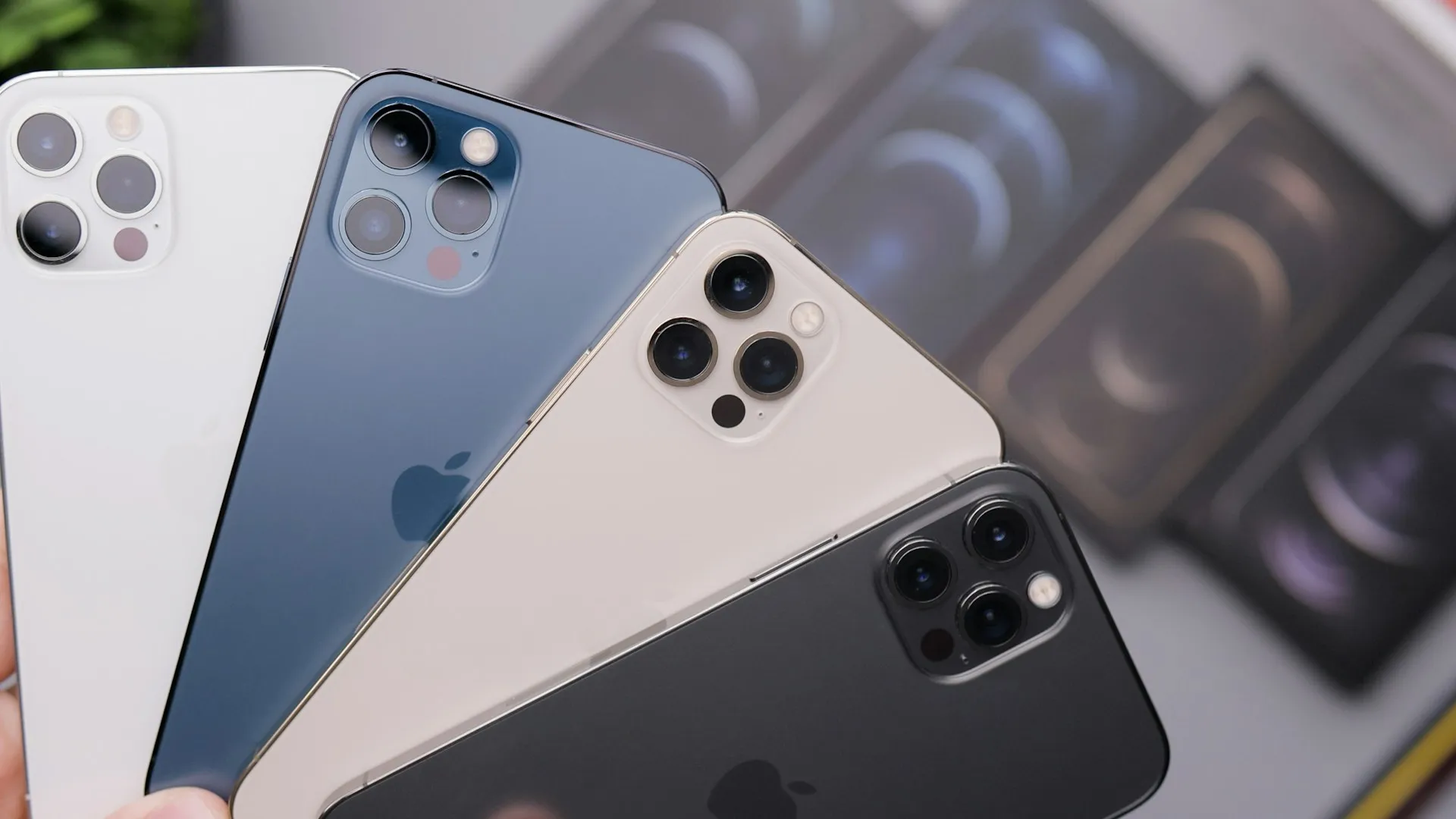
While Apple has made significant improvements to battery technology over the years, the reality is that our phones work harder than ever, juggling everything from always-on displays to background app refreshes and location tracking.
The good news? You don't need to turn your iPhone into a glorified flip phone to see meaningful improvements in battery life. Let's break down the most effective strategies that actually work, without sacrificing the features that make your iPhone useful in the first place.
Master your power modes and charging habits
Your iPhone's Low Power Mode isn't just for emergencies—it's one of the most effective tools for extending battery life when you need it most. This feature automatically reduces background activity, dims your display, and limits some visual effects while keeping core functionality intact. What's particularly clever about Low Power Mode is how it prioritizes the features you're actively using while quietly scaling back the ones running in the background that you probably don't even notice.
You can enable Low Power Mode manually anytime through Settings > Battery, or set it to activate automatically when your battery drops to 20%. What many users don't realize is that you can actually customize which features get restricted. While Low Power Mode typically disables mail fetch, background app refresh, and some visual effects, your core apps and calling functionality remain fully operational.
Beyond the built-in power modes, understanding optimal charging patterns can significantly impact your battery's long-term health. Modern iPhones use lithium-ion batteries that generally perform best when not consistently charged to 100% or drained to 0%. I know what you're thinking—that's not always realistic when you're trying to get through a full day, and you're absolutely right.
The timing of your charging sessions also matters more than you might think. Overnight charging has become the norm for most users (and honestly, it's just convenient), but iOS's Optimized Battery Charging feature learns your routine and delays charging past 80% until you need it. This means if you plug in your phone at 10 PM every night and wake up at 7 AM, your iPhone will charge to 80% relatively quickly, then wait until closer to your wake-up time to finish charging to 100%. It's designed to reduce the time your battery spends at maximum charge, which can help preserve its capacity over time.
Pro tip: If you notice your battery health declining faster than expected, consider your charging environment. Extreme temperatures—both hot and cold—can impact battery performance and longevity. Try to avoid charging your phone in direct sunlight, hot cars, or other high-temperature environments when possible.
Tame background activity and app refresh
Background App Refresh might be convenient, but it's also one of the biggest battery drains hiding in plain sight. This feature allows apps to update their content even when you're not actively using them, which means your weather app, social media platforms, and news applications are constantly working behind the scenes, fetching new data and keeping themselves current.
The key here isn't to disable everything—it's to be selective about which apps actually need real-time updates. Your email and messaging apps might benefit from background refresh because getting notifications promptly is probably important to you. But that fitness app you opened once last month? Or the shopping app that sends you promotional notifications? They probably don't need to stay active when you're not using them.
To customize these settings, head to Settings > General > Background App Refresh. You'll see a list of all your apps with toggles next to each one. Take a moment to consider which apps truly need to update in the background versus those that can refresh when you actually open them.
Location services present a similar optimization opportunity, and this connection to your power management strategy is crucial. Many apps request location access "always" when they really only need it "while using the app." Think about it—does your photo editing app really need to know where you are when you're not even using it? This constant location polling works against the same battery preservation principles we established with charging habits.
Here's something that might surprise you: some apps are particularly aggressive about location usage. Some apps, like social media, may request more location access than they need for the features you use. Review these permissions in Settings > Privacy & Security > Location Services, and you can often switch apps from "Always" to "While Using App" without losing any functionality that matters to you.
Fine-tune display and visual settings
Your iPhone's display is typically the largest single drain on battery life, which makes perfect sense—it's literally powering millions of pixels and sophisticated backlighting systems. This is where the battery optimization strategies we've discussed really compound, because display efficiency works hand-in-hand with the power modes and background activity management we've already covered.
Auto-Brightness is generally your friend here. It adjusts screen brightness based on ambient light conditions more efficiently than manual adjustments because it's designed to find the minimum brightness level that's still comfortable for current lighting conditions. Most of us tend to set brightness higher than necessary when adjusting manually, especially in darker environments. You'll find this setting under Settings > Accessibility > Display & Text Size > Auto-Brightness.
For newer iPhone models with always-on displays, this feature genuinely feels futuristic—being able to glance at your phone and see the time, notifications, and widgets without touching anything. But it does come with a battery cost, even though Apple has optimized it significantly. The always-on display uses specialized low-power display technology and reduced refresh rates, but it's still keeping part of your screen active continuously.
If you're implementing the Low Power Mode strategies we discussed earlier and want to maximize battery life for a particularly demanding day, temporarily disabling the always-on display can provide additional usage time. You can toggle this in Settings > Display & Brightness > Always On Display.
Visual effects like motion and transparency require additional processing power from your phone's graphics chip, which ties back to our overall power management approach. The Reduce Motion setting in Settings > Accessibility > Motion > Reduce Motion reduces animation effects and may make the interface feel simpler on some devices. Instead of apps sliding in with complex animations, they'll use simpler fade effects that require less computational power.
What this means for your daily iPhone experience
The bottom line is that effective battery optimization isn't about making dramatic sacrifices—it's about understanding which features you actually use and adjusting accordingly. These strategies work best when applied thoughtfully rather than all at once, building on each other to create a more efficient overall system.
Start with one or two changes that align with your habits, monitor the results for a few days, then gradually implement additional optimizations as needed. Your iPhone's Battery settings provide detailed usage analytics that show you both screen-on time and background activity for each app. You might discover that an app you rarely open is actually consuming significant battery in the background, or that your screen-on time is much higher than you realized for certain apps.
What's particularly useful about iOS's battery analytics is how they connect to all the optimization areas we've covered. You can see which apps are using Background App Refresh, which ones are accessing location services, and how your charging patterns affect overall battery health. This data helps you target your optimization efforts where they'll have the biggest impact on your specific usage patterns.
The goal isn't to squeeze every possible minute from your battery at the expense of usability—it's to create a setup that reliably gets you through your day while maintaining the iPhone experience you actually want. After all, what's the point of having a smartphone that lasts all day if you've disabled all the smart features that made you want it in the first place?






Comments
Be the first, drop a comment!