





iPhone users often find themselves in a frustrating situation: their device storage is maxed out with photos, but they don't want to pay for additional iCloud storage. The good news? You have several powerful alternatives that can handle your photo backup needs without requiring Apple's ecosystem at all.
While iCloud seamlessly integrates with your iPhone, it's not your only option for keeping precious memories safe. Understanding the various backup methods available can save you money, give you more storage flexibility, and even provide better cross-platform access to your photos. Let's explore how you can break free from iCloud dependency while maintaining reliable photo protection.
Why consider alternatives to iCloud for photo backup?
Here's the reality of iCloud's storage situation—that 5GB free tier disappears fast with today's high-resolution photos and videos. A single 4K video from your kid's birthday party can consume several hundred megabytes before you know it. Once you exceed that limit, monthly subscription fees start at $0.99 for 50GB, escalating to $2.99 for 200GB and beyond.
The cost factor alone makes exploring alternatives worthwhile, but there's more to consider. Services like Google Photos offer 15GB of free storage—three times Apple's allocation—shared across your Google account. Dropbox provides 2GB free with generous referral bonuses, while Microsoft OneDrive includes 5GB with options for Office 365 subscribers to access 1TB of space.
Beyond storage economics, cross-platform compatibility becomes crucial if you use multiple device types or anticipate switching ecosystems. Google Photos integrates seamlessly with Android devices, Windows computers, and web browsers, ensuring your memories remain accessible regardless of your primary device. This flexibility proves invaluable for mixed-device households or users who frequently collaborate across different platforms.
Setting up Google Photos as your primary backup solution
Google Photos stands out for its combination of generous free storage, intelligent organization, and universal accessibility. After downloading the app from the App Store, the initial setup presents a crucial decision point that impacts your long-term storage strategy.
The choice between "Storage saver" and "Original quality" fundamentally affects how much content you can store within your allocation. Storage saver applies compression that reduces file sizes while maintaining visual quality that's imperceptible for most viewing scenarios. Original quality preserves every pixel as captured, which matters if you frequently edit photos or print large formats, but consumes storage much faster.
The cellular data setting deserves careful consideration based on your mobile plan. Photos typically range from 2-5MB each, while videos can consume 50-200MB per minute depending on resolution. Setting uploads to Wi-Fi only prevents unexpected data charges while ensuring consistent backup when you're home or at locations with reliable wireless connections.
Google Photos' search capabilities leverage machine learning to recognize faces, objects, locations, and, in many cases, text within images. You can search for specific people, animals, activities, or even handwritten notes photographed with your phone. The service automatically creates albums for trips, generates animated clips from similar photos, and suggests sharing options based on detected faces—features that go well beyond simple storage backup.
Managing photo formats and quality settings
iPhone photography involves technical considerations that affect backup compatibility across different services. Your device captures images in High Efficiency Image Container (HEIC) format by default, which delivers superior quality-to-size ratios compared to traditional JPEG, but creates compatibility challenges with non-Apple platforms.
Most third-party backup services preserve HEIC files as-is, though some offer optional conversion tools or workflows, ensuring broad compatibility across devices and platforms. This conversion typically introduces minimal quality loss—usually undetectable unless you're doing professional photo editing or large-scale printing. However, the conversion process means your backed-up photos won't be identical to the originals stored on your iPhone.
Live Photos present additional complexity since they combine a still image with a 1.5-second video clip before and after the capture moment. Google Photos preserves Live Photos' motion elements, though playback and format handling vary across platforms, maintaining the dynamic aspect while making them viewable on non-Apple devices. Other services like Dropbox and OneDrive might only preserve the still image component, losing the motion element entirely.
For users who prioritize maintaining original file formats—perhaps for professional workflows or maximum quality retention—services like Dropbox can preserve HEIC files in their original format, depending on upload settings. This approach maintains perfect fidelity but requires ensuring your viewing and editing tools support the format across all your devices.
Automating your backup workflow for convenience
Effective photo protection happens automatically, without requiring conscious effort or regular maintenance. Modern backup services offer sophisticated automation options that rival iCloud's seamless operation while providing greater control over timing, quality, and data usage.
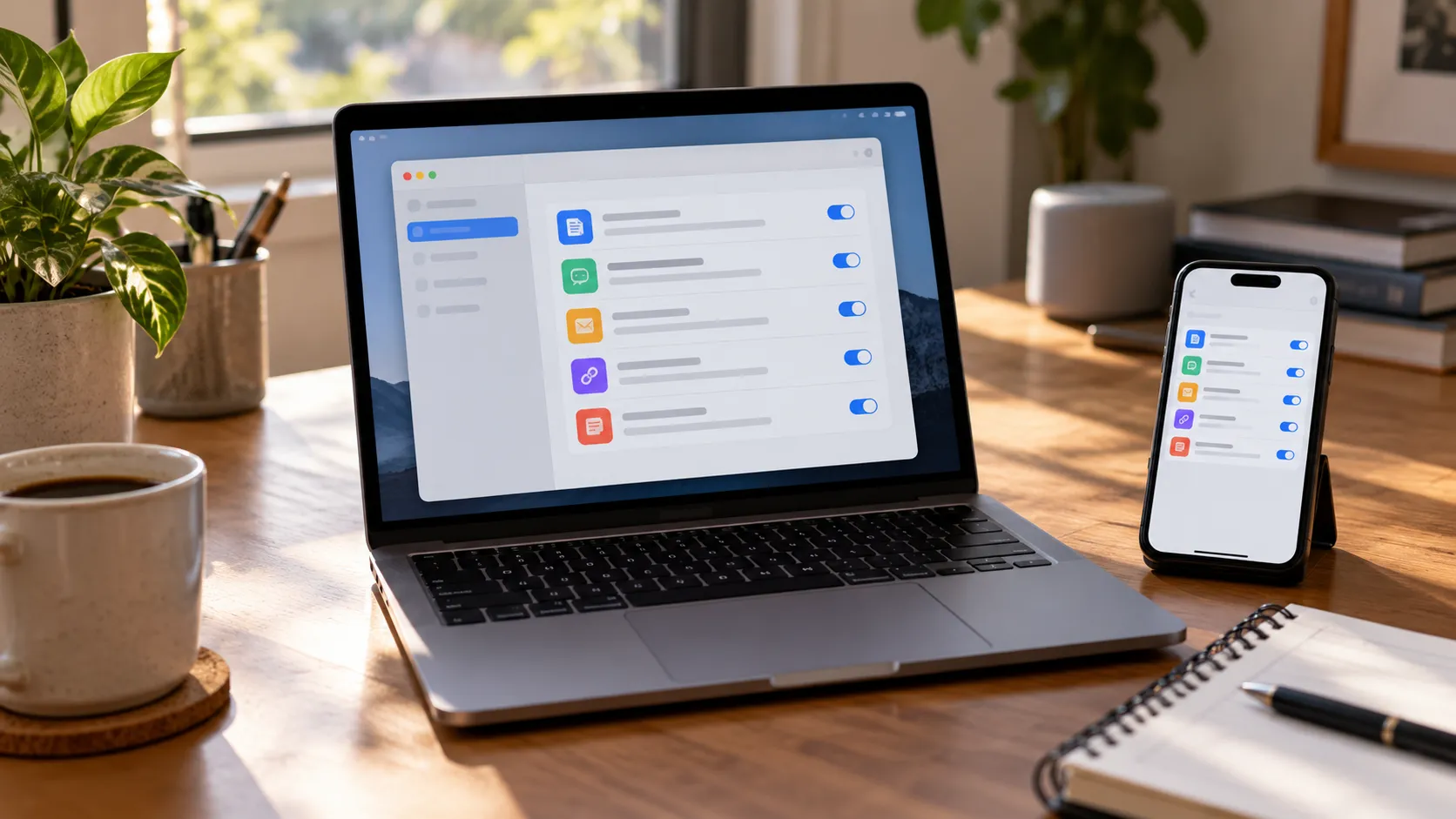
Background uploading represents the cornerstone of automated backup workflows. Google Photos, Dropbox, and OneDrive can all monitor your Camera Roll continuously, uploading new content when optimal conditions are met. These conditions typically include Wi-Fi connectivity, adequate battery levels (usually above 15%), and device charging status to prevent backup activities from interfering with daily usage.
Advanced automation features allow granular control over what gets backed up and when. You can configure automatic uploads for photos only while excluding videos to conserve bandwidth, or set specific time windows when uploads occur to avoid interfering with other activities. Some services offer intelligent scheduling that learns your usage patterns, performing intensive uploads during periods of low device activity.
For users requiring maximum redundancy, configuring multiple backup services provides comprehensive protection against service outages, account issues, or data corruption. However, this approach requires careful storage budget management and clear organizational strategies to prevent confusion about which service contains the most current or complete photo collection.
PRO TIP: Start with a single service and master its features before adding additional backup solutions. It's more effective to have one perfectly configured backup than multiple poorly managed ones.
What this means for your iPhone storage strategy
Moving beyond iCloud dependency transforms how you approach iPhone storage management and photo organization. Alternative backup services enable strategic local storage decisions while ensuring comprehensive cloud protection without recurring Apple subscription fees.
The most effective workflows combine immediate local access with intelligent cloud archiving. You might maintain recent photos on your device for quick sharing and editing while relying on cloud services for long-term storage and cross-device synchronization. This approach maximizes both convenience and storage efficiency while maintaining complete photo protection.
Consider developing a tiered storage strategy: keep the current month's photos locally for immediate access, maintain the previous three months in high-quality cloud backup for regular viewing, and archive older photos in compressed formats for long-term preservation. This system balances device performance, storage costs, and access convenience while ensuring no memories are ever lost.
The key insight is that breaking free from Apple's default ecosystem can provide lower costs and greater flexibility, depending on your needs. Whether you choose Google Photos for its intelligent features, Dropbox for robust file management, or OneDrive for Microsoft ecosystem integration, you'll likely discover that life after iCloud offers more control over your digital memories than you ever had before.






Comments
Be the first, drop a comment!