





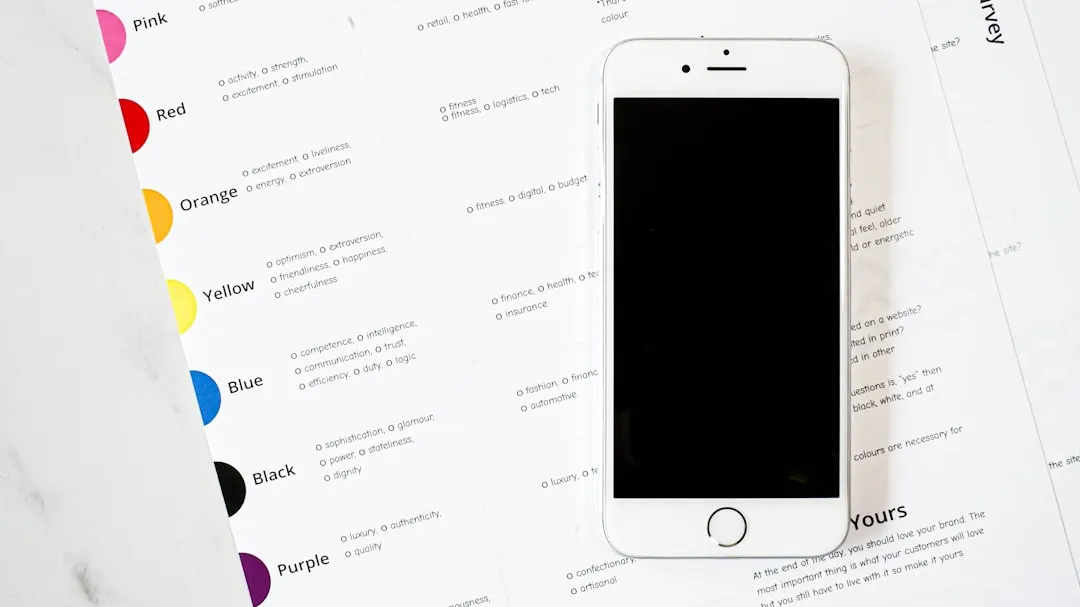
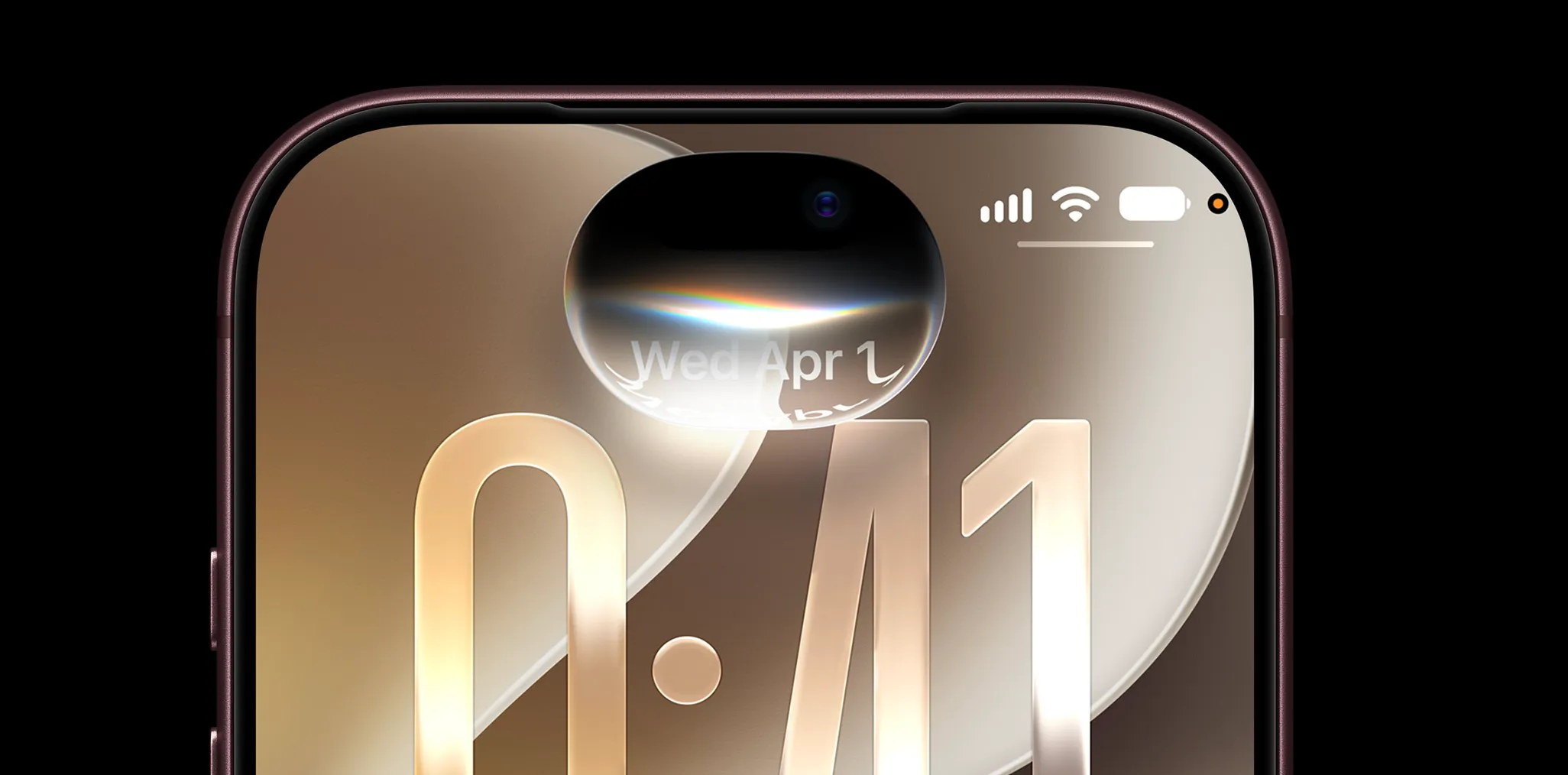
Apple's latest iOS 26 update brings a significant addition to the iPhone ecosystem that caught my attention immediately: the new Preview app. As someone who's been testing iOS 26 since its release, according to MacRumors, this represents one of the most substantial feature additions in recent memory. The timing couldn't be better, especially with the broader Liquid Glass design overhaul that Apple introduced across all their operating systems. Let me break down how this new Preview app is changing my daily workflow and why it might do the same for you.
What makes the Preview app a game-changer for iPhone users?
The arrival of Preview on iPhone represents something I didn't realize I was missing until I started using it. Before this, my mobile PDF workflow was essentially broken - I'd either struggle with apps that could barely annotate documents or bookmark tasks for when I could access my computer. The friction was real: switching between multiple apps for basic tasks, limited markup capabilities, and that constant feeling of working with compromised tools.
Now, with the Preview app allowing you to view and edit PDFs and images, I'm getting that desktop-class functionality right in my pocket. But here's what impressed me most initially: the document scanning quality. The app can scan documents as PDFs with remarkable accuracy that genuinely rivals dedicated scanning apps I've used for years. When you position the document in view, the scan is automatically taken, eliminating the guesswork and producing consistently sharp results.
The real magic happens when you're dealing with PDF forms - and this is where I've saved the most time. Instead of switching between multiple apps or deferring tasks until later, Preview can quickly fill out PDF forms with contact information. I've been using this feature extensively for everything from rental applications to medical forms, and what used to take 15 minutes of app-switching now takes about 2 minutes. You simply tap and select a field to start filling it out - the app even intelligently suggests information from your contacts.
Beyond PDFs, the app handles image editing tasks that prove surprisingly versatile in daily workflows. Preview can create images from clipboard objects, crop, rotate, and resize images, and even remove backgrounds from images with impressive accuracy for product photos or social media content. While it won't replace dedicated photo editing apps, these capabilities handle 80% of my quick editing needs without leaving the document workflow.
How does Liquid Glass enhance the Preview experience?
The Liquid Glass design philosophy that runs throughout iOS 26 transforms how Preview feels to use, and this goes far beyond aesthetics. The design combines optical qualities of glass with a sense of fluidity, creating interface elements that respond to your touch with a tactile quality that makes precision work feel more natural.
When you're marking up a PDF or adjusting image settings, buttons, sliders, switches, and other controls come alive with Liquid Glass, providing immediate visual feedback that helps with accuracy. The difference is particularly noticeable when you're trying to place annotations precisely - the subtle animations guide your finger to exactly where you need to tap or drag.
What's particularly clever is how navigation elements hide when not needed and appear when necessary, similar to what we see in Safari and Photos. This adaptive interface means maximum screen real estate for your document content while keeping essential markup tools accessible with a simple tap. When you're working with detailed contracts or technical diagrams on a phone screen, this extra space makes a measurable difference in usability.
The integration with the broader Liquid Glass system means Preview benefits from expanded controls and in-place alerts. Instead of disruptive modal dialogs that break your concentration, alerts now expand directly from the relevant interface element - so if you're trying to save a document and there's an issue, the feedback appears right where you were working rather than covering your entire screen.
My real-world workflow improvements with Preview
Here's where things get practical, and honestly, where I've seen the biggest impact on my daily productivity. Before iOS 26, my mobile PDF workflow was basically non-existent. Now, I can highlight, underline, or strike through text in PDFs with the same precision I'd expect on desktop - and often faster, since I can use direct touch rather than hunting for menu options.
The document scanning workflow has completely replaced my previous setup. The scan quality is comparable to popular third-party scanning apps (user experience may vary), and the integration is seamless. The scan is automatically taken when you position the document in view, then you tap the blue checkmark to save. I've processed everything from receipts to multi-page contracts, and the text recognition accuracy is excellent even with challenging lighting conditions.
For security-conscious workflows, the ability to lock PDFs with passwords has become essential for handling sensitive documents on mobile. I've been using this feature for tax forms, legal papers, and client contracts - it's given me confidence to handle materials entirely on my phone that I previously would never touch outside of a secure desktop environment.
The image editing capabilities, while focused, handle exactly the tasks I need most often. The background removal feature has been particularly useful for creating clean product shots for online listings or removing distracting elements from screenshots. What strikes me is how these features work together - I can scan a document, mark it up, add password protection, and share it securely, all within a single app workflow.
The flexibility factor: why Preview's optional nature matters
One aspect that sets Preview apart from other iOS additions is its respect for user choice and workflow preferences. Research from 9to5Mac reveals that if you don't like the new Preview app, you can simply delete it to revert the Files app to its previous functionality. This gives users complete control over their experience while allowing reinstallation from the App Store whenever desired.
This flexibility extends beyond installation preferences into how the app integrates with existing workflows. Preview can access data from the iPhone Files app, creating a seamless bridge between cloud storage services and document editing capabilities. Whether your files live in iCloud, Dropbox, Google Drive, or OneDrive, Preview integrates naturally without forcing you to change your storage strategy.
The share sheet integration has proven particularly valuable - you can open PDFs or images in Preview from virtually any app, edit them with full functionality, and share the results without the context-switching that used to break my workflow. This system-level integration makes Preview feel like a natural extension of iOS rather than a bolted-on addition.
The app also benefits from iOS 26's broader AI capabilities through Apple's FoundationModels framework, which enables privacy-first AI experiences that run entirely on-device. This means sensitive document content never leaves your phone - a crucial consideration for business workflows and personal document security.
Where Preview fits in the bigger iOS 26 picture
Preview's introduction makes strategic sense when viewed alongside iOS 26's comprehensive productivity enhancements. The update brings comprehensive improvements to Messages, Safari, and FaceTime, creating an ecosystem where mobile-first workflows feel genuinely capable rather than compromised. Preview serves as a crucial piece of this puzzle, handling the document processing that ties everything together.
The timing aligns perfectly with Apple's broader platform evolution. Apple released iOS 26 in September 2025 as part of their major platform refresh, and iOS 26 represents Apple's most revolutionary developer update since iOS 7. This isn't just about visual polish - it's about fundamental improvements to how we interact with complex tasks on mobile devices.
Preview specifically demonstrates how the Liquid Glass philosophy enhances productivity tools. Rather than simply making everything more translucent, the design improvements serve functional purposes: better visual hierarchy for complex interfaces, more responsive touch targets for precision work, and adaptive layouts that maximize usable space. When combined with features like Visual Intelligence supporting screenshots and Live Translation across communication apps, Preview becomes part of a more intelligent, integrated mobile workflow.
What strikes me most about Preview in the iOS 26 context is how it represents Apple's commitment to mobile-first productivity without sacrificing capability. Instead of creating a watered-down mobile version of their Mac app, they've built something that leverages iPhone-specific capabilities like camera scanning and touch-based markup while maintaining the power that professionals expect from their tools.
Bottom line: the Preview app represents exactly the kind of thoughtful feature addition that makes iOS updates genuinely worthwhile. It solves real problems that mobile users face daily - the friction of handling documents on phones, the compromise of mobile PDF workflows, and the security concerns of cloud-based editing tools. Preview integrates seamlessly with existing workflows while respecting user choice about adoption. Whether you're processing business documents, digitizing important paperwork, or making quick image edits, Preview transforms your iPhone into a more capable productivity tool that finally makes "mobile-first" feel like an opportunity rather than a limitation.


Comments
Be the first, drop a comment!