




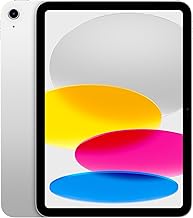

Apple's latest iPadOS 26 update has introduced something I've been genuinely excited about: the Journal app finally making its way to the iPad. After being exclusive to iPhone since iOS 17, this personal reflection tool has found its true home on the larger canvas of the iPad, thanks to Apple Pencil support and the expansive screen real estate. iPadOS 26 brought numerous quality-of-life improvements that have revitalized the platform, but the Journal app stands out as one of the most compelling additions for everyday users.
Why Journal feels like it was meant for the iPad
The Journal app's transition from iPhone to iPad isn't just about screen real estate, but also transformation. On iPhone, Journal worked best for quick entries with a few lines about your day and maybe a photo or two, but the iPad version opens up entirely new possibilities. The larger display and Apple Pencil support make Journal more complete on the iPad, transforming it from a simple note-taking tool into something closer to a personal diary.
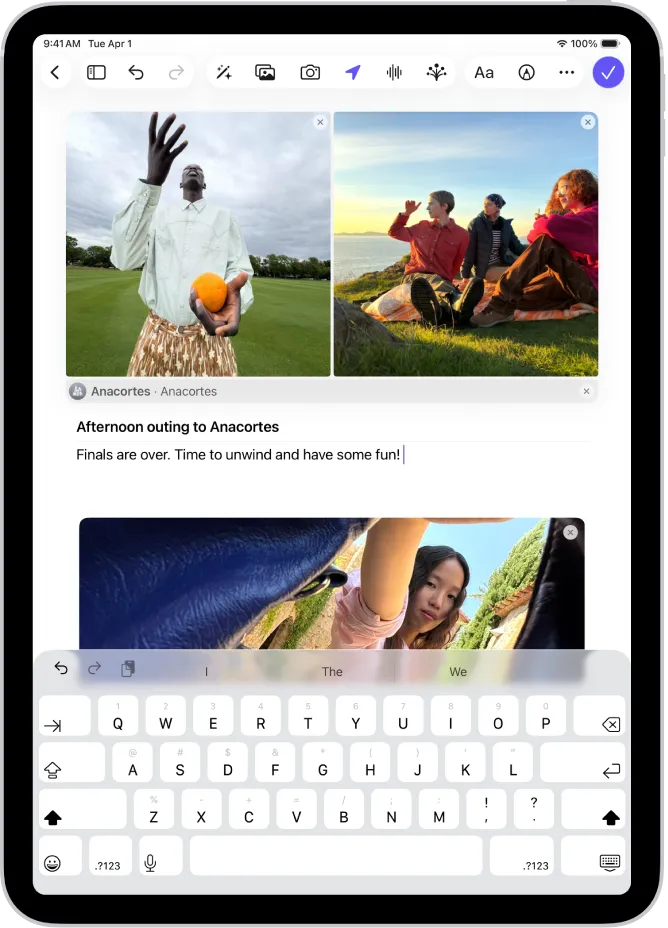
The difference is immediately apparent when you start writing. The larger screen makes entries easier to structure, allowing you to insert images directly into text, expand on ideas, and create more visual records. You can describe a trip, add photos, sketch with Apple Pencil, and even tag locations on a map—all within a single, cohesive entry. What this means in practice is that your travel memories become rich, multimedia experiences rather than simple text notes.
Notes aren't just plain text anymore. You can now highlight important thoughts with colored handwriting, add diagrams, or capture quick sketches. What's fascinating is how natural handwriting feels compared to typing on the device. Writing feels more intentional than typing and forces you to think about what you're trying to put down on digital paper. There's something about physically forming letters with the Apple Pencil that slows down your thoughts in a productive way, making you more deliberate about capturing what truly matters.
What makes the iPad version special
Apple didn't just port the iPhone version to a bigger screen—they reimagined how journaling works on iPad. The iPad version includes Apple Pencil support and a map view for adding places to entries, making it feel like a completely different experience. The map integration is particularly clever, letting you pin specific locations to your entries and creating a visual timeline of where your memories happened. When you review entries from the past month, you will see exactly where each moment took place, creating a geographic story of my experiences.
The app supports multiple journals, which creates fascinating organizational possibilities. Journal supports multiple journals and themed sections, serving as a lightweight replacement for basic daily or weekly planning. The app's support for multiple journals means you can split up entries based on topic, whether that's personal memories, wellness goals, or travel logs.
Here's how this works in practice: You can create separate journals for different aspects of your life—one for work reflections where you process challenging projects and celebrate wins, another for personal thoughts and daily gratitude, and a dedicated travel journal that can be a digital scrapbook with sketches, photos, and location pins. All these distinct spaces can now be maintained, and they will all sync seamlessly across your devices.
What really sets the iPad version apart is its deep ecosystem integration. Journal can tap into everything you do on or with your phone, and with Apple's own apps, Journal can suggest entries based on playlists you listened to on Apple Music, locations you visited based on Apple Maps data, or photos you took. For example, when you listen to a new album while walking through a local park, Journal suggested an entry that automatically included the playlist, the route map, and photos from the walk—creating a complete sensory memory with minimal effort on the user's part.
The daily experience that keeps users coming back
After weeks of daily use, Journal becomes more than just another app on your iPad—it becomes a genuine part of your routine. Journal isn't trying to be a calendar or a task manager, but it helps you look at your day in a structured way. It provides context: not only what you did, but where and how your time was spent.
The version of Journal on iPadOS 26, iOS 26, and macOS 26 feels much more like the app Apple should have released from the beginning. When Journal first launched on iOS 17, it was a relatively stripped-down experience, focused mainly on text entries with optional photos or audio recordings. The iPad version, by contrast, feels complete and purposeful in ways the original never quite achieved.
Here's what you'll likely find yourself doing most often: sitting down with your iPad and Apple Pencil in the evening—maybe with a cup of coffee—and just starting to write about your day. Sometimes you'll sketch out a thought or diagram, like when you're working through a complex problem and mapping out different solutions. Other times, you'll add photos from a walk or a meal, creating visual anchors for memories that might otherwise fade. The larger screen gives you room to let your thoughts wander naturally, and the Apple Pencil makes the experience feel closer to traditional journaling than digital note-taking.
What makes it particularly compelling is how Journal can become a subtle but effective tool for self-observation. It's designed as a personal space, not a public feed, which creates a very different relationship with your thoughts and experiences than social media or other sharing platforms. There's no pressure to make entries perfect or shareable—they're simply honest reflections of your day.
Where Journal fits in the bigger iPadOS 26 picture
Journal's arrival on iPad is part of a broader transformation happening with iPadOS 26. The update introduced an entirely new, powerful, and intuitive windowing system and featured the all-new Liquid Glass design with revamped multitasking. The most significant change was the option to go into a full windowing mode, making the iPad feel more capable as a productivity device.
In this context, Journal is not about productivity in the traditional sense, but about personal productivity and reflection. Journal is more than just a note-taking app; it becomes a personal space with organization built in. It works smoothly within the Apple ecosystem, complementing rather than competing with the system's other capabilities.
The timing feels perfectly orchestrated. After almost a two-year wait, Apple has extended support for Journal on iPad and Mac, addressing a long-standing request from users who prefer larger screens for writing and organizing their thoughts.
The new windowing system in iPadOS 26 actually enhances Journal's usefulness in unexpected ways. You can have it open alongside other apps, quickly jot down thoughts while working on something else, or use it as a reference when planning your day. I often keep Journal open in a small window while browsing through photos in the Photos app, making it easy to drag images directly into my entries. The multitasking improvements feel like they were designed with reflective apps like Journal in mind, creating spaces for contemplation alongside traditional productivity work.
Pro tip: The new windowing system makes Journal particularly powerful when combined with Safari or Maps. You can research destinations for future trips while simultaneously planning and documenting your ideas in Journal, creating a seamless workflow from inspiration to action.
The Journal app in iPadOS 26 represents Apple at its best—taking a simple concept and refining it until it feels essential. Journal becomes more than an app; it's a personal space for stories, and on the iPad, that space finally has room to breathe. Whether you're capturing daily moments, planning future adventures, or simply processing your thoughts, Journal on iPad offers a uniquely Apple approach to digital reflection—one that feels both powerful and personal, intimate yet beautifully crafted.









Comments
Be the first, drop a comment!