






MacBooks have long been celebrated for their sleek design and privacy-conscious features, but there's an ironic quirk that's been bugging security-minded users: the green LED camera indicator can actually create its own privacy concerns. When you're working in a dimly lit room or trying to maintain discretion, that bright green light broadcasting "camera active" to everyone around you advertises your activities to colleagues, roommates, or anyone passing by. It's a transparency feature that simultaneously compromises discretion—protecting you from unauthorized access while announcing exactly when you're on video calls or recording.
What if MacBooks could solve both problems at once? Physical hardware privacy switches—already implemented in select laptop models from other manufacturers—offer a different approach entirely. These switches literally cut off power or data flow to sensors at the circuit level, making software bypasses physically impossible, according to hardware security research. Unlike the LED indicator that signals camera activity, a physical switch gives you control without broadcasting it to everyone around you. This represents more than just a feature addition; it's a fundamental rethinking of how we balance transparency with true control over our devices.
Why the current approach creates a privacy paradox
Here's the thing about MacBook's green camera light: it's designed to protect you by signaling when the camera is active, but it simultaneously advertises your activities to anyone nearby. In shared workspaces, coffee shops, or even at home, that glowing indicator tells others exactly when you're on a video call or recording. Sometimes privacy isn't just about preventing unauthorized access—it's about controlling who knows what you're doing in the first place.
Physical switches that disconnect sensors at the hardware level solve both problems simultaneously. They give you control without advertising it to everyone around you. These devices operate completely outside software awareness, security experts note. When you flip that physical switch, when the switch physically severs the sensor's power/data connection, software cannot reactivate it; effectiveness depends on how the manufacturer implements the switch—the sensor loses power at the circuit level, creating a physical break in the connection between the camera and your computer's motherboard.
What makes hardware switches superior to software controls
Let's break down why physical switches trump their digital counterparts. Software-based kill switches rely entirely on code, which can break, become corrupted, or fall victim to exploits, industry analysis reveals. Even the most robust software controls can't guarantee complete protection against determined attackers who discover zero-day vulnerabilities or use social engineering to gain system access.
Malware specifically designed to target webcams and microphones can deploy exploits that bypass software protections entirely, security research indicates. A physical toggle button or slider provides an affordable way to combat these threats without relying on antivirus software or system updates, experts note.
Think of it this way: software protection is like locking your door with a smart lock that could theoretically be hacked, while hardware switches are like physically removing the doorknob and taking it with you. The genius lies in total disconnection—when you flip that switch, the sensor is dead until you manually reactivate it, giving you tangible, visible control that no software exploit can compromise.
How this feature could work on MacBooks (and current alternatives)
Select laptop manufacturers have already integrated physical privacy controls into their designs, typically placing them along keyboard edges or screen bezels. While Apple hasn't announced plans to add this feature to MacBooks, examining how other manufacturers implement these controls reveals what a potential Apple solution might look like. Given the company's design philosophy, we'd likely see a minimal, design-forward implementation—perhaps a subtle slider near the camera module that maintains that signature MacBook aesthetic while providing tangible functionality.
Not all devices currently include built-in kill switches as standard equipment, so choosing wisely when buying new gear matters more than ever, consumer guides emphasize. Until manufacturers make hardware privacy switches standard, external USB privacy switches offer immediate protection at various price points—basic webcam-cover sliders typically cost about $3–$10; USB-C/data-kill cables and dedicated hardware switch adapters are commonly $20+.
These external solutions plug into your USB port and physically interrupt the connection between your webcam or microphone and the computer's motherboard. The key is ensuring any solution you implement actually works: flip the switch and try activating your camera via multiple apps—FaceTime, Zoom, Photo Booth—then confirm it stays disabled until you flip it back, testing protocols recommend. This verification step catches faulty products before you depend on them for actual security.
PRO TIP: When evaluating external switches for MacBooks, check compatibility with your specific port configuration. M1/M2 MacBooks with only USB-C ports may require adapters, which adds another potential point of failure. Look for USB-C native options whenever possible.
Real-world impact: when hardware privacy switches matter most
The value of physical sensor controls extends beyond theoretical security scenarios. A journalist reported discovering suspicious activity on her MacBook's built-in camera in 2018 despite no visible breach alerts, but her habit of using a hardware privacy switch prevented potential blackmail scenarios, case studies document. This wasn't some abstract cybersecurity thought experiment—it was a real person facing real consequences who was protected by a simple physical control.
Corporate whistleblowers have used similar setups during sensitive discussions, demonstrating the stakes when conversations could literally put you or others at risk, security incidents reveal. When knowing with absolute certainty that no one is listening becomes critically important, software reassurances simply don't cut it.
The community response has been overwhelmingly positive—a Reddit thread about hardware privacy switches received over 10,000 upvotes, proving folks truly value peace of mind when working remotely or creating content, social media analysis indicates. Even small investments in privacy hardware yield significant rewards when protecting personal information, especially as digital threats evolve faster than our defenses, privacy advocates argue. The cultural shift is clear: people are recognizing that convenience shouldn't always trump security.
What to watch for (and what to avoid)
If you're considering adding privacy switches to your current setup, keep these best practices in mind:
Layer your defenses: Use physical switches as your first line of protection, but pair them with encrypted messaging apps and firewalls for comprehensive security, security professionals recommend. No single solution provides complete protection—it's the combination of smart habits and multiple security layers that keeps you safe.
Choose quality over bargains: Buying random brands might save cash initially, but subpar manufacturing could leave security loopholes, consumer protection guides warn. The last thing you want is a "privacy switch" that doesn't actually disconnect anything, turning your sense of security into dangerous false confidence. Stick to reputable manufacturers known for quality components and verified user reviews.
Cover all sensors: Don't cover your webcam with tape alone and call it a day, because attackers can still eavesdrop through your unmuted microphone, security experts caution. Audio alone can reveal surprisingly sensitive information about your location, activities, and conversations. Always prioritize total sensor control over partial solutions.
Don't Miss: Verify that your privacy switch covers both camera AND microphone—many budget options only address one sensor, leaving you partially exposed.
Taking control: your next steps for MacBook privacy
Digital threats keep evolving faster than our defenses, but practical solutions exist right now. Hardware privacy switches offer physical protection that works regardless of software vulnerabilities, security analysis confirms. Pairing these physical controls with smart digital habits creates layered protection in an increasingly surveilled landscape, experts conclude.
For current MacBook users, here's your action plan:
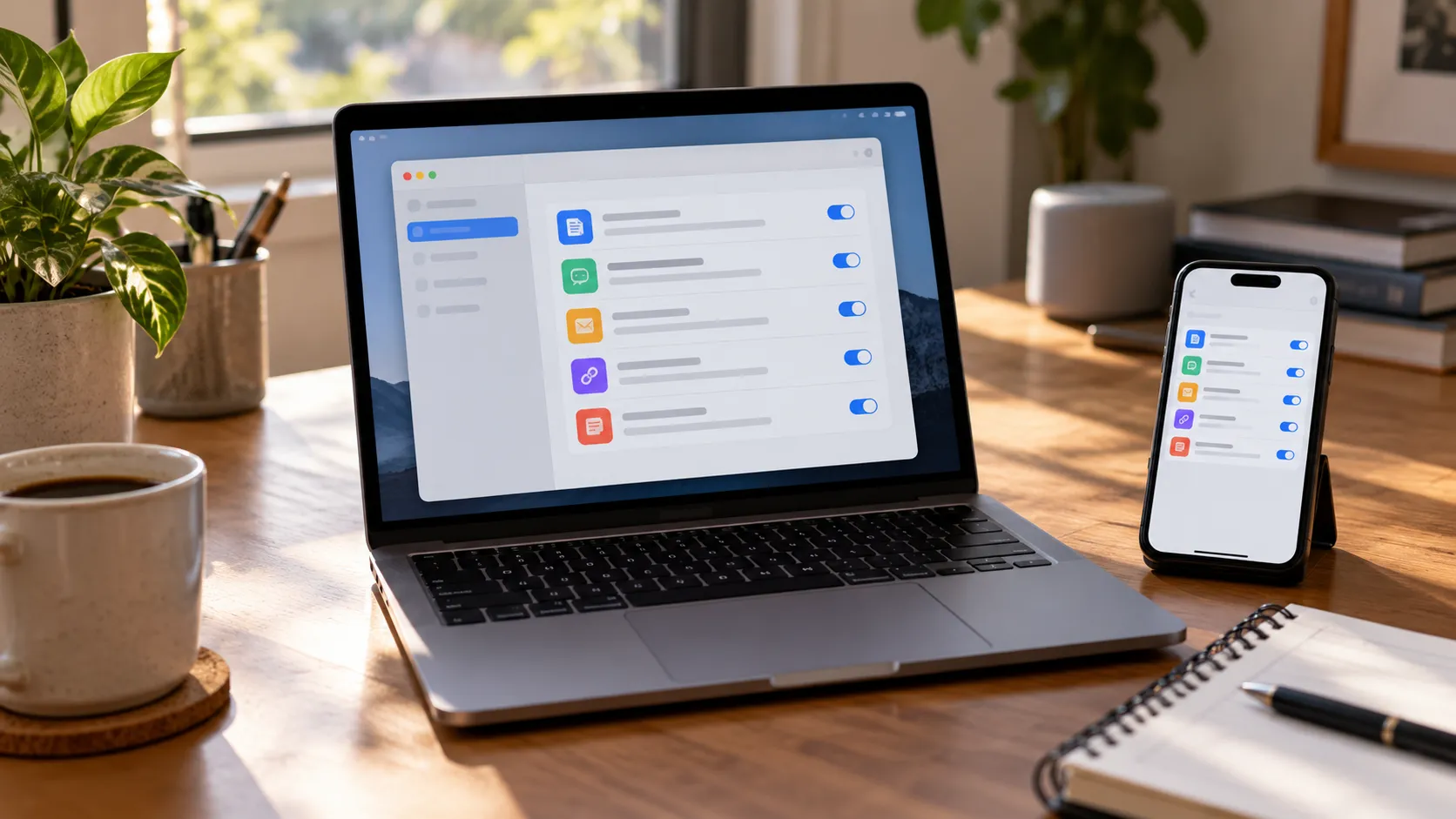
Audit your current setup: Check whether your MacBook model has any built-in privacy features in System Settings
Research compatible solutions: If adding external protection, verify compatibility with your specific MacBook ports and macOS version
Test thoroughly: Once installed, verify functionality across multiple apps before relying on your privacy switch
Develop the habit: Make flipping your privacy switches part of your routine—enabled only when actively needed
Bottom line: Whether you're adding an external privacy switch to your current MacBook or waiting to see what manufacturers do next, taking control of your device's sensors is one of the most straightforward security upgrades you can make. Armed with knowledge and maybe a ten-dollar slider, staying safe doesn't have to feel impossible, privacy advocates emphasize.
In a world where our devices know more about us than ever before, that kind of physical, tangible control isn't just convenient—it's essential. Now go forth and flip those switches confidently, knowing you've got real power over who watches and who listens.





Comments
Be the first, drop a comment!