



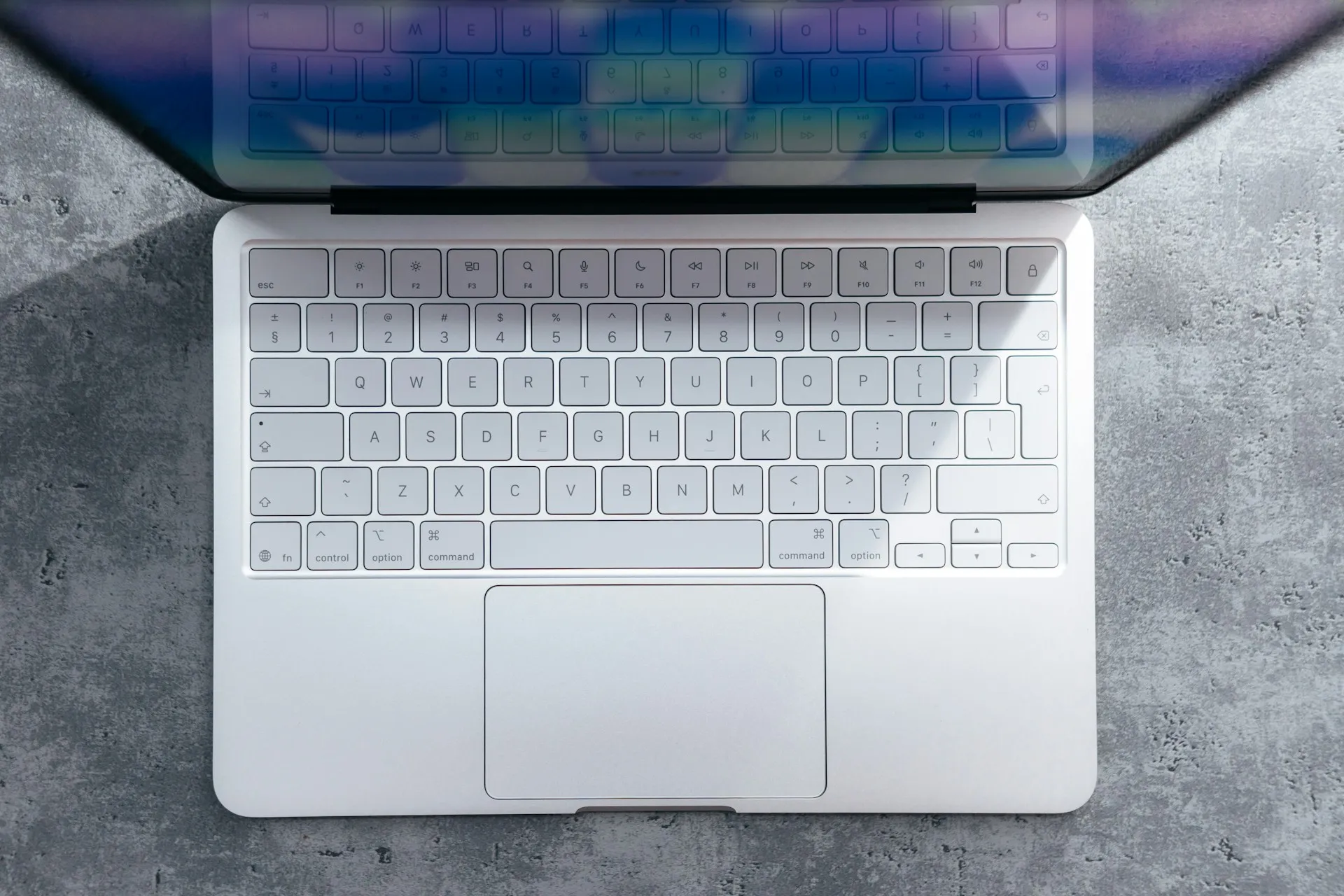
Apple calls Finder the home base of the Mac: the tool for organizing and reaching almost everything on the system, from documents to a connected iPhone. Most people use about a tenth of it. This collection of Finder tips and tricks for Mac users covers the rest: the browsing, previewing, editing, and search tools sitting in the same window you already open dozens of times a day.
Finder has rough edges for some heavier workflows. Bulk file operations and heavier workflows can feel clumsy, and experienced users sometimes hit a wall there. Small configuration changes can reduce some of that friction without installing anything. This guide moves through ten built-in hacks in three stages: setting Finder up around how you actually work, inspecting and editing files without launching another app, and retrieving files fast through navigation and search.
Mac Finder hacks for configuring your workflow
These three settings take a few minutes to change and can cut down how often you're clicking through the same folders every day. Set them up once, and every Finder window that follows benefits.
1. Customize the sidebar
The default sidebar is either too sparse to be useful or cluttered with folders you never touch. Open Finder, then choose Finder > Settings > Sidebar to control which items appear.
From there you can hide or show the whole sidebar, resize it, reorder items, or collapse an entire section, like Favorites, with a single click. If you never touch AirDrop or Recents, hide those items and give the space back to folders you actually use.
2. Pin folders, files, and apps to Favorites
Digging through nested folders to reach the same active project gets old fast. Drag a folder or disk directly into the Favorites section of the sidebar to pin it there. To add a file or an app instead of a folder, hold Command while dragging.
Sidebar entries are aliases, not the actual files, so removing one from the sidebar never moves or deletes the original. Pin whatever you open daily: a client folder, a running project, a specific app buried three levels deep in Applications.
3. Match the view mode to the task
List view is great for reading filenames and terrible for recognizing a photo by sight. Finder offers four view modes: icon, list, column, and gallery, switchable from the pop-up menu in the toolbar.
Column view and Gallery view both show a large preview of whatever file is selected, which makes them the better choice when you're scanning through photos, PDFs, or video clips rather than reading names. Switch into one of those two whenever you're browsing by eye instead of by filename.
Inspect and edit files without opening another app
This is where Finder tips and tricks for Mac users stop being organization advice and start looking like editing shortcuts. Finder can check, mark up, sign, and combine files without a separate app ever opening.
4. Turn on the Preview pane
Sometimes you want a file's details without abandoning list view to go find them. Choose View > Show Preview to add a preview pane alongside your file list, and use View > Show Preview Options to customize what shows up for each file type.
This is the right tool when you're working through a long list of files and only need to glance at one occasionally, without losing your place in the list.
5. Use Quick Look for a one-off check
Sometimes you just need to confirm what's inside a file and move on. Select the file and press the Space bar to open Quick Look on the spot.
It's built for a single, quick inspection, not for ongoing browsing. Confirming a PDF is the right version before attaching it to an email is a textbook use.
6. Edit directly inside Quick Look
A file needs a small fix, a signature, a trim, a crop, and opening a dedicated app for it feels like overkill. The buttons at the top of the Quick Look window can sign PDFs, trim audio and video, and mark up, rotate, or crop images without opening a separate app.
It's ideal for a one-off edit before sending a file along, like signing a lease PDF a client emailed over.
7. Combine files with Quick Actions
Several scanned pages or images need to become one document. Select the files in Column or Gallery view, then click the Actions button in the bottom right corner. Quick Actions can combine selected images and PDFs into a single file and trim media, all from that one menu.
Say you've scanned four pages of a contract as separate image files. Select all four, open Actions, and combine them into a single PDF. That creates the combined PDF as a new file; it doesn't touch the four originals, so check what you've got before deleting anything you no longer need.
The same Actions menu can also run an existing Shortcuts automation or trigger a custom Automator workflow, such as watermarking a batch of files, if you've already built one.
Finder search tips for retrieving files fast
Configuration and editing only matter if you can find the file in question. This is where Finder search tips separate people who fight the app from people who barely notice it.
8. Skip the clicking with Go to Folder and Enclosing Folder
Navigating several folders deep by hand wastes clicks you don't need to spend. The Go menu in the Finder menu bar shortcuts most of that. Go > Go to Folder accepts a typed path directly, Go > Enclosing Folder opens the parent folder of the current window, and Go > Utilities reaches a common system folder in one step instead of several.
Use it whenever you already know where a folder lives and don't want to click your way there.
9. Stack search filters and save them as a Smart Folder
Running the same multi-criteria search over and over is a sign you should save it. Press Command-F to start a search, then add filter rows to narrow it. Finder lets you stack visual filters like kind, last-opened date, and size, then save the whole thing as a Smart Folder.
As an example: press Command-F, set Kind to PDF, add a filter for Last Opened within this month, add another for Size greater than 5 MB, then save it via File > Save as Smart Folder under a name like "Recent Large PDFs." You now have a reusable search instead of rebuilding those filters from scratch next time.
One overlooked wrinkle: Finder normally searches 'This Mac,' but Finder > Settings > Advanced lets you instead search the current folder or reuse the previous search scope. A search that seems to be missing files may simply be scoped too narrow, which often explains an apparently incomplete search before anything is actually wrong.
10. Know when to reach for Spotlight instead
Using the wrong search tool for the job wastes more time than either tool is worth. Spotlight, opened with Command-Space, organizes results into Browse Modes: Applications, Files, Actions, and Clipboard, reachable with Command-1 through Command-4. It also accepts keyword filters typed straight into the search field, like kind:, author:, and tag:.
The practical split: Finder search is built for a complete, filterable list; Spotlight is built to surface a likely match fast. Reach for Spotlight when you know exactly what you want and want it now. Reach for Finder search when you're filtering, or when the search is one you'll run again.
If Finder search still comes up empty, check the search scope shown in the toolbar first. "This Mac" versus a remembered folder is a common, easy-to-miss cause. Next, check System Settings > Spotlight > Privacy; any excluded path returns zero results in both Finder search and Spotlight.
If both check out, the metadata index may simply be rebuilding. Finder can sometimes fall back to a slower live scan of the current folder in that situation, while Spotlight returns nothing at all, though that's a possibility worth checking, not a guarantee.
When Finder is not enough
For heavier bulk operations or frequent remote server work, third-party file managers can make it easier to search for files, manage them in bulk, or work with remote servers and services. That's a different tool for a different job than what's covered here, worth knowing about if bulk renaming or constant server access is a daily reality rather than an occasional annoyance.
Start with one Finder habit
Pick a single change and try it this week: pin your active project folder to Favorites, hit Space on the next file that lands in Downloads to Quick Look it instead of opening an app, or turn one search you run repeatedly into a Smart Folder. Each one takes a few minutes to set up and keeps paying off long after that first click.











Comments
Be the first, drop a comment!