



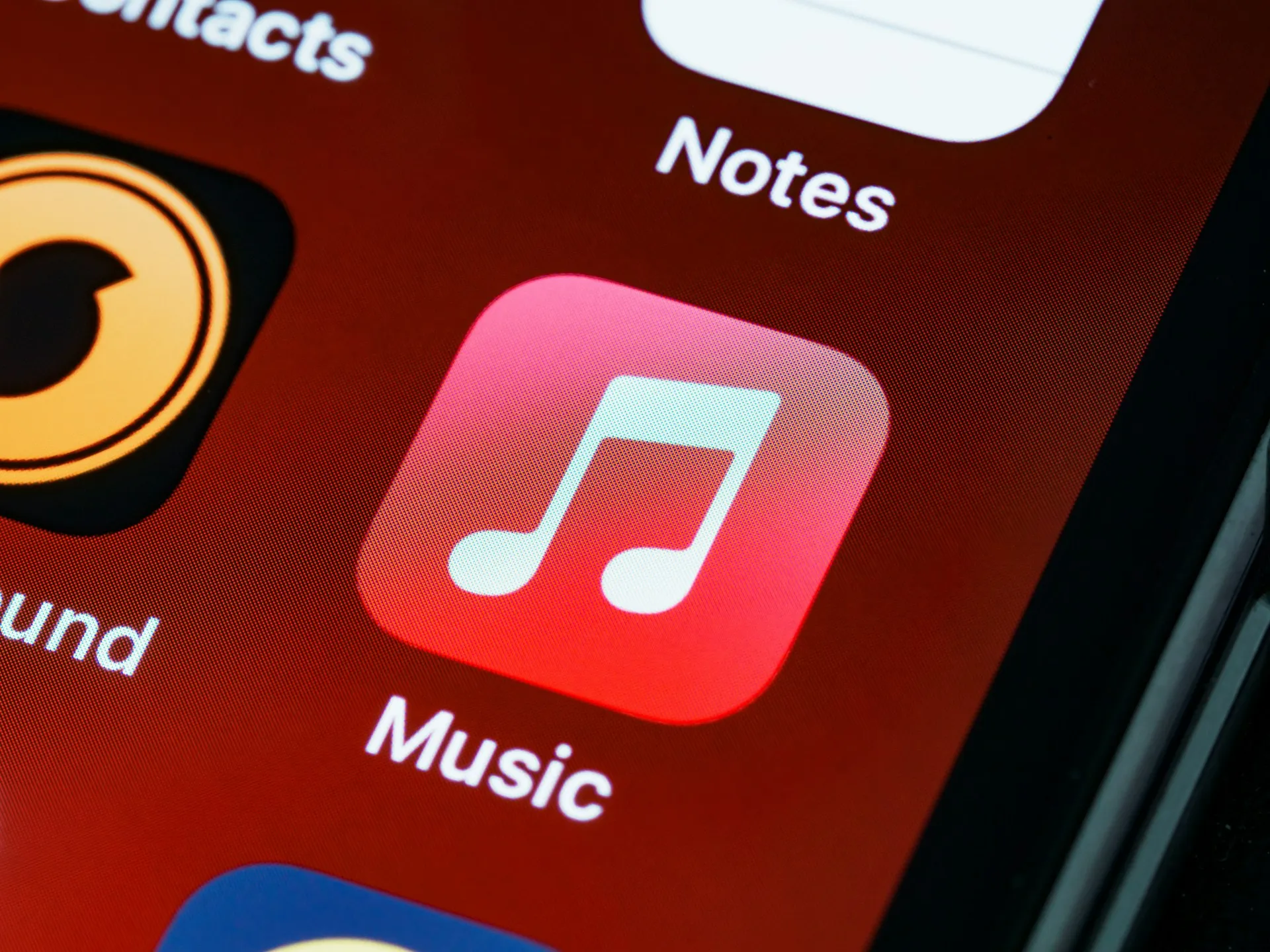
21 Quick Apple Music Tips That Will Instantly Upgrade Your Listening Experience
Apple Music is packed with hidden gems that most users never discover. While the service might seem straightforward on the surface, there's a whole world of features waiting to transform how you experience music.
Let's break down 21 game-changing tips that'll take your Apple Music experience from basic to brilliant.
Master Your Music Discovery
1. Fine-Tune Your "For You" Recommendations
Your "For You" section is only as good as the data you feed it. Head to your profile and tap the heart and "not interested" buttons liberally. The algorithm learns from every interaction, so don't be shy about rating songs and albums.
Pro tip: Spend 10 minutes each week actively liking and disliking tracks. You'll notice dramatically better recommendations within days.
2. Create Smart Playlists That Update Themselves
While you can't create traditional smart playlists directly in Apple Music on iPhone and iPad, you can achieve similar results by favoriting artists and genres, then checking the "Recently Added" and "Made for You" sections regularly.
3. Use the Search Function Like a Pro
Apple Music's search goes way beyond song titles. Try searching by lyrics, mood, decade, or even specific instruments. Search queries like "sad piano songs" or "90s hip hop" yield surprisingly accurate results.
Optimize Your Audio Experience
4. Enable Lossless Audio for Premium Sound Quality
If you're using quality headphones or speakers, enable Lossless Audio in Settings > Music > Audio Quality. This feature delivers CD-quality sound that'll make your favorite tracks sound noticeably richer.
5. Activate Spatial Audio for Immersive Listening
Spatial Audio creates a surround-sound experience that works with any headphones, but Apple or Beats are recommended for best results. Enable it in Settings > Music and look for the Spatial Audio badge on compatible tracks.
6. Adjust EQ Settings for Your Music Style
Navigate to Settings > Music > EQ and experiment with presets. "Late Night" works great for quiet listening, while "Loudness" enhances details at lower volumes.
Streamline Your Music Management
7. Download Music Strategically for Offline Listening
Don't just download random songs. Create specific offline playlists for commuting, working out, or traveling. This saves storage space while ensuring you always have the right music available.
8. Use the "Add to Library" Feature Wisely
Adding songs to your library makes them easier to find and includes them in your personal recommendations. Think of it as building your digital record collection.
9. Organize with Custom Playlists and Folders
Create playlists for different activities, moods, or time periods. While Apple Music doesn't support playlist folders on mobile, you can organize them logically by using consistent naming conventions.
Maximize Social and Sharing Features
10. Connect with Friends Through Shared Playlists
Collaborative playlists let you and friends build collections together. Perfect for road trips, parties, or just sharing music discoveries with people who matter to you.
11. Share Songs with via Messages or social apps
You can share songs directly via Messages or social apps, but Apple Music doesn't support native timestamped sharing.
12. Use Listen Now to See What Friends Are Playing
The social aspects of Apple Music shine in the Listen Now section, where you can discover what your contacts are currently enjoying.
Advanced Playback Controls
13. Master the Up Next Queue
Tap the queue icon to see what's coming up. You can reorder songs, add tracks, or clear the queue entirely. This gives you complete control over your listening session.
14. Use Crossfade for Seamless Transitions
Enable crossfade in Settings > Music to eliminate gaps between songs. Perfect for parties or when you want uninterrupted musical flow. However, this does not work with Lossless or Spatial audio.
15. Set Sleep Timer for Bedtime Listening
Use Control Center or ask Siri to set a sleep timer. Your music will fade out after the specified time, perfect for falling asleep to your favorite albums.
Leverage Siri and Voice Commands
16. Ask Siri to Play Music by Context
Instead of naming specific songs, try "Play something I'd like" or "Play music for working out." Siri's contextual understanding has become surprisingly sophisticated.
17. Use Voice Commands for Hands-Free Control
"Skip this song," "play this louder," or "add this to my library" work seamlessly while driving or exercising.
Discover Hidden Interface Tricks
18. Force Touch for Quick Actions (iPhone)
On compatible iPhones, force touch album artwork for quick access to shuffle, repeat, and AirPlay options without opening the full player interface.
19. Swipe Gestures for Faster Navigation
Swipe right on songs to quickly add them to your library. Swipe left to access more options like adding to playlists or removing from your library.
20. Use the Mini Player Efficiently
The mini player at the bottom of the screen responds to taps and swipes. Tap to expand, swipe up for the full player, or swipe left/right to skip tracks.
Customize Your Experience
21. Personalize Your Control Center
Add music controls to your Control Center for quick access to playback controls, even when the app isn't active. Go to Settings > Control Center and add "Music Recognition" and "Hearing" controls for even more functionality.
Bottom Line: Small Changes, Big Impact
Here's what you need to know: Apple Music's real power lies in these details. Most users barely scratch the surface, missing features that could genuinely enhance their daily listening experience.
The key takeaway is that Apple Music rewards users who take time to explore its deeper functionality. These aren't just tech tricks for their own sake—they're practical improvements that'll save you time, improve your music discovery, and create a more personalized experience.
Pro tip: Don't try to implement all 21 tips at once. Pick three or four that resonate with your listening habits and master those first. You can always come back and explore additional features as they become relevant to your music routine.
Start with the audio quality settings and playlist organization features—these typically provide the most immediate impact for your listening experience. From there, branch out into the social features and advanced controls as you become more comfortable with the platform.
Remember, the goal isn't to use every feature available, but to find the combination that perfectly fits your musical lifestyle.






Comments
Be the first, drop a comment!