



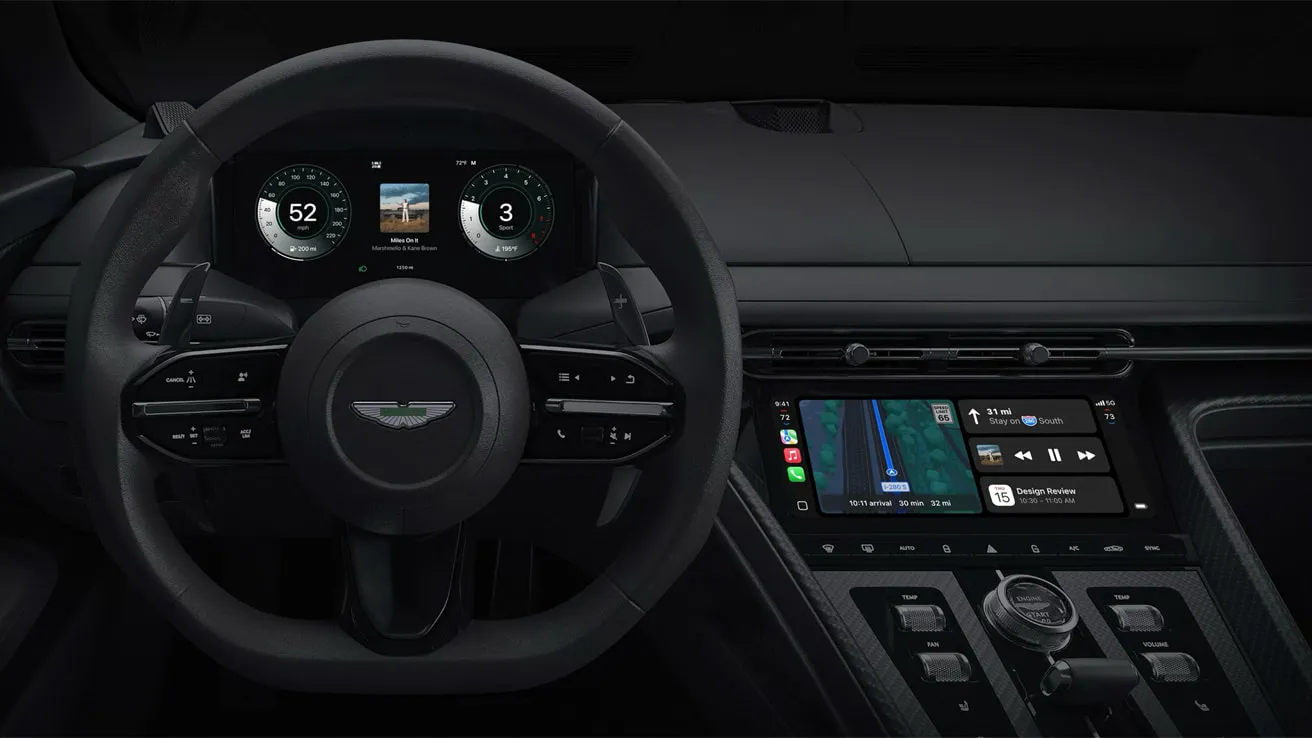
Most CarPlay customization doesn't happen on the car's screen. App order and widgets are managed from the paired iPhone, while wallpaper, display appearance, text size and Smart Display Zoom are adjusted through CarPlay itself.
Apple introduced several major CarPlay customization features with iOS 26, including widgets, Live Activities, Smart Display Zoom and additional appearance controls. Those features remain available in iOS 27, although what appears can still depend on the vehicle's screen.
App rearranging and wallpaper customization are older CarPlay features and do not require iOS 26 or 27 specifically.
What to check before you start
Make sure the iPhone has already connected to the vehicle through CarPlay.
Open Settings > General > CarPlay on the iPhone and select the car. If the vehicle isn't listed, connect to CarPlay first.
Also check the iPhone's software version under Settings > General > Software Update. Some of the customization features covered here were added with iOS 26 and remain available in iOS 27.
Vehicle hardware matters too. Apple says the number of widget stacks depends on the vehicle's CarPlay display, while Smart Display Zoom is supported only on certain screen configurations.
What you can customize
CarPlay settings are split between the iPhone and the vehicle display.
On the iPhone, you can:
Add, remove and rearrange CarPlay apps.
Add, remove and reorder widgets.
Turn Smart Rotate and Widget Suggestions on or off.
Control Live Activities for individual apps.
On the CarPlay display, you can:
Change the wallpaper.
Adjust visual appearance.
Change text size.
Use Smart Display Zoom when the vehicle supports it.
Turn Dashboard suggestions and album artwork on or off.
The settings are stored for the selected CarPlay setup, so different vehicles can have different app layouts and widget configurations.
How to rearrange CarPlay apps from your iPhone
You do not need to organize CarPlay apps from the dashboard in the car.
According to Apple's CarPlay instructions, use the paired iPhone:
Open Settings.
Tap General > CarPlay.
Select the vehicle.
Tap Customize.
Use the add and delete controls to show or hide supported apps.
Drag an app to change its position.
Removing an app from this menu only removes it from the CarPlay Home screen. It does not uninstall the app from the iPhone.
Only apps that support CarPlay appear in the list.
The revised order appears the next time the iPhone connects to the vehicle.
A practical approach is to put navigation, music, parking and communication apps on the first page and move rarely used apps farther back or remove them from CarPlay altogether.
The exact grid can vary because vehicle displays come in different sizes and shapes, so the same app order may look different in two cars.
How to customize CarPlay widgets
Apple introduced widgets in CarPlay with iOS 26, and its current iOS 27 guide documents the setup directly.
When you're not driving:
Open Settings on the iPhone.
Tap General > CarPlay.
Select the car.
Tap Widgets.
Tap Add Widgets.
Choose the widgets you want.
You can drag widgets to change their order or remove them from the same menu.
Apple notes that the number of widget stacks depends on the vehicle's screen.
Two additional settings are available:
Smart Rotate: Automatically moves through widgets in a stack.
Widget Suggestions: Lets CarPlay surface widgets it thinks may be useful.
Apple's current developer documentation says iPhone widgets can appear in CarPlay when they're appropriate for use while driving, so the available choices depend partly on which apps are installed and whether their developers support the CarPlay presentation.
For a smaller display, prioritize information that can be understood at a glance rather than filling every available slot.
How Live Activities work in CarPlay
Live Activities also arrived in CarPlay with iOS 26.
They can show ongoing information such as navigation progress, sports scores and food-delivery estimates on the CarPlay Dashboard.
Apple says CarPlay uses the same Live Activity settings configured for an app on the iPhone.
To change them:
Open Settings on the iPhone.
Tap Apps.
Select the app.
Tap Live Activities.
Change the available settings.
Apple's current CarPlay guide confirms that Live Activities can appear on the Dashboard.
Not every app offers Live Activities, and individual apps determine what information they provide.
How to change the CarPlay wallpaper
Wallpaper customization existed before iOS 26, although Apple added new designs as part of the iOS 26 visual overhaul.
To change it:
Open Settings on the CarPlay display.
Select Wallpaper.
Choose one of the available options.
Apple's current CarPlay settings guide still documents the same process in iOS 27.
Wallpaper choices can vary with the software release. This changes the CarPlay background rather than the wallpaper on the paired iPhone.
How to change CarPlay icon appearance
iOS 26 expanded CarPlay's appearance controls alongside Apple's Liquid Glass redesign.
On supported versions, open the Settings app in CarPlay and look for the icon or appearance options.
CarPlay can offer Default, Dark and Clear icon styles, with Clear using the more translucent Liquid Glass appearance, according to 9to5Mac's walkthrough of the iOS 26 controls.
Apple separately lets CarPlay use its normal dark appearance or adjust its display appearance through the in-car Settings app.
If an appearance option described here is missing, check the iPhone software version and the vehicle display rather than assuming the phone is malfunctioning.
How to change CarPlay text size
Text size is controlled directly from CarPlay.
Open:
Settings > Accessibility > Text Size
Then choose the size you prefer.
Apple's current accessibility guide says CarPlay shows a preview below each option before you select it.
The same Accessibility menu also includes options such as Bold Text and color filters for drivers who need greater contrast or easier-to-read text.
Make these changes while parked.
How Smart Display Zoom works
Smart Display Zoom was introduced with iOS 26 to help CarPlay better fit the wide range of infotainment-screen shapes used by automakers.
When supported, open:
CarPlay Settings > Display > Smart Display Zoom
Apple's developer documentation says enabling it automatically resizes the CarPlay interface for the vehicle's display.
It can affect the scale of the app grid, Dashboard, navigation screens and other CarPlay interfaces.
Smart Display Zoom is not available on every vehicle. Apple says only certain screen configurations support it.
That means an iPhone running the latest version of iOS may still not show the option in a particular car.
If it isn't there, there is no iPhone-side setting that forces it to appear.
Other CarPlay display settings worth checking
The in-car Settings app also includes several older customization controls that are easy to miss.
Apple currently lets users:
Turn Dashboard suggestions on or off.
Show or hide album art.
Configure Driving Focus.
Change CarPlay's display appearance.
Those options do not all depend on iOS 26 and can vary slightly depending on the vehicle and software release.
Troubleshooting missing apps, widgets or settings
If something isn't showing up, check these in order.
1. Update the iPhone.
Install the latest available version of iOS. Widgets, Live Activities and Smart Display Zoom originated with iOS 26 and continue in current versions.
2. Confirm the car is paired.
Go to Settings > General > CarPlay and make sure the correct vehicle appears.
3. Check whether the app supports CarPlay.
Only compatible apps appear on CarPlay Home.
4. Check whether the app offers a usable widget or Live Activity.
Having an iPhone widget does not guarantee every version of that widget will be suitable for CarPlay.
5. Check the vehicle display.
The number of widget stacks and availability of Smart Display Zoom depend on the car's infotainment screen.
6. Make changes while parked.
Apple specifically tells users to configure CarPlay widgets when they are not driving.
What to do next
Start with the iPhone if you want to clean up the app grid or configure widgets: Settings > General > CarPlay > [your car].
For visual changes, open CarPlay's own Settings app while parked. That's where you'll find wallpaper, accessibility controls and supported display options such as Smart Display Zoom.
The main distinction is simple: the iPhone manages what appears in CarPlay, while the CarPlay Settings app controls much of how it looks on that particular vehicle's screen.







Comments
Be the first, drop a comment!