





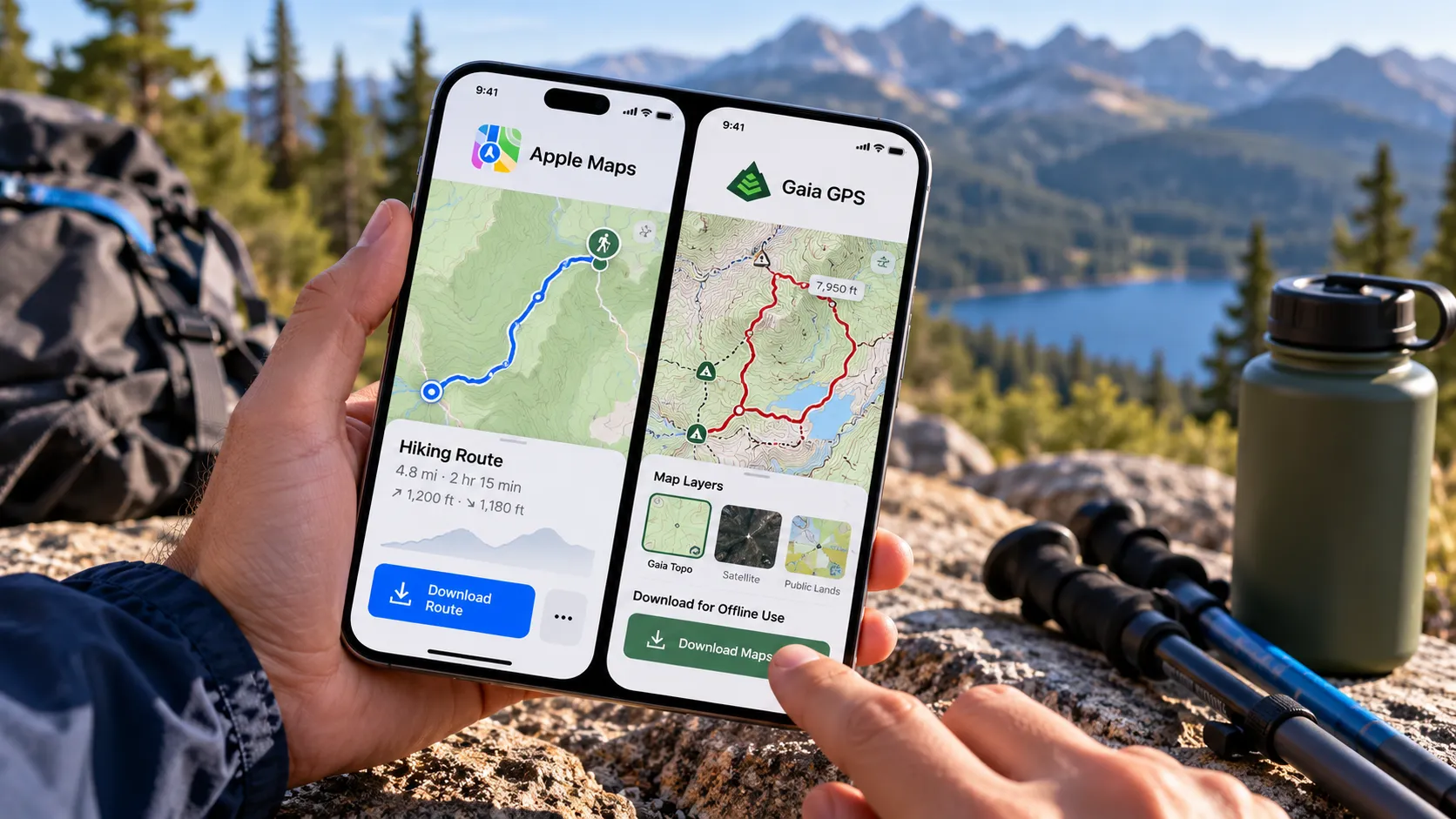
Downloading a map to an iPhone before a hike doesn't guarantee it will still work once the signal drops. Gaia GPS's own support documentation warns that its app caches recently viewed tiles, so a trail can look available offline even though it was never actually downloaded. That's a quirk specific to how Gaia checks download status, not proof that offline map apps generally fail.
Knowing how to download offline hiking maps on iPhone really comes down to picking the right app for the job. Apple Maps includes built-in offline maps and can now save custom walking and hiking routes, while Gaia GPS is a dedicated outdoor-navigation app built around topographic layers, route-shaped downloads, and a much broader map catalog.
Apple's offline maps provide place details, turn-by-turn directions, and arrival times for driving, walking, cycling, and transit. Apple Maps can also create custom hiking routes and save the route and surrounding map for offline use. Gaia GPS requires a Premium membership to download offline maps, according to Gaia GPS Help.
This guide covers downloading and confirming offline maps in both apps, and flags the specific ways a downloaded map can still fail to load once there's no signal at the trailhead.
Apple Maps or Gaia GPS: which one fits your hike
Apple Maps has become more useful for hiking than its basic offline-navigation feature alone suggests.
In addition to offline driving, walking, cycling, and transit directions, Apple Maps lets you create a custom walking or hiking route by selecting roads, paths, and trails. Saved routes can show distance, estimated time, and elevation information, and Apple says the route and surrounding map can be downloaded for offline use.
In US national parks, Apple Maps can also browse hikes and filter them by factors including length, elevation, and route type, according to Apple's current hiking guidance.
That makes Apple Maps a reasonable option for supported trails, especially if you want one app for both the drive to the trailhead and the hike itself. Offline maps and hiking features still vary by country and region, though, so confirm that the actual trail and surrounding area are available before relying on them.
Gaia GPS remains the more specialized option for backcountry navigation. Gaia Topo has worldwide coverage, and Gaia offers multiple topographic, public-land, satellite, and specialist map sources. Downloads can also follow a saved route or track instead of using only a rectangular region.
A route or track download includes five map tiles on either side of the line, which can reduce wasted storage on long, narrow routes. Worldwide coverage for Gaia Topo doesn't mean every map source has detail everywhere, though. Gaia notes that sources such as USFS and NPS layers have limited geographic coverage.
Access is another difference. Apple Maps' offline maps require no paid subscription. Gaia GPS requires an active Premium membership to download maps for offline use.
For a supported hike where Apple Maps shows the trail and route you need, Apple's built-in option may be enough. For detailed topo layers, specialist maps, route-shaped downloads, and broader backcountry planning, Gaia GPS remains the more capable tool. On a remote hike, downloading both can still provide useful redundancy.
Download hiking maps for offline use on iPhone with Apple Maps
Apple Maps supports several ways to download an area.
Open Maps and find the area you need. Search for a location and open its place card, then tap Download if the option appears, or tap More > Download Map. You can also touch and hold an unmarked area to drop a pin, then tap Download.
Adjust the offline area. Resize the highlighted region so it covers the trail, trailhead, access roads, and any likely exit route, then tap Download. Maps shows the approximate file size before the download starts.
Check the saved map. Tap your picture or initials next to the search field, then tap Offline Maps. Any downloaded regions appear in this list.
Choose how downloads use data. From Offline Maps, tap Downloads to choose Wi-Fi Only or Wi-Fi + Cellular.
Review Automatic Updates and Optimize Storage. Automatic Updates is on by default. Optimize Storage can automatically remove offline maps that haven't been used for a period of time, so check that a map downloaded well before the trip is still present.
Turn on Only Use Offline Maps if needed. This tells Maps to rely on downloaded map data even while the iPhone still has an internet connection.
Resize or redownload if coverage is too narrow. Select an existing offline map and use Resize to change the area it covers.
If you're following a specific hike rather than downloading a general rectangle, Apple Maps also has a route-based option.
To create a custom hike, touch and hold a road, path, trail, or other walkable location, tap More, then Create a Custom Route. Build the route, save it, and make sure the download option for the route or surrounding map is enabled if you need it offline.
In US national parks, you can also search for hikes, open one, and save it to your Routes. Apple says saved hikes can be accessed offline when their map data is downloaded.
Before leaving, open the saved map and route while the phone has no usable data connection to make sure the area you actually need appears. Apple notes that offline maps are available only in selected areas and that features vary by country and region.
Save maps offline in Gaia GPS: step-by-step
A Gaia GPS account with an active Premium membership is required to download offline maps.
Decide between a route or track download and an area download. A route or track download follows the planned line and saves five map tiles on either side. The real-world width varies by map source and location because tile sizes differ. A rectangular area download gives you more room for detours, alternate trails, or an unexpected exit.
Download along a saved route or track. Open the item from Saved, tap More, choose Download Maps for Track/Route/Area, select the map sources and resolution, tap Next, then tap Done.
Use a rectangle for broader coverage. From the main map, tap the create or plus control, choose Save Offline Maps, then drag the corners of the highlighted area to cover what you need.
Watch the tile limit. MapBox sources such as Satellite and Satellite with Labels are limited to 10,000 tiles per individual download and 160,000 MapBox tiles in total. Other Gaia sources can have different limits.
Overlap downloads when necessary. Gaia says overlapping existing downloaded areas won't duplicate the same tiles or consume storage twice, so splitting a large region into several downloads is fine.
Leave Gaia GPS open while the download runs. On iPhone, map downloads pause if you switch apps or let the screen turn off. Gaia recommends temporarily setting iOS Settings > Display & Brightness > Auto-Lock to Never for large downloads.
Gaia displays a Download Status screen on iOS when a download begins.
To confirm that a map actually finished, open Saved and filter the list to Maps. An incomplete download appears faded and offers a Resume Download option. Completed downloads don't show that option.
You can also open the downloaded map's details, tap More, and select Show on Main Map. Gaia highlights the downloaded tiles in red in the preview.
Airplane mode is worth testing afterward, but don't use it as the only verification.
Gaia explicitly warns that its temporary cache stores recently viewed map tiles. Those cached tiles can continue displaying without internet access even when they were never saved as part of an offline-map download. The cache is also cleared periodically.
Check the Saved menu first to make sure the download completed, then use airplane mode to confirm that the map is usable at the zoom levels you'll need on the trail.
Gaia says offline routing data is automatically downloaded with offline maps so you can create new routes without a connection. Its troubleshooting guidance also notes that missing routing data can cause snap-to-trail to fail offline, alongside a trail not being present in Gaia Topo or route points being placed too far from a mapped trail.
If snap-to-trail stops working on the hike, check the downloaded map and routing data before assuming the trail itself is missing.
What to check before leaving the trailhead
Getting iPhone maps without cell service to work reliably is a matter of verifying the download before the trip, not troubleshooting it once you're already in the parking lot.
For Apple Maps, open Offline Maps and confirm the downloaded region or saved hiking route covers the entire area you'll need. Pay particular attention to regional availability and any alternate route you might use if plans change.
For Gaia GPS, check Saved > Maps and make sure the map is complete rather than relying on what happens to be visible in the main map view.
Then test both apps offline.
Apple Maps can now cover more of the hike itself than it once could, including custom walking and hiking routes and saved hikes in supported areas. Gaia GPS still provides the deeper outdoor-navigation toolkit, including worldwide Gaia Topo coverage, specialist map layers, and route-shaped downloads.
For a remote trip, download enough map area to cover the planned route, trailhead, detours, and an emergency exit before leaving home.
Carry a paper map or printed route information as backup too for any hike where a dead or damaged phone could create a real problem. No offline download, however carefully confirmed, eliminates that risk.












Comments
Be the first, drop a comment!