



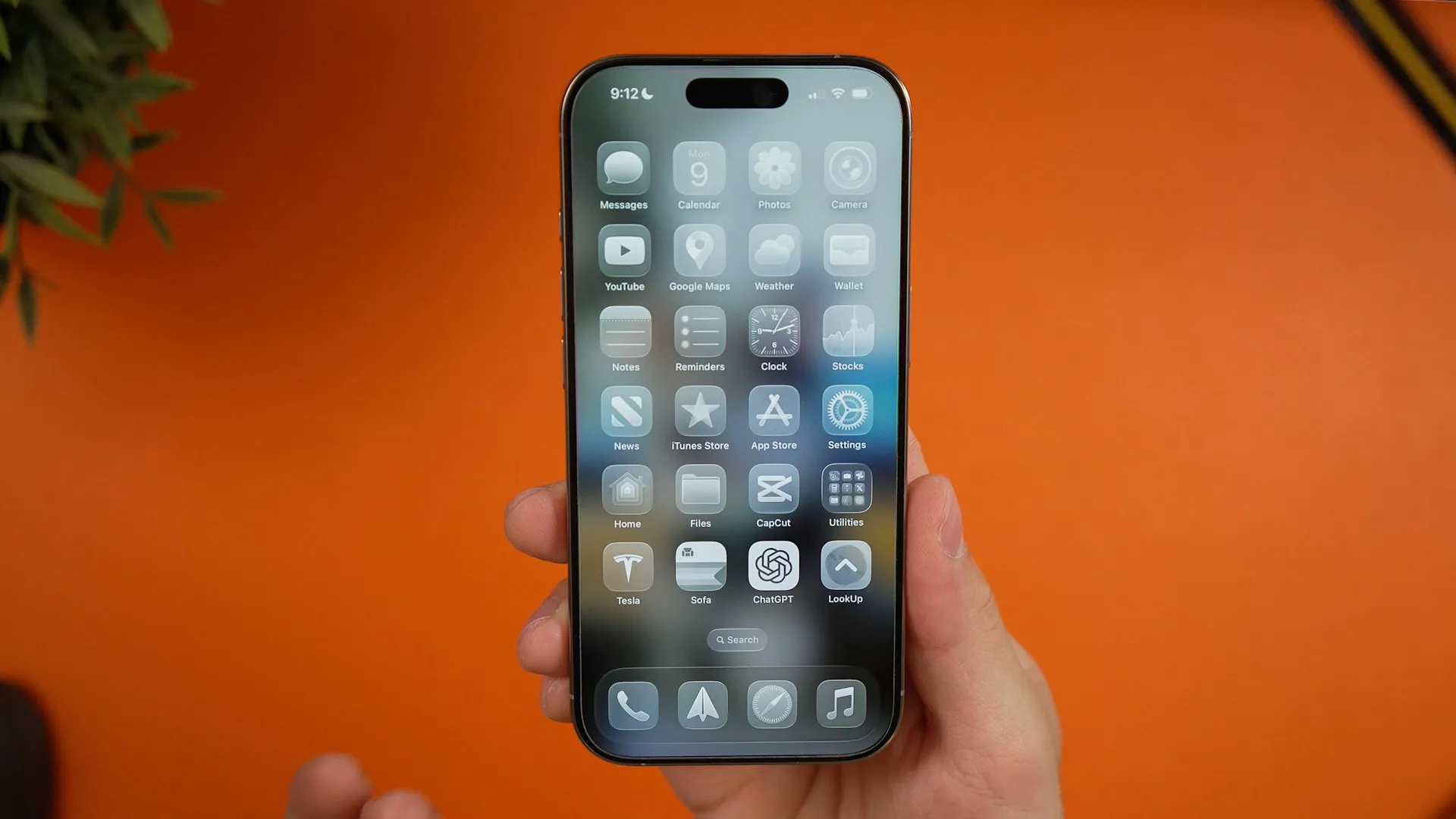
iOS 27 gives Find My something it has never had: a way to pause your location for one specific person without sending them any alert. That closes the long-standing gap between sharing everything and stopping sharing and hoping nobody notices.
Learning how to hide your location in Find My on iOS 27 now means choosing between two new, distinct controls instead of reaching for the same blunt on/off switch Apple has offered for years, according to 9to5Mac.
Until this update, hiding from someone meant one of two blunt options. Disabling Location Services system-wide kills location for every app on the phone, not just Find My. Tapping Stop Sharing is more targeted, but Apple's own support documentation says the other person "may notice." The new Hide Location toggle doesn't make anyone invisible; whoever checks still gets a result, just a "No Location Found" message rather than any explicit notice that sharing has been paused.
This guide covers how to use Hide Location and the new Custom sharing durations on iPhone, iPad, and Apple Watch, how to decide which control fits a given moment, and where questions remain about how far this privacy feature actually reaches, particularly around Family Sharing and device tracking.
What iOS 27 actually changed
Apple describes the Find My changes as more flexible sharing options, which also span iPadOS 27, macOS 27, and watchOS 27. This guide sticks to iPhone, iPad, and Apple Watch, where the steps have been directly reported by iDownloadBlog.
The core difference from Stop Sharing shows up in what happens underneath. Hide Location pauses the feed to one contact until the end of the day and lets it resume on its own or on demand, without alerting that person to the pause or resumption.
9to5Mac reports that the other person isn't notified when a share is paused, stopped, or resumed. That's a real departure from the old behavior, where stopping sharing could tip someone off when they checked the app.
What the other person actually sees
Open Find My while someone has hidden their location, and whoever's checking sees a "No Location Found" message rather than any confirmation that a pause is underway.
Apple's public iOS 27 documentation does not spell out how Hide Location appears in Messages, Maps, or Contacts, three apps where Apple's existing documentation says a shared location can surface. Treat that as an open question rather than assuming Hide Location scrubs every corner of the system at once.
Which control should you use?
The two new tools solve different problems, and mixing them up is the easiest mistake to make. The short version, before getting into steps:
Use Custom when starting a new share and the end point is already known, like a weekend trip or a single event. Set the expiration up front and it lapses automatically.
Use Hide Location when a share is already active and needs a short, silent pause, effectively a way to stop sharing location on iPhone without alerting the other person.
Use Stop Sharing when the boundary is meant to be permanent. It's the only one of the three that fully ends the sharing arrangement, and the one Apple's documentation says the other person may notice.
These sit at opposite ends of the sharing lifecycle: one schedules a share that hasn't started, the other pauses one that's already running. Hide Location doesn't come with a configurable pause length the way Custom does; Apple says it lasts until the end of the day.
How to pause Find My location sharing without notifying someone
This section walks through how to temporarily hide your location in Find My on iPhone, iPad, and Apple Watch.
Prerequisite: iOS 27 or iPadOS 27. The feature remains part of prerelease software as of August 27, 2026. Apple released the fifth public betas of iOS 27 and iPadOS 27 on August 24, with the general release still expected this fall. If you're using the beta, check Settings > General > Software Update for the version actually installed and confirm the wording below matches what's on screen before relying on it.
On iPhone or iPad:
Open Find My and tap the People tab.
Tap the name of the person to pause.
Tap the three-dot menu on their card, then tap Hide Location under "My Location" and confirm.
The option now reads Unhide Location. Tap it to resume Find My location sharing privately whenever ready, or let sharing resume automatically at the end of the day; a label shows when that happens.
On Apple Watch (watchOS 27): Open the newly unified Find My app, which replaces the former Find Devices, Find Items, and Find People apps. Tap the person's name, scroll down, and tap Hide Location.
Early beta reports disagreed on the exact clock time at which sharing resumed, but Apple's own description now settles the intended behavior: Hide Location pauses sharing until the end of the day. Trust the resumption label Find My displays on the version you're running.
Limits worth knowing before you rely on this
Hide Location genuinely lets you pause Find My location sharing without notifying someone, but it isn't a complete disappearing act. A few things are worth checking before treating it as a full privacy solution.
Family Sharing remains a caveat. Apple's Personal Safety documentation says a supported device's location can be visible in the Devices tab to Family Sharing members with whom you share your location.
AppleInsider's iOS 27 beta testing likewise found that Hide Location did not change that device-level visibility, while iDrop News reported that hiding also concealed device locations within Family Sharing. Apple has not clarified that interaction in its public iOS 27 documentation, so verify it directly on a family member's device before relying on Hide Location for that situation.
Location-change alerts raise an open question. Apple's existing system lets someone set up notifications for when a location changes, reviewable in Find My under Me > Notifications About You. None of the current iOS 27 documentation says whether a Hide Location pause suppresses those alerts, so check that screen directly if the person being paused might have one configured.
Device tracking runs on a separate system. On supported iPhones, the Find My network can keep a device findable for up to 24 hours after it is powered off.
Turning off the Find My network prevents that powered-off finding, while turning off Find My entirely removes the ability to locate, lock, or erase the device if it is lost or stolen. Hiding a personal location share does not necessarily disable this device-tracking layer, so anyone worried about device-level tracking should look at Apple's Personal Safety guidance for the appropriate account and device settings.
Setting a custom end time when you start sharing
Alongside the three existing presets for sharing an hour, the day, or indefinitely, iOS 27 adds a fourth option: Custom.
When starting a new share, tap Custom.
Set a duration with the day/hour/minute picker wheels, or tap the Ends field to choose an exact date and time, anywhere from 15 minutes to 30 days out.
Start sharing. Your location shares as normal and cuts off automatically at the time you set, with nothing left to remember to revoke later.
Custom schedules a share before it starts; Hide Location pauses one that's already live. They're built for different moments, not interchangeable versions of the same idea.
Looking ahead
iOS 27's Find My update turns one blunt toggle into two purpose-built tools: Hide Location for a silent pause, Custom for a share that expires on its own schedule. The features are now available in Apple's public beta program ahead of the general release expected this fall.
If the Family Sharing behavior or the wording on any screen looks different on the version currently installed, trust the device over this guide. For anything safety-sensitive, check Apple's own support documentation directly before assuming either tool covers a situation it wasn't built for.











Comments
Be the first, drop a comment!