




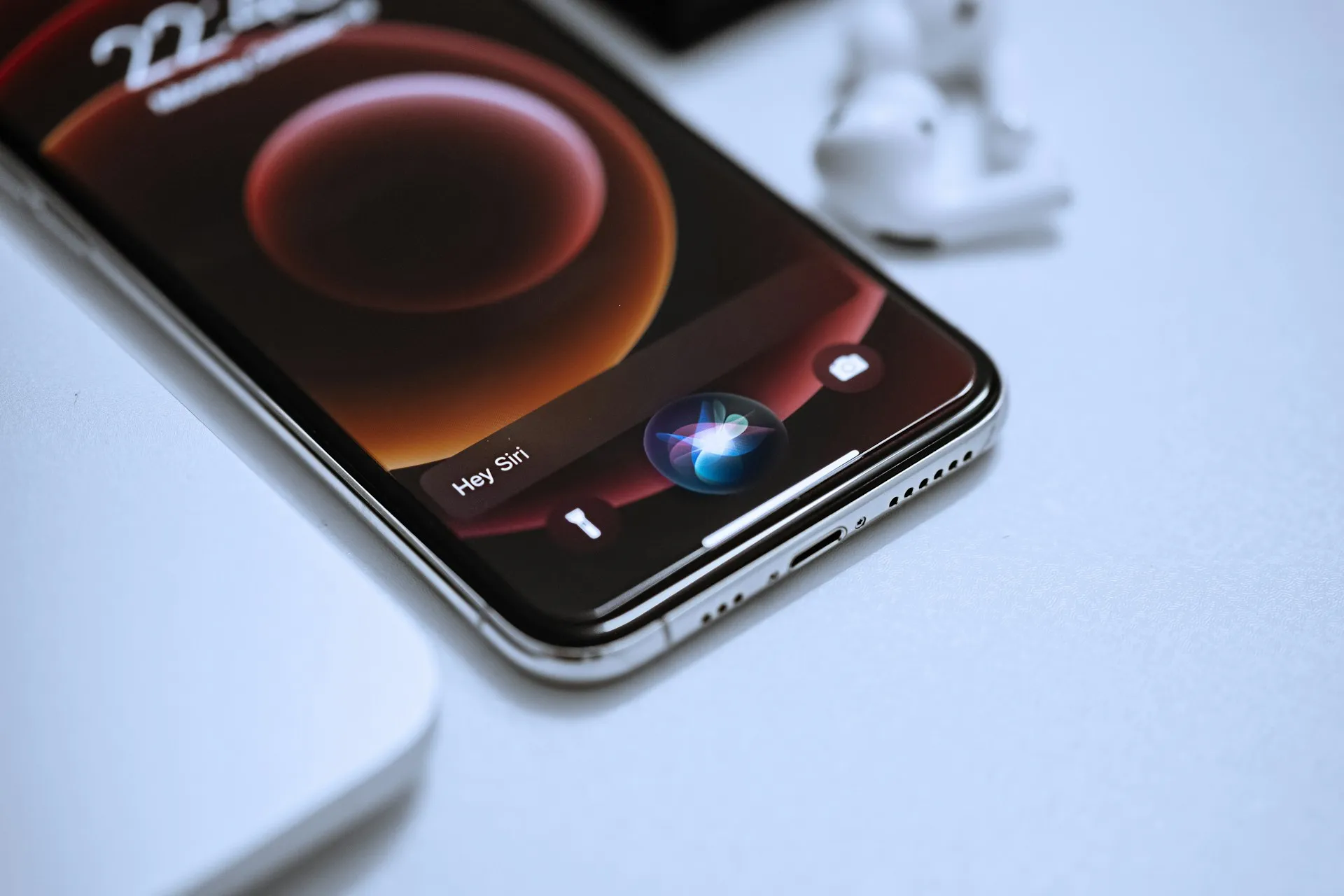
iOS 27 merges Siri and Spotlight into a single search interface, and by default the redesigned assistant now digs through Messages, Notes, and email to answer questions with more personal context. That's exactly why learning how to limit Siri access to personal data matters the moment you update: the same indexing that made Siri "much improved" in beta testing also means far more of what's on your phone is now readable by an AI system.
For third-party apps, one mechanism behind this access is Apple's App Intents framework, which lets developers make their app content and actions available to Siri. If a developer adds that support, Siri can search inside the app; skip it, and Siri can't see that app's contents at all, aside from a separate on-screen feature covered further down. Developers decide whether their app gets indexed in the first place, but once it is, the Settings app gives device owners their own override to shut that access back off.
Before you start: who actually has the new Siri right now
This guide only applies if the new Siri AI is actually running on your device. Check the following before touching any setting:
It requires an iPhone 15 Pro, iPhone 15 Pro Max, or iPhone 16 and newer; it currently works only in English and isn't available everywhere.
Apple's documentation confirms the feature doesn't work on iOS or iPadOS in the EU, or when an Apple Account region is set to mainland China.
Even on qualifying hardware, reports indicate that users currently need to join a waitlist before Siri AI activates.
Siri AI also runs on supported iPads and Macs. Apple lists iPad mini (A17 Pro) and iPads with M1 or later, plus MacBook Neo (A18 Pro) and Macs with M1 or later, among the supported hardware. Start here: a quick checklist for limiting Siri's access
If you only have five minutes, work through this before reading further:
Go to Settings > Apps > [app name] > Search and turn off Show Content in Search for Messages, Mail, Notes, and anything sensitive, including banking, health, or workplace apps.
Separately check Settings > Siri > App Access for those same apps. It's a different menu with its own settings, not a mirror of Search.
Go to Settings > Privacy & Security > Analytics & Improvements and turn off Improve Siri & Dictation if it's enabled.
Avoid invoking Siri while a private chat, medical record, or financial detail is visible on screen. On-screen awareness has no off switch yet.
If that still isn't enough, switch to Siri Classic or turn Siri off completely under Settings > Siri.
The rest of this guide walks through why each of those steps matters and what Siri can still see after you've made them.
How Siri's new personalization actually works
When Siri AI is active, Spotlight and Siri are unified under one interface, so a general question automatically triggers a search across your Apple apps, including Notes, Messages, and email, for anything relevant. Third-party reach grows over time, too: as more developers add App Intents support, Siri gains access to more of the apps installed on your phone.
That's the trade Apple is making. The new Siri needs a lot of personal data to deliver the smarter, more useful answers that testing found during the iOS 27 beta, and that data comes directly from your phone. The good news is that none of this is locked in. Apple gives device owners several places to dial that access back down, starting with search indexing.
How to stop Siri from searching Messages and notes
The main control lives at Settings > Apps > [app name] > Search. Apple's support documentation describes reaching the same settings through Settings > Search instead, where you scroll to an app and find the identical toggle list: Show App in Search, Show Content in Search, Show on Home Screen, Suggest App, and Suggest Notifications. Either route lands you in the same place.
Not every toggle on that screen matters for privacy. Suggest App and Learn from this App can be left alone, since they only control which apps Spotlight suggests and don't affect what Siri can read. The toggle that actually matters is Show Content in Search. Apple's support documentation goes further, stating that turning off either Show App in Search or Show Content in Search for an app prevents Siri AI from finding personal context there.
Turn that off for Messages and Siri stops pulling from it entirely, even if you ask directly. Disable indexing for Messages, then ask Siri to summarize a conversation with a friend, and it will simply report that it can't find those messages. Start with Messages, Mail, and Notes, then extend the same treatment to any banking, health, or workplace apps on your phone. Lower-stakes apps can stay indexed if the personalized retrieval there is genuinely useful to you.
Review Siri's separate App Access settings on iPhone
Search indexing isn't the only lever. A second, distinct menu sits at Settings > Siri > App Access, where you can adjust how Siri interacts with individual apps separately from the Search toggles above.
Open each app listed under App Access and see what options appear for it. Because this menu is separate from Search, turning off content indexing for an app doesn't guarantee the same restriction carries over here; the two systems aren't confirmed to overlap.
Stop Siri from training on your data
Apple says Siri interactions aren't used to train future models by default, but the setup process includes an opt-in toggle that's easy to tap through without noticing. It's worth checking even if you don't remember agreeing to anything. Go to Settings > Privacy & Security > Analytics & Improvements and look for Improve Siri & Dictation or Improve Siri & Apple Intelligence, depending on the version shown on your device. If it's on, turn it off to stop contributing additional Siri interaction data under that opt-in.
That toggle doesn't change where everyday Siri requests get processed, though. Siri AI splits its workload between on-device models and Apple's Private Cloud Compute (PCC), meaning some requests get sent to a remote server. Apple says PCC doesn't retain request data once it's processed and that the company can't see the contents. 'Private' describes a system engineered so Apple shouldn't be able to see or retain the data. It does not mean the data stays on your device or remains end-to-end encrypted while it is being processed inside PCC.
Why on-screen awareness has no off switch yet
One feature sits outside every control covered so far. On-screen awareness lets Siri read whatever's currently visible on your screen, including screenshots, to summarize a page, trim a recipe, or figure out where a photo was taken. There is currently no per-app or user-level toggle to block it, unlike Search indexing or App Access.
That gap has a real consequence. Ask Siri to summarize a visible Signal group chat or explain a meme in a WhatsApp conversation, and that on-screen content may be sent to PCC for processing. The Messages indexing restriction covered earlier doesn't help here. It blocks Siri from searching your conversation history, not from reading whatever's open on screen when you invoke it.
Until Apple builds a real control, the only workaround is behavioral: don't invoke Siri while a private chat, medical record, financial detail, or anyone else's information is visible.
Revert to Siri Classic or turn Siri off entirely
If none of the controls above feel sufficient, Apple still offers an exit ramp back to the old assistant. The path is unintuitive: go to Settings > Screen Time > Content & Privacy Restrictions, turning that toggle on if it isn't already, then tap Siri > Allowed Siri Version > Siri Classic. This suits anyone who still wants voice control for things like CarPlay without the broader data access Siri AI requires.
If you'd rather have no assistant at all, that's a separate switch: go to Settings > Siri and scroll down to Turn off Siri. One limitation worth knowing before you go looking for a single master switch: Apple Intelligence as a whole can no longer be easily disabled with one tap in iOS 27. Writing tools, image creation, and extensions are each managed as their own separate settings, so reverting to Siri Classic doesn't turn off Apple's broader AI stack.
What to do now
Start with Search indexing. Turning off Show Content in Search for Messages, Mail, Notes, and any sensitive apps closes the biggest gap with the least effort, and it's the one control both Apple and independent reporting confirm actually stops Siri from retrieving that content. Layer the App Access review and the training-data toggle on top of that, since they're quick checks that cost nothing to verify.
On-screen awareness is the piece worth sitting with. There's no setting to turn off yet, so the only real protection is habit: don't summon Siri while something private is on screen. If that trade-off feels unacceptable, Siri Classic under Screen Time gets you voice control without the expanded indexing, and the full off switch under Settings > Siri is there for anyone who'd rather skip the new assistant altogether.








Comments
Be the first, drop a comment!