



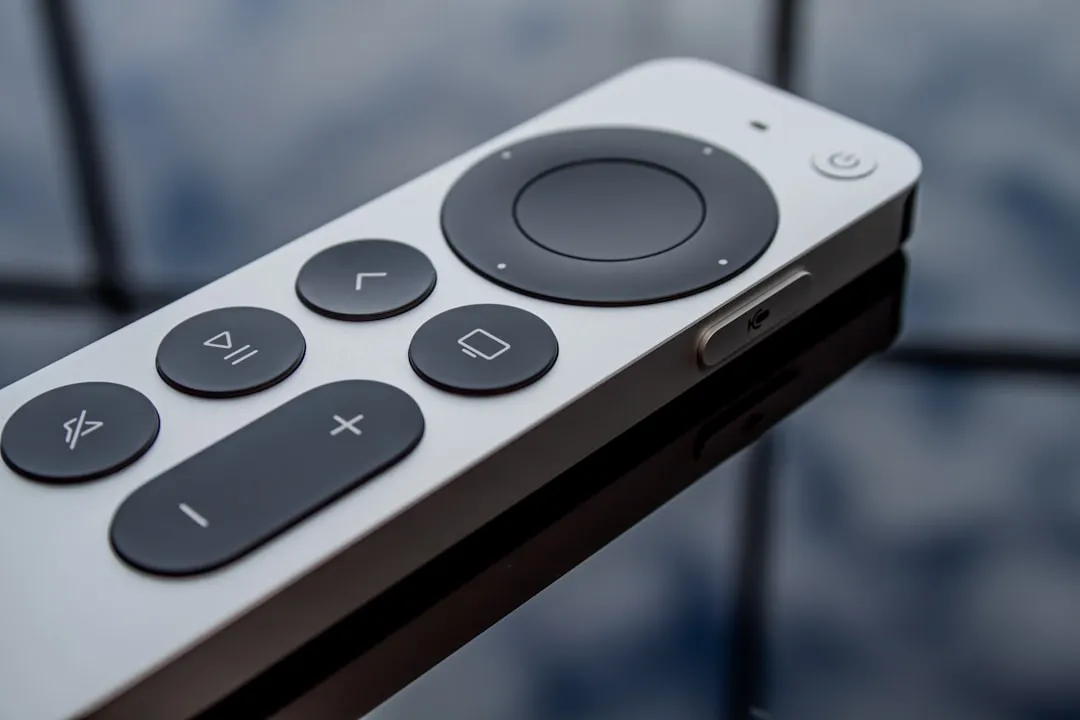
The word "reset" gets stretched to cover three unrelated jobs when an Apple TV remote acts up, and that stretching is where most of the confusion starts. Learning how to reset an Apple TV remote really means figuring out which of three things applies: restarting a frozen remote, re-pairing one that's lost its Bluetooth connection, or wiping the entire Apple TV back to factory settings. Only the last of those erases the Apple TV's data.
A factory reset clears every setting, app, piece of content, and account tied to the box. It's a decision about the whole device, not a fix for a remote. Restarting or re-pairing the remote is a smaller, non-destructive operation by comparison.
If an Apple TV remote is not working, Engadget's troubleshooting notes point to a few usual suspects: low power, signal loss, or a Bluetooth pairing that never fully completed. Older aluminum and white remotes complicate things further, since they use an entirely different button sequence and have to be pointed at the Apple TV to work.
This guide is organized by symptom rather than a script to read top to bottom. Match what's happening to the fix below, and skip straight to it.
Which fix do you need?
Remote is completely unresponsive
Try first: Press TV/Control Center + Volume Down for 5 seconds.
What it changes: Restarts the remote's connection.
Apple TV asks to pair, or pairing fails
Try first: Press Back/Menu + Volume Up for 5 seconds.
What it changes: Re-establishes the Bluetooth pairing.
Only the volume buttons fail
Try first: Go to Settings > Remotes and Devices > Volume Control.
What it changes: Changes how volume commands reach your TV or soundbar.
Older aluminum or white remote
Try first: Press Menu + Left, then Menu + Right.
What it changes: Resets the remote's connection.
The sections below walk through each one, including what should appear on screen when it works.
Before you start: identify your remote and set up a backup
Two remote families are in circulation, and they don't share instructions. The Siri Remote charges over USB-C or Lightning and runs on a built-in rechargeable battery. Older aluminum and white Apple Remotes take a swappable battery instead, reached by popping the back cover with a coin on aluminum models or a paperclip on white ones.
If the physical remote is dead, missing, or otherwise out of commission, open Control Center on an iPhone. A small remote icon appears there for controlling a connected Apple TV, letting you reach Settings on an Apple TV HD or later and run the applicable fixes below without the physical remote in hand.
Start with the battery before anything else. A completely drained remote cannot be paired. Plug a Siri Remote into a USB wall charger with a USB-C or Lightning cable, and because the remote has no charging indicator light, leave it connected for the full 30 minutes before testing it.
What to check before you try any fix
A few basics head off wasted troubleshooting, whether the plan is to restart, re-pair, or swap a battery.
Check the remote's charge before assuming the worst. On the Apple TV, go to Settings > Remotes and Devices > Remote > Battery Level to see exactly where it stands.
Confirm the Apple TV itself is current. Apple lists updating to the latest version of tvOS among its own troubleshooting steps for a misbehaving remote, since a software mismatch can look identical to a hardware problem.
Stay close during any restart or pairing attempt. Keep the remote within a few feet of the Apple TV while it reboots, since the device tries to reconnect with the last paired remote as soon as it finishes booting.
Know what success looks like before starting. A restart is confirmed by a "Remote Connected" notification, pairing by a similar on-screen prompt or by the remote resting atop the Apple TV, and older aluminum and white remotes by the Apple TV's status light blinking, as covered later in this guide.
How to restart an Apple TV remote that isn't responding
This is the sequence Apple Support recommends first when a Siri Remote won't respond to touch or button presses at all.
Press and hold the TV/Control Center button and the Volume Down button together for about five seconds, until the Apple TV's status light turns off and back on.
Release both buttons and wait 5 to 10 seconds.
Press any button on the remote. A "Remote Connected" notification on screen means it worked.
If nothing happens, double back to the battery. Confirm the remote has had its full 30-minute charge before trying again.
Still stuck? Unplug the Apple TV from power, wait at least six seconds, and plug it back in. Once the home screen reappears, repeat the button sequence above. Restarting the Apple TV this way can address a signal or Bluetooth problem that a remote restart alone doesn't clear.
One distinction worth keeping straight: restarting the Apple TV, whether by unplugging it or by using Settings > System > Restart, only reboots the software. Nothing is erased. That's a much smaller action than the factory reset covered later in this guide.
How to re-pair an Apple TV remote
A remote that prompts you to pair it, or one where pairing keeps failing, needs a different sequence than a plain restart.
Hold the remote about three inches from the Apple TV.
Press and hold the Back (or Menu) button together with Volume Up for five seconds. You may be asked to place the remote on top of the Apple TV to finish pairing (Apple Support).
If it doesn't pair, unplug the Apple TV, wait six seconds, plug it back in, and try the same combination again once it finishes booting.
If pairing still fails, signal strength is one thing to check next. On tvOS 18 or later, go to Settings > Remotes and Devices > Remote to see the Bluetooth signal reading. A weak reading, or no indicator at all, means moving within 20 feet, about 6 meters, of the Apple TV and clearing anything blocking the path between the remote and the front of the Apple TV, TV, receiver, or soundbar.
Pairing near more than one Apple TV can also link the remote to the wrong unit. Power off any other Apple TV in the room before trying again.
Apple TV remote volume buttons not working
If every other button works and only volume is dead, don't jump straight to re-pairing. Restart the remote first, using the sequence above. If that doesn't fix it, check the setting before assuming the remote has failed.
Go to Settings > Remotes and Devices > Volume Control on the Apple TV.
Switch the setting away from Auto to TV via IR, for example.
Test the volume buttons again.
This matters most for a soundbar or receiver connected by optical cable. HDMI-CEC, the feature that lets one remote adjust volume on HDMI-connected devices, doesn't work over optical connections. Apple recommends switching those setups to TV via IR.
How to reset older aluminum and white Apple remotes
These older click-wheel remotes use their own button layout, entirely separate from the Siri Remote combinations above, and need to be pointed at the Apple TV to work.
Point the remote at the Apple TV and press and hold Menu and Left together for six seconds to unlink the remote.
Press and hold Menu and Right together for six seconds to complete the reset.
Check the result any time under Settings > Remotes and Devices > Remote on the Apple TV (Engadget).
When the remote needs service instead of a reset
If a fully charged, correctly re-paired remote still won't respond, that pattern points toward a hardware fault rather than something a settings change will fix. At that point, Apple's own guidance is that the remote might need service.
A factory reset is for an Apple TV problem, not a remote problem. It's also the right move when handing the device to a new owner, since wiping it returns the box to a blank state. Either way, it erases every setting, app, piece of content, and account tied to the device, so it is not a substitute for service when the trouble is limited to the remote.
While service or a replacement remote gets sorted out, the Apple TV Remote tile in an iPhone's Control Center works as a full substitute for the physical remote.
Set up the Apple TV Remote in Control Center before it's needed. If the physical remote still fails after charging and re-pairing, look into service or replacement. Save a factory reset for the Apple TV itself, or for handing the device to someone else.















Comments
Be the first, drop a comment!