



How to Save Articles for Offline Reading on iPhone and iPad
Mozilla announced it would shut down Pocket on July 8, 2025, with users able to export their saved data until October 8, after which Mozilla said it would be permanently deleted (Mashable, last year). Mozilla said Pocket had more than 30 million users at the time (Mashable, last year). For anyone who leaned on a dedicated read-later app, Safari already covers the basics: Reading List handles anything read once and removed later, while a Reader-mode PDF handles anything worth keeping for good.
This guide covers how to save articles for offline reading on iPhone and iPad using tools already built into iOS and iPadOS. No subscription is required, and the core workflow needs no account beyond what's already on the device. By the end, there's a working system with three layers: Safari's Reading List for quick reads, a Reader-mode PDF for anything worth annotating, and a dedicated app only if a specific feature, like tagging or full-text search, turns out to be worth paying for.
Saving to Reading List and converting a page to PDF both work locally, with no Apple Account required. An Apple Account only becomes relevant once syncing enters the picture, for keeping Reading List or a PDF library available across more than one device, which comes up in the Apple Books section below.
How to automatically save Reading List offline in Safari
Safari's Reading List offline reading feature has two parts: saving an article, then telling Safari to download it.
Open any article in Safari, tap the Share icon, then tap Add to Reading List (Macworld, last year). To find it again later, tap the Bookmarks icon, shaped like an open book, then switch to the Reading List tab, marked with a pair of glasses (Macworld, last year).
To download webpages to read offline on iPhone or iPad, go to Settings > Apps > Safari > Reading List and turn on Automatically Save Offline (Apple Support, last month). With that setting on, items added to Reading List download so they can be opened without a connection (Apple Support, last month).
Test it rather than trust it. After turning the setting on, save a fresh article, give it a short wait to finish downloading, then switch on Airplane Mode and try opening it on that same device. Test anything important, like boarding passes or trip research, a day or two ahead of time instead of the night before a flight.
Reading List works best as a short-term queue, not a permanent archive. Save a PDF instead for anything meant to stick around.
If a Safari Reading List item won't open offline
- Confirm Automatically Save Offline is turned on in Settings > Apps > Safari > Reading List.
- Re-save the article while connected to Wi-Fi, then wait a bit before switching to Airplane Mode.
- Test important pages before relying on them offline; anything behind a login or paywall can behave differently from a plain article.
Turn keeper articles into PDFs you can annotate
Some articles are worth keeping, not just skimming once. For those, Safari's Reader mode turns a page into a file instead of a bookmark.
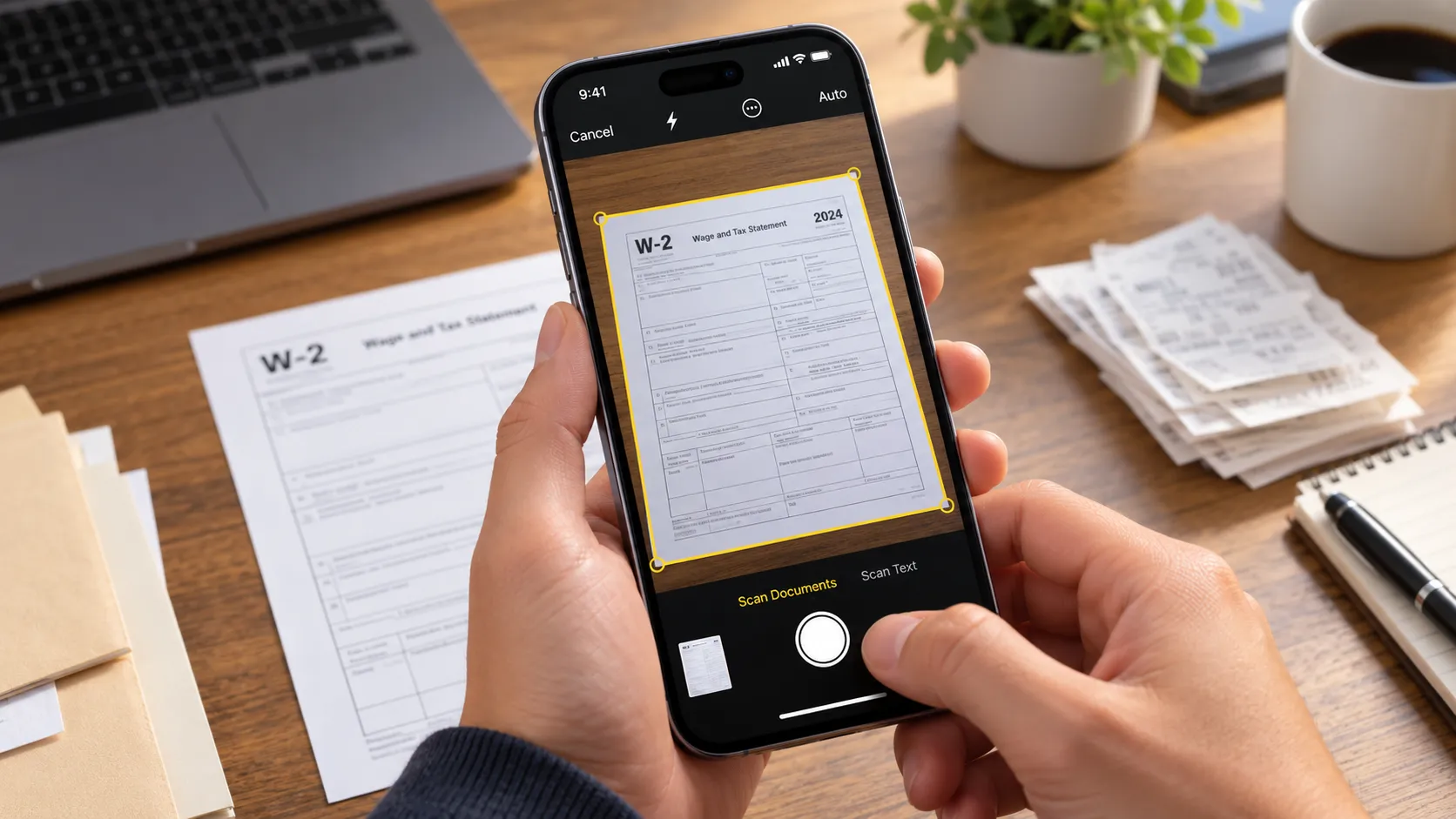
Open a supported article and tap Show Reader in the address bar to strip out ads and navigation (Apple Education Community, last year). With Reader mode active, take a screenshot, select Full Page, and the capture converts into a PDF (Apple Education Community, last year). From there, share the PDF to Files, Books, Notes, or an annotation app (Apple Education Community, last year).
Where it lands is a choice, not a default:
- In the share sheet, choose Save to Files.
- Select iCloud Drive for access from other devices, or On My iPhone/iPad to keep the file local to that one device.
- Pick a folder and rename the PDF something specific, like "sourdough-starter-guide," before tapping Save, so it's findable by name later instead of buried in a list of generic screenshot titles.
Sharing to Books instead adds the file to the same library as ebooks and syncs through the Books settings covered below. Sharing to Notes embeds it alongside other notes, which works fine for quick reference but is a different workflow than keeping a standalone PDF library.
A Reading List entry is an offline copy that Apple says can be downloaded and opened without a connection (Apple Support, last month); a Reader-mode PDF is a separate file that no longer depends on the original webpage staying online. One is a cache of a page, the other is a document that's actually yours.
This Reader-mode workflow comes from Apple's Education Community rather than Apple's core support documentation, so confirm it still behaves the same way on the current iOS or iPadOS version before relying on it (Apple Education Community, last year). Not every page renders cleanly in Reader mode, so open the new PDF right away and check that the full text actually came through before filing it away.
If a PDF is missing or not downloaded
- In Files or Books, open the item while connected and use the app's download option if one appears, then test it in Airplane Mode before counting on it offline.
- If it's missing from one device entirely, check whether it was hidden on another device; a hidden book or file won't show up until it's unhidden (Apple Support, earlier this year).
How to sync Apple Books across devices and confirm downloads
Getting a PDF onto a device is one thing. Having it actually stored there, rather than waiting in iCloud, is another.
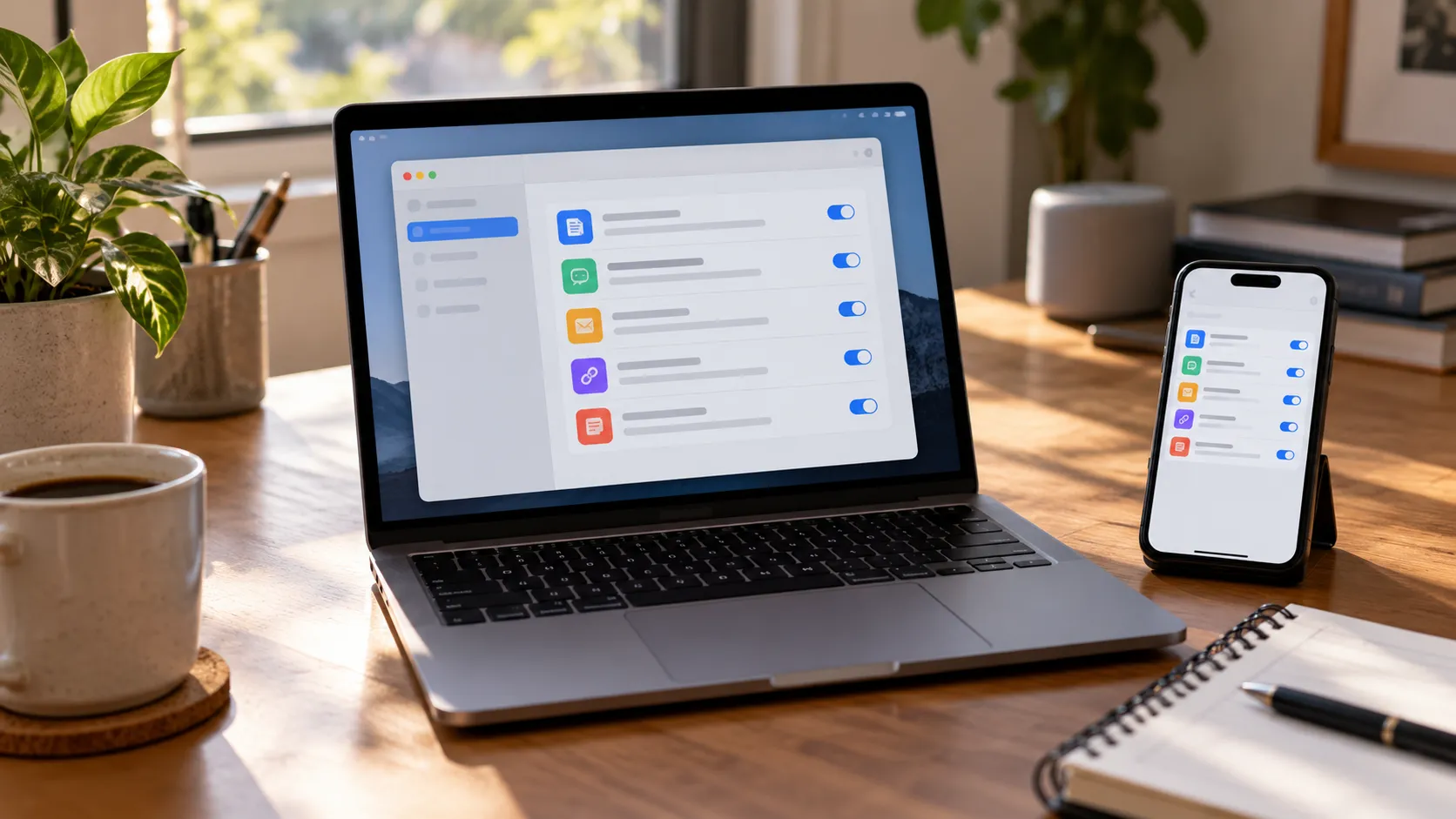
To sync Apple Books across devices, sign into the same Apple Account on every iPhone, iPad, and Mac involved (Apple Support, earlier this year). On iPhone or iPad, go to Settings > [your name] > iCloud, confirm iCloud Drive is turned on, then tap Show All and enable Books (Apple Support, earlier this year). If content still isn't showing up on every device, check available iCloud storage next; Apple's guidance is that accessing Books content across all devices might require buying iCloud+ or upgrading an existing storage plan (Apple Support, earlier this year).
A synced listing isn't the same as a downloaded file. Open the item while connected, use the app's download option if one appears, then test it in Airplane Mode before assuming it's actually ready to go offline.
Using Books on a Mac too? Turn on iCloud Drive and Books in the Mac's iCloud settings, then open Books, choose Settings from the Books menu, click General, and select both Home and "Collections, bookmarks, and highlights" (Apple Support, earlier this year). If those Books settings are enabled but content still doesn't sync, double back and check iCloud Drive and Books in the Mac's iCloud settings directly.
Apple's Books troubleshooting page also recommends keeping every device updated to the latest supported version of iOS, iPadOS, or macOS as one of its sync fixes (Apple Support, earlier this year). Worth checking before digging further if something still refuses to sync.
Do you need a dedicated app for your offline reading library on iPad?
Safari's Reading List works fine as a fire-and-forget tool, but it's limited next to apps built specifically around reading (Macworld, last year). Consider a dedicated app if tagging, highlighting, or deeper search start to matter, not because Apple's tools are broken, but because they were never built to be a research library.
Anybox is free, stores bookmarks locally, and syncs through iCloud (Mashable, last year). Treat Anybox as a bookmark organizer unless you verify that your saved pages actually open offline, since it's built around organizing and searching links generally rather than offering a dedicated reading view. The free plan also caps how many bookmarks it can store; unlocking unlimited bookmarks runs $1.99 a month, $14.99 a year, or a one-time $39.99 for the Pro plan (Mashable, last year).
GoodLinks stores everything on-device and syncs through iCloud rather than a company server, bundling offline reading, downloadable archives, highlights, and notes behind a one-time $9.99 purchase with no subscription (Mashable, last year; Macworld, last year). That purchase covers new features for the first year; after that, additional features arrive as optional one-time in-app purchases rather than a new ongoing cost (Mashable, last year). It still relies on iCloud for cross-device access, so it isn't immune to the same storage and sync checks covered above.
Raindrop.io takes a different approach, running as a cloud-based bookmarking service with a backup tool that takes regular offline copies of saved items and stores its archive in its own account rather than in iCloud or Files (Macworld, last year). Its $28-a-year Pro plan adds an archived copy of each saved webpage on top of that (Mashable, last year). Check Raindrop.io's current retention and export terms before relying on it as your only archive.
Prices and feature lists shift. Confirm current terms in the App Store or on the developer's site before paying for anything above; what's listed here reflects reporting from last year, not a guarantee of what's on offer today.
What to do next
Match the save to the purpose, then prove it works before trusting it on a trip:
- Turn on Automatically Save Offline in Settings > Apps > Safari > Reading List.
- Save one new article to Reading List.
- Convert an article worth keeping into a PDF, save it to a named folder in Files or into Books.
- Switch on Airplane Mode on the specific device being taken offline, then open both the Reading List item and the PDF to confirm they're actually there.






Comments
Be the first, drop a comment!