



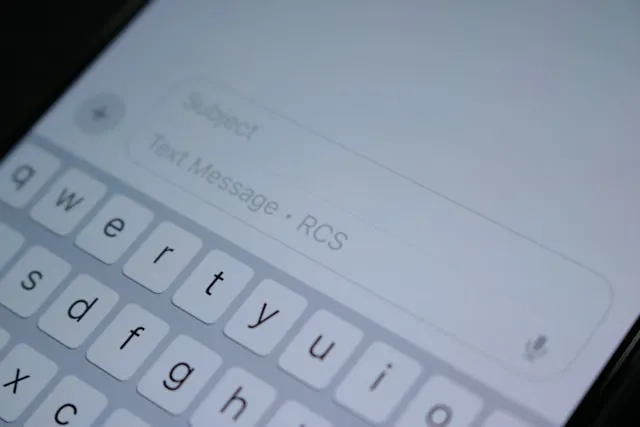
A Shortcuts setup can get close to sending photos in iMessage with one tap.
Once configured, open a photo in Photos, tap Share, then tap a contact-specific shortcut to send it through Messages without reopening the photo picker or choosing the recipient again.
Apple's Shortcuts share-sheet guide confirms that images can be passed from another app into a shortcut. Apple also confirms that Send Message supports images and attachments when Show When Run is turned off.
The shortcut sends through Messages rather than forcing iMessage specifically. The actual messaging method can depend on the recipient and your Messages settings.
How the photo shortcut works
Apple lets a shortcut appear directly in another app's share sheet. Turn on Show in Share Sheet, limit the accepted input to Images, and Photos can pass the selected image into the shortcut.
Apple explicitly says Send Message supports images and attachments when Show When Run is off. That allows the received photo to be sent without stopping at a compose screen first.
Apple's documentation on content flow in Shortcuts also shows photos being passed directly into a Send Message action, including multiple images.
The standard share sheet takes more interaction. Apple's Messages sharing instructions let you share content from another app into Messages, but you still need to select or confirm the recipient and send the message.
Skip the iMessage photo picker menu
Start with one photo already open full-screen in Photos.
Reopening Messages manually takes the most effort because the photo has to be found twice. Leave Photos, open Messages, select the thread, open the Photos picker, find the same image again, then send it.
The standard share sheet skips that second search. From the open photo, tap Share, tap Messages, confirm or search for the recipient, then tap Send.
A contact-specific shortcut can shorten the sequence further. After setup and any required permissions are complete, tap Share, then tap the shortcut's name.
With automatic sending enabled, the photo can go directly to the fixed recipient without another recipient-selection or Send step.
The trade-off is that those saved taps also remove opportunities to catch the wrong photo or recipient.
Building an iPhone shortcut to send photos in Messages
Use Apple's built-in Shortcuts app. Make sure Shortcuts is installed and the person you want to target is saved in Contacts.
Open Shortcuts, tap the plus button, and name the shortcut after the contact it targets, such as "Photo to Priya." Keeping one fixed recipient avoids choosing someone every time.
Open the shortcut's Details and turn on Show in Share Sheet.
Set the accepted share-sheet input to Images. This keeps the shortcut focused on image content and helps prevent it from appearing where it isn't useful.
Add a Send Message action and set the recipient to the saved contact.
Set the message content to Shortcut Input so the image received from Photos flows into Send Message as the attachment.
Leave Show When Run turned on for the first test. Open a low-stakes photo in Photos, tap Share, choose the shortcut, and confirm that the correct image and recipient appear before sending.
Repeat the test with a few different photos. If the attachment is ever missing or incorrect, check that Send Message is receiving Shortcut Input rather than an unrelated variable.
Once the shortcut consistently shows the correct image and recipient, turn Show When Run off. Test again with a throwaway photo to confirm the message sends without stopping at the compose screen.
The first run may trigger a privacy prompt if Shortcuts needs permission to access required data. Apple's Shortcuts privacy controls let you grant ongoing access so the permission request doesn't interrupt later runs.
If the shortcut doesn't appear in the share sheet, check that Show in Share Sheet is enabled and Images is an accepted input type.
If the shortcut runs but the photo doesn't reach Send Message, inspect the action's input and make sure it points to Shortcut Input.
What to check before relying on automatic sending
Multiple images are supported by Shortcuts' content flow, and Apple specifically documents multiple photos being passed into Send Message.
That doesn't mean every photo type will behave identically. If you plan to send several images at once, test the finished shortcut before relying on it.
Live Photos deserve the same caution. Apple's documentation doesn't specify whether a Live Photo sent through this exact share-sheet shortcut preserves its moving component, so test one first if that matters.
The recipient also matters. Send Message uses the Messages app rather than guaranteeing iMessage specifically.
If blue-bubble iMessage delivery is important, check the conversation before treating the shortcut as a fire-and-forget tool. Messages can use other supported messaging methods when iMessage isn't available.
When to use automatic sending
A fixed-recipient shortcut makes the most sense for someone you send photos to repeatedly and trust enough that speed matters more than a final preview.
Use automatic sending for photos that don't need careful review. If the recipient, image, or accompanying message needs a second glance, leave Show When Run enabled or use the ordinary share sheet instead.
Turning Show When Run off removes the last visual checkpoint before Send Message runs. Test with harmless photos before disabling it.
There's also a recovery limit. Apple's Undo Send guidance allows an iMessage to be unsent for up to two minutes, but SMS, MMS, and RCS messages can't normally be unsent.
A fixed-recipient shortcut is therefore safer than one designed to choose among several people at runtime. Build one shortcut per contact where the saved taps are actually worth the trade-off.
The fastest setup
Once everything is configured and any required permissions have been granted:
Open the photo in Photos and tap Share.
Tap the contact-specific shortcut.
With Show When Run off, Send Message can take the shared image and send it to the fixed recipient without opening the usual compose screen.
The shortcut removes the photo picker, recipient search, and final Send tap from a task you repeat often.
Test it with a throwaway image before enabling automatic sending, and recheck it after major iOS updates if the Shortcuts interface or action behavior changes.





Comments
Be the first, drop a comment!