



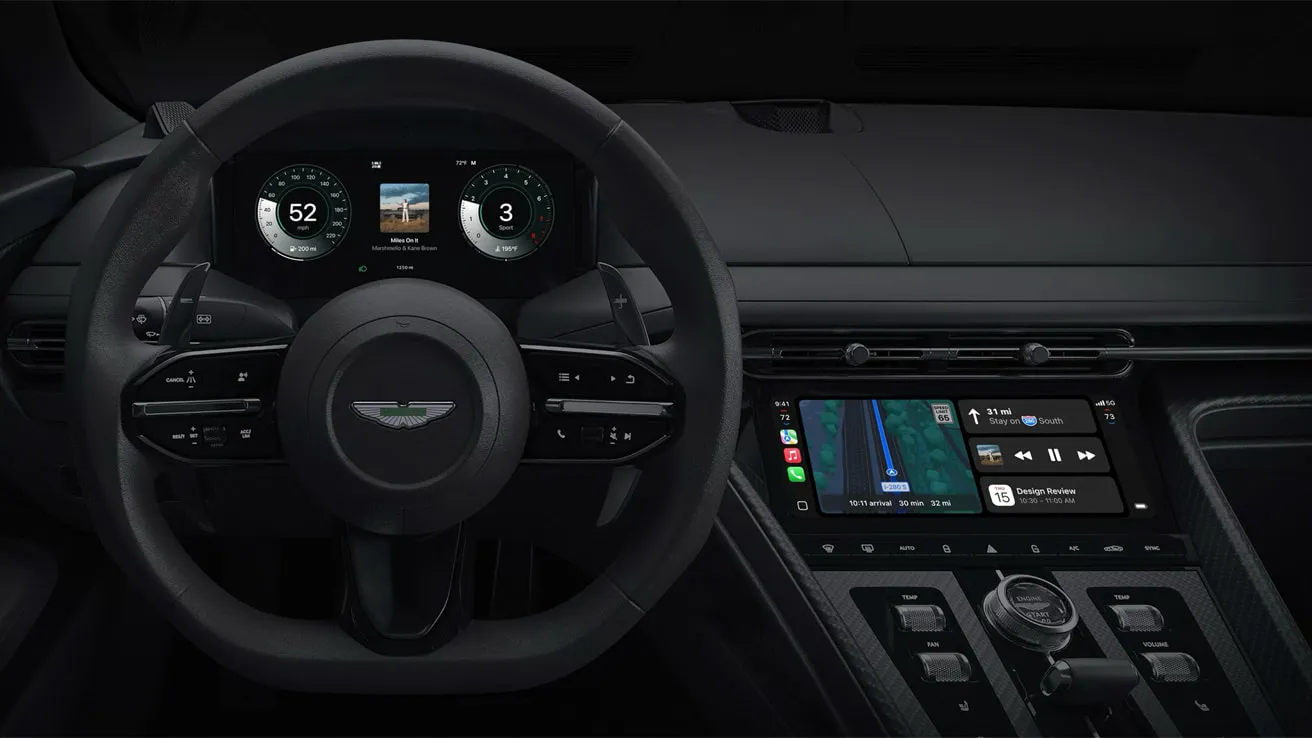
To stop CarPlay from automatically connecting, turn off the per-car toggle if the iPhone shows one for that vehicle. Use the Screen Time restriction when the goal is blocking CarPlay everywhere, across every paired car at once. Reach for Forget This Car only when a full re-pairing is acceptable, since that's the method Apple's own support page walks through for CarPlay.
Once an iPhone pairs with a car's CarPlay system, it usually remembers that vehicle and reconnects automatically the next time you get in the car, unless something's gone wrong with the connection. That's convenient for a daily commute and a lot less convenient for someone trying to avoid CarPlay in a rental or a shared vehicle. These steps assume the vehicle already appears under Settings > General > CarPlay. The per-car toggle covered below may not show up on every setup, so a fallback is included for when it's missing.
Choose the right method first
Match the actual goal to one of three options before touching any settings.
Stop CarPlay in one car but keep it active elsewhere: Use the per-car toggle — CarPlay stops auto-launching in that car only; other paired cars are unaffected.
Prevent CarPlay from launching on this iPhone in any car: Use a Screen Time restriction — Blocks CarPlay device-wide rather than for a specific vehicle.
If the toggle isn't available or you want a full reset: Select Forget This Car — You'll need to pair the car again later; this isn't a simple on/off switch.
The per-car toggle is the option Engadget describes reporters testing directly on their own iPhones. Forget This Car is the one Apple actually walks through on its support page, but that's a narrower confirmation than it sounds: Apple documents the steps for removing a car's CarPlay setup and setting it up again, not a general auto-connect fix. Screen Time sits in between, reported to work but never mentioned by Apple as a CarPlay control at all.
Anyone dealing with a rental car, a partner's vehicle, or a shared work car should start with the per-car toggle rather than Screen Time. Screen Time's restriction applies to every paired car on the iPhone at once, so it's the wrong tool for a problem that's really about one vehicle (Engadget reports).
How to stop CarPlay from automatically connecting for one car
This is the option to try first if the goal is narrow: keep CarPlay working normally in every other paired car, just not this one.
Open the Settings app, tap General, then tap CarPlay (it uses a green icon).
Find the car in the list of paired vehicles and tap it to open its management screen.
Switch off the CarPlay toggle for that vehicle.
Turning off that toggle is reported to stop CarPlay from launching automatically the next time the car connects. What isn't addressed in that reporting is whether the phone still connects for calls or still shows as paired on the car's own display. The report covers the CarPlay interface specifically, not the underlying Bluetooth or wireless link, so don't assume flipping this toggle severs the connection entirely.
Turning CarPlay back on is just as simple: return to the same screen and flip the toggle back on. No re-pairing is required to restore it, according to the same reporting.
The toggle may be missing on some older cars; the report doesn't establish whether iOS version or head unit design is the deciding factor. If it's missing, skip ahead to Forget This Car rather than digging through unrelated Bluetooth settings.
If CarPlay still launches after switching the toggle off, double-check that the correct vehicle was selected in the paired list before assuming the setting failed.
There are a couple of side benefits to switching CarPlay off when it isn't needed. Wireless CarPlay can interfere with AirDrop, according to the same report, so turning it off might restore file sharing with someone standing nearby. The same source also notes it can help stretch battery life on a day without a car charger within reach.
What each method does not do
None of these three methods comes with a full account of its side effects. The per-car toggle is reported to stop CarPlay's interface from opening, but nothing in that reporting confirms whether the phone still hands off calls to the car's speakers or whether the head unit keeps listing the iPhone as a paired device. Screen Time's restriction is described the same way: it blocks CarPlay from launching, not confirmed to touch the Bluetooth or Wi-Fi pairing underneath it.
Apple documents both Forget This Car and the Screen Time restriction, although its documentation does not spell out what either does to an independent Bluetooth pairing. Treat all three as controls over the CarPlay software layer, not guaranteed resets of the phone's entire relationship with the car.
Forget this car in CarPlay settings to remove the pairing
Use this when the per-car toggle isn't available, didn't stick, or the goal is removing the relationship with that car entirely rather than pausing it.
Go to Settings > General > CarPlay, then tap the car in the list.
Tap Forget This Car.
Set up CarPlay again the next time it's needed in that vehicle.
Apple's support page instructs users to tap Forget This Car and then set up CarPlay again. That's the extent of what Apple documents here: the CarPlay configuration is removed from the iPhone for that car, and the next drive means going through setup rather than an instant connection. Plan to set CarPlay up again rather than expecting a switch that flips back in two taps.
Some users troubleshooting connection problems on forums have reported that unpairing and reconnecting occasionally cleared up erratic CarPlay behavior, though results were inconsistent and this isn't documented as a fix for any specific issue.
Disable CarPlay auto-connect across the entire iPhone
This is for anyone who never wants CarPlay to launch on this iPhone, in any car, rather than someone trying to pause it for a single vehicle.
Open Settings, tap Screen Time, then tap Content & Privacy Restrictions.
Tap Allowed Apps & Features.
Find CarPlay in that list and disable it.
The result is a device-wide restriction that blocks CarPlay on every paired vehicle, according to the report, not just the one causing the original problem. This path isn't spelled out on Apple's own support pages either, so it's worth confirming CarPlay still appears in that Allowed Apps & Features list on the current iOS version before relying on it as a fix. If a Screen Time passcode is set on the device, that same passcode will be needed to switch the restriction back off later, which matters on a shared or managed iPhone.
If the car keeps disconnecting instead of auto-launching
Everything above addresses unwanted auto-launch: CarPlay opening when it shouldn't. That's a different problem from CarPlay dropping out mid-drive on its own. In a MacRumors forum thread, individual posters reported that kind of dropout across iPhone 16 and iPhone 17 models, iOS 18 and iOS 26, and both wired and wireless connections, including third-party adapters.
These are scattered user reports across different phones, cars, and connection types, not a confirmed, named Apple bug. Posters said they tried switching to wired CarPlay, restarting the head unit, or pairing the phone again, with inconsistent results even among people using similar setups.
These settings are intended to stop or remove CarPlay pairing, so they may not resolve random dropouts. If mid-drive disconnects are the actual complaint, re-pairing through Forget This Car is one step people in that thread reported trying, alongside wired switching and head-unit restarts. None of the three has a documented, repeatable outcome.
What to do next
Open Settings > General > CarPlay and check the vehicle-specific toggle first. If it's missing or doesn't stop CarPlay from launching, use Forget This Car, but only if a re-pairing step is acceptable. Reach for Screen Time only when CarPlay needs to be blocked across the entire iPhone rather than one vehicle, and if CarPlay is dropping out mid-drive instead of launching unwanted, treat that as a separate connection-stability problem these settings weren't built to fix.






Comments
Be the first, drop a comment!