



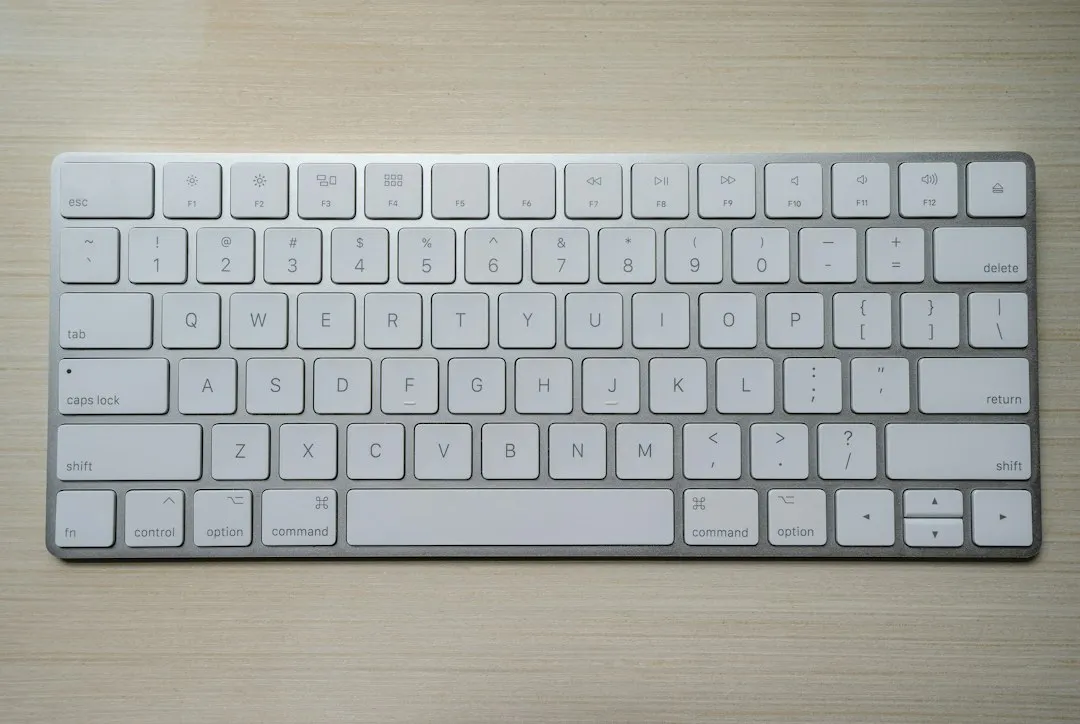
Plug a spare numpad into your Mac and remap one of its keys in Karabiner-Elements, and nothing in a basic rule guarantees that remap only fires from that spare keyboard. The same key code reaches macOS whether it came from your main keyboard or the spare one sitting next to it, unless the rule is scoped to one specific device. That's the core obstacle anyone trying to use a spare keyboard as a macropad on macOS runs into first.
Karabiner-Elements solves this with a condition called device_if, which scopes a remapping rule to a device's vendor and product IDs instead of to a key code alone. This guide walks through building and verifying that scoping for one key: confirming your spare device's identifiers are actually unique, writing a Karabiner rule that targets only that device, checking the remap in Karabiner-EventViewer, and wiring the result into a Keyboard Maestro macro. It sticks to one key instead of a finished layout, since each piece needs confirming on its own before you duplicate it across a dozen keys.
Before starting, install Karabiner-Elements, then open Karabiner-EventViewer, which this guide uses throughout to inspect raw key events and device identifiers. Connect the spare keyboard or numpad you want to repurpose. You'll also need an automation app that can catch a keystroke and run an action. This guide uses Keyboard Maestro. Swapping in a different automation tool means re-checking its own trigger behavior, which isn't covered here.
How to use a spare keyboard as a macropad on macOS with Karabiner-Elements
device_if and its inverse, device_unless, exist to change whether a manipulator fires based on which device sent the keystroke. The condition matches against identifiers like vendor_id and product_id, and for Bluetooth hardware, device_address. device_if has been available since Karabiner-Elements 11.0.0; device_address support for Bluetooth devices arrived later, in version 14.12.2.
You'll find these identifiers in Karabiner-EventViewer's Devices tab, which is the first thing to check before writing any rule. List multiple identifier fields inside one rule, and Karabiner treats them as AND; list multiple separate identifier entries, and it treats those as OR. That OR behavior only matters once you're trying to make a single rule cover more than one spare device.
Step 1: Confirm your spare keyboard can be isolated
Open EventViewer's Devices tab and record the vendor_id and product_id for both the spare device and your main keyboard. From there, the path forward depends on what you see.
If the two sets of IDs differ, Karabiner can already tell the devices apart, so move on to step 2. If the spare device connects over Bluetooth, check its device_address instead, since that field only exists for Bluetooth hardware. The identifier block looks slightly different in that case:
"identifiers": [ { "device_address": "aa:bb:cc:dd:ee:ff" } ]
Confirming the actual address value in EventViewer is what matters, not just the fact that the device happens to be Bluetooth.
If both devices show identical vendor_id and product_id and neither is Bluetooth, before relying on it" with: "If both devices show identical vendor_id and product_id, location_id can provide another identifier for USB hardware, but Karabiner notes that its value changes when you move the device to a different USB port. That makes it useful only if you can keep the spare keyboard on the same port or are willing to update the rule after moving it.
Karabiner lists location_id as optional and marks it "No" in the same identifier-support table that marks vendor_id, product_id, and device_address "Yes." What that distinction means in practice isn't defined in the docs, so test location_id against your own hardware or check Karabiner's current guidance before relying on it. If your hardware collides this way, a different-model spare keyboard or a Bluetooth keypad with a verified distinct device_address are the paths this guide can actually confirm work.
Step 2: Build, load, and verify the Karabiner rule
Karabiner's documentation describes two ways to add complex-modification rules: importing predefined ones maintained by the community through the app's built-in rule browser, or creating your own. The import path is fully documented: open Complex Modifications, add a predefined rule, import more rules from the official rules site, confirm the import, then enable the new rule and check the result in EventViewer.
Karabiner also documents a direct custom-rule path: open Complex Modifications and click Add your own rule, edit the sample JSON, then save it to register the rule. For manually managed files, custom complex-modification JSON can also live in ~/.config/karabiner/assets/complex_modifications.
With that caveat in place, here's what the manipulator syntax looks like, following Karabiner's documented format: a type, a from key code, a to action, and a conditions array that can include device_if. For a standalone custom JSON file in Karabiner's complex-modifications directory, the documented structure uses a top-level title and rules array like this:
{ "title": "Spare Numpad Macropad", "rules": [ { "description": "Spare numpad Keypad 0 -> macro trigger", "manipulators": [ { "type": "basic", "from": { "key_code": "keypad_0" }, "to": [ { "key_code": "keypad_0", "modifiers": ["left_control", "left_option", "left_shift", "left_command"] } ], "conditions": [ { "type": "device_if", "identifiers": [ { "vendor_id": 1234, "product_id": 5678 } ] } ] } ] } ] }
Swap 1234 and 5678 for the values recorded from EventViewer in step 1. The example also assumes your spare device's zero key reports as keypad_0; open EventViewer and confirm your own key's actual code before copying this verbatim, since not every keyboard labels its keys the same way internally.
Once the rule is saved somewhere Karabiner reads it, open the Complex Modifications tab and look for "Spare Numpad Macropad" in the list. If it's missing, the rule either didn't load from its saved location or the JSON has an error. Sort that out before testing anything else; a rule that never loads can't be diagnosed by checking device identifiers.
Click Enable, then confirm the result in EventViewer, the verification step Karabiner's own documentation recommends after enabling a rule. Press the key you mapped on the spare device and watch for a change in EventViewer's event log. Then press the same key on your main keyboard and check whether the same change shows up there too. If it does, the device_if identifiers aren't scoped correctly, and the fix is to return to step 1 to recheck each device's values individually.
Step 3: Wire the remapped key to a Keyboard Maestro macro
A Keyboard Maestro community forum post shows a similar Karabiner remap from one user's own setup, not official Keyboard Maestro or Karabiner documentation: a key mapped to a four-modifier combination, ⌃⌥⇧⌘+Key Pad 0, with Keyboard Maestro listening for it. It's close enough to adapt directly. Remap the spare device's Keypad 0 to ⌃⌥⇧⌘+Keypad 0, then let Keyboard Maestro catch that combination. Before relying on any modifier stack, check System Settings > Keyboard > Keyboard Shortcuts and spot-check the apps you use daily. Neither source confirms that a given combination is unclaimed on your Mac.
In Keyboard Maestro, create one macro with a Hot Key trigger set to ⌃⌥⇧⌘+Keypad 0, with a single visible action attached. Something as simple as typing a short confirmation phrase works for testing. The same forum post notes that a USB Device Key trigger isn't "swallowed" by the Keyboard Maestro Engine and leaks through to whatever app is frontmost, unlike a Hot Key trigger, which is why this setup sticks with Hot Key. Confirm that behavior in your own Keyboard Maestro version rather than treating one forum example as a guarantee across releases.
If you're testing with an imported macro file, check its enabled state first. Keyboard Maestro normally imports macros safely by disabling either a newly created parent macro group or, when the group already exists, the imported macros themselves.
Test in a blank TextEdit document: press the mapped key on the spare device and check whether your test phrase appears with nothing extra attached. The forum's own example ran on macOS 15.4.1 and Keyboard Maestro 11.0.3, a snapshot of one user's setup rather than a current compatibility guarantee.
If the setup still doesn't respond, check macOS permissions. Current Karabiner-Elements versions require Accessibility permission. Input Monitoring is generally only required for Karabiner 15.9.0 and earlier. Keyboard Maestro's documentation says both Keyboard Maestro and Keyboard Maestro Engine should have Accessibility permission, and any Keyboard Maestro entries shown under Input Monitoring should be enabled.
Troubleshooting by symptom
Rule doesn't appear in Karabiner's Complex Modifications list: possible causes include malformed JSON or a file saved somewhere Karabiner doesn't check. Validate the syntax and recheck the location.
Rule is enabled, but EventViewer shows no change on the spare device: confirm
from.key_codeactually matches the key you're pressing, and that the rule's toggle is switched on.Both keyboards produce the modified output: the
device_ifidentifiers match both devices. Recheckvendor_idandproduct_idon each device separately in EventViewer, and tighten the condition.EventViewer shows the modified output, but Keyboard Maestro doesn't fire: check that both the macro and its parent group are enabled, and that the Hot Key trigger's modifiers exactly match what the rule outputs.
The macro fires, but extra characters show up in the document: Karabiner's documentation doesn't confirm whether the
tooutput fully replaces the original keystroke in every case. Try a more heavily modified output combination and check again for leakage.
What to do next
Swapping in a different automation app means re-checking its trigger and permission behavior from scratch before trusting it with anything important.
Get one key fully working first: confirmed in Karabiner's Complex Modifications list, scoped correctly against your main keyboard in EventViewer, and firing cleanly through Keyboard Maestro with nothing leaking into a plain text document. Only duplicate the setup once a single key clears all three checks on its own. A macropad that mostly works is far harder to debug than one built and tested a single key at a time.





Comments
Be the first, drop a comment!