




![Watch Series 8 [GPS + Cellular, 41mm] Starlight Aluminum Case with Starlight Sport Band, M/L (Renewed)](https://m.media-amazon.com/images/I/71jOw9iquHL._AC_UY218_.jpg)

A newer iPhone can text emergency services from a trailhead with zero bars, but that capability isn't something you switch on in advance. It becomes available when you're off-grid and a normal call or text to emergency services can't connect, as long as you're outdoors with a clear view of the sky and using an iPhone 14 or later.
What you can control ahead of time is what information reaches responders and who gets notified, and that's the point of the iPhone emergency features covered in this guide.
This guide walks through six features worth preparing or checking now: Medical ID, emergency contacts, Emergency SOS via satellite, Crash Detection, Fall Detection with Apple Watch, and Check In.
Prepare your information first, understand how help actually gets summoned second, then set up Check In so an ordinary delay doesn't have to turn into an emergency before anyone notices.
Update to the latest iOS before any trip. Apple's current Emergency SOS via satellite guidance recommends doing so to make sure the satellite emergency keywords work, while each supported country also sets its own minimum iOS version for satellite access.
Satellite features specifically need an iPhone 14 or later and don't work on phones purchased in Armenia, Belarus, mainland China, Kyrgyzstan, Kazakhstan, or Russia. For iPhones purchased in Hong Kong or Macao, satellite connectivity requires an iPhone 16e or later.
Check In needs iOS 17 or later on both ends of the conversation.
Here's what each feature actually requires before diving in:
Medical ID and emergency contacts: configured in the Health app
Emergency SOS via satellite: iPhone 14 or later, plus whatever iOS version your destination country requires
Crash Detection: iPhone 14 or later with iOS 16 or later
Fall Detection: a supported Apple Watch, including Apple Watch Series 4 or later, Apple Watch SE or later, or Apple Watch Ultra or later
Check In: iOS 17 or later on both the sender's and recipient's iPhone
Set up iPhone Medical ID first
Fill in your Medical ID before you need it. Nothing else on this list can add this information after the fact.
If Emergency SOS via satellite ever activates, your iPhone can share your Medical ID and emergency contact information with responders alongside your location, elevation, and remaining battery, but only if that profile has already been completed.
Add iPhone emergency contacts
Emergency contacts live in the same Health app profile, and they matter for a different reason. During an Emergency SOS via satellite session, the emergency questionnaire lets you notify them, sharing your location and the nature of the emergency.
Nothing happens automatically just because someone is listed. Choosing to notify them triggers the message, and once you make that choice, they receive it without further action from you.
If that contact uses iMessage on iOS 16.4 or later, what they can receive is a live transcript rather than a single alert: your answers to the emergency questionnaire, a map of your location, and the ongoing exchange with responders.
Contacts using a non-Apple device or an iPhone without iOS 16.4 or later receive an SMS alert instead. They need to reply "YES" within 48 hours of the first message to keep receiving updates.
Replying "NO" or "STOP" ends notifications for this and future emergencies until they text "RESTART."
An emergency contact and a Check In contact are not the same role. An emergency contact receives information during a genuine SOS event that you actively choose to share.
A Check In contact is someone responsible for noticing you didn't arrive, or didn't respond to a timer, in situations well short of dialing for help. Setting up one doesn't set up the other.
How to set up iPhone Emergency SOS via satellite
Emergency SOS via satellite is a fallback, not a toggle you flip once and forget. Your iPhone first tries the available cellular networks when you call emergency services.
If the call won't connect because you're outside cellular and Wi-Fi coverage, and you're outdoors with a clear view of the sky and horizon, it can offer satellite texting instead.
From there, tap Emergency Text via Satellite, tap Report Emergency, and answer the short questionnaire with simple taps describing your situation.
You can also type "emergency," "emergencies," "SOS," "help," or "send help" into the address field of a new Messages thread to reach the emergency-services flow. Certain local emergency numbers need iOS 16.4 or later to connect this way.
Run the Satellite Connection Demo before an off-grid trip. The Connection Assistant, introduced in iOS 18, walks you through connecting to a satellite the first time you actually need one, and you can preview the mechanics through Control Center or Settings.
With cellular or Wi-Fi coverage active, the Satellite option in Control Center opens a demo instead of a live satellite connection, which is the safe way to see how it works before conditions force your hand.
Conditions on the ground change what this delivers. Under an open sky, a message might take about 30 seconds to send; under light or medium tree cover it can take over a minute.
Under heavy foliage or other obstructions, it might not connect at all. Satellite connectivity might also not work above 62° latitude, including northern parts of Alaska.
Country and software requirements vary, and the list changes over time, so it's worth checking against your itinerary rather than assuming last trip's settings still apply.
The US and Canada need iOS 16.1 or later; France, Germany, Ireland, and the UK need 16.2; Australia, Austria, Belgium, Italy, Luxembourg, the Netherlands, New Zealand, Portugal, Spain, and Switzerland need 16.4.
Japan needs iOS 17.6; Mexico needs 18.4; and Andorra and Iceland require iOS 26.4. Apple's satellite page has the full, current rundown by country if your trip crosses into unfamiliar territory.
Apple currently says its satellite features are free for two years after activating an iPhone 14 or later.
Which satellite feature do you actually need?
Apple's satellite tools cover four different jobs, and mixing them up wastes time in a moment that matters.
Injury, danger, or any real emergency calls for Emergency SOS via satellite, which routes your message to emergency service providers or, where those aren't available, to Apple's Emergency Relay Center, which then reports your situation to responders.
Car trouble with no other way to call for help calls for Roadside Assistance via satellite instead.
Staying in touch or sharing your whereabouts with someone who isn't in danger is what Messages via satellite and Find My via satellite are built for, not emergencies.
Apple is explicit that Messages via satellite should never substitute for Emergency SOS. It also doesn't support photos, video, audio messages, stickers, or group messages, and it's limited to the US, Canada, Mexico, and Japan.
There's a privacy distinction worth noting, too. Emergency SOS satellite messages are encrypted in transit but decrypted by Apple to route them to a dispatcher or relay center, and they may be retained by emergency-service centers.
Find My via satellite stays end-to-end encrypted and isn't accessible to Apple, and Messages via satellite keeps iMessages end-to-end encrypted while they travel between devices.
iPhone Crash Detection: confirm your hardware qualifies
Crash Detection covers a moment when you can't act at all. If a severe car crash occurs and you don't respond, an iPhone 14 or later may automatically relay a notification to emergency services through Emergency SOS via satellite when you're outside cellular and Wi-Fi coverage.
Apple's current Crash Detection requirements call for an iPhone 14 or later with iOS 16 or later. The feature is turned on by default on supported models.
Confirm that your iPhone model supports the feature, then verify your software is current. That's the main preparation available right now.
Apple Watch Fall Detection: the same relay, a different trigger
Fall Detection can use the same off-grid relay as Crash Detection, but the trigger is different, and the detection itself comes from an Apple Watch rather than the iPhone.
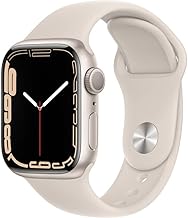
According to Apple's Fall Detection guidance, the feature works on Apple Watch Series 4 or later, Apple Watch SE or later, and Apple Watch Ultra or later for users age 18 or older.
If the watch detects a hard fall and you remain immobile for about a minute, it can begin the process of contacting emergency services. Wrist Detection must be turned on for the watch to make the automatic call.
When you're off-grid, a Fall Detection notification may be communicated through Emergency SOS via satellite using an iPhone 14 or later paired with the watch, where satellite service is available. Apple Watch Ultra 3 can also use its own satellite connection.
If you wear an Apple Watch, check Fall Detection separately rather than assuming Crash Detection eligibility on your iPhone covers it too.
Set up Check In for everyday situations that aren't emergencies yet
Check In covers the stretch of time before anything is urgent enough for satellite texting. Open Messages, add a recipient or select an existing conversation, tap the plus button, tap Check In, and tap Edit.
Apple's Check In guide lets you choose "When I arrive" for a trip with a defined destination, or "After a timer" for a situation that just feels unsafe, such as walking to a parked car alone.
For a travel-based Check In, set your destination and an arrival radius: small, medium, or large. Your contact gets notified once you're inside it.
A timer-based Check In lets you pick the duration directly.
Either way, decide on your data-sharing level before you leave, not mid-trip. Under Settings > Apps > Messages > Check In Data, Limited shares your current location plus battery and network signal.
Full adds your route traveled and the location of your last iPhone unlock or Apple Watch removal.
Your contact is alerted automatically if your phone stops progressing toward the destination and you don't respond within 15 minutes, if you don't respond at the end of a timer, or if you place an Emergency SOS call and don't answer the Check In follow-up.
A lost phone can trigger the same notification. Check In can't tell the difference between an unresponsive person and a misplaced iPhone, so a phone left behind can set off the same alerts.
Location sharing for Check In also isn't supported in South Korea and might be restricted elsewhere depending on local law, so confirm it works before counting on it abroad.
Before you head off the grid again
Coverage, minimum iOS versions, and country eligibility all shift on Apple's own schedule, which is the main reason to treat this as a pre-trip checklist rather than a one-time setup.
Do this today, regardless of what phone you carry:
Fill in Medical ID so it's ready to share when supported
Add emergency contacts in Health and make sure their contact details are current
Update to the latest iOS
Set up a Check In contact and choose Limited or Full sharing
Verify this before a specific trip:
Confirm iPhone 14-or-later hardware for Apple satellite features and Crash Detection
If you use Fall Detection, confirm your Apple Watch supports it and that the feature is turned on
Check your destination country's satellite support and required iOS version
Run the Satellite Connection Demo before heading off-grid
None of these six features guarantee a rescue. They improve the odds that help knows who you are, where you are, and that someone noticed when you didn't show up.







Comments
Be the first, drop a comment!