



Siri AI Tips and Tricks: 10 Beta Workflows to Try Now
Siri AI isn't a routine point update. Apple rebuilt the assistant from the ground up so it can dig through your messages, mail, and photos, read whatever's on your screen, and carry a single conversation across five different device types. These Siri AI tips and tricks are built around one filter: what you can actually trigger today, on a real device, versus what Apple has only promised. The catch is that the whole thing is still in beta and sitting behind a waitlist, so not every reader gets to try it the moment they finish this article.
Apple's own newsroom post, updated last month, confirms the beta started rolling out in English and requires iOS 27, iPadOS 27, macOS 27, watchOS 27, or visionOS 27 on specific hardware. It's also not available on iPhone, iPad, or Apple Watch in the EU, and it doesn't work at all if your Apple Account region is mainland China, according to Apple Support. What follows is 10 workflows worth testing on a qualifying device, grouped by what's confirmed and working now versus what Apple has announced but hasn't shipped, plus a plain read on what to verify before you trust any of it with something that actually matters.
Siri AI beta tips: the eligibility checklist
Before touching any of the hacks below, confirm your setup actually qualifies. You need a device running iOS 27, iPadOS 27, macOS 27 Golden Gate, watchOS 27, or visionOS 27, with your device language and Siri language set to the same supported language, and an Apple Account in an eligible region, per Apple Support.
Supported hardware includes iPhone 16 or later, iPhone 15 Pro or Pro Max, iPad mini with A17 Pro, any iPad or Mac with M1 or later, MacBook Neo with A18 Pro, Apple Vision Pro, and Apple Watch Series 9 or later, Ultra 2 or later, or SE 3, though the Watch only works when it's paired with a compatible, Apple Intelligence-enabled iPhone nearby, according to Apple's September update. Siri AI also isn't available to anyone under 13.
The EU is the exception people keep missing. Siri AI doesn't work on iPhone, iPad, or Apple Watch there at all. Mac and Vision Pro users whose Apple Account region is in the EU can still get it, but only with both device language and Siri language set to English, per Apple Support.
How to use Siri AI: turning on the beta
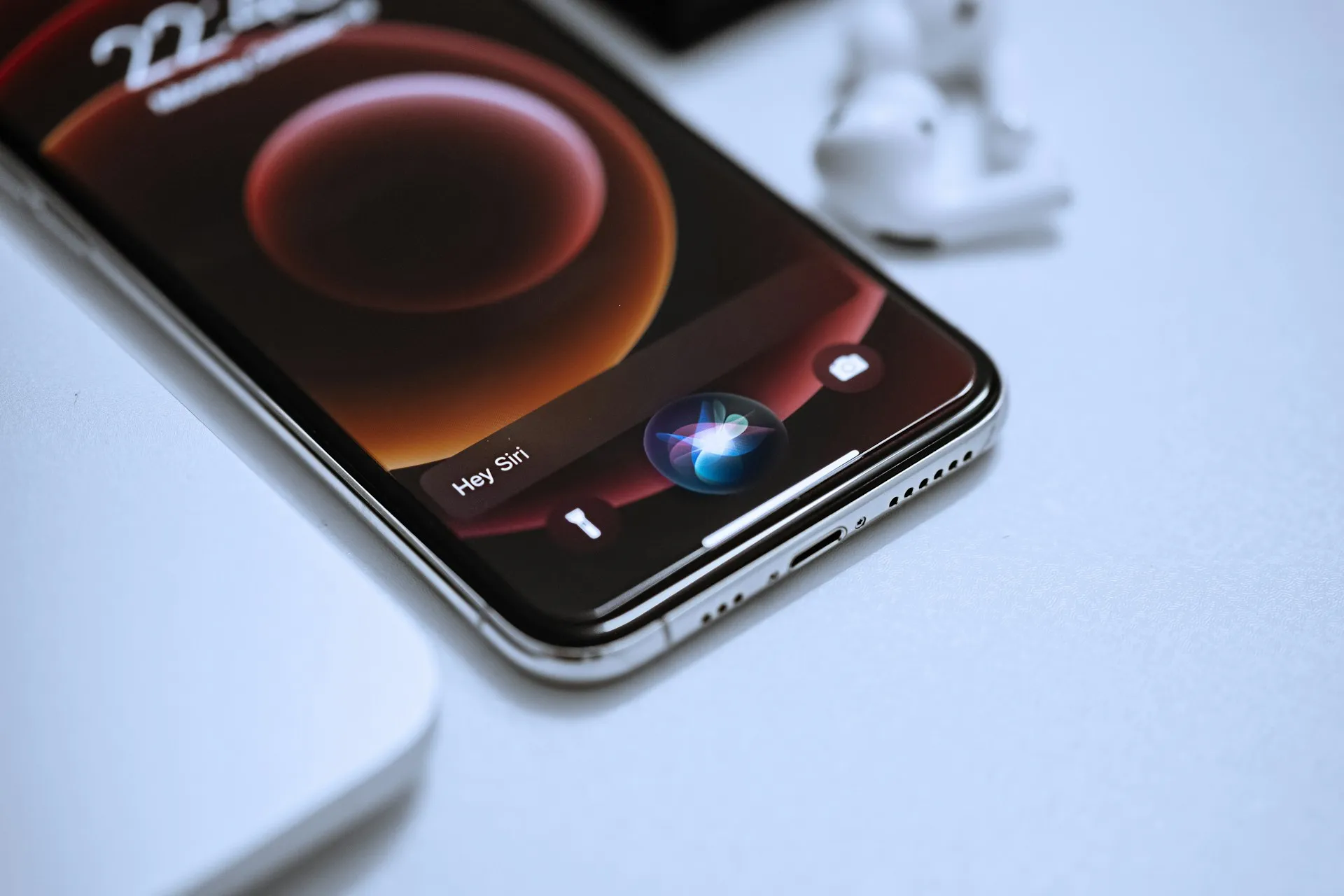
Update your device first, then go to Settings, tap Siri, and select Try Siri AI (Beta). If Siri is currently off, you'll need to turn it on before anything else shows up.
From there, follow the onscreen prompts to pick a voice, complete voice enrollment, and review your privacy settings. Finishing that process adds you to a waitlist, and wait times vary from person to person, according to Apple Support. Siri AI downloads automatically once your wait ends, and it keeps working if you later travel to a region where it isn't normally offered.
What not to rely on yet
Some Siri AI requests that lean on server-side models, including Siri AI itself along with features like intelligent photo editing and Image Playground, are subject to daily usage limits that vary by request complexity and system demand, per Apple's September update. That means a qualifying device can still hit a wall mid-day.
Third-party app support is real but partial. Siri can already take actions like texting in WhatsApp or playing a book on Audible, and Apple says drafting an email in Outlook, searching a file in Notability, or adding a recommendation to Tripsy is coming soon. Personal-context search into other apps, though, only works once each developer builds Spotlight integration, so coverage depends entirely on which apps have done that work. Two related features, Siri Recap and Live Rewind, are confirmed for beta release later this year and simply aren't part of the current build, even on fully eligible hardware.
Siri AI tips and tricks for finding messages, mail, and photos
1. Pull something out of your own messages, mail, or photos. Try it: Invoke Siri with the side button, "Hey Siri," or the dedicated Siri app, and ask something specific, like "find the restaurant my friend texted me about" or "what's my hotel confirmation number from last month." Where it works: Siri AI draws on personal context to search across messages, emails, and photos, using examples Apple itself has published. Caveat: those examples cover Apple's own apps. Third-party personal-context search depends on whether that app's developer has integrated with Spotlight, so confirm the answer against the original message or email before you act on it.
2. Ask a direct question about whatever's on your screen. Try it: With content open, just ask Siri about it instead of describing it yourself, then keep asking follow-up questions on the same topic. Where it works: On iPhone, trigger Siri with the side button, "Hey Siri," or by swiping down from the Dynamic Island. On iPad and Mac, Siri is built into Spotlight. On Vision Pro, look at the floating Siri visualization and start talking. Caveat: Siri AI is designed to extend almost any answer into a longer back-and-forth, so push past the first response before deciding whether it's actually useful.
3. Ask a time-sensitive question instead of searching the web yourself. Try it: Ask something like when the next solar eclipse is visible from your area, or when a specific musician is touring near you. Where it works: Siri AI pulls current information from the web using broad world knowledge to generate the answer. Caveat: this is a beta feature without independent accuracy testing, so check anything date- or price-sensitive against the actual source, like the tour page or an official eclipse tracker, before you make plans around it.
Some of the best Siri AI hacks right now involve pointing the assistant at whatever's physically in front of you, which is where the next four workflows come in.
Point Siri AI at what you see
4. iPhone: let Siri mode in Camera act on what it sees. Try it: Open Camera, switch into the new Siri mode, and tap the shutter. Where it works: iPhone only, with built-in actions like splitting a bill through Apple Cash or getting nutritional insights on a plate of food. Caveat: treat the nutrition insight as a quick reference, not a lab result, and double-check the split amount before you actually send money.
5. iPad: ask about a screenshot. Try it: Capture a screenshot, then ask Siri questions about what's in it. Where it works: iPad, through Visual Intelligence built directly into the screenshot flow. Caveat: this is new territory for the beta, so expect occasional misreads early on and confirm anything important against the original image.
6. Mac: select something and type your question. Try it: Control-click an image, file, or block of text to ask about it through the systemwide context menu, or use the dedicated keyboard shortcut to select something on your display and type a question straight to Siri. Where it works: Mac, across context menus and Spotlight. Caveat: Siri is answering based on what you selected, not the whole screen, so select carefully before you ask.
7. Vision Pro: look at something and start talking. Try it: Look at a physical object nearby, or at content inside an app window, and speak your question. Where it works: Vision Pro, through the floating 3D Siri visualization. Caveat: as with the other visual hacks, start with something you can check yourself, like a label or a price tag, before trusting it on something you can't verify.
Carry a conversation and get work done
8. Start a conversation on one device, finish it on another. Try it: Open the dedicated Siri app on any eligible device. Where it works: iCloud privately syncs conversation history so a conversation started on iPhone can continue on Mac, iPad, Apple Watch, or Vision Pro, per Apple Support. Caveat: because that history syncs through iCloud rather than staying on a single device, it's worth reviewing your privacy settings during setup, not because Apple reads the content, but so you know how it moves between your devices.
9. Draft or dictate text instead of typing it yourself. Try it: In Mail or Messages, describe what you want to write and let Siri generate a draft, then describe any edits you want. Where it works: Siri tailors tone and punctuation to how you typically write to that specific recipient, and on devices that support Apple's most advanced on-device model, dictation automatically handles capitalization, punctuation, and formatting as you speak, according to Apple's original announcement. Caveat: automatic proofreading now runs across most of the system, including many third-party apps, but it's still worth reading over the recipient, tone, and any dates or numbers before you hit send.
Apple Intelligence Siri tips for Calendar and Shortcuts
10. Describe what you want instead of building it manually. Try it: In Calendar, describe an event in plain language and let it create or modify the entry. In Shortcuts, describe the automation you want instead of assembling each step. Where it works: both tools ship as part of the same Apple Intelligence update that powers Siri AI, per Apple's June unveiling. Caveat: Apple hasn't specified whether this runs through the Siri AI beta model itself, so treat it as a related Apple Intelligence feature rather than a Siri voice command, and check the time zone, invitees, and generated shortcut steps before you rely on either one.
What to do next
Every one of these workflows still depends on getting the basics right first: matching OS version, matching device and Siri language, qualifying hardware, and an eligible Apple Account region. Even once you clear that bar, daily server-side limits mean Siri AI's availability can shift during the day on the same device, and Siri Recap and Live Rewind simply aren't part of this build yet. They're confirmed for later this year, so watch Apple's release notes rather than assuming something's broken if they don't show up.
Open Settings, tap Siri, confirm your device and Siri language match, and join the waitlist if you haven't already. Once it activates, run two or three of the hacks above against information you can personally check, a message you remember sending, a confirmation number you already have. If your region, language, or hardware doesn't qualify yet, including EU iPhones, iPads, and Apple Watches, there's nothing to troubleshoot on your end. Wait for Apple's next expansion instead.











Comments
Be the first, drop a comment!