



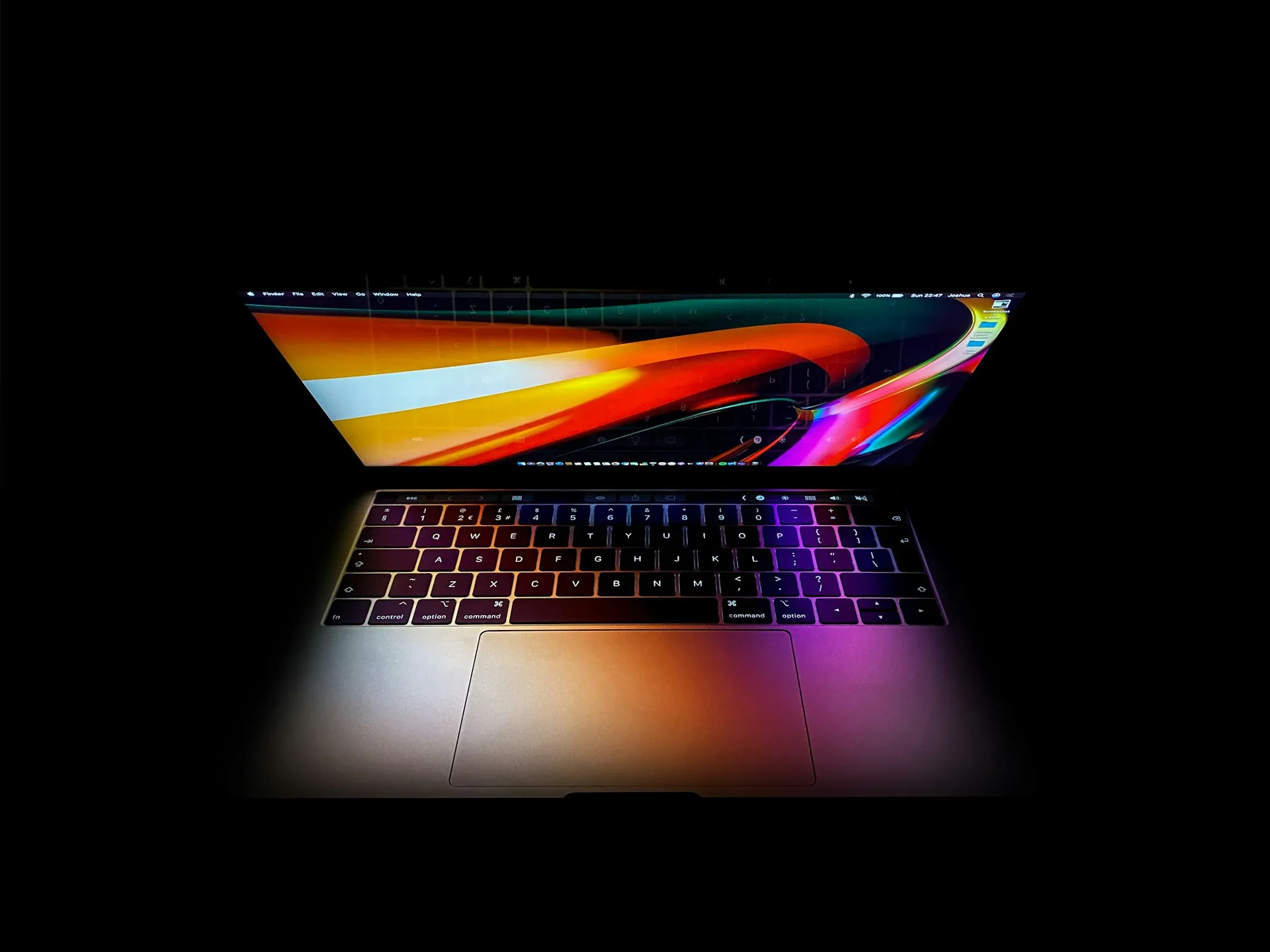
Here's how to use Visual Intelligence on macOS Golden Gate, what the keyboard shortcut actually does, and where the beta still falls short. This guide walks through both entry points, explains what each popout action does in the current developer beta, and tells you when the feature is worth reaching for and when to skip it.
Before you start: requirements and setup
Visual Intelligence on Mac requires Apple Intelligence on a compatible Mac, with device and Siri language set to a supported language; Apple lists Mac models with M1 or later as compatible, along with MacBook Neo and Mac Pro with M2 Ultra. If the Mac doesn't meet that threshold, the feature isn't available.
To enable Visual Intelligence on Mac, go to System Settings and turn on Apple Intelligence. If it isn't active, neither of the methods below will do anything when triggered. The full public release arrives this fall with macOS Golden Gate; the developer beta is open now.
If Shift-Command-6 does nothing when pressed, check two things first: confirm Apple Intelligence is enabled, and confirm the Mac meets the M1-or-later requirement. Apple says the public beta is coming soon, and third-party beta coverage points to July 2026.
Why this Mac version is different
Before macOS Golden Gate, using Visual Intelligence on Mac content required a genuine workaround: photograph the screen with an iPhone, then analyze the photo. That workaround is now unnecessary. Visual Intelligence is built directly into the Mac's screenshot tools, triggered through a new keyboard shortcut or the existing screenshot toolbar.
That's the actual improvement: access, not capability.
The honest verdict up front: it's a first beta, and it behaves like one. Ask Siri produces unreliable answers, Image Search is currently broken, and food recognition works inconsistently with no mechanism to copy or export any of the results. AppleInsider's hands-on testing confirmed all three limitations. The feature earns its place for fast, narrow lookups on clearly identifiable on-screen content. As a general-purpose AI assistant, it doesn't hold up.
Quick decision rule for readers who want to stop here: use Visual Intelligence for quick, visual lookups on clean, recognizable on-screen content, such as a product image, album artwork, or a food photo. Skip it when an accurate answer, exportable output, or consistent results are required.
How to use Visual Intelligence on macOS Golden Gate
The standard screenshot shortcuts are not connected to Visual Intelligence. Shift-Command-3 captures the full screen; Shift-Command-4 captures a selected region. Taking a screenshot through either path and trying to analyze it afterward is a dead end, because the two workflows don't share a pipeline.
Method 1: Shift-Command-6 (direct, faster)
Press Shift-Command-6. The cursor becomes a crosshair.
Click a window to capture it whole, or drag to draw a selection around a specific region. Drag for a tight selection focused on the object of interest, which gives the system a cleaner signal. A full-window capture of a cluttered desktop is the most reliable path to a missed recognition.
Popout action buttons appear near the captured area. Read the next section before tapping any of them.
At WWDC 2026, Apple's VP of Intelligent System Experience Engineering described only "a dedicated keyboard shortcut" without specifying it. Shift-Command-6 is that shortcut, per AppleInsider.
Method 2: Shift-Command-5 (toolbar, contextual)
Press Shift-Command-5 to open the screenshot toolbar. Apple introduced this consolidated toolbar with macOS Mojave in 2018, unifying screengrab and screen recording options in one place; Visual Intelligence is now included alongside them, according to AppleInsider.
Select the Visual Intelligence option from the toolbar icons.
Click or drag to capture, then choose from the popouts.
Shift-Command-6 is the faster path once you've learned it. The toolbar is useful when comparing capture options or when already working in that interface for another task.
What each action does and whether to bother
Both entry points land in the same popout interface. Here's what's there.
Ask Siri
Always present. Click, type a prompt, and Siri responds in its AI dialog box with a text answer. Treat it as a rough starting point, not a reliable source. AppleInsider's testing found results are about as likely to be wrong as any AI chatbot response, which is a meaningful caveat for anything factual.
Fallback: if the answer seems off or incomplete, run a manual search. Visual Intelligence saves a few keystrokes getting there; it doesn't change what's findable.
Image Search
Also always present. Routes captured image content to a Google search. Don't rely on it yet. The button appears, but the feature isn't functioning in the current beta.
Fallback: use a manual reverse image search in Google. Same result, works today.
Look Up Nutrition
Shows up when Visual Intelligence identifies a meal in the capture. Clicking it will typically identify the dish, describe it, rate nutritional content on a Very Low to Very High scale, and note how processed the food is. Useful for a rough read when it fires, which is not guaranteed. There's no mechanism to tell the system the content is food; it either recognizes it or it doesn't. The same image can produce entirely different results across multiple captures, according to AppleInsider.
The biggest practical gap: even when Look Up Nutrition works, the output is read-only. There's no copy button, and the text can't be selected. The data stays in the popout and goes nowhere else, which is a significant limitation if the point was to log or reference that nutritional information.
Fallback: run the capture twice if the option doesn't appear on the first try. If it still doesn't show, the image likely isn't being recognized as food and won't be in that session.
This output problem applies to all three options. Across the board, the current beta lacks meaningful post-capture actions: no copying, no saving to a note, no routing to another app. The analysis is visible; it isn't actionable. That gap determines more than anything else whether this feels useful or merely interesting.
When it's worth using and when to skip it
Use it when:
The on-screen content is clearly identifiable: a product with distinctive packaging, album artwork, a recognizable food photo, and a poster with a readable title. Apple has noted that on macOS and iPad the primary entry point is screenshot capturing digital media, and WWDC26 session 297 describes the integration working on narrow, well-defined content. Tight, unambiguous targets give the system the best chance of a useful result.
A fast orientation on something unfamiliar is all that's needed, and the answer can be verified independently. Ask Siri as a first pass, not a final word.
The capture happens naturally inside an existing screenshot workflow, without interrupting other work.
Skip it when:
An accurate answer is required. Ask Siri's reliability in beta is not meaningfully better than any other AI chatbot, confirmed by AppleInsider, which makes it unsuitable for anything that matters.
The result needs to be exported or acted on. Without copy support, nutritional data, descriptions, and Siri answers are trapped in the popout UI.
The content is ambiguous, text-heavy, or requires context to interpret. The system has no way to receive guidance; it either identifies the content or it doesn't.
Image Search is the goal. Wait for a later beta when it actually works.
What needs to improve for this to matter on Mac
The shortcut is Shift-Command-6, or use the Shift-Command-5 toolbar; both land in the same popout interface. Tighter captures work better. Standard screenshot shortcuts don't connect to this feature.
Three specific improvements would change the calculation significantly. First, Image Search needs to come online. Second, copy support for analysis output would make the feature genuinely usable rather than just viewable. Third, third-party app integrations: Apple outlined at WWDC26 that developers can build integrations allowing their apps to surface relevant results directly in the popout, with intents that open the matched content inside the app. That infrastructure exists; whether apps adopt it broadly, and whether it arrives in the fall release or later betas, remains to be seen.
Full public release is this fall for Macs with M1 or later.
The shortcut is worth learning now. The expectations are worth keeping low until the feature catches up to it.





Comments
Be the first, drop a comment!