





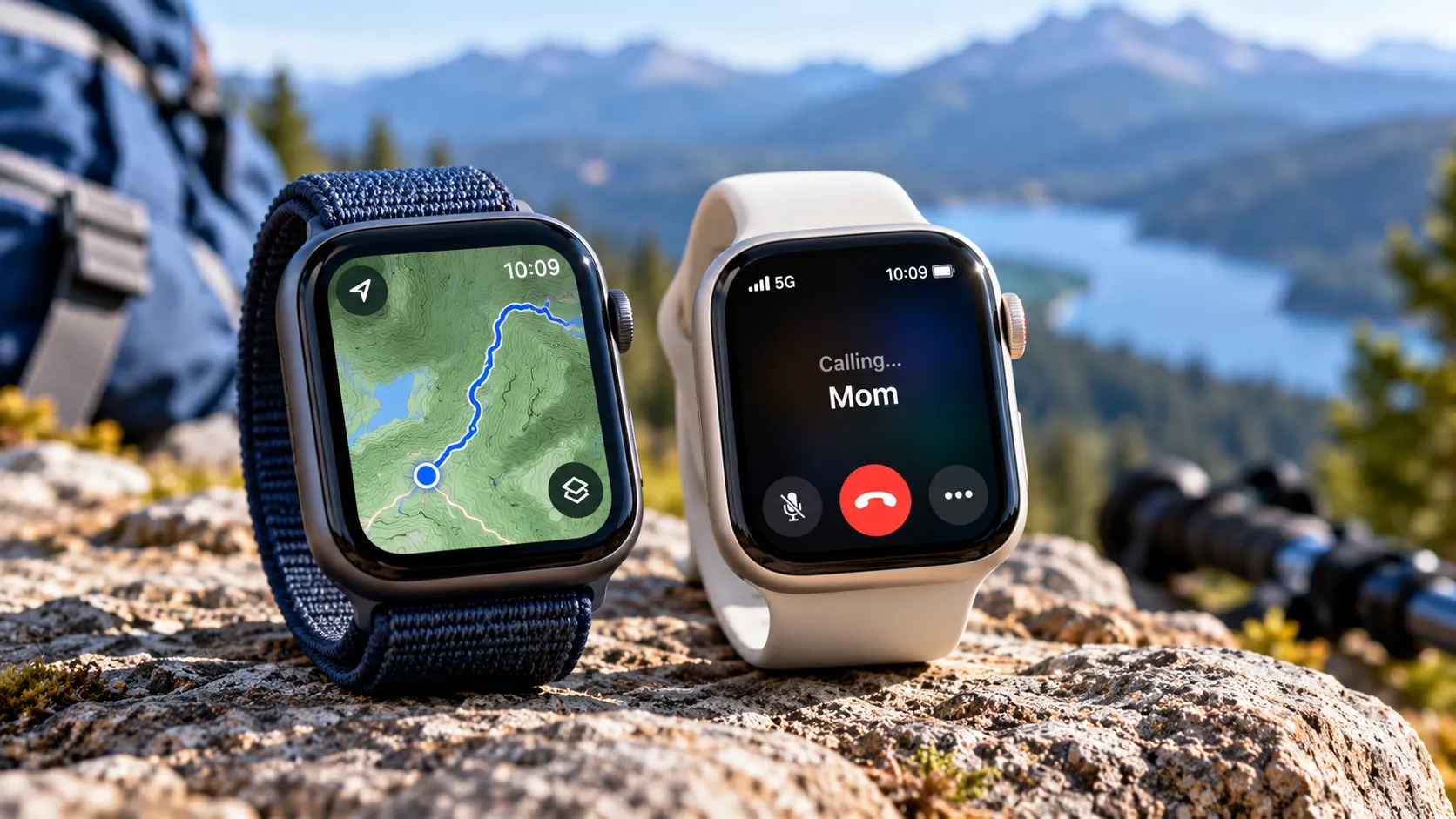
Apple Watch GPS vs GPS + Cellular comes down to one question: do you need the watch to stay connected when your iPhone isn't nearby? Within the same Apple Watch model and case material, the two versions share the same core health, fitness, display, and GPS features.
The GPS + Cellular version adds independent mobile connectivity. With an active carrier plan, it can make calls, send messages, receive notifications, and stream music or podcasts when there's no paired iPhone or usable Wi-Fi connection nearby.
Apple currently sells the Watch SE 3, Series 12, and Ultra 4. The aluminum SE 3 and Series 12 come in both GPS and GPS + Cellular versions. Series 12 titanium and ceramic cases come with cellular, while Ultra 4 is cellular-only. Apple also says all three current models are 5G capable. Apple's current lineup starts at $249 for SE 3, $399 for Series 12, and $799 for Ultra 4.
Whatever you pick is permanent. A GPS-only Watch can't gain cellular hardware later, so check how often you're actually away from both your iPhone and Wi-Fi before buying.
Apple Watch GPS vs GPS + Cellular: how each model connects
A cellular Apple Watch uses a separate cellular plan added through a supported carrier. For a normally paired watch, carriers can link the Watch to the same phone number as your iPhone through services such as AT&T NumberSync or Verizon Number Share.
It doesn't literally use the same SIM as the iPhone. Apple requires the iPhone and normally paired Apple Watch to use the same supported carrier, and the carrier determines plan eligibility, pricing, and number-sharing behavior.
GPS-only models can still track workouts, map routes, measure health data, play downloaded media, and use other offline features without the iPhone nearby. What they lose without a connection is access to features that need the internet or phone network.
Here's how the main connection states work:
iPhone nearby: GPS and cellular models can handle calls, messages, notifications, streaming, and other connected features through the iPhone.
Wi-Fi, iPhone not nearby: Both versions can use many online features over a previously joined Wi-Fi network. Calls can also work if Wi-Fi Calling is supported and configured.
Active cellular plan: A GPS + Cellular model can make calls, send messages, stream media, receive notifications, and use data away from both the iPhone and Wi-Fi.
Cellular hardware without a plan: The watch behaves much like a GPS model for normal connectivity. Some emergency calling may still work in supported areas, but regular standalone calls and data require an active plan or another available connection.
One extra wrinkle is messaging. Apple notes that receiving SMS, MMS, and some third-party push notifications on a cellular Watch can still require the paired iPhone to be powered on and connected somewhere, although it doesn't have to be nearby.
If your day almost always falls into the first two situations, a GPS model may already cover what you need. Cellular matters more when you regularly leave your phone behind.
What cellular actually adds, and where it still comes up short
Cellular doesn't make Apple Watch completely independent of an iPhone.
Current Apple Watch Ultra 4, Series 12, and SE 3 models require an iPhone 11 or later with iOS 27 or later for normal initial setup. After that, cellular lets the Watch stay connected when the phone isn't nearby.
Apple Watch automatically prefers the best available connection. It uses the paired iPhone when possible, then a known Wi-Fi network, then cellular if necessary. Apple also warns that extended cellular use consumes more battery power.
Emergency connectivity has its own rules.
For a standard emergency call, the Watch or a nearby iPhone needs cellular service or Wi-Fi Calling with internet access. Cellular Apple Watches can also make emergency calls in many locations even without an activated plan, but Apple warns that this depends on the network and isn't guaranteed everywhere.
Apple Watch Ultra 4 adds another option. Like Ultra 3, it supports Emergency SOS via satellite in supported countries and regions when cellular and Wi-Fi aren't available. That emergency satellite feature can work without an active carrier plan.
Traveling also requires checking your carrier. Apple supports international roaming on compatible cellular watches, but availability, countries, rates, and features depend on the carrier and plan.
Apple Watch For Your Kids
Apple renamed Family Setup to Apple Watch For Your Kids.
The feature lets a parent or guardian use an iPhone to configure a GPS + Cellular Apple Watch for a child or other family member who doesn't have an iPhone. The family member gets their own Apple Account and phone number, while the organizer manages settings from their iPhone.
Apple recommends SE 3 GPS + Cellular for this use, although cellular Series 4 and later models are supported.
A cellular plan is required if the family member needs cellular connectivity away from Wi-Fi. Carrier support is also separate from ordinary Apple Watch cellular support, so don't assume every carrier that activates Apple Watch supports Apple Watch For Your Kids.
Apple's current US carrier list includes Apple Watch For Your Kids support from providers including AT&T, T-Mobile, Verizon, UScellular, C Spire, Xfinity Mobile, Boost Mobile, and others.
Check Apple's current list and your carrier's eligibility rules before buying specifically for this feature.
The real cost of going cellular
The hardware premium depends on the model.
For Apple's current base configurations:
Apple Watch SE 3, 40mm: GPS starts at $249; GPS + Cellular starts at $299. That's a $50 hardware premium.
Apple Watch Series 12, 42mm aluminum: GPS starts at $399; GPS + Cellular starts at $499. That's a $100 hardware premium.
Series 12 titanium and ceramic: cellular is included rather than optional.
Apple Watch Ultra 4: starts at $799 and only comes with cellular hardware.
Those prices don't include cellular service.
Current US smartwatch plans vary. AT&T says a smartwatch line can start at $10.99 per month, T-Mobile lists a $10 Watch Plan 2.0 with AutoPay, and Verizon's standard smartwatch plan is $15 per month before eligible discounts. Taxes, fees, connection charges, promotions, and eligibility rules can change the actual bill.
For a Series 12 with a $100 cellular hardware premium, a $10 to $15 monthly plan means you're spending roughly:
After one year: $220 to $280 more than GPS-only, before taxes, fees, or activation charges.
After two years: $340 to $460 more than GPS-only.
That's why the monthly bill matters more than the $100 hardware difference over time.
You also don't have to activate cellular immediately. Buying GPS + Cellular hardware gives you the option to add service later, while the Watch can still operate without an active cellular plan in the meantime.
Is Apple Watch GPS + Cellular worth it? A decision checklist
The Apple Watch GPS vs cellular decision comes down to how often you're genuinely away from both your phone and usable Wi-Fi.
Choose GPS-only if your iPhone is almost always with you. You keep the same core health, fitness, GPS tracking, workout, and app features while avoiding the higher hardware price and monthly carrier bill.
Buy cellular hardware but leave it unactivated if you think your routine may change, want the flexibility to add service later, or prefer a Series 12 case material that already includes cellular.
Activate cellular if you regularly run, walk, commute, or do errands without your iPhone and still want calls, messages, notifications, streaming, and data while you're out.
Choose cellular for Apple Watch For Your Kids if you're setting up a Watch for someone without their own iPhone. Confirm that your carrier supports the feature and check its standalone watch pricing before buying.
Ultra 4 buyers don't have to choose. Cellular hardware comes standard. The decision is only whether to activate a carrier plan.
Boiled down, GPS is enough for someone who almost always carries an iPhone. GPS + Cellular buys independence when the phone stays home, but that convenience comes with both an upfront premium on some models and an ongoing carrier bill.
Before checking out, open your carrier's current Apple Watch plan page and confirm the monthly price, taxes and fees, activation charge, roaming support, and Apple Watch For Your Kids eligibility. Those recurring costs determine whether cellular makes sense far more than the badge on the box.







Comments
Be the first, drop a comment!