



How to turn handwritten to-do lists into iPhone tasks
Stuff's developer published a launch post in May 2026 naming "Scan" as one of the app's local AI features, sitting alongside tools called Listen and Quick Toss. The post, reviewed for this article, never explains what kind of input Scan reads, whether it handles handwriting, or where a scanned item ends up once it's created (Engineered.at, about five months ago).
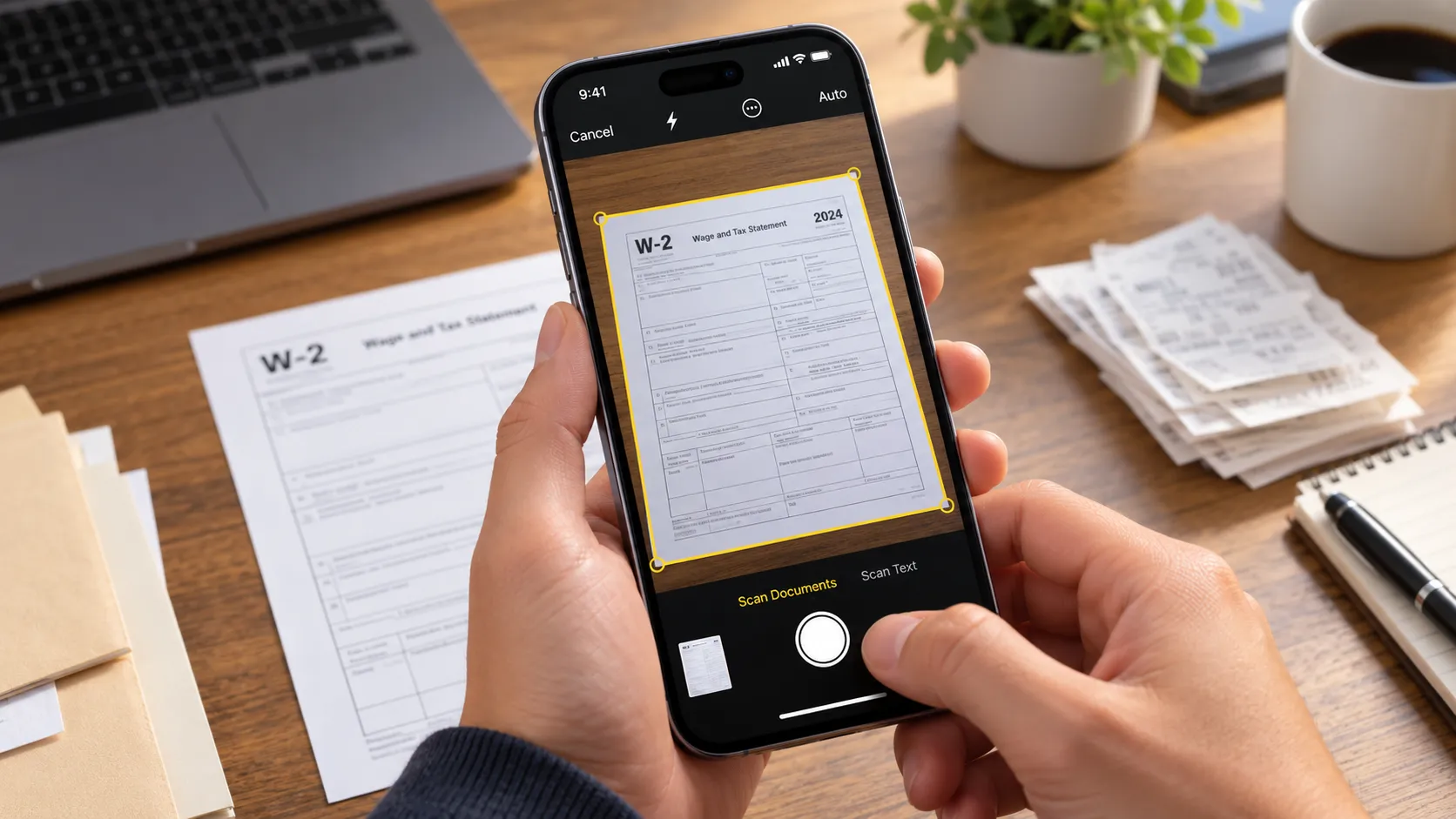
Readers who want to turn handwritten to-do lists into iPhone tasks today have a documented path, and it runs through a different app. Finalist's documentation describes a Capture tool that turns photographed text, including handwriting, into tasks using on-device AI, with automatic extraction limited to iPhones and Macs that support Apple Intelligence (Finalist documentation, about ten months ago).
This piece covers what Stuff's own materials confirm about Scan, the capture workflow Finalist's documentation lays out step by step, which iPhones get automatic handwriting extraction versus basic photo-text reading, and where converted tasks can land once Capture finishes processing them.
What Stuff's launch post doesn't explain
Stuff's launch post names Scan as a local AI feature next to Listen, Quick Toss, and sync across iOS and iPadOS. It doesn't specify what input Scan accepts, doesn't mention handwriting, and doesn't describe how a scanned page turns into individual tasks (Engineered.at).
A hands-on account of Stuff's shared-list features, published about ten months ago (roughly four months before the Engineered.at launch post), walks through Inbox Quick Entry, a home-screen widget, and tagged Spaces for sorting lists by family, personal, and work. Nowhere in that piece does the writer mention a camera, a scan feature, or handwriting capture of any kind.
None of the Stuff materials reviewed for this article describes handwriting recognition, task extraction, or an export destination for Scan. That gap in the documentation, not an assumption about what the feature can't do, is why the rest of this article turns to the app that does lay those steps out.
How Finalist's capture tool scans handwritten tasks on iPhone
Finalist's documentation describes a Capture tool, opened from Lens, the pinwheel icon at the top of the Daily view, that turns pasted text, photos, and speech into tasks using on-device AI (Finalist documentation). A companion feature called Dictate works the same way for voice.
Finalist states that both features run entirely on the device and that captured text, photos, and voice never leave it. That's a privacy claim the company makes about its own software, not something an outside reviewer has verified.
On devices that support Apple Intelligence, Finalist's documentation states recognition is strong enough to detect tasks inside a handwritten photo. That, too, is the company describing its own product rather than a result anyone has tested independently.
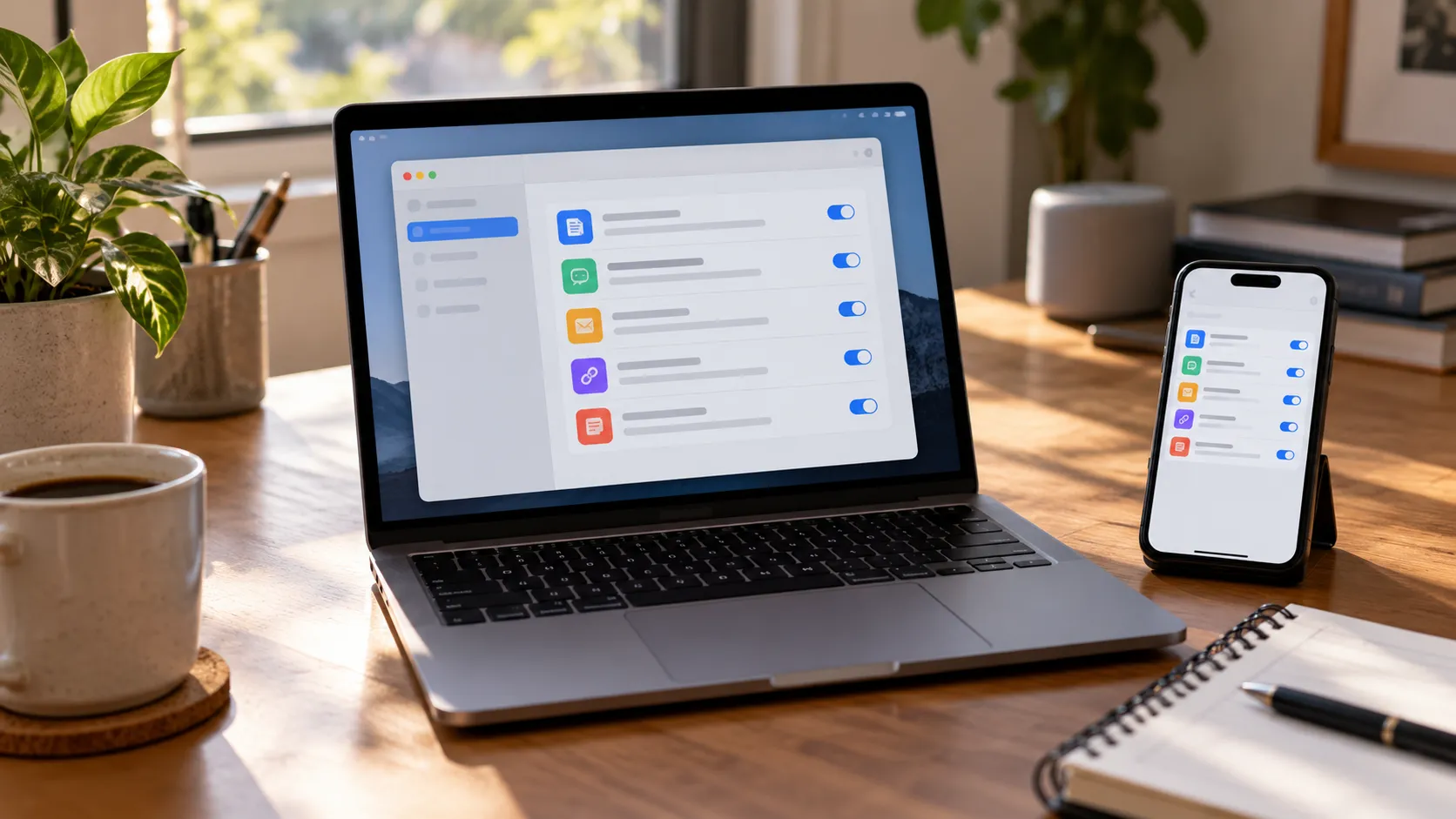
Once a photo gets processed, a review sheet lists every detected item with an on/off toggle, lets users edit the title, and adjusts dates and times separately, so "dentist Tuesday 2pm" becomes a task titled "Dentist" scheduled for Tuesday at 2pm, according to the documentation. Detected phone numbers, links, emails, and addresses appear as separate chips that can be kept or dismissed.
Editing a garbled entry triggers a "Find Again" button that reruns detection on the corrected text. A blank row below the detected items lets someone add a missed line by hand, and those typed rows get the same date and time parsing as everything Capture found on its own. The documentation frames all of this around one point: nothing gets created without passing through that review step first.
Which iPhones can digitize handwritten tasks automatically
Opening Capture at all requires iOS 26 or later on iPhone, or macOS 26 on a Mac, according to Finalist's documentation. Automatic task detection, the part that sorts a messy handwritten page into separate, titled tasks on its own, adds a second requirement on top of that: hardware that supports Apple Intelligence.
On an iPhone that runs iOS 26 but doesn't meet that Apple Intelligence bar, Finalist's documentation states Capture can still read text out of a photo and accept one task per line, and typing entries in manually always works. Neither of those paths needs Apple Intelligence.
The documentation doesn't publish accuracy figures for either path. How Capture handles cursive handwriting, crossed-out items, or multi-column layouts isn't something Finalist has put a number on.
Separate from any scanning tool, 9to5Mac reported that iOS 26 added a "New Reminder" control that can be assigned to the Action Button, Lock Screen, or Control Center on compatible iPhones, letting someone type a new reminder, complete with due date, list, and flag, in a popup panel (9to5Mac, about a year ago). Not every iPhone has an Action Button to assign, and the control types a reminder from scratch rather than reading anything off a page. Treat it as a faster manual-entry shortcut, not a scanning substitute.
Where scanned tasks can go
After review, Finalist's documentation lists three destinations. Tasks keeps items inside Finalist on the day being viewed, Reminders creates them directly in Apple Reminders, and Calendar converts them into events (Finalist documentation).
Calendar only appears as a destination option when every selected item already carries a date. A single undated item in the batch, something like "buy stamps" sitting next to "dentist Tuesday 2pm," removes Calendar from the list of choices until that item gets deselected or dated, leaving Tasks or Reminders as the only places for it to go.
Once a task lands in Apple Reminders, it can be organized further with tags and Smart Lists, but Apple's support documentation limits both features to reminders and lists created inside an iCloud account. Worth checking before assuming a scanned item will sort itself automatically once it arrives there (Apple Support, about seven months ago).
No published account of Stuff describes the app exporting scanned items anywhere, including to Apple Reminders. The destination question only has a documented answer on the Finalist side of this comparison.
What remains unverified
Finalist's documentation doesn't name specific iPhone models that qualify for Apple Intelligence beyond the general iOS 26 and macOS 26 requirement, and it doesn't list pricing for the app. No independent test of the "strong enough for handwriting" claim turns up anywhere in the materials reviewed for this article.
On the Stuff side, the sources cited here don't describe what Scan reads, how accurate it is, or whether converted items can reach Reminders, Calendar, or anywhere outside the app itself.
Finalist's review-first workflow means every detected item needs approval or editing before Capture creates anything, according to its own documentation. Whether that happens automatically or requires manual formatting comes down to one check: whether the iPhone runs iOS 26 and supports Apple Intelligence. Confirm that first, then test Capture on a grocery list rather than a work deadline sheet, and inspect every detected item in the review sheet before sending anything to Reminders or Calendar. If the device doesn't qualify for automatic extraction, use Finalist's photo-text reading or manual entry instead, or type straight into Reminders through the Action Button or Lock Screen shortcut. Stuff's Scan stays an open question until its developer publishes something describing what it reads and where the results go.








Comments
Be the first, drop a comment!