



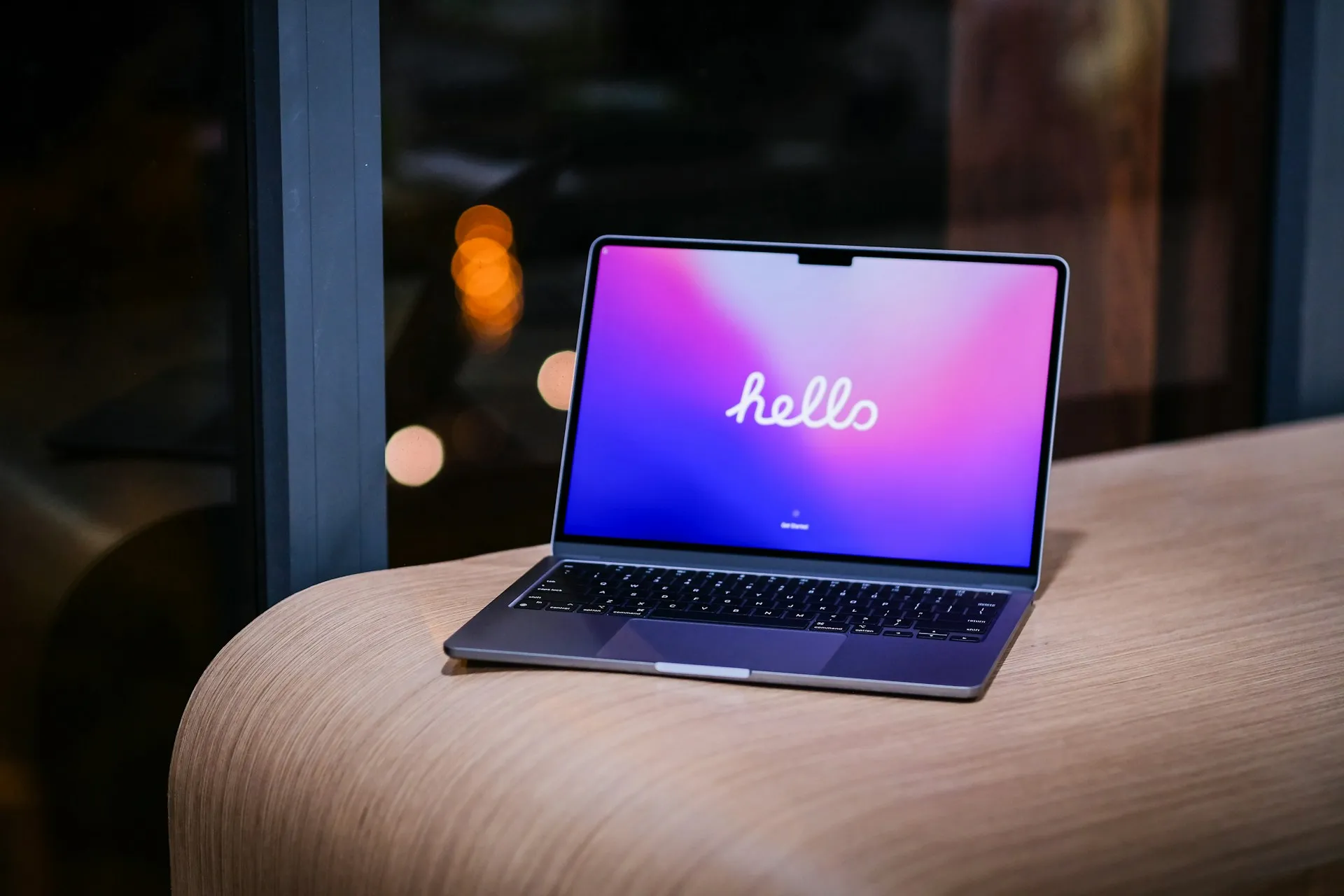
Apple released macOS 27 Golden Gate on Sept. 14, 2026, as a free update for eligible Macs, calling it a stability, performance, and compatibility release recommended for all macOS 27 users. The headline macOS 27 Golden Gate features center on Siri: Siri AI now lives inside Spotlight for conversational search, while a separate Siri AI app handles saved conversations synced through iCloud.
Apple says Siri AI is rolling out gradually and that users should turn it on in Settings rather than assume it appears automatically.
AppleInsider's launch coverage calls Siri AI the release's best addition, but the same review flags problems with the Phone app, Save dialogs, and Shortcuts' handling of Safari tab groups. Some of those observations came from late-beta testing, so they shouldn't be treated as confirmed platform-wide bugs affecting every Mac on the final release.
Most eligible Mac owners can update today for everyday use. Anyone who depends on Mac-based calling, tab-group Shortcuts, or Save dialog menus should test those three workflows directly after installing.
What to check before you update
Apple now provides a macOS 27 compatibility list, and Golden Gate supports Apple silicon Macs only. That includes Macs with M-series chips as well as the A18 Pro-based MacBook Neo. Intel Macs cannot install macOS 27.
A Mac can qualify for Golden Gate itself while still missing individual features because some Apple Intelligence tools vary by device, language, and region. Check Apple's feature availability documentation rather than assuming every macOS 27 feature appears on every supported Mac.
Golden Gate is also the final major macOS release with general-purpose Rosetta support. Apple says Intel-only apps can continue running through Rosetta on macOS 27, but starting with macOS 28, Rosetta functionality will remain only for certain older, unmaintained games that rely on Intel-based frameworks.
Apple also warns that usage limits may apply to several Apple Intelligence tools, including Siri AI, intelligent photo editing tools, Image Playground, and the AFM 3 Cloud models that power some Shortcuts features. That matters most for anyone planning to lean on those tools heavily rather than use them occasionally.
Three workflows are worth testing right after installing. AppleInsider's launch coverage describes unreliable Phone app behavior, including audio-routing problems and calls where the other person couldn't hear the Mac user; Save dialog menus that sometimes close before a selection sticks; and the long-standing problem with opening Safari tab groups through Shortcuts.
Those are one reviewer's observations rather than a confirmed failure rate across macOS 27, but all three take only a minute to check before relying on them for anything time-sensitive.
macOS 27 new features to try
1. Siri AI in Spotlight: conversational search with personal context
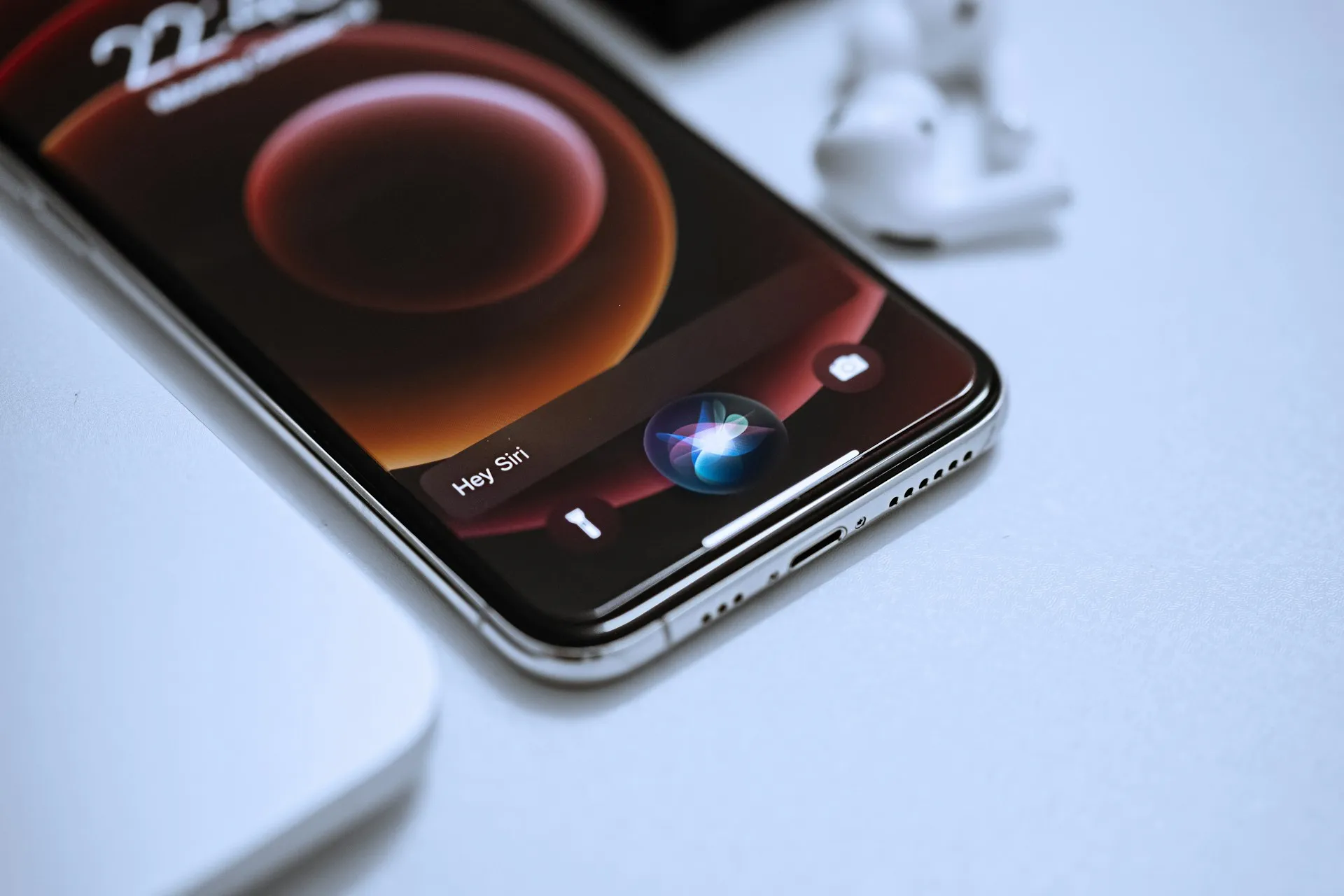
Apple has folded Siri AI into Spotlight, closing the gap between what used to be separate search and assistant tools on the Mac. Apple describes the result as more personal, capable, and conversational, able to draw on context from Messages, Mail, Photos, and more to help locate information across the system.
Results still depend in part on Apple's system indexes and app integrations. Six Colors' macOS 27 review found that information living in apps outside Apple's supported integrations, such as Gmail used outside Apple Mail, doesn't necessarily surface no matter how the question is phrased.
Searching for a file, message, email, or photo known to sit inside an Apple-supported app remains the more reliable way to judge how well personal-context search works at launch.
2. The dedicated Siri AI app: a persistent, cross-device chat window
Beyond Spotlight, Golden Gate adds a standalone Siri AI app that functions much like chatbots such as ChatGPT or Google Gemini, according to Tom's Guide, which tested the software throughout the beta.
It opens from the Dock, menu bar, or Spotlight itself, and past conversations sync through iCloud so a chat started on a Mac can continue on another supported Apple device.
Tom's Guide also reports that an "Ask Siri" option often appears at the top of contextual menus for files, folders, and apps, letting someone start a question about whatever is highlighted without opening Spotlight first.
That "often" is doing some work: the option isn't guaranteed everywhere, so its presence is worth confirming case by case.
3. Visual Intelligence: asking questions about what's onscreen
Visual Intelligence lets someone select content on their screen and ask Siri AI questions about it, or trigger an action such as adding an event to Calendar, using the shortcut Command-Shift-Space.
Apple's macOS 27 release notes confirm the feature can analyze onscreen content and take related actions. Tom's Guide gives the calendar example directly: viewing a schedule can surface an option to add the event without manually switching apps.
The feature doesn't behave identically across every Apple device carrying the same Siri AI name. AppleInsider's testing found Siri AI could manage Apple Music playlists on the Mac while similar requests were unreliable in a late iOS 27 beta.
Whether every platform-level difference seen during beta testing remains in the current stable releases may change as Siri AI continues rolling out.
4. Describe a Shortcut: automation from plain language
Describe a Shortcut assembles the steps of a multi-step automation from a written or spoken description, such as automatically texting a partner an ETA when leaving work based on traffic.
Instead of manually chaining actions together, users can describe the outcome they want and let Shortcuts build the workflow. Tom's Guide says the experience can feel a little like "vibe coding," even if it isn't quite that.
AppleInsider found the underlying automation generation inconsistent, accurate in some attempts and wrong in others. Its testing also found the old Safari tab-group problem still unresolved: the Mac version no longer exposes the Open Tab Group action, yet generated Shortcuts can still claim to build workflows around it.
Apple's own warning about usage limits on cloud-based Shortcuts models applies here too, so automation-heavy users shouldn't assume unlimited runs.
5. Photos' AI editing tools: Reframe, Extend, and Clean Up
Spatial Reframing lets users adjust a photo's perspective and framing after it's taken, with Apple Intelligence filling in the resulting gaps. Extend expands a photo beyond its original frame, while an upgraded Clean Up removes distractions with improved infill in more complex scenes.
Apple documents all three tools in its macOS 27 feature set, and Tom's Guide found Reframe useful for correcting perspective after a shot has already been taken.
Spatial Reframing isn't exclusive to the Mac. It also ships through Apple's current-generation software on supported iPhones and iPads, which matters for anyone deciding whether this one tool alone is a reason to update a Mac.
6. Safari's Notify Me, automatic tab groups, and custom extensions
Notify Me keeps an eye on webpages for changes such as price drops or restocks and alerts users when something changes, while Safari can now sort open tabs into topic-based groups automatically.
Apple has also added Describe an Extension, letting someone explain what they want in natural language and have Safari create a custom extension, such as a button for saving a favorite recipe.
These are narrower tools than the Siri changes above. Notify Me is built for a specific watch-and-alert use case rather than general browsing, while automatic tab organization is aimed at people who keep large numbers of pages open across different topics.
7. Sidecar gains expanded iPad touchscreen support
Sidecar previously offered only limited finger gestures alongside Apple Pencil support when an iPad served as a second Mac display. With macOS 27 and iPadOS 27, Apple has greatly expanded touchscreen interaction with Mac windows and menus on the iPad.
Users can now interact more directly with Mac windows through touch, including actions such as scrolling and moving windows, instead of reaching for an Apple Pencil, mouse, or trackpad for every interaction.
That matters most for people who regularly use an iPad as a second Mac display and want quick touch interaction without changing over to Universal Control.
Also worth knowing
Golden Gate adds a Liquid Glass slider that lets users adjust interface translucency from ultra-clear to fully tinted. Tom's Guide reports that more complex backgrounds now appear more diffused, improving text readability, while icon edges are more pronounced to help interface elements stand out.
Anyone who found the default Liquid Glass appearance too busy now has direct control over the effect instead of an all-or-nothing choice.
Six Colors also notes changes to how macOS handles apps that have been closed but still have background processes running, with contextual information available from the Dock. It's a small troubleshooting addition for anyone trying to identify why an app still appears active.
Golden Gate expands parental controls too. Ask to Browse requires children to request permission before visiting new websites in Safari, Communication Safety broadens its protections, and Time Allowances and Schedules give parents more granular control over app access by category and time of day.
These apply mainly to family-managed Macs, so households already using Screen Time should check each setting rather than expect one new toggle to cover everything.
One feature that didn't make the initial release is Apple's automatic compromised-password-changing tool. A Six Colors review says the feature was pulled after beta testing produced a success rate of roughly 8% for that reviewer.
Six Colors reports that Apple intends to bring the feature back later this year. Because that timing comes through the review rather than Apple's macOS 27 release notes, it's worth watching Apple's own documentation before expecting it on a fixed schedule.
Update now, or wait?
Apple documents Siri AI's Spotlight integration, the dedicated Siri AI app, Visual Intelligence, intelligent photo editing, Safari tools, natural-language Shortcuts, and other Golden Gate features in its release documentation.
Tom's Guide, which tested the beta for several months, recommends updating on supported Macs, though that's one outlet's assessment rather than a universal verdict.
The more useful test is a personal one. First confirm that the Mac supports Golden Gate through Apple's compatibility documentation, then check Settings and turn on Siri AI if it isn't already enabled.
If Mac-based Phone calls, Safari tab-group Shortcuts, or Save dialog menus matter to daily work, run each one immediately after installing rather than assume launch-week issues affect everyone or have already been fixed.
Anyone who doesn't depend on those workflows has fewer reasons to delay, but Siri AI's gradual rollout, regional availability, and usage limits still mean not every headline feature will necessarily be available to every user immediately.








Comments
Be the first, drop a comment!