



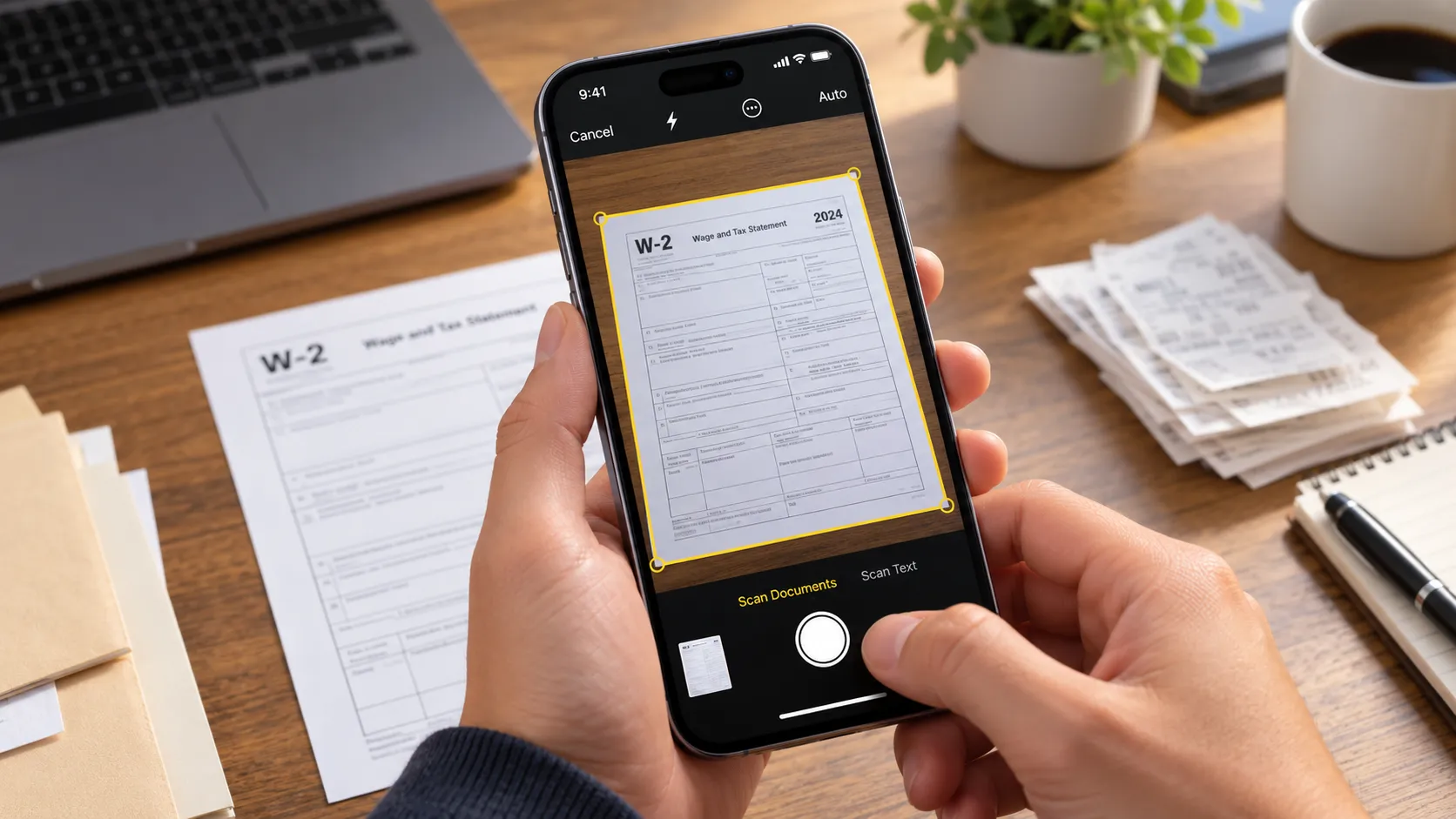
Tax season turns up the pressure on paperwork, and the fastest fix is already sitting on the home screen. Here's how to scan documents on iPhone without downloading a single app: Apple built a scanner directly into Notes and Files. Point the camera at a W-2, a receipt, or a lease agreement, and the scanner finds the page edges, straightens the angle, and saves the document as a PDF in a few taps.
The Files scanner requires iOS 13 or later, while document scanning in Notes is available on older iOS versions as well. Microsoft Lens used to be a common suggestion for the same job, but Microsoft retired Lens on iOS and Android in 2026 and recommends OneDrive as an alternative. For everyone running a current iOS version, Apple's native tools handle capturing, cropping, saving, signing, and sending a document without installing anything extra. This guide covers scanning tax documents to PDF using Files, combining multi-page forms into one file, sharing and renaming a finished scan, choosing between Files and Notes, and building a retention system that still makes sense next April.
How to scan documents using the Files app on iPhone
Files uses Apple's built-in document scanner, but it saves the result as a standalone PDF in iCloud Drive, On My iPhone, or another connected Files location. Google Drive and Dropbox can show up there too once those apps are installed and linked. That makes Files the better starting point for anything headed to an email attachment or a tax portal upload.
Open Files and create or navigate to the folder where the scan should live, such as an iCloud Drive folder or an On My iPhone folder set up for this year's taxes, before capturing anything. Choosing the destination first keeps the finished PDF from becoming an orphaned file with no home.
Tap the three-dot menu in the top-right corner and select Scan Documents. Apple documents the same workflow in its guide to scanning with Files.
Point the camera at the document and watch for the outline marking the detected edges. Hold the phone roughly parallel to the page with all four corners visible in the frame.
Let the scanner fire automatically once it detects the page, or switch to manual capture and tap the shutter for more control. Drag the corners to fine-tune the crop if necessary, then keep the scan.
Shooting at an angle triggers perspective correction, but a straight-on capture is still the safer choice for forms with small print or dense tables. It gives you the best chance of preserving legibility.
How to scan multiple pages into one PDF on iPhone
Capture the first page and the scanner stays active so you can continue adding pages. Keep going until every page of a W-2, 1099, or multi-page lease sits in the same scanning session.
You can review the captured pages before finishing and make adjustments such as cropping or rotating them. When you're finished, tap Done, choose the destination if prompted, and save the document. The pages are combined into a single multi-page PDF.
Before attaching that PDF to an email or uploading it to a portal, open it once and actually look at it. Check the page count, orientation, and details that get skipped in a quick glance: signatures, dates, totals, and the edges of tables. A scan can look fine during capture and still contain a clipped corner or shadow that makes part of the document difficult to read.
Lighting decides whether that inspection passes. Use even light across the whole page, keep your hand or the phone itself from casting a shadow, and place white paper on a contrasting surface. A white page on a white desk can make its edges harder for the scanner to distinguish.
Sharing, renaming, and fixing a rejected upload
Once a scan is saved, getting it off the phone takes a few taps. From Files, long-press the PDF and tap Share to send it by email, Messages, AirDrop, or another app that accepts file attachments. Apple also documents the touch-and-hold Share workflow in Files. From Notes, open the scanned document and use the Share button.
That same long-press menu in Files is also where to fix a bad filename. Do it the moment the scan lands, not after it's already been copied into several messages and folders under a generic name.
If a tax portal bounces a scan back as too large, check the portal's file-size limit. Long, image-heavy PDFs can exceed upload limits, so splitting a long document into smaller files may solve the problem. If a portal requires JPEG rather than PDF, use a conversion method or an app that supports the required image format rather than assuming the PDF itself will be accepted.
One distinction worth knowing before any of this: Scan Documents creates a PDF of the document, not editable text. Notes has a separate Scan Text feature that uses the camera to capture text and insert it into a note as editable content, useful for grabbing a line from a form rather than filing the whole page. Apple explains the difference in its Notes scanning instructions. For tax records, the PDF is the one to keep; Scan Text is for pulling a detail out, not archiving a document.
Should you scan tax documents in Files or Notes?
Use Files when the scan is the point: a receipt, a W-2, a 1099, or any form that needs to sit in a folder and get attached to an email or portal later. Use Notes when the scan supports something being written instead, such as a deadline reminder or a note about a deduction.
To scan inside Notes, open or create the note that should hold the document, tap the attachment control, then choose Scan Documents. The document is saved as a PDF inside the note.
If a document scanned into Notes later needs to move through a filing system or get submitted somewhere official, share it or save it to Files at that point.
Naming, storing, and retaining scanned tax records
Give each file a name that identifies the document and the tax year, something like 2025-W2-Employer.pdf instead of a generic scan name. Generic names turn useless fast once a folder fills with a season's worth of receipts.
Retention is where a scanning habit turns into an actual records strategy. The IRS generally says to keep records supporting income, deductions, or credits until the applicable period of limitations expires. In the typical case, that's three years. The exceptions stretch the window: seven years for a claim involving worthless securities or a bad debt deduction, six years if income that should have been reported exceeds 25% of the gross income shown on the return, and indefinitely if no return was filed or a fraudulent return was filed.
Property records carry their own clock. The IRS generally says to keep records relating to property until the limitations period expires for the year the property is disposed of, which matters for anyone scanning closing documents, home-improvement receipts, or purchase records. None of this is a substitute for checking what a specific recipient actually requires; the IRS's windows cover federal tax purposes, and an insurance company, creditor, or other organization may require records to be kept longer.
A dedicated scanning app becomes more useful once Files and Notes hit a real limit: advanced OCR for extracting text from many documents, batch processing for a stack of receipts, or scans that need to route automatically into a specific cloud workflow. Short of that, Apple's built-in tools cover most everyday document-scanning jobs. Notes can also search text inside scanned documents, which is useful when a growing archive becomes difficult to browse manually.
What to do next
Open Files, create a folder for this tax year, and scan the first document into it using the steps above. Open the finished PDF and inspect it before it goes anywhere near an email or upload form, then rename it right away rather than leaving it with a generic filename.
Hold on to the paper original until it's clear the digital copy satisfies whoever is asking for it, not just the IRS's minimum. Many tax records fall under a three-year limitations period, but some situations push that to six years, seven years, or indefinitely, so check which rule applies before anything goes in the shredder.
















Comments
Be the first, drop a comment!