



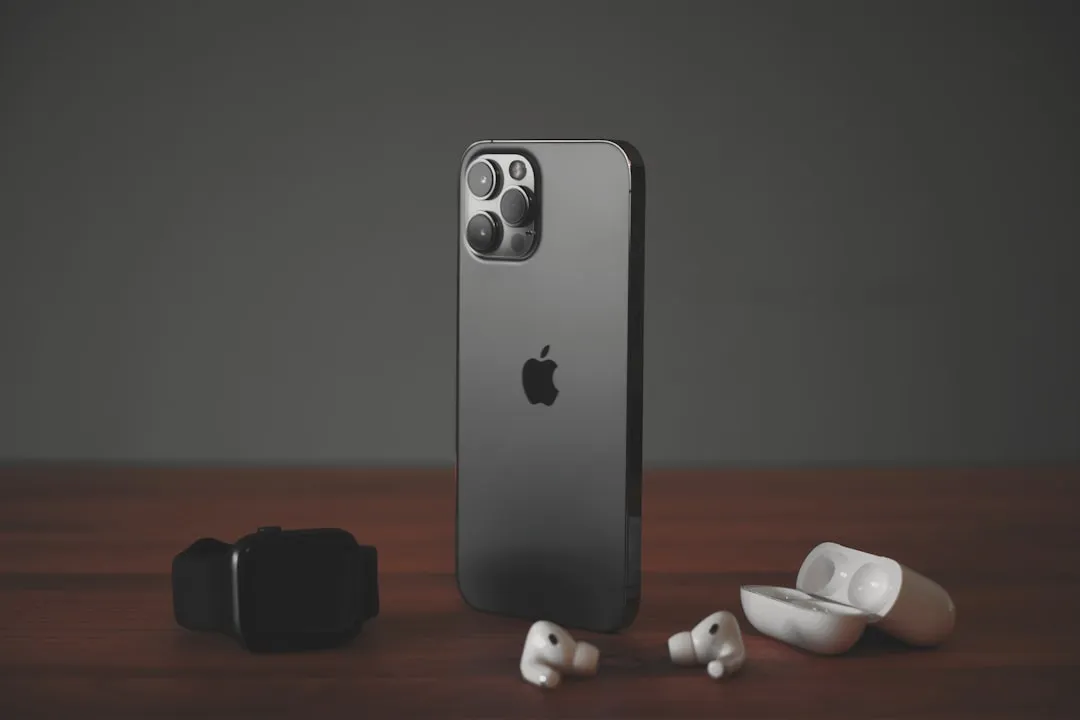
How to Use AirPods as an iPhone Camera Remote: iOS 26 Guide
iOS 26 lets compatible AirPods control the iPhone Camera app directly from the stem or Digital Crown. No Apple Watch, no tripod remote, no extra hardware. This guide covers enabling Camera Remote, picking the right gesture for your shooting style, taking photos and recording video hands-free, and routing mic input through your AirPods while you shoot.
For anyone without an Apple Watch, this is now the cleanest built-in remote shutter option in the Apple ecosystem. That practical reality shapes everything that follows.
Apple introduced Camera Remote alongside improved microphone recording as part of a push to position AirPods as content-creation tools, not just listening accessories, per Apple Newsroom from last year. The feature is off by default and won't surface on its own, as 9to5Mac confirmed this week. It works in Apple's built-in Camera app and compatible third-party camera apps on devices running iOS 26 or iPadOS 26, per Apple Support.
Before getting into setup: not every AirPods model supports this feature, and there's one physical requirement that catches people off guard.
Which AirPods work with Camera Remote
Camera Remote is supported on AirPods 4 (with or without ANC), AirPods Pro 2, AirPods Pro 3, and AirPods Max 2. If your model isn't on this list, the Camera Remote setting simply won't appear in Settings, per Apple Support and 9to5Mac.
The trigger input varies by model. On AirPods Pro and AirPods 4, a stem press activates Camera Remote. On AirPods Max 2, it's the Digital Crown, per Apple Support.
A quick note on earlier coverage: Apple's original announcement last year named only AirPods 4 and AirPods Pro 2, per Apple Newsroom. The current Apple Support documentation is the authoritative reference for the full list.
One critical constraint to know before starting: AirPods must be worn in your ears for Camera Remote to function. Ear-detection sensors need to register them as in-ear. Holding them in your hand or resting them on a surface won't work they can't function as a standalone Bluetooth remote, as Popular Science and AppleInsider have both confirmed.
How to control your iPhone camera with AirPods in iOS 26
Before step 1:
- iPhone or iPad updated to iOS 26 or iPadOS 26. To check: Settings → General → Software Update
- One of the compatible AirPods models listed above, connected and in your ears
- If Camera Remote doesn't appear after following the steps below, jump to the troubleshooting section
Steps:
-
Put your AirPods in and open Settings. With AirPods in your ears, Settings displays your AirPods by name beneath the Apple Account banner at the top of the screen.
-
Tap your AirPods name. This opens the full AirPods settings panel for that device.
-
Scroll to "Camera Control" and tap Camera Remote. The setting appears lower on the screen under a Camera Control heading. It shows as Off by default, per 9to5Mac.
-
Choose Press Once or Press and Hold. Select one and the feature is immediately active. This is the only configuration decision required, per Apple Support.
Choosing your gesture
This choice affects how your AirPods behave while any supported camera app is open, so it's worth a moment's thought.
Press Once routes your single stem press to the camera instead of media playback. Play/pause becomes temporarily unavailable whenever a camera app is open, per Apple Support.
Press and Hold hands that gesture to the camera, which means listening mode switching (Transparency/ANC) and Siri access are temporarily unavailable while a camera app is open, per 9to5Mac.
The practical call: if you listen to music while shooting, Press and Hold keeps your playback controls intact. If you regularly toggle between ANC and Transparency out in the field, Press Once preserves that. Either way, normal AirPods behavior resumes the moment you leave a camera app.
AirPods remote shutter for iPhone: taking photos and recording video
The feature is most useful in three situations: group shots where you want to step into the frame, solo video recording where reaching back to tap the screen would shake the setup, and compositions where the phone is positioned somewhere hard to access. Those cases cover most of what people actually need from a remote shutter.
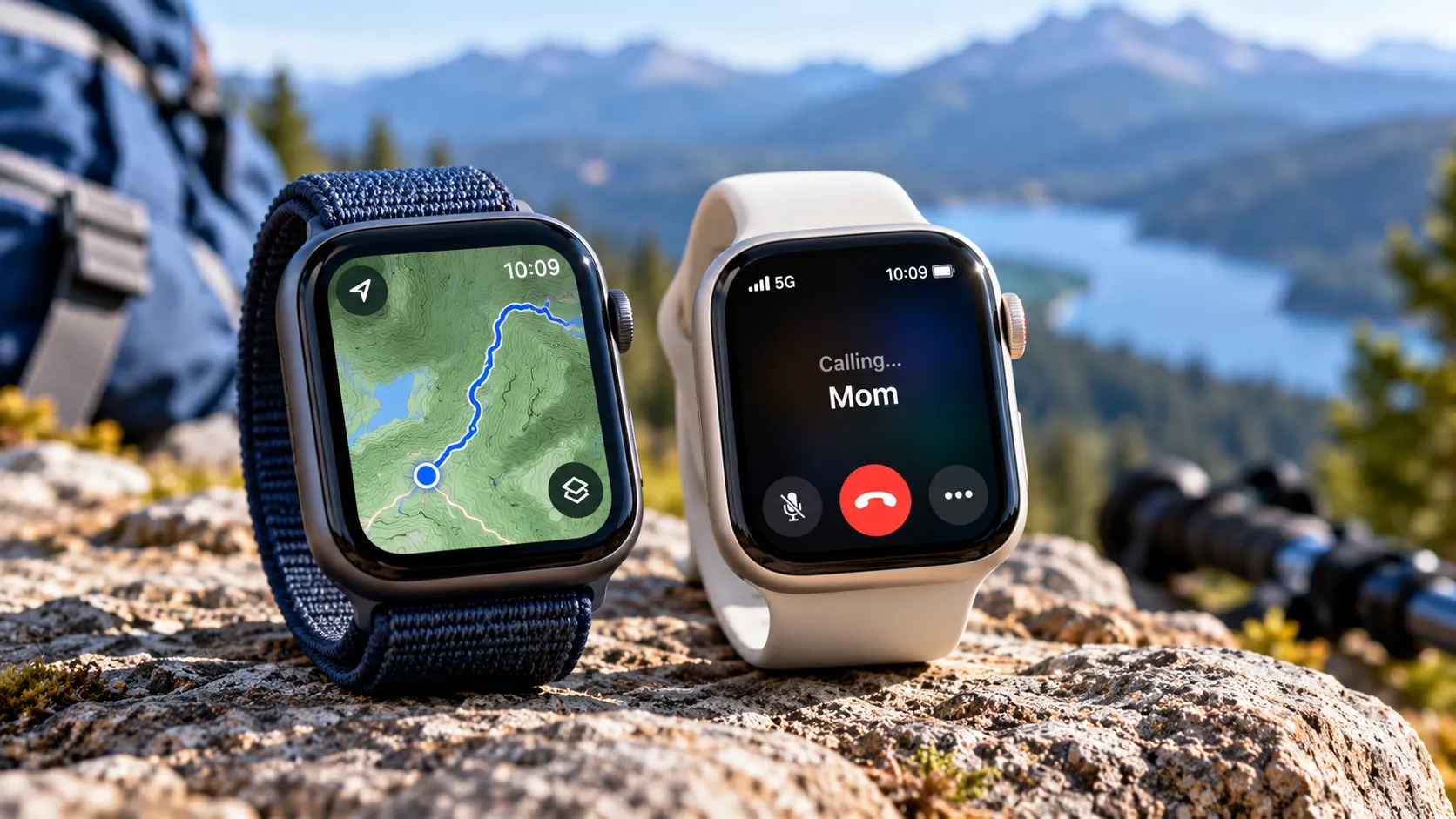
It's not a direct replacement for Apple Watch Camera Remote, which offers a live viewfinder preview on your wrist. What the AirPods version removes is the need for any second device at all, as MacRumors noted during beta testing.
Taking a photo
-
Open the Camera app and select Photo mode.
-
Frame the shot, then step away. Camera Remote operates within your AirPods' Bluetooth range, per MacRumors. Reliability depends on your environment and any obstacles between you and the phone.
-
Use your configured gesture on the stem or Digital Crown. A 3-second audio countdown plays in your ears, one click per second, then a shutter sound confirms capture, per AppleInsider.
The countdown won't play if your ringer is silenced or Live Photos is enabled. The shot still captures you just lose the audible cue, per Apple Support. The 3-second timer and feedback tone are also unavailable in some countries and regions, per Apple Support.
On burst count: MacRumors reported during beta testing that Photo mode captures a 10-image burst. Apple's official documentation confirms the 3-second timer but doesn't specify a burst count. Expect multiple frames, but treat the specific number as unconfirmed.
Recording video
-
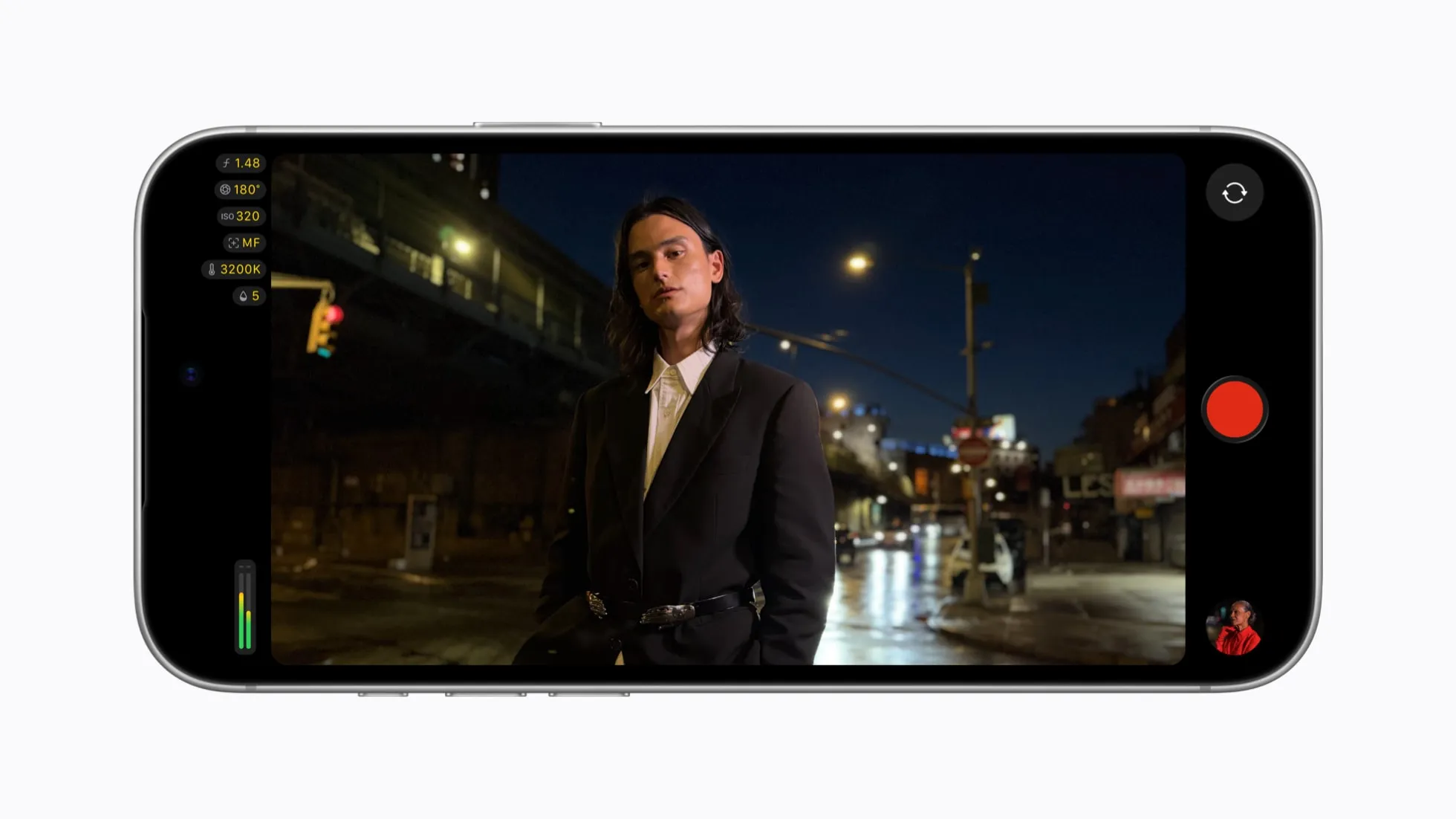
Switch to Video mode before stepping away. There's no way to change camera modes, switch lenses, or adjust zoom via AirPods once you've positioned the shot, per Popular Science. Choose your lens, mode, and framing before you move.
-
Use your configured gesture to start recording. Use it again to stop. The AirPods function as a wireless record button, per MacRumors.
Camera Remote is intentionally minimal: one trigger, no viewfinder preview, no lens switching. For solo or small-group creators who need to start and stop a recording without touching the phone, those constraints are manageable. For anything requiring real-time control from a distance, Apple Watch Camera Remote is still the more capable tool.
Troubleshooting: if Camera Remote isn't appearing or working
Camera Remote doesn't appear in your AirPods settings
- Confirm your AirPods model is supported (AirPods 4, AirPods Pro 2, AirPods Pro 3, AirPods Max 2 only). The setting won't appear on any other model, per Apple Support
- Confirm your iPhone or iPad is running iOS 26 or iPadOS 26, via Settings → General → Software Update, per Popular Science
- Confirm your AirPods are connected and actively paired to the device you're checking. The Camera Control section only appears when your AirPods are live on that device
The stem press isn't triggering anything in the Camera app
- Confirm Camera Remote is set to Press Once or Press and Hold, not Off, per 9to5Mac
- Confirm your AirPods are in your ears. Ear-detection sensors must register them as worn. The feature does not function when AirPods are held in hand, resting on a surface, or only partially inserted, per Popular Science
- Confirm you're in a supported app. Camera Remote works with Apple's Camera app and compatible third-party camera apps, but not every camera app supports it, per Apple Support
You can't select AirPods as the camera microphone
Using AirPods as a camera microphone isn't available in all countries or regions, including the EU, per Apple Support. If the option doesn't appear in Control Center, regional restrictions are the likely cause, not a setup error.
Bonus: using AirPods as a microphone while shooting video
Using AirPods as a camera microphone isn't available in all countries or regions, including the EU, per Apple Support. If the option described below doesn't appear, that's why.
Steps to route mic input through AirPods:
-
Open the Camera app in Video mode.
-
Swipe down from the top-right corner to open Control Center. Tap the green camera/mic privacy bar at the top of the screen.
-
Tap Audio Input, then tap your AirPods by name to select them, per Popular Science.
-
Optionally select a mic mode: Automatic, Standard, Voice Isolation, or Wide Spectrum. Voice Isolation filters ambient noise and focuses on the speaker's voice, per Apple Support.
Alternate path: Set AirPods as the default system mic via Settings → Sounds & Haptics → Input → [Your AirPods name]. This makes them the default across all apps, not just camera sessions.
Apple pairs Camera Remote with upgraded mic processing. AirPods 4, Pro 2, and Pro 3 use H2 chip-based beamforming and computational audio that Apple describes as studio-quality, per Apple Newsroom. No independent audio benchmarks are available, but for a solo creator recording without a dedicated lapel mic, AirPods can be a better practical option than relying on the iPhone mic when you're a few feet away. With AirPods 4, Pro 2, and Pro 3, you can also choose which earbud, left or right, acts as the active mic input, per Apple Support.
What's set up, and when to use Apple Watch instead
With Camera Remote active, compatible AirPods function as a wireless shutter and record trigger for the iPhone Camera app and supported third-party apps. Group photos, solo video, awkward angles anything where reaching back to touch the phone would ruin the shot or shake the frame.
The limits are real but narrow:
- No lens switching or mode changes once you've stepped away. Configure everything before you move, per Popular Science
- One existing gesture is displaced while any camera app is open: media controls if you chose Press Once, or Siri and listening mode switching if you chose Press and Hold, per Apple Support
- AirPods must be worn, not just connected. Ear detection is required, per AppleInsider
Creators who need a live viewfinder preview, remote lens switching, or full camera control at distance should stay with Apple Watch Camera Remote. For everyone else anyone who wants a remote shutter without carrying a second device Camera Remote does the job with hardware already in your ears.



Comments
Be the first, drop a comment!