



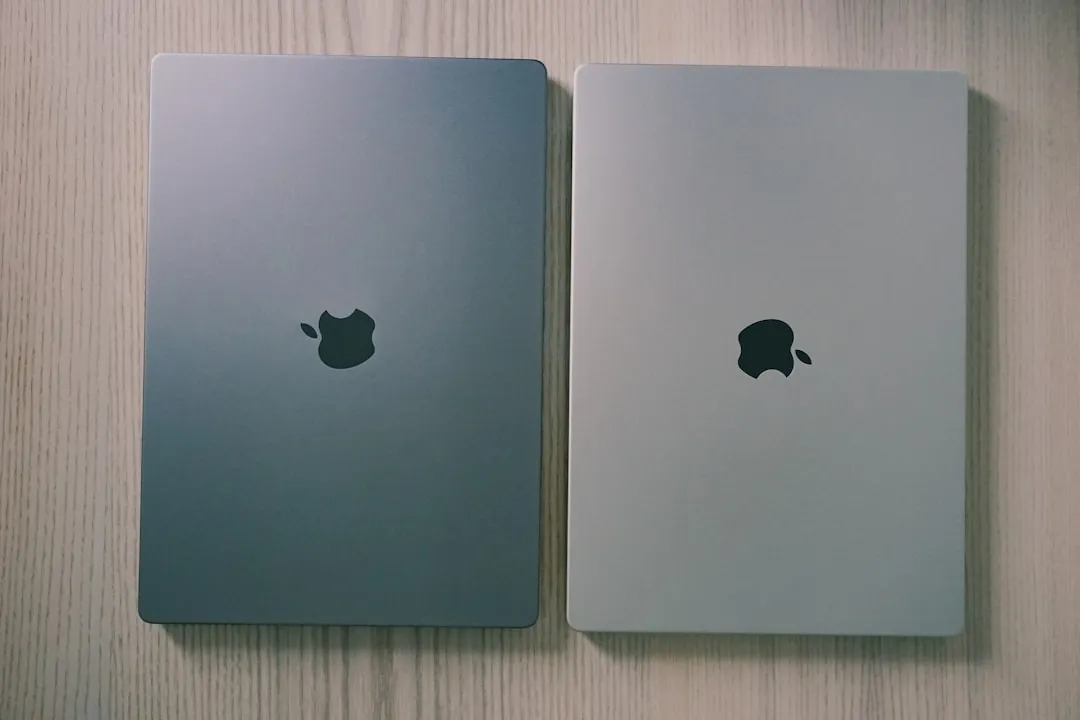
My return to running two Macs has been one of those tech decisions that just clicked. After years of wrestling with single-machine limitations and the constant dance of choosing between portability and power, I found myself gravitating back to a dual-Mac setup—and honestly, it's been a game-changer. The ecosystem integration between modern Apple silicon machines makes this approach far more seamless than the challenging PowerPC and Intel laptop days, and the productivity gains have been substantial. What started as an experiment in workflow optimization has become my preferred way to balance the demands of both stationary deep work and mobile productivity.
Why the dual-Mac approach actually makes sense now
Here's the thing about modern Apple devices—they're designed to work together in ways that would have seemed almost magical just a few years ago. The modern dual-Mac experience is fundamentally different from earlier generations, primarily due to Apple's ecosystem maturation. Today's machines benefit from features like Universal Control, which enables seamless control across multiple devices with a single keyboard and mouse, eliminating the traditional friction of managing separate systems.
What's really impressive is how comprehensive this integration has become. The connectivity extends beyond basic features—many current Macs support using an iPad as a secondary display (via Sidecar or AirPlay to Mac); check device compatibility, creating flexible multi-screen environments regardless of your primary machine choice. But perhaps most importantly for daily workflow, iCloud synchronization handles files and settings automatically, making the transition between machines nearly invisible for most tasks.
Take a real-world scenario: you're writing a document on your desktop Mac when a meeting gets moved up. With the dual-Mac setup, you grab your MacBook, and within seconds you're continuing exactly where you left off—same document, same settings, even the same browser tabs. It's this seamless handoff that transforms two separate computers into what feels like one flexible computing environment.
The desktop-laptop balance that transformed my workflow
The beauty of the two-Mac lifestyle lies in how it lets you optimize each machine for its strengths rather than forcing compromises. My current setup pairs a desktop Mac for intensive work with a MacBook for mobility, mirroring successful configurations others have adopted throughout the Apple community.
One particularly effective approach that caught my attention involves using a Mac mini for personal projects while dedicating a MacBook Air to professional tasks, creating clear boundaries between different types of work. This separation isn't just about organization—it's about creating mental spaces that help you stay focused on the task at hand.
But here's where the productivity gains become tangible. This separation enables multitasking approaches that single-machine users simply can't access. As one user noted when describing their dual-machine productivity gains: "Gotta multi task," "Gets things done 3 times quicker". While that might sound like hyperbole, there's genuine truth to how dedicated machines eliminate the context switching that plagues single-computer workflows—no more closing video editing projects to hop on video calls, or shutting down development environments to free up resources for design work.
The flexibility becomes apparent in unexpected ways too. For instance, MacBook Air usage naturally increases when traveling or working in heated rooms rather than unheated spaces, demonstrating how environmental optimization extends beyond just the digital workspace.
Making the technical setup work seamlessly
Now here's where I expected the most friction, but the practical aspects of running two Macs have become surprisingly straightforward with the right approach. The key is understanding which features handle the heavy lifting for you and which require a bit of manual setup.
Screen sharing provides reliable remote control capabilities between machines, which is perfect for accessing your desktop Mac from anywhere your laptop can connect to the internet. This excels for checking on long-running processes or accessing files you didn't sync to the cloud. Meanwhile, external monitors with integrated KVM functionality solve the local workspace challenge—just a button press to move between machines while keeping your keyboard, mouse, and display setup intact.
What's particularly compelling about this approach is the cost accessibility. Both entry-level machines remain affordable—a base Mac mini has an MSRP of about $599 (refurbished/used models can be lower), while Used or refurbished M1 MacBook Air models can often be found under $900; new/retail prices differ. That puts a solid dual-Mac setup within reach for many users who might assume they need to choose one high-end machine instead.
The configuration insight that made the biggest difference for me: Spaces configurations don't sync automatically, but consistent naming and organization patterns across devices create a unified experience. It takes a bit of upfront work to establish these patterns, but once you do, switching between machines feels natural and intuitive.
The productivity gains that make it worthwhile
Living with two Macs has delivered measurable improvements to my daily workflow, with the biggest benefit being the elimination of resource conflicts. When your video export is running on the desktop machine, your laptop remains completely available for emails, research, or other tasks—no more waiting for intensive processes to finish.
What surprised me most was how quickly these benefits became apparent. Most users notice immediate benefits within the first week, while full workflow optimization typically occurs after 2-3 weeks of consistent use and minor adjustments. That timeline matches my experience perfectly—the initial setup felt beneficial right away, but the real productivity gains emerged as I developed consistent habits around which machine to use for which tasks.
The psychological benefits shouldn't be overlooked either. Having dedicated environments for different work modes creates clearer mental boundaries between projects and helps maintain better work-life separation when one machine stays in the office while the other travels home. Plus, there's the peace of mind that comes from redundancy—if one machine needs updates or develops issues, you're never completely offline.
Where this setup really shines
The two-Mac lifestyle works best when you can clearly define complementary roles rather than viewing them as redundant systems. Think of it as having a workshop and a mobile toolkit—each optimized for different scenarios but working toward the same goals.
This approach excels when you face genuinely demanding computational tasks alongside constant communication needs. Video editing while maintaining Slack conversations, running data analysis while attending virtual meetings, or managing server processes while working on documentation—these scenarios highlight where dedicated machines provide real value beyond simple convenience.
Bottom line: the real magic lies in how devices connect, sync, and extend each other's capabilities within Apple's ecosystem, creating a unified computing environment that adapts to your location and task requirements. For anyone considering this approach, start with a clear understanding of how you work and where the boundaries between different types of tasks naturally fall. The investment in time to set up proper synchronization and develop consistent workflows pays dividends in long-term productivity and reduced technical friction. Once you establish those patterns, you'll wonder how you ever managed with just one machine.






Comments
Be the first, drop a comment!