



![Watch SE 3 [GPS 40mm] Smartwatch with Starlight Aluminum Case with Starlight Sport Band - S/M. Fitness and Sleep Trackers, Heart Rate Monitor, Always-On Display, Water Resistant](https://m.media-amazon.com/images/I/61xkvg-RStL._AC_UY218_.jpg)
![Watch SE 3 [GPS 40mm] Smartwatch with Midnight Aluminum Case with Midnight Sport Band - S/M. Fitness and Sleep Trackers, Heart Rate Monitor, Always-On Display, Water Resistant](https://m.media-amazon.com/images/I/61ZTaGRrabL._AC_UY218_.jpg)
![Watch Series 11 [GPS 46mm] Smartwatch with Jet Black Aluminum Case with Black Sport Band - M/L. Sleep Score, Fitness Tracker, Health Monitoring, Always-On Display, Water Resistant](https://m.media-amazon.com/images/I/71FfI3kYFQL._AC_UY218_.jpg)
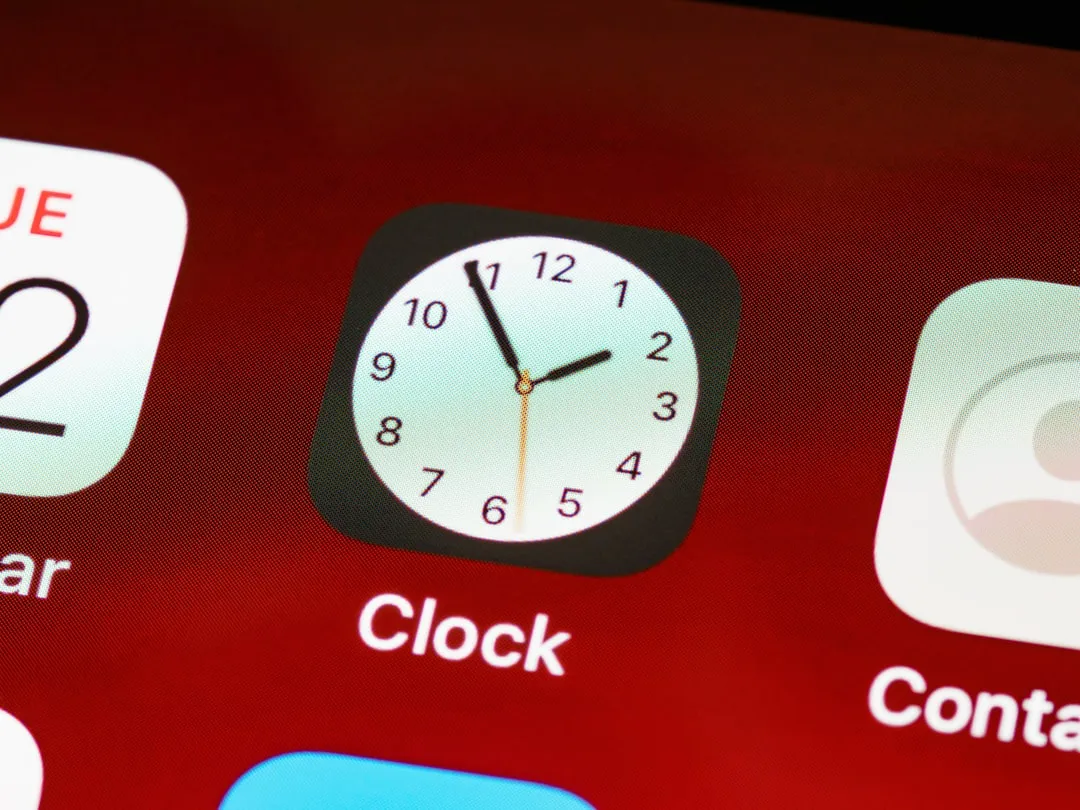
iOS 26.4 Always Play on iPhone Alarm Feature Explained for Apple Watch Users
Apple Watch owners who use Sleep Schedule have had one persistent annoyance: the iPhone stays silent at wake time. iOS 26.4, released today, addresses that directly with a new toggle called "Always Play on iPhone" that makes the Apple Watch sleep alarm play on iPhone simultaneously with the wrist haptic. The fix is opt-in, scoped only to Sleep Schedule alarms, and requires a specific setup to appear at all, according to 9to5Mac.
The toggle ships disabled by default. Users who want audible iPhone output at their Sleep Schedule wake time have to find it and turn it on themselves.
What the iOS 26.4 Always Play on iPhone alarm feature actually changes
When Sleep Schedule is configured and an Apple Watch is worn to bed, iOS routes the wake-up alert to the watch. That means wrist haptics at alarm time and no audio from the iPhone. Apple provided no option within Sleep Schedule settings to change that routing before this update, per 9to5Mac.
The workarounds users were left with were genuinely awkward. Removing the watch before bed meant losing sleep tracking data. Setting a separate manual Clock alarm on top of the Sleep Schedule meant maintaining two alarms independently, updating both whenever the wake time changed. Neither option was surfaced by Apple as a solution; they were just the least-bad alternatives.
With the new toggle enabled, both devices fire at the scheduled time. Apple's own description, as quoted by 9to5Mac, is straightforward: "When you wear your Apple Watch to bed, your alarm will play on your iPhone and Apple Watch." Audio on the phone, haptics on the wrist, at the same moment.
The name sounds broader than it is. This is not a system-wide change to how iPhone handles alarms. It applies only to Sleep Schedule alarms, those configured through the sleep feature in the Health or Clock app. Standard manual alarms set in the Clock app are completely unaffected, 9to5Mac notes. Anyone expecting their regular morning Clock alarm to behave differently after updating won't notice anything new. The scope is intentional: Apple is solving a specific routing decision it made for Sleep Schedule users, not revisiting how alarms work broadly.
It's also worth being clear about what the feature adds versus what it replaces. The Apple Watch haptic still fires. "Always Play on iPhone" doesn't shift the alarm from wrist to phone; it adds the phone back into the picture alongside the watch. For Sleep Schedule users who have found wrist haptics reliable, nothing about their setup changes unless they opt in.
Where to find the toggle and how to enable it
The setting doesn't live in the main Clock alarm list. It's inside the Sleep Schedule editing view, reachable through two paths, per 9to5Mac:
Health app: Browse → Sleep → Full Schedule & Options → select a schedule
Clock app: Alarm tab → edit a Sleep Schedule alarm
Inside the editor, the "Always Play on iPhone" toggle is visible and switched off. Turning it on applies the change to that schedule's alarm going forward. Updating to iOS 26.4 alone does nothing; the toggle has to be flipped deliberately.
The option won't appear for everyone. It shows up only for users who have both an active Sleep Schedule configured and a an Apple Watch paired to the device, 9to5Mac reports. Current reporting has not specified which Apple Watch models qualify as compatible. No Sleep Schedule, no Apple Watch, and the toggle simply isn't there. There's no system-level preference elsewhere, nothing in Accessibility or Sounds settings. The feature is scoped to the sleep workflow and surfaces only within it.
For anyone specifically trying to make the Apple Watch sleep alarm play on iPhone at wake time, this is the only route Apple has provided.
What to check before relying on it
A few things the current reporting leaves open are worth flagging before this becomes anyone's primary wake-up method.
How "Always Play on iPhone" interacts with the iPhone's mute switch, active Focus modes, or Bluetooth audio routing hasn't been documented in coverage so far, per 9to5Mac. Those are meaningful variables. A Focus configuration that suppresses audio during sleep hours, or a mute switch flipped before bed, could interact with the new toggle in ways that haven't yet been confirmed either way. Standard Clock alarms in iOS have historically overridden the mute switch, but whether that behavior extends to this new Sleep Schedule toggle is an open question.
The practical implication: don't treat this as a verified failsafe for a critical wake-up without running a test first. Set it up, confirm iOS 26.4 is installed, then check your Focus settings and mute switch state. One deliberate dry run the night before matters more than assumptions about how it should work.
For Apple Watch wearers who have missed audible alarms relying solely on wrist haptics, those who move around during sleep and lose wrist contact, or heavy sleepers who've found a buzz insufficient, the toggle addresses exactly that gap. The feature makes it easier for users with a Sleep Schedule and a compatible Apple Watch to get reliable audio at wake time, according to 9to5Mac.
For people whose haptic-only wake-ups have been working without issues, there's no reason to change anything. The update ships with existing behavior intact. The toggle being off by default signals that Apple is keeping the watch-first routing as the standard and offering iPhone audio as an explicit choice for users who want it, not a correction to something that was broken.
The short version
"Always Play on iPhone" targets a specific group: Apple Watch owners using Sleep Schedule who want audible iPhone audio alongside wrist haptics at wake time. For that group, it closes a gap that had no clean official solution before this update, per 9to5Mac.
Standard Clock alarms are untouched. The toggle is disabled by default. It won't appear without both an active Sleep Schedule and a compatible Apple Watch paired to the device.
The steps are simple: confirm iOS 26.4 is installed, open the Sleep Schedule editor in the Health or Clock app, and flip the toggle. Before the first real morning test, verify that your Focus configuration and mute switch won't suppress the audio. That check takes two minutes and could save a missed alarm.




Comments
Be the first, drop a comment!