



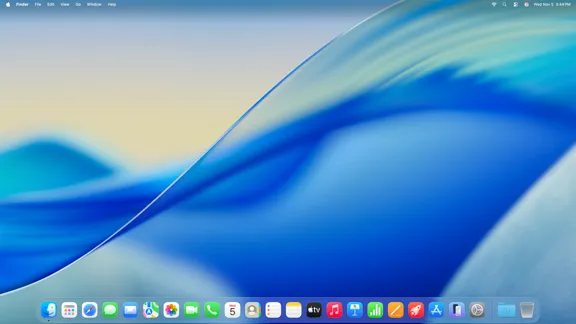
This guide walks through how to use Visual Intelligence on macOS Golden Gate: what your Mac needs before turning it on, the keyboard shortcuts that trigger it, the in-app option built into Siri's systemwide context menus, and which questions are actually worth asking it.
Visual Intelligence has lived on the iPhone since the iPhone 16, and Golden Gate brings the same idea to the Mac, letting you select something onscreen and ask Siri about it instead of typing out a search from scratch.
Hands-on testing from MacPaw and AppleInsider points to one verdict worth knowing before you try it: treat it as a fast way to get a starting answer, not a research tool. Nothing in that testing suggests copying its output into a report, a health decision, or anything else you'd need to rely on without checking.
The steps below use Apple's shipping macOS 27 documentation where available and keep earlier beta testing clearly separated from what Apple now confirms.
What Your Mac Needs Before Visual Intelligence Works
Visual Intelligence requires macOS 27 Golden Gate and Siri AI on an Apple Intelligence-compatible Mac.
For most Macs, that means an M1 chip or newer. Apple's current compatibility list also includes the A18 Pro-based MacBook Neo.
Golden Gate is the first macOS release in the Apple Silicon transition to drop Intel Macs entirely.
Visual Intelligence isn't a standalone app you install separately. It's part of Siri AI and Apple Intelligence, and Siri AI must be turned on before you can use it.
After updating, open System Settings > Siri, choose Try Siri AI (Beta), and follow the setup prompts. Apple says joining Siri AI currently puts you on a waitlist, with download beginning automatically after access becomes available.
If Siri is currently off, turn Siri on first.
Apple also lets you turn Siri AI back off. Under System Settings > Siri, choose Turn Off Siri. You can then turn Siri back on and select Use Siri Classic if you don't want the Siri AI experience.
That makes an important distinction from the underlying Apple Intelligence model downloads that may occupy storage after a Golden Gate installation: Siri AI itself is optional.
Region matters too. Siri AI is currently available in English and varies by platform and region.
Mac users in the EU aren't excluded. Apple says Siri AI works on macOS 27 Golden Gate in the EU when the Apple Account region is set to an EU country and both the device and Siri languages are set to English.
It doesn't currently work for users whose Apple Account region is mainland China.
Free up some disk space before updating. Ars Technica's Golden Gate testing measured about 14GB used by Apple Intelligence on an M1 MacBook Air and MacBook Neo, and 22.42GB on an M3 MacBook Air with the larger on-device model.
An M1 MacBook Air upgraded from Tahoe with Apple Intelligence previously disabled needed about 17GB more storage after the update.
Those figures come from a small group of test machines, not an Apple-published minimum. Treat roughly 15GB to 25GB as a practical planning buffer rather than a guaranteed requirement.
You also don't need Apple's newest hardware specifically for Visual Intelligence.
Apple's more demanding AFM 3 Core Advanced model requires an M3-family Mac or newer with at least 12GB of unified memory. Apple currently uses that model for features including more expressive Siri voices and improved dictation.
Visual Intelligence itself doesn't carry that higher requirement.
So before you start: confirm you're on Golden Gate with an Apple Intelligence-compatible Mac, make sure Siri AI is enabled, and leave some storage headroom for Apple's models.
How to Use Visual Intelligence on Mac With Command-Shift-6
Use this shortcut when you want precise control over a particular piece of the screen, such as a paragraph, product photo, event listing, or line of text.
Apple now documents the workflow directly in its Mac User Guide:
Press Command-Shift-6.
Click and hold the mouse or trackpad, then drag over the portion of the screen you want Visual Intelligence to examine.
Type a question into the Ask Siri field that appears.
Choose another suggested action if one appears. Apple gives "Look up nutrition" on a food image as one example.
Click Image Search if you want to look for similar images on the internet.
This is the better shortcut when the relevant content is only one part of a larger window.
How to Analyze a Whole Window With Command-Shift-Space
Golden Gate also has a dedicated shortcut when you want to give Siri an entire window instead of drawing a region manually.
Press Command-Shift-Space.
Select the window you want Siri to examine.
Enter your question in the Ask Siri field, choose an available action, or use Image Search.
Apple's macOS 27 release notes identify Command-Shift-Space as the dedicated Visual Intelligence shortcut, while its Mac User Guide explains the difference between it and Command-Shift-6.
The distinction is simple: Command-Shift-Space selects a window; Command-Shift-6 selects a specific portion of the screen.
How to Use Visual Intelligence From the Screenshot Toolbar
The familiar screenshot interface is another route.
Press Command-Shift-5 to open the macOS screenshot toolbar. Current hands-on coverage from 9to5Mac confirms that Golden Gate adds a Visual Intelligence option to that interface.
Choose Visual Intelligence, select the content you want to analyze, then ask Siri or use Image Search.
The toolbar is useful when you're already accustomed to the Mac screenshot workflow. For speed, the two dedicated shortcuts above are easier to remember once you know which one selects a window and which selects a region.
Ask Siri About Something Without Taking a Screenshot
You don't always need the Visual Intelligence capture interface.
Siri AI has systemwide onscreen awareness. Apple's current documentation says you can activate Siri and ask directly about content already visible on the screen.
You can also select supported content, Control-click it, and choose Ask Siri.
For example, Apple says you can select two documents in Finder, Control-click one, choose Ask Siri, and ask which quarterly report grew faster.
That systemwide context-menu approach is broader than a Safari-only feature. It can apply to supported text, images, files, and other onscreen content depending on the app.
When you're already looking at the exact thing you want to ask about, this can be quicker than opening the screenshot interface first.
Image Search and Privacy: What Apple Now Confirms
Image Search is the more outward-facing part of the workflow. Apple says clicking it searches the internet for images similar to the content you've selected.
Earlier beta testing described Google results appearing through Image Search, but Apple's current Mac documentation doesn't name a specific search provider. It's safer to describe the shipping behavior as an internet image search rather than assume the provider will always be Google.
Ask Siri has clearer privacy documentation now than it did during the beta.
Apple says Apple Intelligence first determines whether a request can be handled on the device. More complex requests can be sent to Private Cloud Compute.
Apple says data sent to Private Cloud Compute is used only to fulfill the request, isn't made accessible to Apple, and isn't retained after the response is returned.
Siri can also go to the web when a request needs current information.
On Mac, Apple lets you see whether requests were sent off the device through System Settings > Privacy & Security > Apple Intelligence & PCC Report.
Those privacy protections don't make it sensible to feed every sensitive document into an AI tool. Avoid selecting passwords, authentication codes, highly sensitive financial records, or other material that doesn't need to be part of the request.
But the reason is ordinary data-minimization practice, not because Apple has left the basic Siri AI processing model undocumented.
What Visual Intelligence Handles Well
Apple positions Visual Intelligence around a few straightforward tasks: asking questions about something visible, searching for similar images, and taking actions based on recognized content.
Earlier MacPaw testing offers some practical examples.
A tester used it to identify a guitar amplifier and find a price, retrieve restaurant opening hours, translate Spanish text, summarize onscreen content, and turn event information into a Calendar entry.
Those are individual test results rather than accuracy benchmarks, but they match the kind of tasks Apple itself demonstrates.
Apple's own examples include:
Explaining a diagram from class notes.
Comparing information in two selected documents.
Identifying a place and finding directions.
Looking up nutritional information from a food image.
Adding recognized event details to Calendar.
The pattern worth copying is to use Visual Intelligence for tasks where the answer is easy to verify.
A price can be checked against the retailer. Business hours can be confirmed on the company's site. A translation can be checked against context.
That makes it useful as a shortcut to the first answer, not as a replacement for verification.
When to Use Visual Intelligence on Mac, and When to Double-Check It
AppleInsider's pre-release testing described Visual Intelligence's answers as no more inherently reliable than other AI chatbot output, while MacPaw similarly recommends checking important answers elsewhere.
Nutrition was one of the rougher areas during beta testing. AppleInsider reported inconsistent food recognition and different results from repeated attempts with the same image.
Those tests were conducted before the final Golden Gate release, so don't assume every beta problem remains unchanged. The underlying warning still holds: AI-generated nutritional information isn't medical or dietary guidance.
Pre-release testers also reported limitations around copying displayed results and slower-than-expected responses. Those observations are useful context, but they're not documented by Apple as permanent limitations of the shipping version.
Test the current build before assuming either still applies.
A practical rule:
Use it directly: Quick translations, summarizing onscreen text, identifying an object or place, comparing visible information, or creating a Calendar event from clearly readable details.
Double-check before acting: Prices, opening hours, directions, dates, product details, or anything else where a wrong answer could waste money or time.
Don't rely on it alone: Nutrition or health decisions, financial decisions, legal interpretation, or material that needs a citable source.
Keep highly sensitive material out unless necessary: Passwords, authentication codes, private financial records, and similar information don't belong in a Visual Intelligence request simply because the feature can analyze them.
What to Do Now
If your Mac runs macOS 27 Golden Gate and supports Apple Intelligence, first make sure Siri AI is enabled under System Settings > Siri.
Then try the two official shortcuts on something low-stakes:
Command-Shift-Space to select a window.
Command-Shift-6 to select a specific region.
If you prefer the familiar screenshot toolbar, Command-Shift-5 gives you another route into Visual Intelligence.
Start with a menu, product page, event listing, image, or paragraph in another language. That will tell you quickly whether the feature fits your workflow.
Don't treat the first answer as final. Verify anything involving money, hours, health, directions, or other consequential details against a reliable source.
And if you don't want Siri AI at all, Golden Gate still lets you turn it off and switch back to Siri Classic.













Comments
Be the first, drop a comment!