



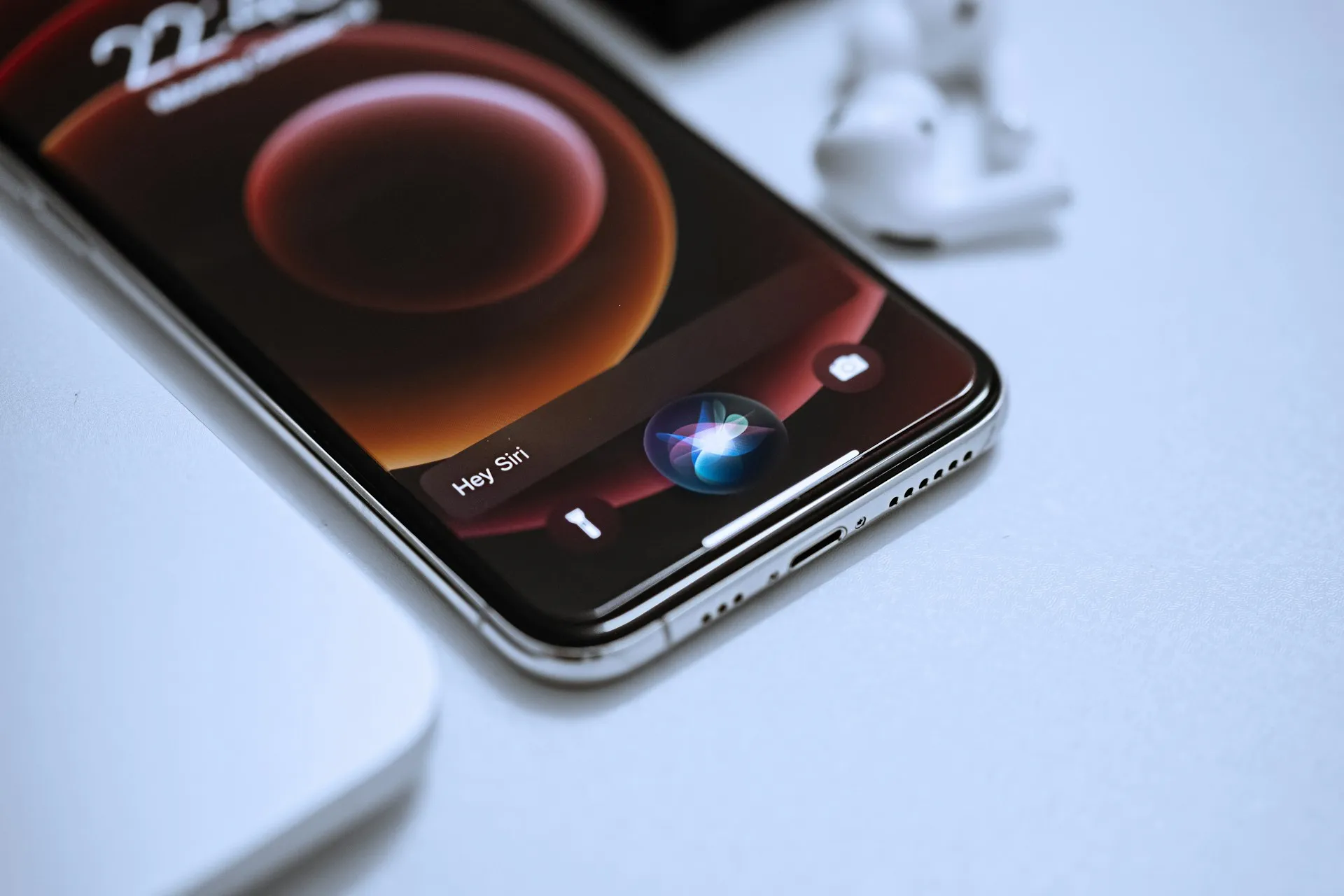
After a month of daily use, MacStories described a visual-identification task that would have taken 20 to 30 seconds in ChatGPT but took roughly five seconds in Siri AI. The difference was workflow friction: Siri mode was built directly into the Camera app, eliminating the steps of taking a photo, opening ChatGPT, and uploading the image.
Learning how to use Siri AI well means understanding that trade. Apple introduced it at WWDC26 as an "entirely new version of Siri" built on the company's next-generation Apple Intelligence architecture. It became available in the iOS 27 public beta in July 2026 and remains unfinished beta software.
Siri AI's real edge is system-level access, something neither ChatGPT nor Claude has on iPhone, because neither OpenAI nor Anthropic controls an operating system. That advantage ships bundled with beta instability and thin third-party support right now. This guide sorts the workflows worth adopting today from the ones still worth double-checking before you trust them.
These tips are written primarily for iPhone owners running the iOS 27 beta. One section below covers what changes if you also use a Mac, iPad, or Vision Pro, since Siri AI's conversation history and several features extend across those devices too.
Before you start
A few things determine whether any of this works at all, and it's worth running through them before you touch a single command.
Confirm eligibility for Apple Siri AI in iOS 27. You'll need an iPhone 16 or later, or an iPhone 15 Pro or Pro Max. For cross-device use, add an M1-or-later iPad or Mac, an iPad mini with the A17 Pro chip, an Apple Vision Pro, or a newer Apple Watch paired with an eligible iPhone.
Enroll in the iOS 27 public beta and turn on Apple Intelligence. The new Siri AI features only appear once both are active. A phone still running an older release won't show any of this.
Set your device language to English. Apple Intelligence broadly supports 16 languages, but Siri AI itself launched English-only, with other languages arriving later. Don't assume your existing Apple Intelligence language setting covers Siri AI, because it doesn't.
Check your region if you're in the EU or China. EU users currently get Siri AI on macOS and visionOS, but access on iOS, iPadOS, and watchOS is delayed because of an unresolved Digital Markets Act dispute with the European Commission. It's also unavailable in China pending regulatory approval.
Once those boxes are checked, the workflows Apple demonstrated or MacStories found promising included: asking Siri about whatever's on your screen, pulling a specific subset of Reminders, bundling two routine requests into one command, and starting a conversation on one device before resuming it on another. Everything below builds from there.
Launch and ask: the new entry points
Knowing how to invoke Siri AI and how to feed it context you'd otherwise have to type out is the foundation everything else depends on.
1. Swipe down from the Dynamic Island. This opens a unified Spotlight/Siri interface, so the same gesture now handles conventional app and file search as well as AI questions. There's no separate app to remember.
2. Ask directly about what's on your screen. If you're looking at a restaurant's website, try "does this place take reservations?" Siri AI reads the onscreen content, layers in web knowledge, and answers without you switching apps.
3. Search your own content by description, not filename. Try "pull up the PDF about the lease that Jenny sent me last week." MacStories didn't isolate this exact query as the cause of its five-second win over ChatGPT, but it credited this kind of device-level, personal-context search generally as the reason Siri AI can beat a chatbot on speed for tasks like it.
Because this is the first tip that touches personal data, Apple's specific privacy claim is worth stating plainly: when these requests route through Private Cloud Compute, the company says the personal data involved isn't stored or made accessible to Apple or anyone else. That's a more concrete statement than Apple's usual "privacy-first" framing, and it applies directly to the on-screen and personal-search features above.
How to use Siri AI commands for everyday tasks
This section covers the tasks repeatable enough that MacStories could actually put them through a month of daily testing.
4. Bundle related requests into one command. Something like "set a timer for 10 minutes and another for 20" now works as a single instruction, because the large language model behind Siri AI can execute multiple actions from one request.
5. Ask Reminders questions that span multiple sections. MacStories said section-based retrieval began working in iOS 27 beta 3, although one test still included a task from the wrong section. It's far better than in early betas, though still not perfect, so glance at the results before trusting anything time-sensitive.
6. Have Siri read and summarize your notifications aloud, and customize how it sounds doing it. MacStories found the new expressive voice engine handles a backlog of notifications well, sparing you the scroll. If the pace feels off, this is one of the few places Apple lets you customize Siri AI directly: you can adjust both the voice's expressiveness and its speaking pace until it fits how you actually want to hear things.
7. Use Siri mode in Camera for quick, concrete tasks. Point it at a receipt and say "split this with Alex using Apple Cash," or point it at a plate of food to pull nutritional information. Both are built-in Siri AI Camera actions that Apple announced at launch.
Siri AI beyond iPhone: cross-device continuity
If you also use a Mac, iPad, or Vision Pro, the same assistant follows you across them, with conversation history synced privately rather than starting fresh on each device.
8. Open the dedicated Siri app to pin and resume conversations. Threads sync privately through iCloud, so a conversation started on Mac can continue on iPhone, iPad, Apple Watch, or Vision Pro.
9. Try Visual Intelligence on iPad or Mac too. It's new to those platforms this release, letting you ask questions about or take action on whatever's onscreen the same way you would on iPhone.
What not to trust yet
One consolidated set of caveats, so the warnings don't repeat scattered through everything above. Read this before relying on Siri AI for anything consequential.
10. Check third-party app support before assuming Siri AI can act on it. Developers have to adopt new App Intents capabilities first, and MacStories reports support is currently sparse. MacStories' Federico Viticci said he was optimistic that developers adopting the new App Intents features would have their apps appear in Siri AI by September. To verify: after asking Siri to act in a third-party app, open that app directly and confirm the action actually happened.
11. Expect known beta bugs. Stuttering conversation threads, typing delays with broken autocorrect, and empty "Sources" pop-ups on web-based answers have all shown up in MacStories' testing. None of that is unusual for a three-week-old public beta, but it's better to expect it than get caught mid-task.
12. Double-check anything high-stakes. Messages sent, purchases made, files changed. MacStories found Siri AI sometimes hallucinates abilities it doesn't have and, in the outlet's words, "frequently just doesn't work." Confirm results in the source app rather than taking Siri's own confirmation at face value.
Where this goes next
Use Siri AI now for the things it already does well: Apple-first retrieval across your own files, screen-context questions, timers and reminders, and notification catch-up. Save anything routed through a third-party app, or anything with real consequences, for manual confirmation until support matures.
Third-party App Intents adoption is the number to watch. MacStories' Federico Viticci expects meaningful movement by September, as Apple approaches the fall OS releases, although Siri AI itself remains scheduled as a beta later in 2026, and that's the point at which Siri AI stops being an Apple-app assistant and starts being a genuine daily driver.
Treat every tip above as accurate for this specific beta build. Behavior will shift before Siri AI ships broadly later this year, so it's worth checking back in once it does.







Comments
Be the first, drop a comment!